Videos
Video templates
There are 32 templates and they are not all the same kind of thing. Seventeen of them pin an exact, ordered list of scenes, so the video is the same shape every time. The other fifteen pin a story arc and let the engine resolve which layout fills each role, which produces variety between runs.
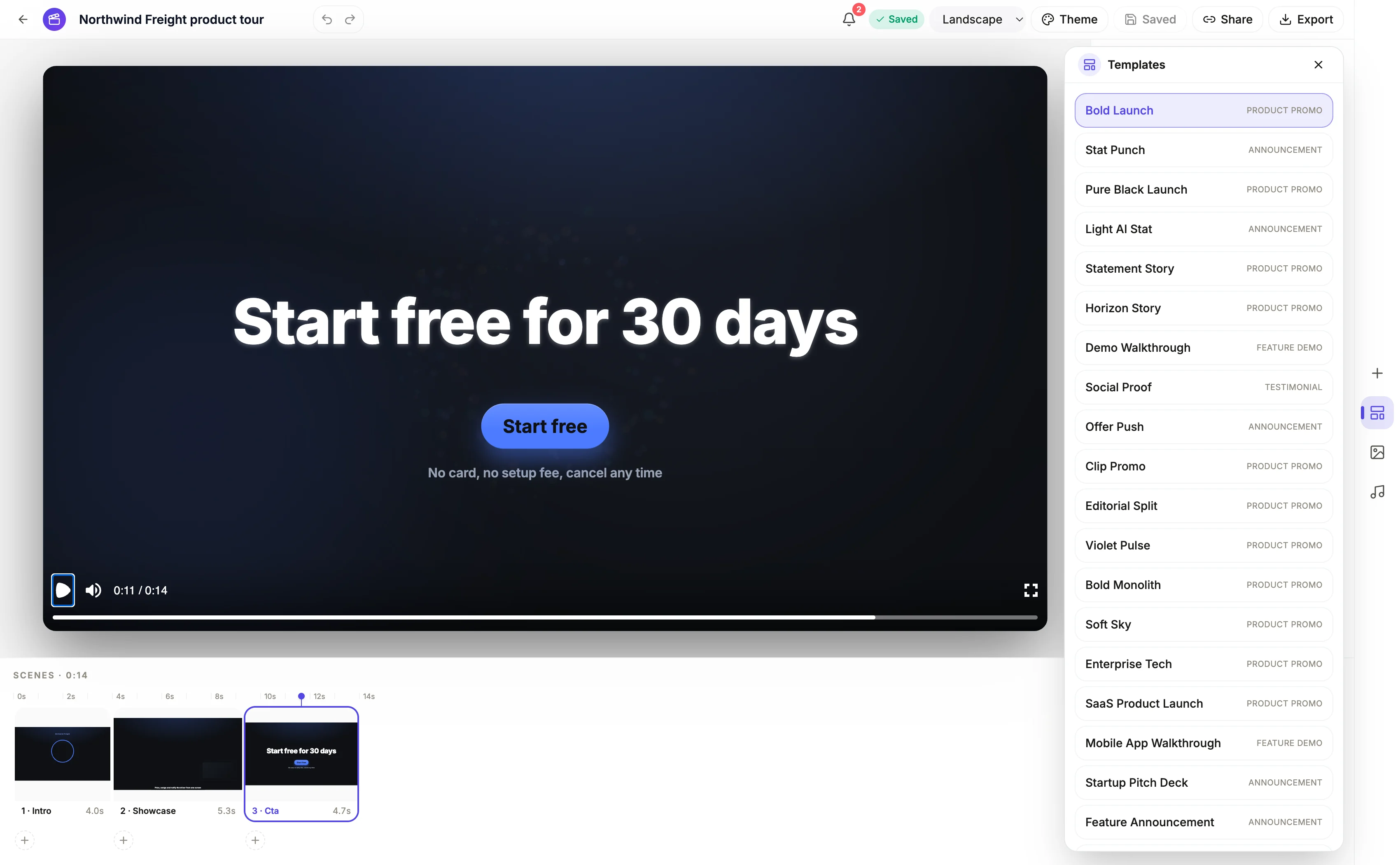
What a template actually pins
Six things. A name and a role such as product promo, feature demo, testimonial or announcement. A look, which is the palette, typeface and light or dark mode. A default format, either vertical or landscape. A flow, which is the arc of scene roles. A style pack, which decides which layouts each role can resolve to. And a frame rate, which is 30 on every one of them.
Arc templates leave room
Fifteen templates name a flow rather than a scene list. Bold Launch and Pure Black Launch use the launch arc of intro, feature list, showcase and close. Stat Punch opens on a number. Statement Story and Horizon Story build through a claim. Demo Walkthrough opens with a brand sting and a question before showing the interface. Social Proof stacks a stat grid, a testimonial and a logo wall. Offer Push runs statement, offer, countdown, close. Each flow also carries a short cut and a long cut, so on the non AI path the length setting decides which roles survive.
Scenario templates pin the shape exactly
The other seventeen name their scenes outright, in order. They cover SaaS Product Launch, Mobile App Walkthrough, Startup Pitch Deck, Feature Announcement, E-commerce Sale, Customer Case Study, Agency Portfolio, Webinar or Event Promo, Why Switch, AI Tool Demo, Cinematic Launch, Bold Promo, Cinematic Story, Bold Brand Showreel, Bold Story, Full Image Review and Guide Tutorial Review. Pick one of these when you want the structure predictable rather than interpreted.
The style pack behind the template
Every template also names a style pack, and in practice they all use glass, which is the only pack covering all fifty two roles across 433 layout choices. Three others exist in the engine: stage and bold each map about twenty roles to a single layout, and guide covers four. The scenario templates whose names start with stage, bold or guide reach into those packs by naming their scenes directly.
How it works, in three steps
Step 1
Let the brief choose, or pick one
Templates are scored against your brief and the best fit is applied. In the builder the templates panel lists all 32 to switch between.
Step 2
Change the look separately
A template's look is a starting point, not a lock. Palette, typeface and light or dark mode are all independent settings afterwards.
Step 3
Add and remove scenes freely
Once generated, the timeline is yours. Switching template does not stop you inserting a scene from any role in the library.
The full walkthrough with screenshots is in the guide Make a promo video with AI voiceover.
Limits worth knowing
- Every template runs at 30 frames a second. There is no frame rate choice.
- Templates declare all three canvases including square, but square is hidden from the pickers, so a template's square variant is unreachable.
- A scenario template's scene list is fixed, so asking it for a different structure means editing the timeline afterwards.
- Switching template in the builder replaces the scene set, so copy written into the old scenes does not follow it across.
Questions people ask
Do I have to choose a template?
No. Templates are scored against your brief and one is applied automatically. Choosing is useful when you already know the shape you want, or when the automatic pick keeps landing on the wrong arc.
Why do two runs of the same brief look different?
Because when you generate with AI, the model returns its own ordered list of roles and layout variants, and that list replaces the template's flow. The template still supplies the look, the format and the starting point, but the scene sequence comes from the director.
Can I save my own template?
Not as a template, and there is no duplicate action for a finished video either. What carries over is the brief: keep the one that produced a video you liked and generate from it again with the new subject, or edit the finished video's copy in place after exporting the version you want to keep.
Does the template decide the colours?
It suggests them through its look, which pairs a palette with a typeface and a light or dark mode. All three are editable afterwards from the theme panel.
Make your own video
The button opens the generator with this use case already described. Change the wording to match yours, generate, then edit anything you like.
Create a video with OneCraftRelated pages
Video scene types
A scene here is not a slide, it is a role. Fifty two roles exist, each with a written definition of what it shows and when it should be used, and behind them sit 410 concrete layouts. The director picks a sequence of roles first, then chooses one layout per role.
SaaS demo video maker
The failure mode in software demo video is specific and almost universal. It walks the navigation in menu order, here is the dashboard, here is settings, here is integrations, and nothing is ever produced. The viewer finishes it unable to say whether the thing would do their job.
Local business video maker
The best venue videos open on the thing being done, not the sign over the door. A feed autoplays muted and scrolls in about a second, so the first frame has to be the food coming out of the pass, the bar being racked, or the chair being turned to the mirror.
More finished work of this kind is on the video examples hub.
Written and checked by the OneCraft team. Last checked .