How to
Create a quote with AI
Describe the job, give your prices, and get a priced quote with scope, terms and signature lines in under a minute. Then check the numbers and send it.
Proposals3 min readUpdated
This guide shows you how to create a quote with AI: describe the job, give OneCraft your prices, and get a finished quote with a pricing table, terms and signature lines.
A quote that arrives the same afternoon wins more often than a better one that arrives next week. So the slow part, turning your notes into a tidy document, is the part OneCraft does for you.
Open the generator and pick Quote
Open Proposals from the dashboard, click New proposal and choose Describe it. At the top of the page, switch the Proposal and Quote toggle to Quote. The heading changes to Create a quote and the button at the bottom becomes Generate quote.
In Describe the job, write what the client asked for, the way you would explain it to a colleague. Say what is included, what is not, and when it will be done. A few sentences are enough.
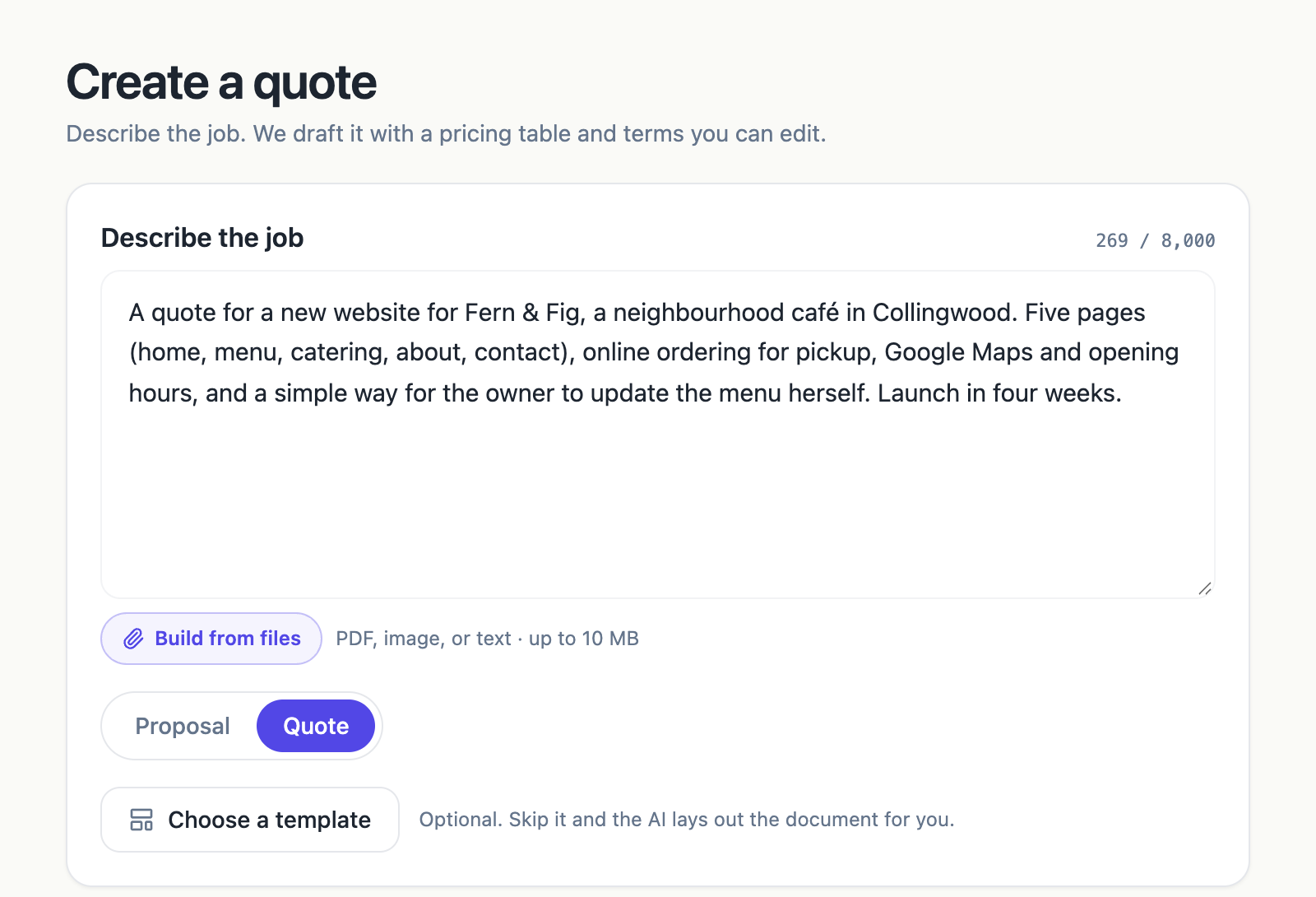 Describe the job in plain words and switch the toggle to Quote.
If the client sent you a brief, a floor plan or a photo of the site, click Build from files and attach it. OneCraft reads it and builds the quote from it. Files can be a PDF, an image or a text file, up to 10 MB, on the Starter plan and above.
Add the client and your prices
Click Options to open the details that make the quote accurate.
- Client: pick someone from your client list, or click New client to add them on the spot. Their name and company go on the cover. You can also add the client’s website.
- Deliverables: list what they get, separated by commas.
- Pricing hints: type your prices in plain words, such as “Design and build $4,800, menu photography optional $650”. Prices you give here land in the pricing table exactly as written. Mark an item as optional and it arrives as an extra the client can tick.
- Currency, Deposit % and Valid for (days): leave the deposit blank for no deposit. The quote is valid for 30 days unless you change it.
- Tone: Friendly, Formal or Confident.
Under Language and style you can write the quote in another language, apply one of your saved brand kits, and pick a colour palette.
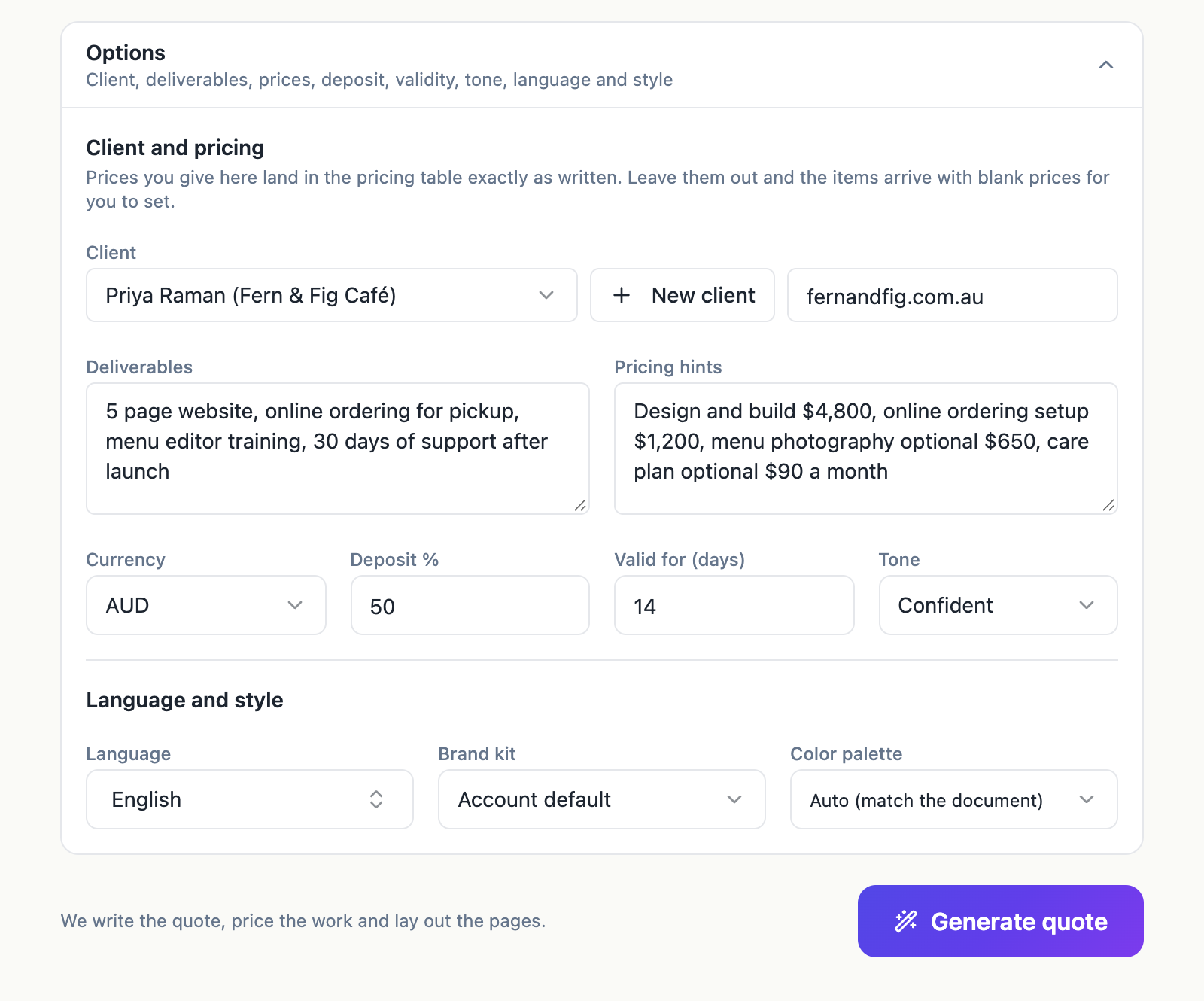 Your prices, deposit and validity go in Options. OneCraft uses them as given.
Start from a template if you like
Choose a template is optional. It opens a gallery of ready layouts, with a Quotes filter for trades call outs, printing, catering, tutoring, repairs and landscaping. Click Preview to see the pages, then Use this template to build on it. OneCraft still follows your description and prices.
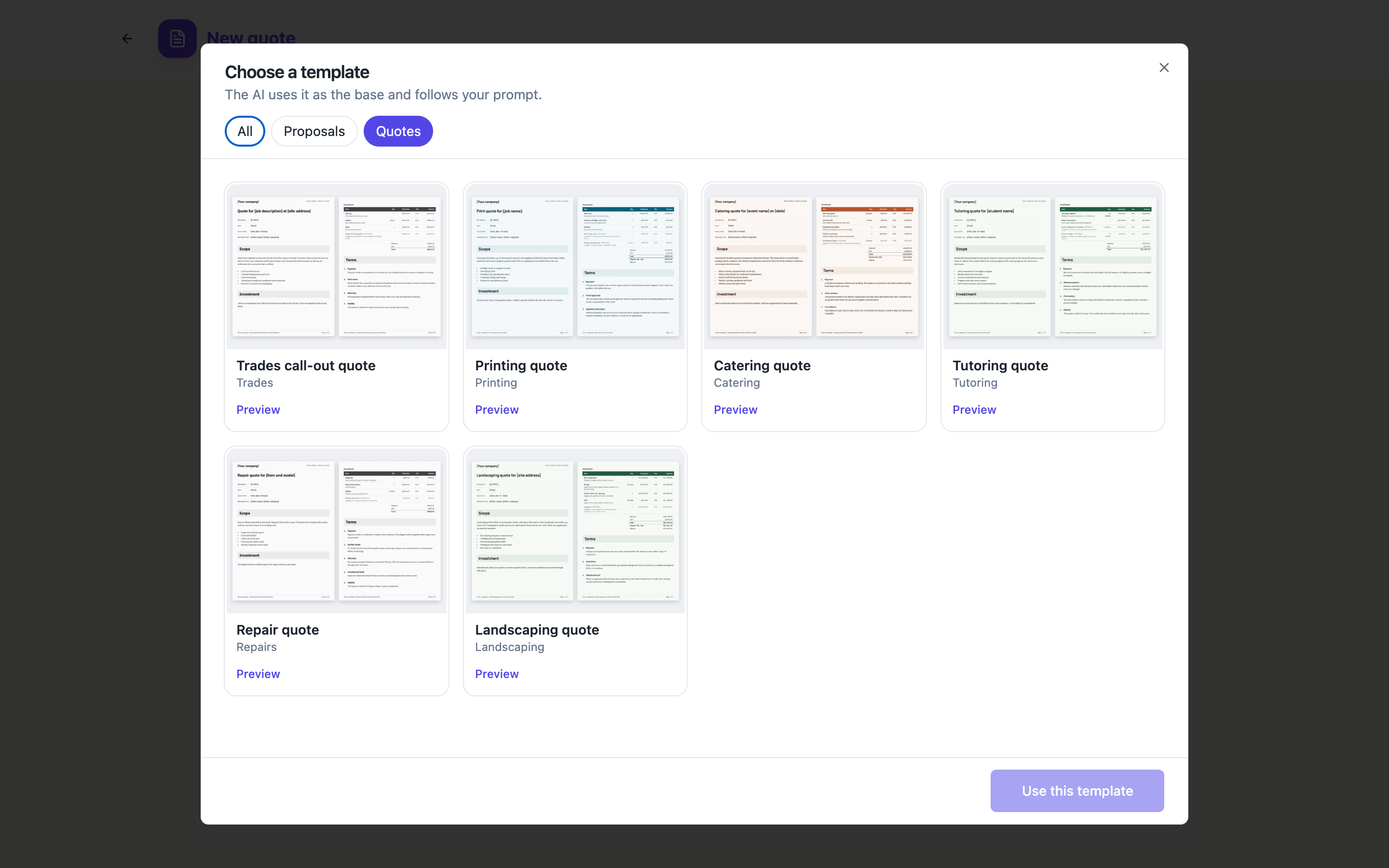 Pick a template, or skip it and OneCraft lays out the quote for you.
Generate and check the result
Click Generate quote. The builder opens straight away and shows the progress while OneCraft writes the quote, prices the work and lays out the pages. It usually takes 30 to 60 seconds.
You get a complete quote: your business name at the top, a reference, the date and valid until date, who it is prepared for, the scope of work, the pricing table with any deposit, numbered terms, and signature lines for the client and for you.
Click any paragraph to change the wording. To change prices, quantities, tax or the deposit, open the Pricing panel from the right rail; the guide on adding a pricing table with optional extras walks through it. When it reads right, click Send, covered in send a tracked proposal link.
For the whole journey from quote to payment in one place, see send a proposal and get paid. More on the generator itself is on the AI quote generator page, and finished examples for different jobs are in quotes by trade.
Ready to try it yourself?
Start free. Describe what you need and let OneCraft do the first draft.
Get startedSee it in the product
More proposals tutorials
- Add a pricing table with optional extrasSet up the items in a proposal or quote, mark some as optional extras, let the client choose quantities, and control how the pricing table looks on the page.
- Manage clients in ProposalsKeep a client list with names, companies, emails, addresses and tax IDs, and pick a client in one click when you write a proposal, a quote or an invoice.
- Send a proposal and get paidWrite a proposal with AI, add a pricing table with optional extras and a deposit, send a private link, let the client accept and sign online, then collect the deposit through a pay link.