How to
Make a UGC creator video with AI
Describe your product and let OneCraft cast an AI creator who talks to camera, TikTok style, cut with proof scenes and a closing call to action.
Promo Videos3 min readUpdated
This guide shows you how to make a UGC style creator video: one person talking to their phone camera about your product, cut with quick proof scenes and a call to action, all generated from a short description.
Creator ads outperform polished ones because they don’t look like ads. The problem is casting, filming and editing them. OneCraft generates the creator instead.
Pick the UGC video type
Open the video generator and set Video type to UGC. The page changes to “What should the creator talk about?”. UGC is available from the Pro plan, so on lower plans the option is greyed out.
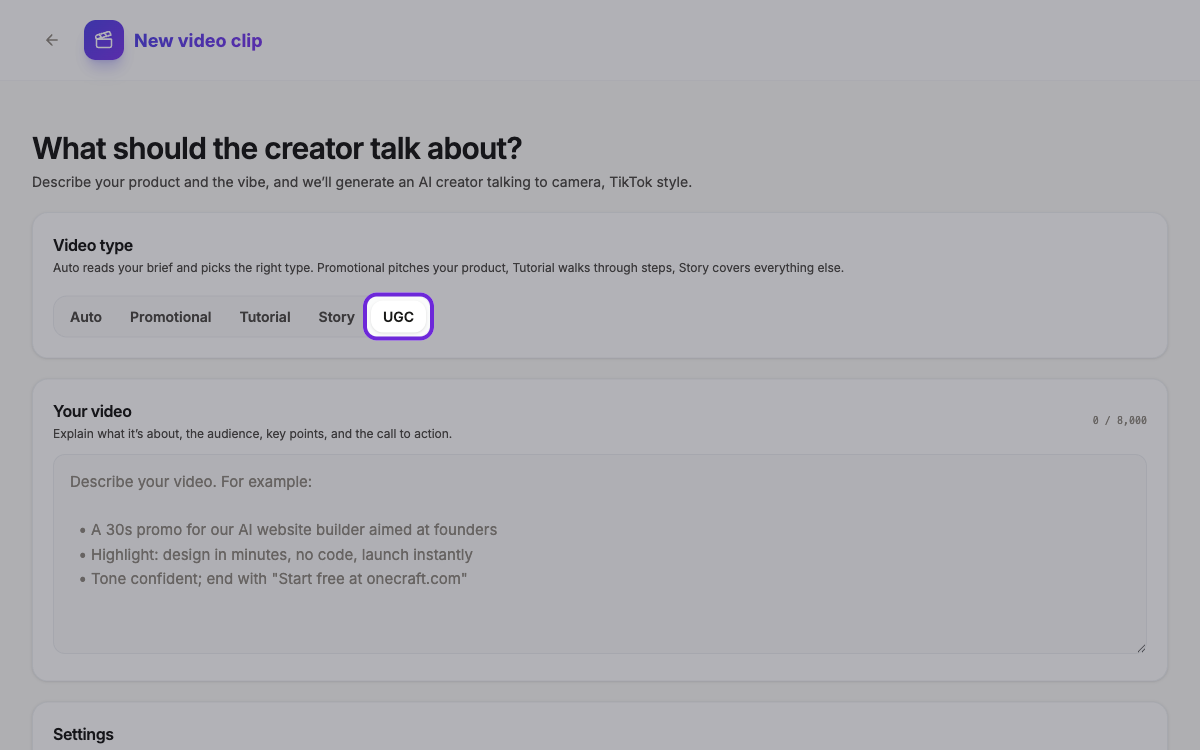 The whole brief changes once you pick UGC. You’re writing for a person now, not a product page.
Describe the product and the vibe
Write what you sell, who it’s for, what problem it solves, and how you want the creator to sound. Casual and honest beats polished here. If you have screenshots of the product, upload them in Images & documents: they are placed in the proof scenes, not in the talking ones.
OneCraft decides who the creator is from your brief: their age, look, clothing and setting. It’s one person for the whole video, so they never change face or voice between scenes.
Choose vertical and a length
UGC videos are built for phone feeds, so pick vertical unless you specifically need landscape. The length picker only offers short · max 30s and standard · max 30s, because a creator clip that runs longer stops feeling like one.
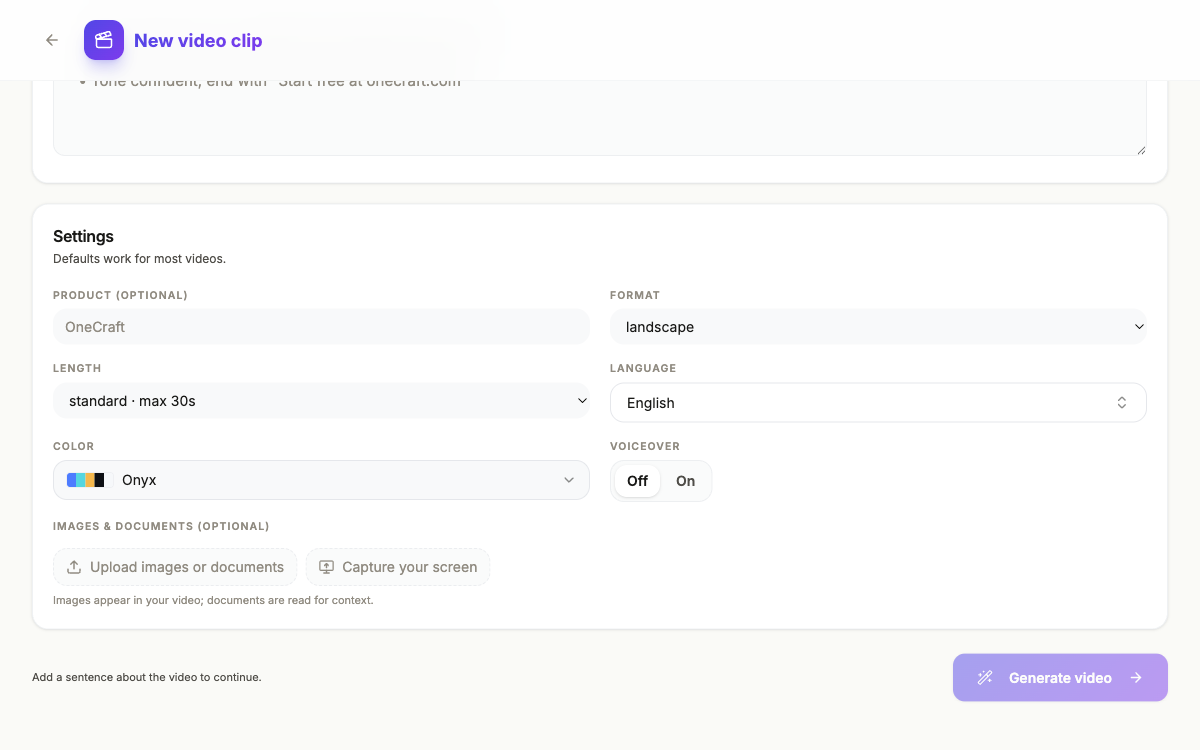 Length is capped for UGC. Voiceover only narrates the scenes where nobody is talking to camera.
Let OneCraft cast and film the creator
Press Generate video. OneCraft writes the script as one person speaking across the whole video, the first line hooks you, the next shares the experience, the last recommends. Then it creates the creator, gives them a voice, and animates them saying each line. You’ll see “Creating your AI creator…” while that runs, and it takes longer than a normal video because every talking clip has to be generated.
What lands is a short video with a clear shape: talking scenes carrying the story, proof scenes carrying the receipts, and a call to action at the end.
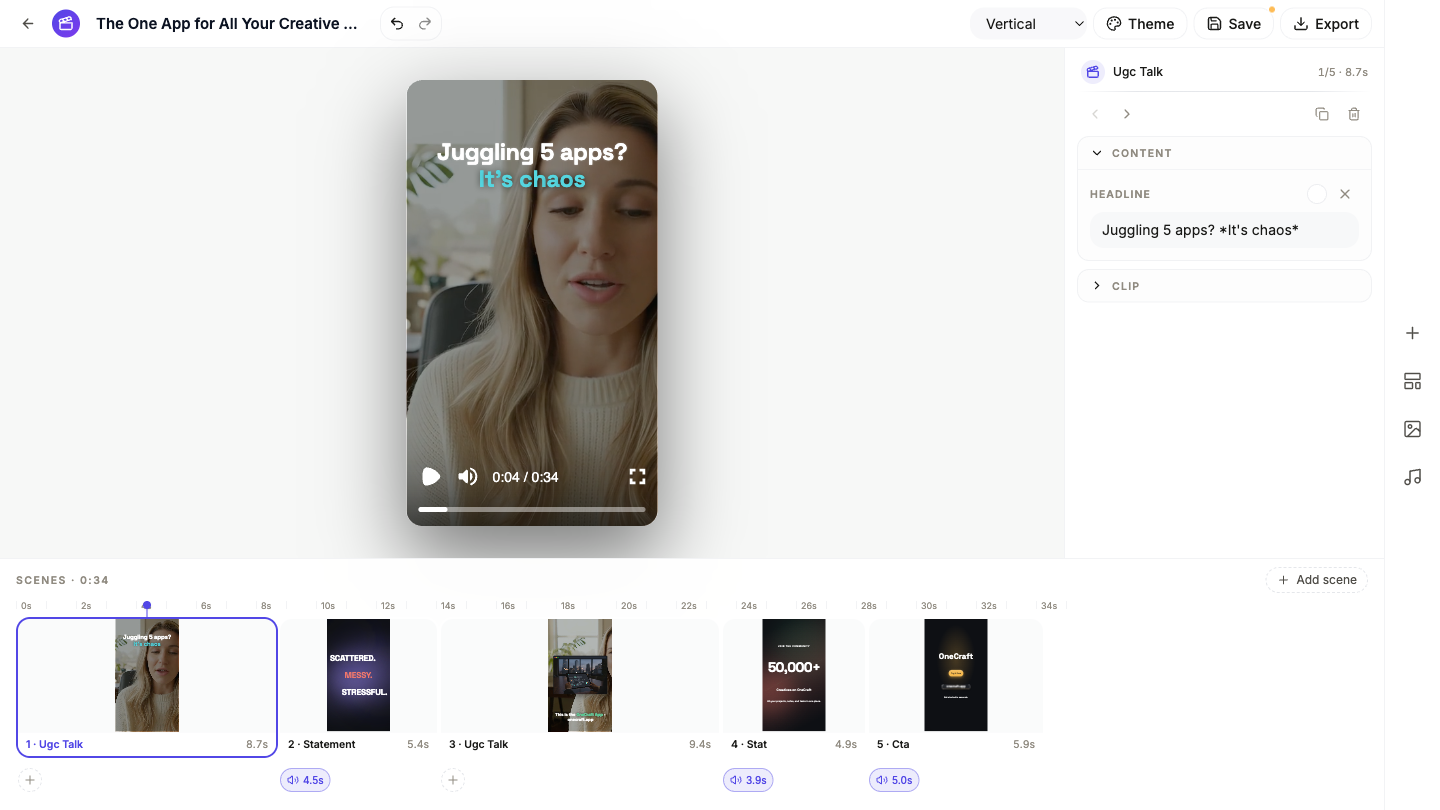
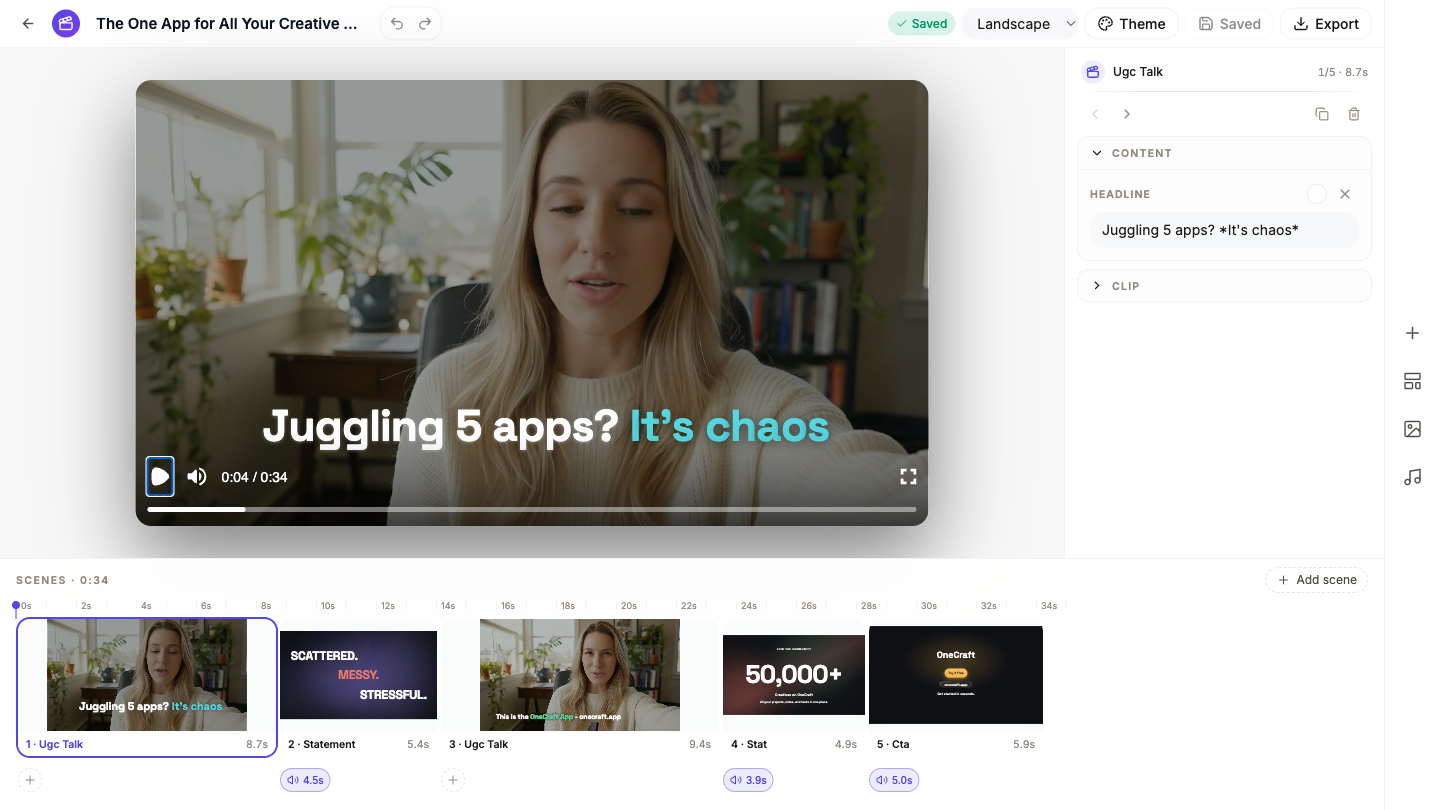 Five scenes, 34 seconds. The creator opens, the proof scenes break up the talking, the last scene asks for the click.
Edit the scenes like any other video
Every scene is editable. Click a talking scene and you can rewrite the caption that sits over the creator. Click a proof scene and you get plain text fields for the label, the number and the supporting line.
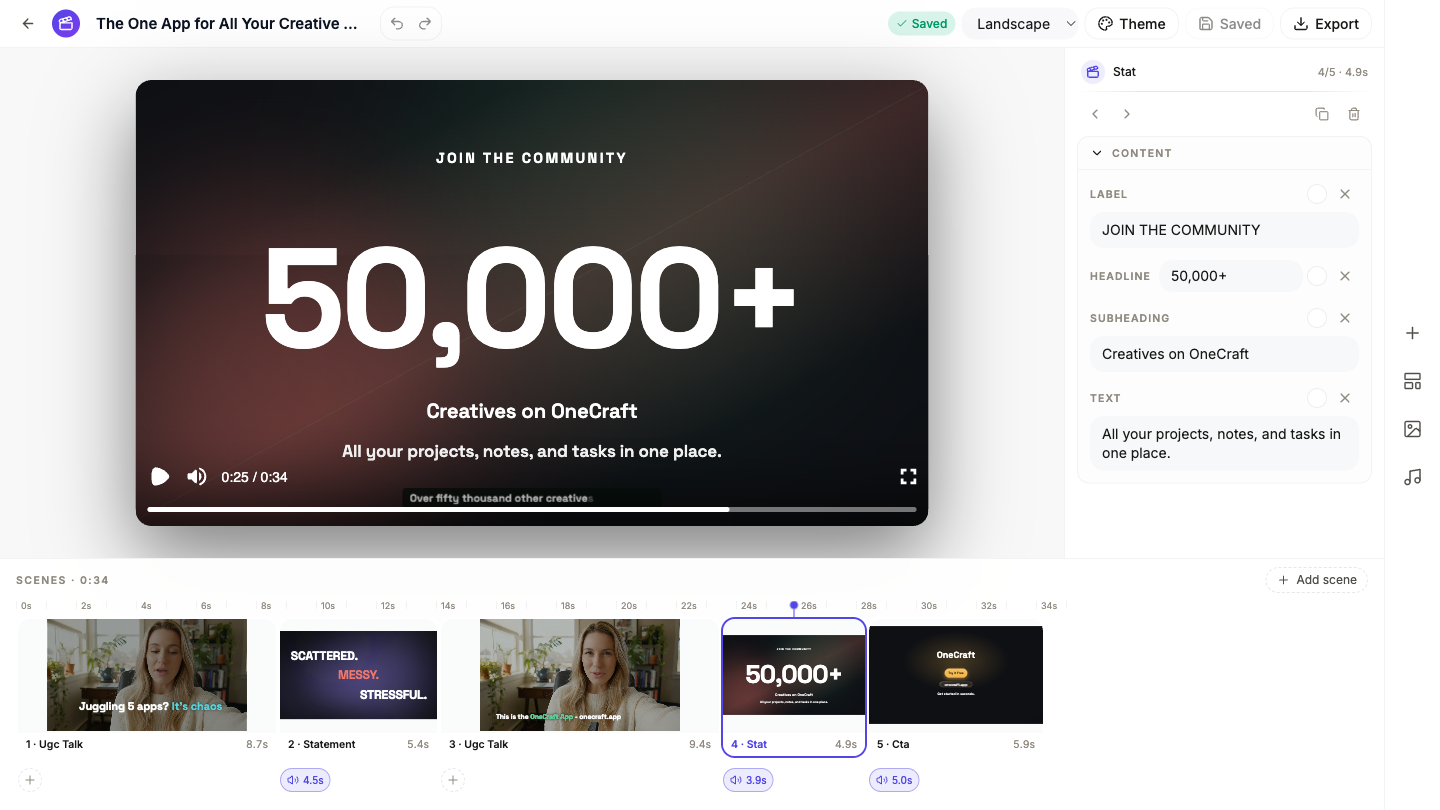 The proof scenes are ordinary text scenes, so your numbers are yours to correct.
Open Clip on a talking scene to go further. You can trim the clip, set how it fills the frame, change whether its audio plays, or replace it with your own footage if you’d rather use a real person for that beat.
Switching between vertical and landscape keeps your edits per format, so you can build once and post to more than one place.
 Vertical is the format these videos were made for.
When it reads right, press Export for the MP4. For the full editing tour see Make a promo video with AI voiceover, and for sizing it per platform see Export one video for YouTube, Reels and TikTok.
Ready to try it yourself?
Start free. Describe what you need and let OneCraft do the first draft.
Get startedSee it in the product
More promo videos tutorials
- Add voiceover, captions and music to a videoGive every scene its own narration in the language and voice you pick, turn on captions, and add a music track that ducks under the voice automatically.
- Capture your screen and turn it into a tutorial videoShare your screen once, snap a shot for every step from a small floating button, then let OneCraft turn those shots into a narrated walkthrough video.
- Export one video for YouTube, Reels and TikTokBuild the video once, then switch between landscape and vertical and export an MP4 for each platform. Your edits are kept per format, so nothing breaks.