Videos
AI video generator
You write a paragraph about what you are promoting. What comes back is not a storyboard or a set of stock clips to assemble, but a video that already plays: scenes picked and ordered, copy written into every box on screen, a narration track spoken aloud and captions running under it.
The model writes, the engine builds
This is the split worth understanding before you judge the output. The model chooses a template, orders the scene roles, writes every line of on-screen copy and the narration, and sets how long each scene holds. It never draws anything. Layout, camera moves, entrance timing, colour and the render itself are ordinary deterministic code, which is why two runs of the same brief look like the same product rather than two different apps.
Three types, three different jobs
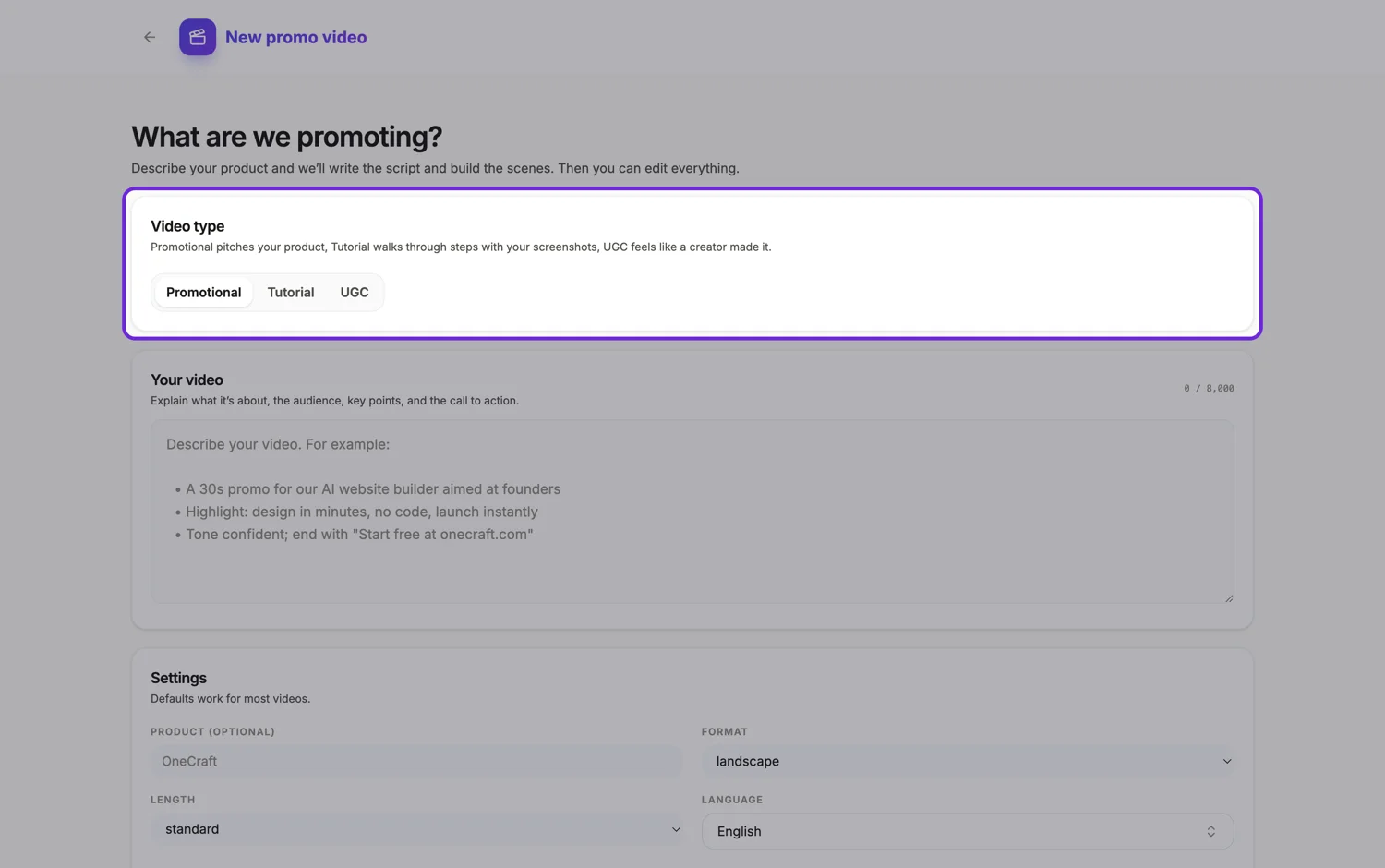
Promotional writes an ad: a hook, the value, some proof, and a closing ask. Tutorial teaches instead of sells, one scene per step, and refuses a sales ending. UGC writes a creator talking to their phone camera, cut with quick proof beats. The type is not cosmetic. It changes which of the 52 scene roles are even offered, how long a scene may run, and which narrator voice you are allowed to get.
What you feed it besides words
Up to eight images and five documents ride along with the brief. Images are inspected before anything is designed: a vision pass reads what each one shows, notes whether pictures belong together, and reads the real pixel dimensions out of the file header so a tall phone screenshot lands in a tall slot rather than being cropped square. Documents are summarised for context, not transcribed, so a PDF informs the script without becoming the script.
Everything is still editable afterwards
The result opens in a builder with a scene rail, a timeline and an inspector. Rewrite any line, swap a picture, add a scene from the library, change the palette, retime a beat by dragging its handle, rerecord narration in a different voice. Nothing is baked until you export, and the export reuses an existing render when the content has not changed.
Video makers by industry and platform
Every page below uses this same generator; what changes is the advice, because a property listing, a job ad and a TikTok have different rules and different first frames. Start here if you are not sure which you are making, then read the one that matches once you do.
How it works, in three steps
Step 1
Pick the type first
Promotional, Tutorial or UGC. It gates the scene roles, the pacing rules and the voice, so switching later means rereading the whole script.
Step 2
Write the brief like a creative brief
Product, audience, the two or three points that matter, and the exact closing line you want spoken. Vague briefs produce vague videos.
Step 3
Watch it build, then edit
Generation runs as a background job and is polled while you wait. When the plan lands, the builder fills with scenes you can change.
The full walkthrough with screenshots is in the guide Make a promo video with AI voiceover.
Limits worth knowing
- The brief box takes 10,000 characters. Uploads are capped at 8 images and 5 documents.
- Tutorial videos need the Starter plan. UGC videos need Pro or higher. A free account can still make promotional videos.
- Generation is a background job polled for up to 16 minutes, and credits follow its AI usage, about 20 for a video.
- Only landscape and vertical are offered. The 1:1 square canvas exists in the engine but is hidden from both pickers.
Questions people ask
How long is the video it makes?
You choose short, standard or long, and that sets a scene budget of 3 to 6, 4 to 9 or 6 to 12 scenes. Promo scenes run 2.5 to 4 seconds each, so a short promo lands near 10 seconds and a long one near 30.
Does it use stock footage?
Sometimes. In a promo the director can search Pexels for short stock clips and place them in the scenes that suit real footage, usually one to three, never for your own product or brand. Tutorial and UGC videos get none. Every clip scene in the builder also has a Stock footage search, and the other pictures are ones you upload or ones generated for a slot.
Can it look up facts about my product?
Yes. The director can run a web search and read one page when the brief names a product or a URL it does not know. It is told never to invent a number, so it either finds a figure or leaves it out.
What if I hate the result?
Edit it rather than regenerating. Every line, image, colour, scene and timing is exposed in the builder, and adding or deleting a scene does not cost a credit.
Make your own video
The button opens the generator with this use case already described. Change the wording to match yours, generate, then edit anything you like.
Create a video with OneCraftRelated pages
Text to video with voiceover
To make a text to video with voiceover, paste the text into the video generator as a brief, leave the voiceover switch on, and the director splits it into scenes with a narration line and captions for each. The spoken track is synthesised from those lines and the picture is fitted around it. The interesting problem is timing: a spoken line and a visual cut are two different clocks, and here the voice is treated as one continuous track that the scenes adjust to.
AI promo video maker
A promo has a shape older than any of the tools that make one. Grab attention, show why it matters, prove it, ask for the click. The promo director here is built around that arc and is measured against it, which is why the output cuts rather than scrolls.
Turn images into a video
Upload eight pictures and eight different decisions get made. Some become scenes. Some are grouped so they play together in one. Some are judged to be references you uploaded to explain the video rather than to appear in it, and those are read for their content and then deliberately kept off screen.
More finished work of this kind is on the video examples hub.
Written and checked by the OneCraft team. Last checked .