How to
Resize one flyer for every social size
Switch a flyer between A4 print and six social sizes from one menu. The design re-lays itself out for the new shape instead of stretching, and your content carries over.
Flyers2 min readUpdated
This guide shows you how to take one flyer and turn it into every size you need: A4 for the noticeboard, square for the feed, tall for stories.
The usual way this goes wrong is stretching. A design made for portrait paper gets squeezed into a square and everything looks slightly off. OneCraft re-lays the design out for the new shape instead.
One menu, every size
The Canvas size menu sits at the top of the left panel, showing the current size. Open it and the options come in two groups:
- Print: A4 Portrait (1240×1754) and A4 Landscape (1754×1240).
- Social: Instagram Post (1080×1080), Instagram Story (1080×1920), Facebook Post (1200×630), LinkedIn Post (1200×627), Facebook Cover (820×312) and Twitter Header (1500×500).
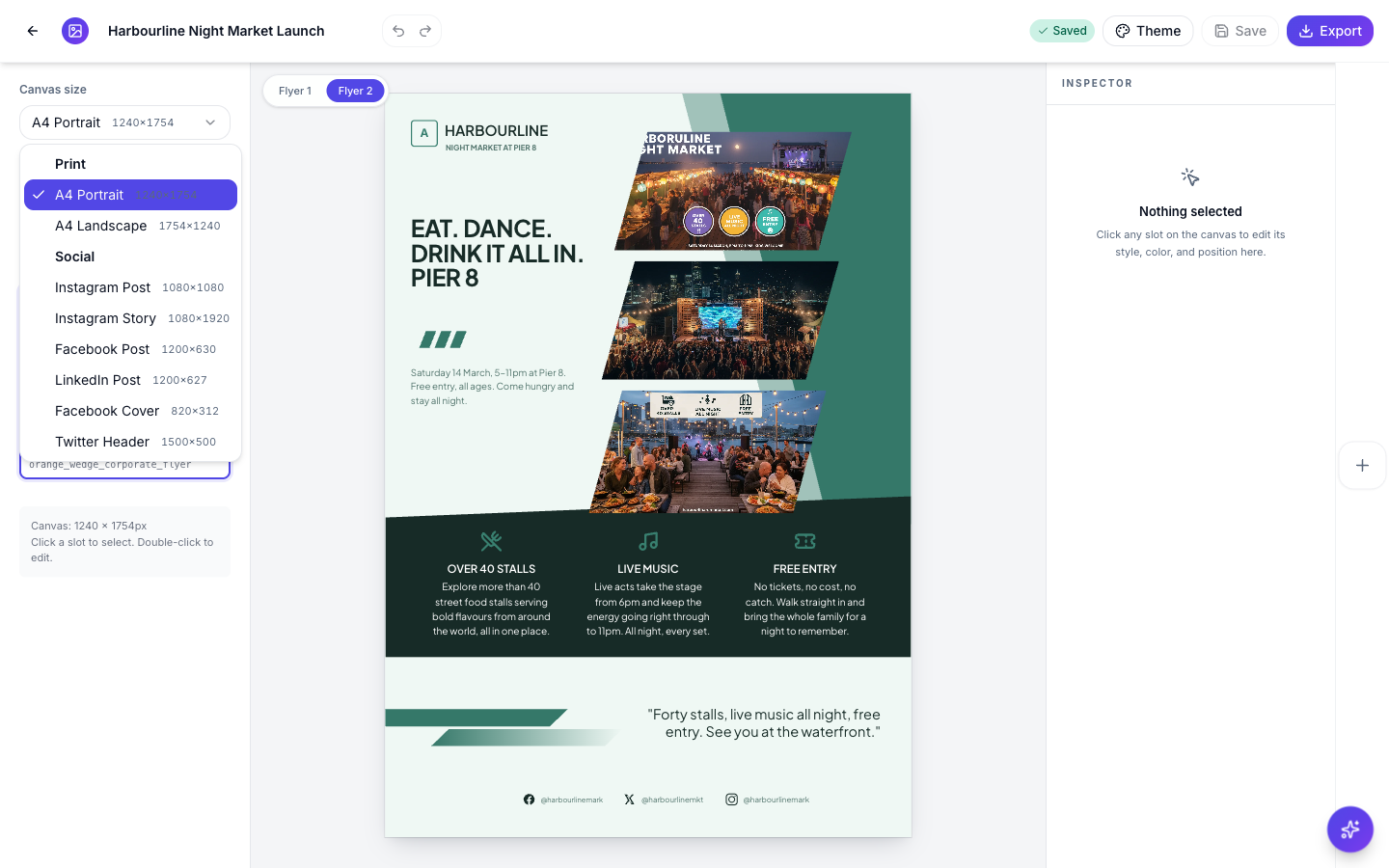 Every size the flyer can become, with its pixel dimensions.
The design reflows, it doesn’t stretch
Pick a size and the whole flyer rebuilds itself for the new shape. Headlines resize, photo groups regroup, and the sections stack differently so the design still reads as designed. Here is the same A4 flyer switched to Instagram Story: the headline moved to the top at full width and the photos re-stacked below it, nothing squashed.
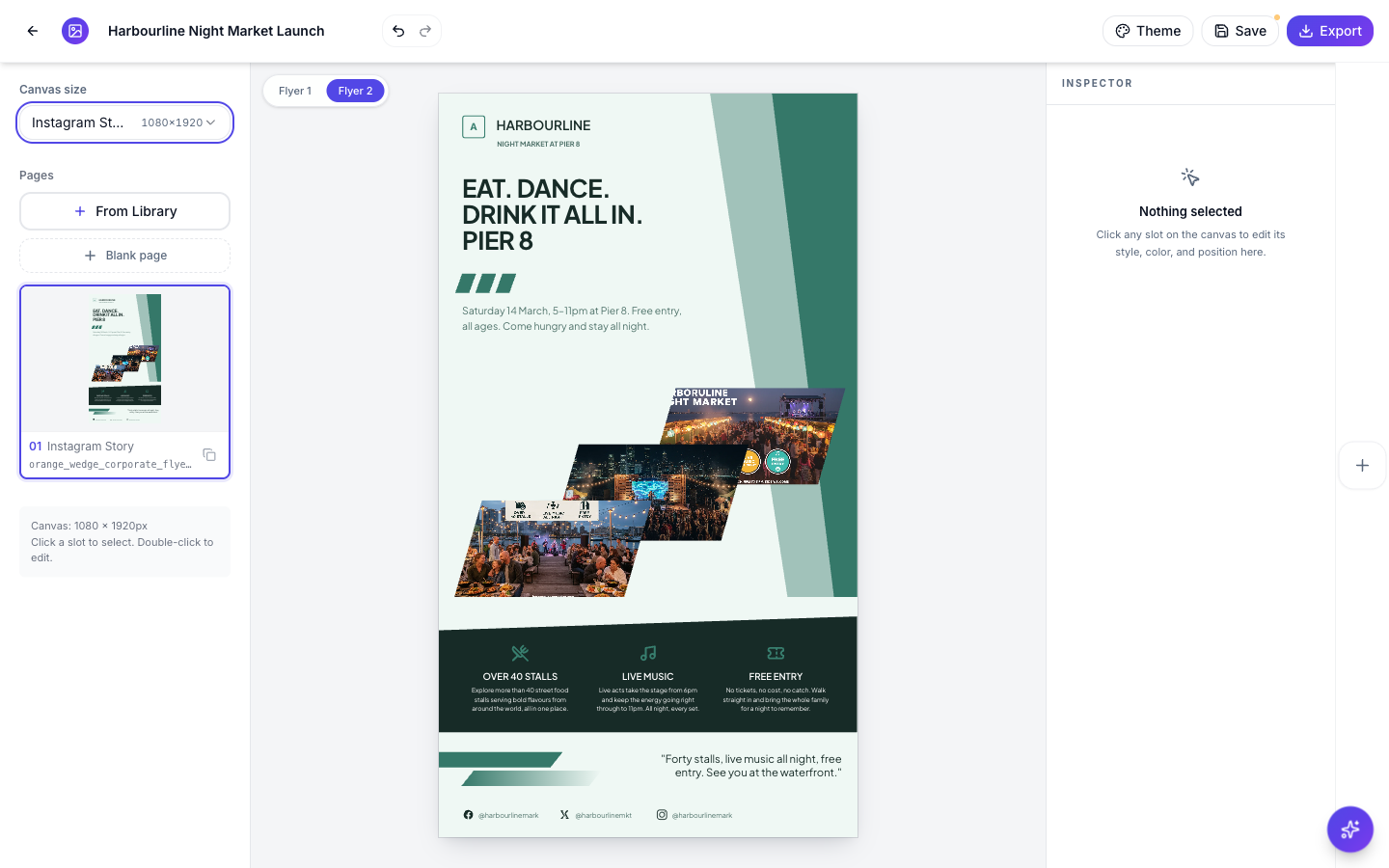 A4 to Story: the layout rearranges for the tall frame instead of stretching into it.
All your content carries over, your words, your photos, your theme. Give the result a quick look after each switch: a re-layout is a good starting arrangement, and you can still drag anything to taste. Press Save when you want to keep the new size, or switch back if you were just looking.
Export one file per channel
Each size exports like any flyer: Export in the top bar, then PDF for print or PNG and JPG for social. The working rhythm is switch, check, export, switch again, until every channel has its file.
New to the flyer builder? Start with create a flyer for Instagram and print.
Ready to try it yourself?
Start free. Describe what you need and let OneCraft do the first draft.
Get startedSee it in the product
More flyers tutorials
- Add charts and diagrams to a flyerPut real data on a flyer. Ten chart types, SWOT and 2x2 matrices, funnels, Venn diagrams, org charts, Gantt timelines and world maps, all editable and styled by your theme.
- Add or replace the images in a flyerDescribe the photo you want and OneCraft generates it at the right shape for the slot, or upload your own. Every image you make stays in the flyer to reuse.
- Change a flyer's colours and fonts with themesOne click recolours the whole flyer. 21 themes over 88 palettes, plus 27 fonts you can swap independently, and every element restyles together instead of one box at a time.