How to
Send a tracked proposal link
Email a proposal or quote as a private link, see when the client opens it and how long they spend reading, and resend or revoke links from the Activity page.
Proposals3 min readUpdated
This guide shows you how to send a proposal or quote as a tracked link, then follow what the client does with it.
Emailing a PDF and hoping is how quotes go quiet. A tracked link tells you the moment the client opens it, so you call while it is fresh instead of a week later.
Click Send
Open the proposal in the builder and click Send at the top right. The button works once the proposal has a title. Any unsaved edits are saved first, because the client gets a frozen copy of what you see now.
The Send this quote (or Send this proposal) dialog opens:
- Recipients: the client you picked in the Pricing panel is filled in with their name and email. Click Add to include more people, up to five.
- Subject: starts with your brand name, “sent you a quote” and the title, such as “Northgate Studio sent you a quote: Website quote for Fern & Fig Café”. Type over it if you prefer.
- Message: a short note that goes in the email.
- Valid until: the last day the client can accept. It comes from the Pricing panel.
If the proposal has no priced items yet, a No pricing on this proposal box appears. Tick it to send without a price.
Send and copy the links
Click Send. The dialog turns into a Sent card with each recipient’s private link and a Copy button, in case you also want to share it in a message. Preview as client opens the link exactly as the client sees it, and View activity takes you to the tracking page. In the builder the status changes to Sent.
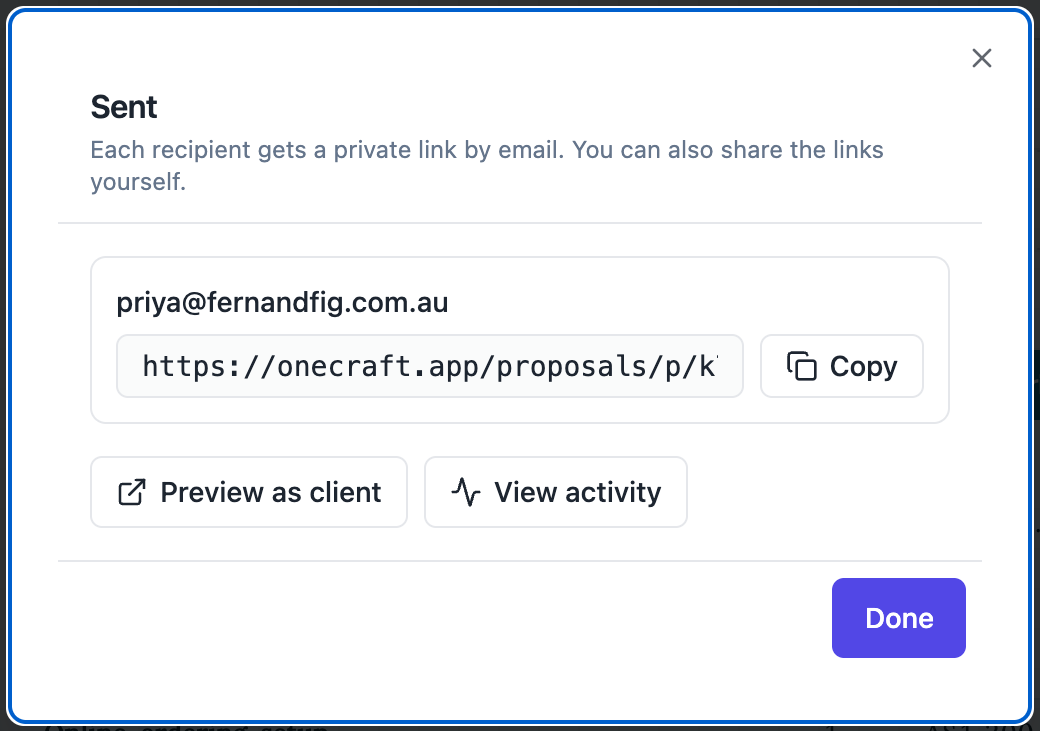 Copy a link to share it yourself, or preview it as the client.
Watch the activity
Open Activity from the builder’s menu, or from the row menu on the Proposals list. The page has three parts:
- Links: one row per recipient with Opens, Last viewed and Time viewed. Time is counted only while the proposal is the tab in front.
- Timeline: every event in plain words, such as “Sent to …”, ”… opened the quote” and “Accepted by …”.
- Versions: each time you send, the version is frozen and listed here.
The status in the header moves from Sent to Viewed the first time the client opens the link.
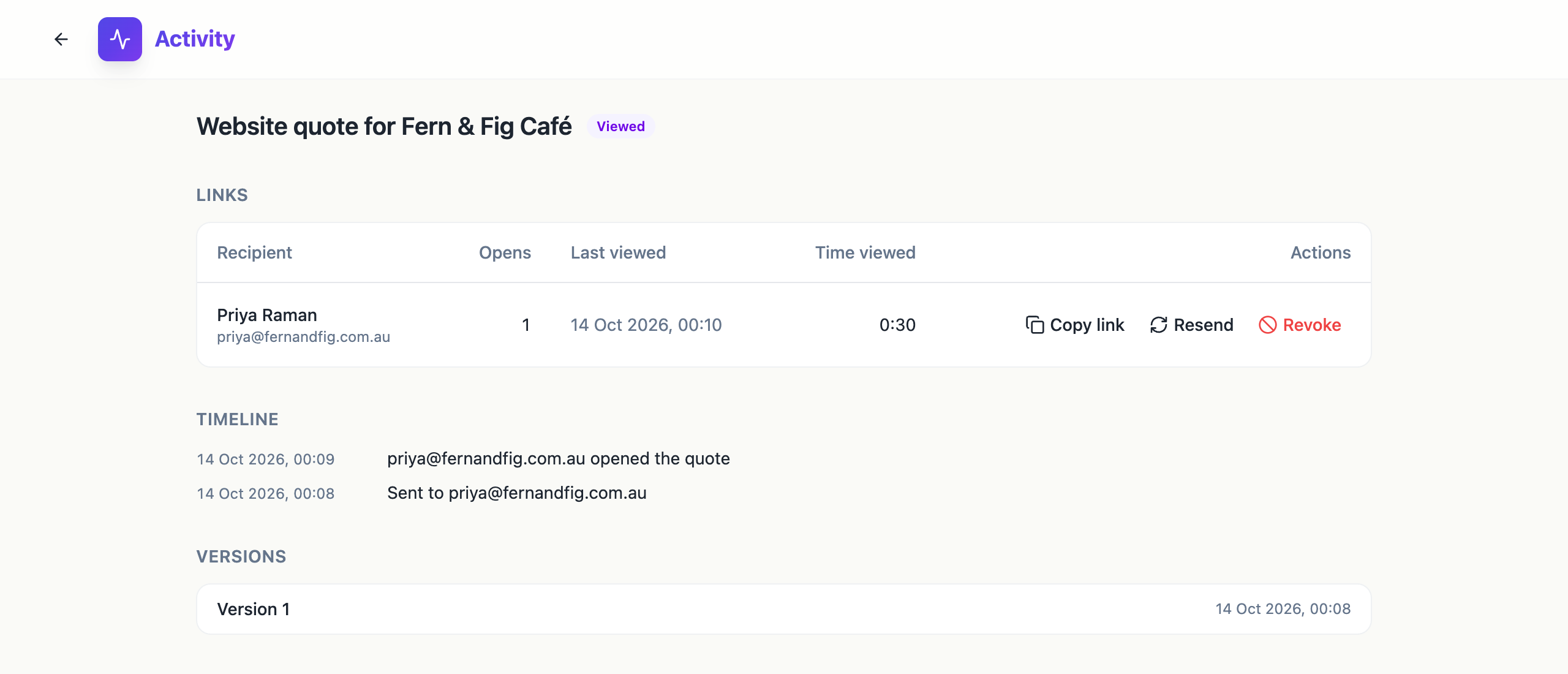 Priya opened the quote once and read it for 30 seconds.
Resend or revoke a link
Each row on the Activity page has three actions:
- Copy link puts the private link on your clipboard.
- Resend emails the same link to that recipient again, which works well as a polite nudge.
- Revoke stops that link from opening. Use it if you sent to the wrong address.
To withdraw the whole proposal, choose Void from its row menu on the Proposals list. Every link stops opening and the client can no longer accept it.
When the client accepts, the Activity page shows who accepted, when, and the totals they agreed to. The whole flow is in send a proposal and get paid. The tracked proposal link and proposal view tracking pages go into more detail.
Ready to try it yourself?
Start free. Describe what you need and let OneCraft do the first draft.
Get startedSee it in the product
More proposals tutorials
- Add a pricing table with optional extrasSet up the items in a proposal or quote, mark some as optional extras, let the client choose quantities, and control how the pricing table looks on the page.
- Create a quote with AIDescribe the job, give your prices, and get a priced quote with scope, terms and signature lines in under a minute. Then check the numbers and send it.
- Manage clients in ProposalsKeep a client list with names, companies, emails, addresses and tax IDs, and pick a client in one click when you write a proposal, a quote or an invoice.