How to
Set invoice reminders
Choose how often OneCraft chases an unpaid invoice, from a gentle nudge to a firm schedule, send a reminder by hand, and see what is overdue at a glance.
Proposals2 min readUpdated
This guide shows you how to set the payment reminder schedule on an invoice, send a reminder yourself, and keep an eye on what is overdue.
Nobody enjoys chasing money. Reminders do the asking for you on a schedule you pick, so you can stay friendly with the client and still get paid on time.
Pick a schedule
Open an invoice from the Invoices tab and scroll to Notes and payment. Payment reminders has four choices, and the line under it spells out the timing:
- Off: no reminders.
- Gentle: on the due date and a week later.
- Standard: three days before, on the day, then 3, 7 and 14 days after.
- Firm: three days before, on the day, then 2, 5, 9 and 14 days after.
New invoices start on Standard. On a draft the choice is saved with the invoice; on an invoice you have already issued it applies as soon as you pick it.
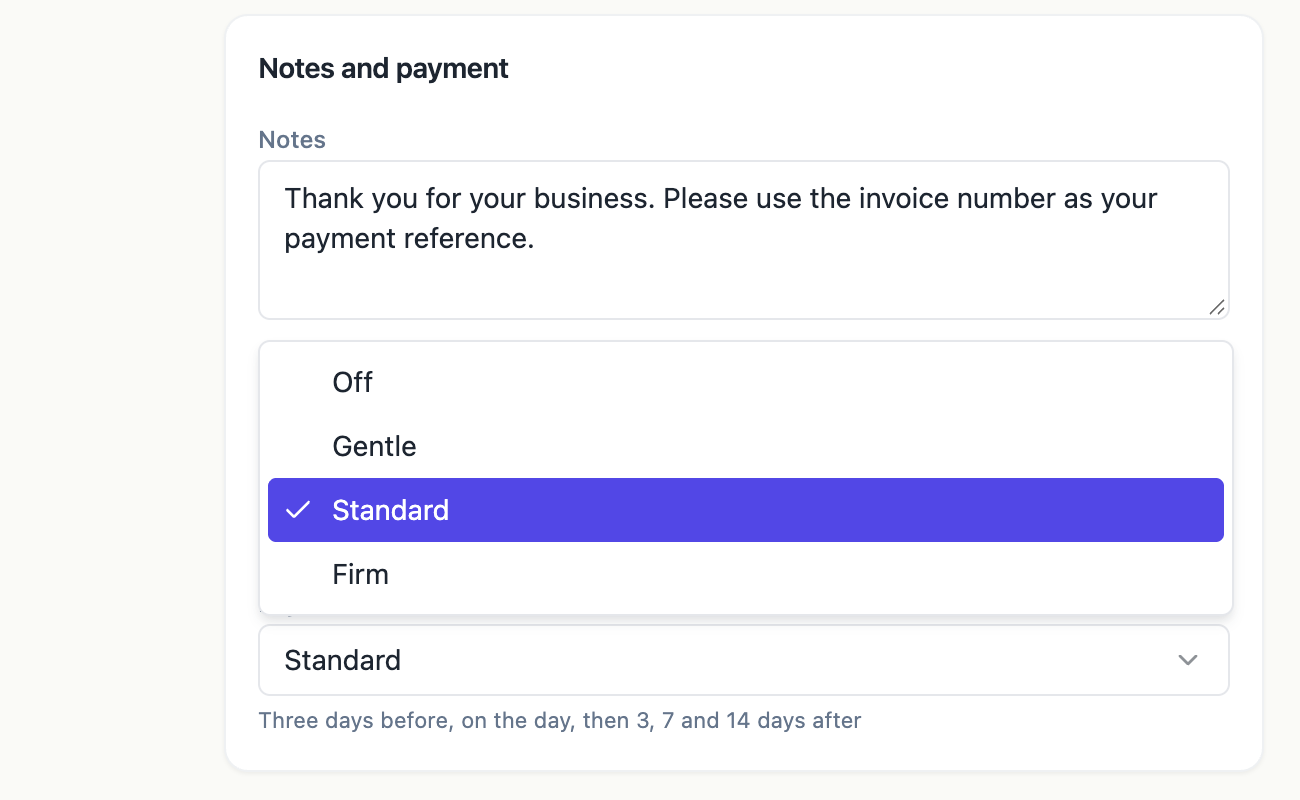 Choose how often OneCraft follows up. The hint under the field shows the exact timing.
How the schedule runs
OneCraft checks unpaid invoices once a day. Reminders go out for invoices you have sent to the client, counted from the due date, and the wording suits the moment: a heads up before the due date, a note on the day, and a follow up once it is late. The day after the due date, an unpaid invoice is marked Overdue and you get a notification.
Reminders go to the client’s email from your client list, and they stop as soon as the invoice is paid.
Send a reminder now
On a sent, viewed or overdue invoice, the header has a Remind now button. Click it to send a reminder straight away, for example after a phone call. A “Reminder sent” message confirms it.
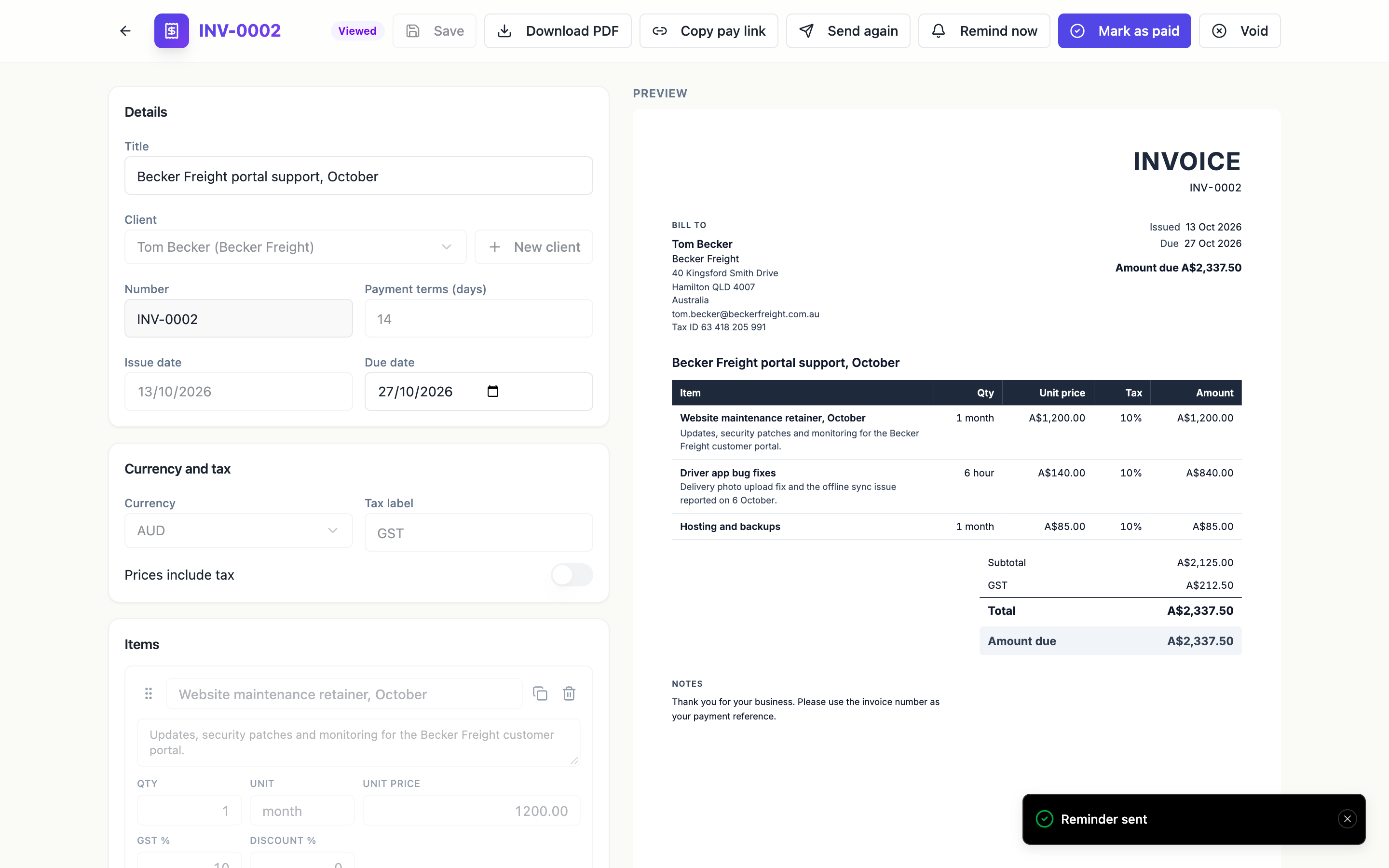 Remind now sends one reminder at once, on top of the schedule.
If the client paid by bank transfer, click Mark as paid instead and the reminders stop.
See what is outstanding
The Invoices tab opens with three totals: Paid this month, Outstanding (with how many drafts are not counted yet) and Overdue (with the number of overdue invoices). Overdue rows are tinted and read “Was due” with the date, so the ones to chase stand out.
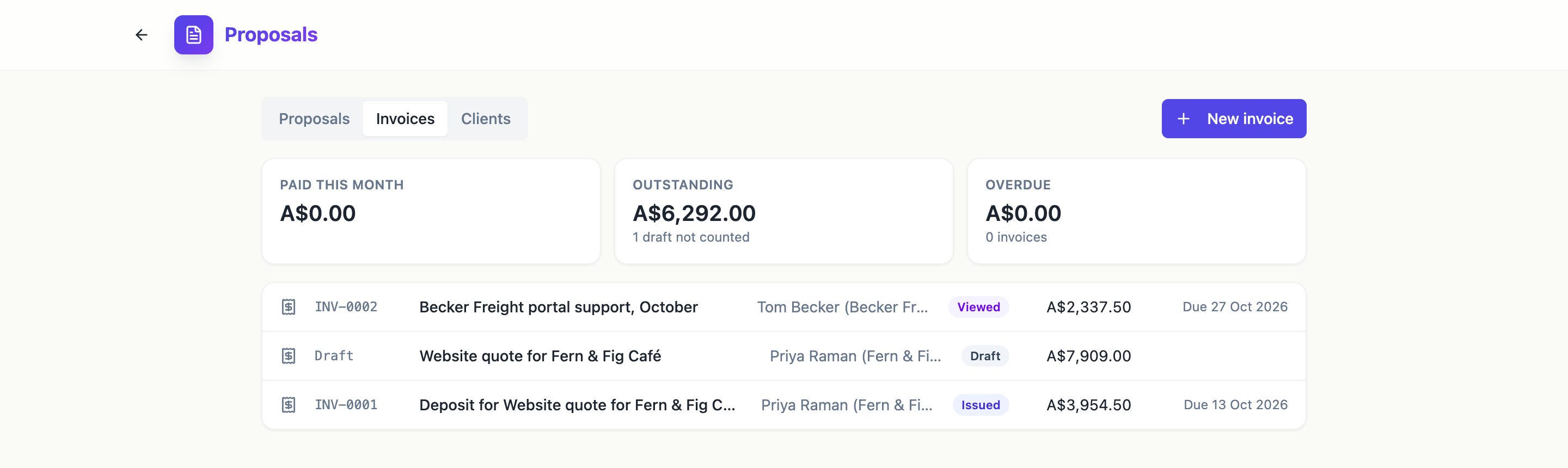 Outstanding counts issued and sent invoices; drafts are listed but not counted.
The whole quote to payment journey is in send a proposal and get paid. The invoice reminders page has more, and invoices by business has finished examples.
Ready to try it yourself?
Start free. Describe what you need and let OneCraft do the first draft.
Get startedSee it in the product
More proposals tutorials
- Add a pricing table with optional extrasSet up the items in a proposal or quote, mark some as optional extras, let the client choose quantities, and control how the pricing table looks on the page.
- Create a quote with AIDescribe the job, give your prices, and get a priced quote with scope, terms and signature lines in under a minute. Then check the numbers and send it.
- Manage clients in ProposalsKeep a client list with names, companies, emails, addresses and tax IDs, and pick a client in one click when you write a proposal, a quote or an invoice.