Documents
Convert a PDF to an editable document
To convert a PDF to an editable document, attach it in the document generator and it comes back as editable blocks in a theme you can change. The file is read as page images, so sections, headings, numbering and labelled fields carry over reliably, while long paragraphs are rewritten from that reading rather than copied word for word.
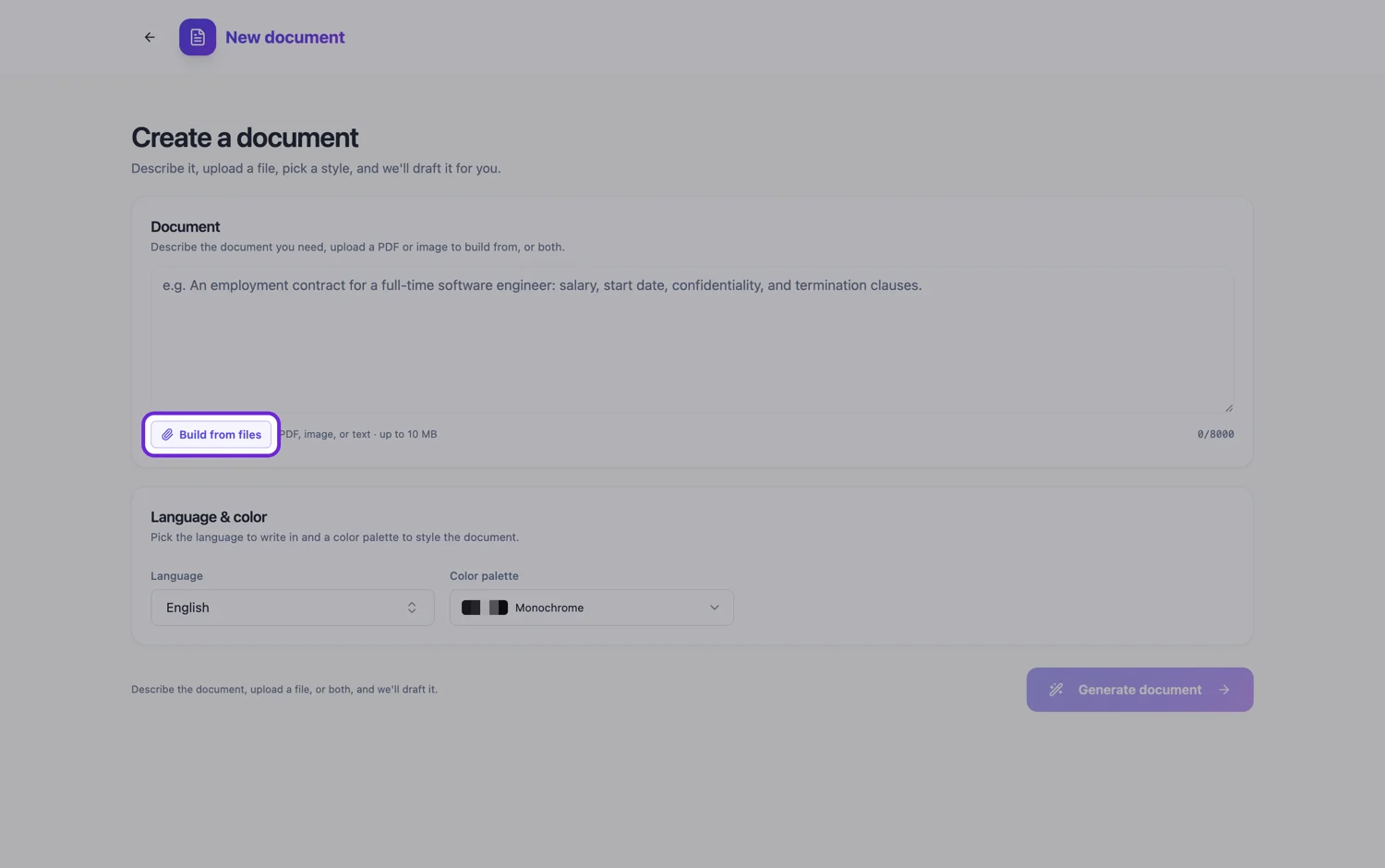
How the PDF is read
The file is never parsed as text. Every page is rendered to an image at roughly 200 dots per inch, up to the first hundred pages, and the page images are read by a vision model. A scanned PDF and one exported from a word processor go down the identical path, so a clean export is only better because its pages are sharper pictures. What the reading returns is structured: the kind of document, its language, a short summary, the main topics, the key points, and every labelled field with its value exactly as printed.
What returns exactly, and what does not
Labelled values come back as they were written: an invoice number, a policy reference, a date, an amount, a name against a role. The section order, the headings and the clause numbering come back too, because the generator is told to reproduce the source structure and not to invent, drop or summarise sections. Running prose is different. The reading of a PDF carries its key points rather than a transcript, so a long paragraph is rewritten from those points. The meaning survives; the exact sentences usually do not.
When the wording itself must survive
Attach the pages as images instead. A PNG or JPG is transcribed verbatim, in reading order, which the PDF path does not do, so a screenshot of a page keeps its wording better than the PDF of the same page. Five attachments per generation means five pages this way. For a single long passage, pasting the text into the prompt box works as well: it holds 10,000 characters and reaches the generator exactly as typed.
What changes shape on purpose
A run of label and value pairs becomes a key values block rather than a paragraph. A dated schedule can become a timeline, and a list of stages a process diagram where the source clearly described one. Those are layout decisions, not content changes, and if you want the original shape kept, say so in the prompt. Tables keep their columns.
What is rebuilt rather than copied
Running headers, footers and page numbers are produced as real document furniture, and a cover is added only to a document of three or more pages that a reader would expect one on, never to an invoice, letter or receipt. Nothing visual is imported: logos, photographs, charts drawn as pictures, fonts and colours all stay behind in the PDF. Add the logo again in the builder, and pick a theme for the look.
How it works, in three steps
Step 1
Attach the PDF
Use Build from files in the document generator. It needs the Starter plan, and a sharp export reads better than a faint scan.
Step 2
Say what must not change
Keep the section order, the headings, the numbering and the reference numbers. One sentence prevents most surprises.
Step 3
Check the prose against the source
Labelled values and structure come back reliably. Read the paragraphs against the original, then restyle.
The full walkthrough with screenshots is in the guide Turn a PDF or photo into an editable document.
Limits worth knowing
- Attaching files needs the Starter plan or above: 5 files per generation, 10 MB each, as PDF, TXT, PNG, JPG, WebP or GIF.
- Only the first 100 pages of a PDF are read.
- A PDF's paragraphs are rebuilt from its key points, not transcribed. Images are transcribed word for word.
- Logos, photographs, fonts and colours in the PDF are not carried across.
- A Word file is not accepted. Export it to PDF, attach page images, or paste the text.
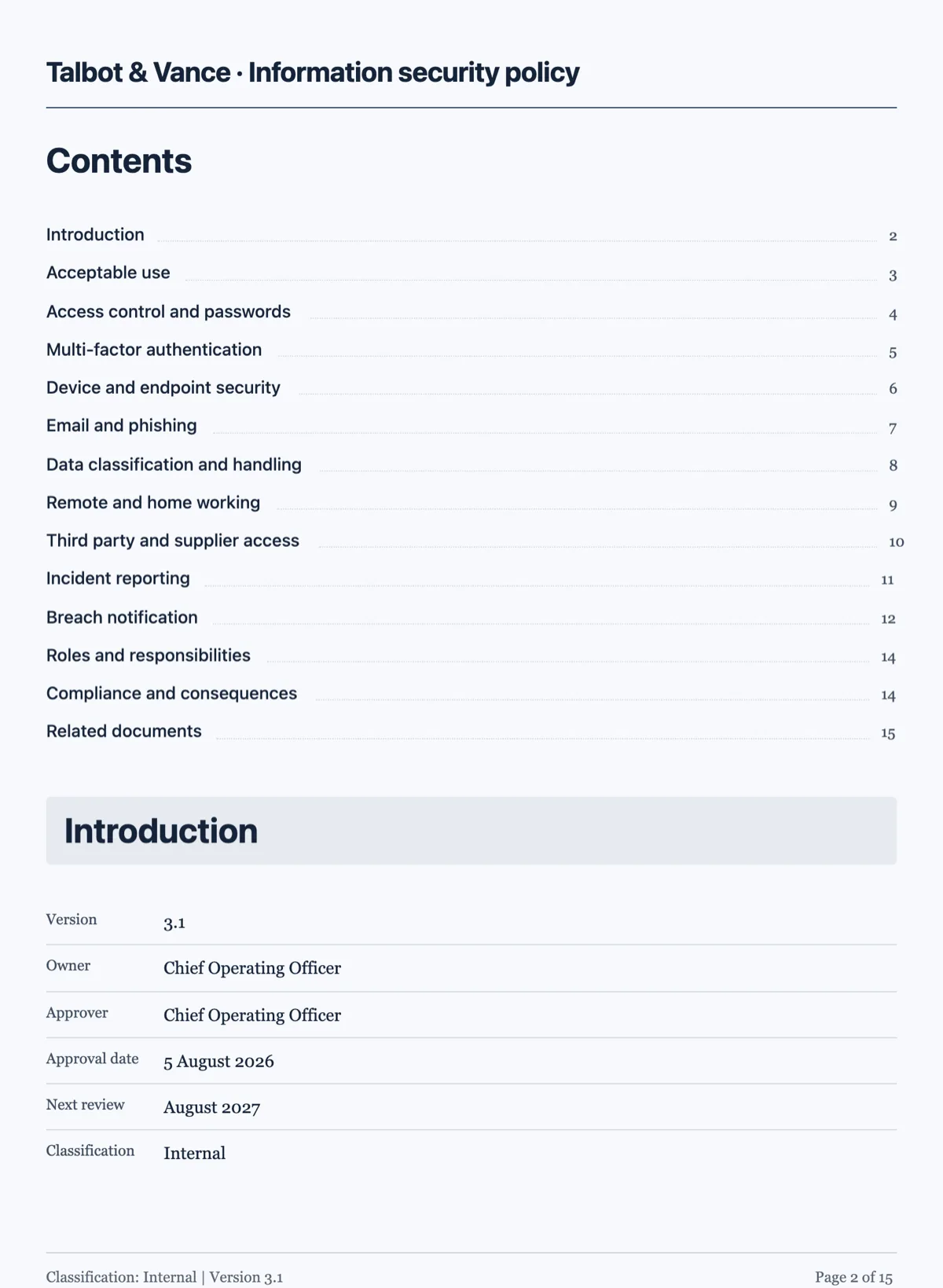
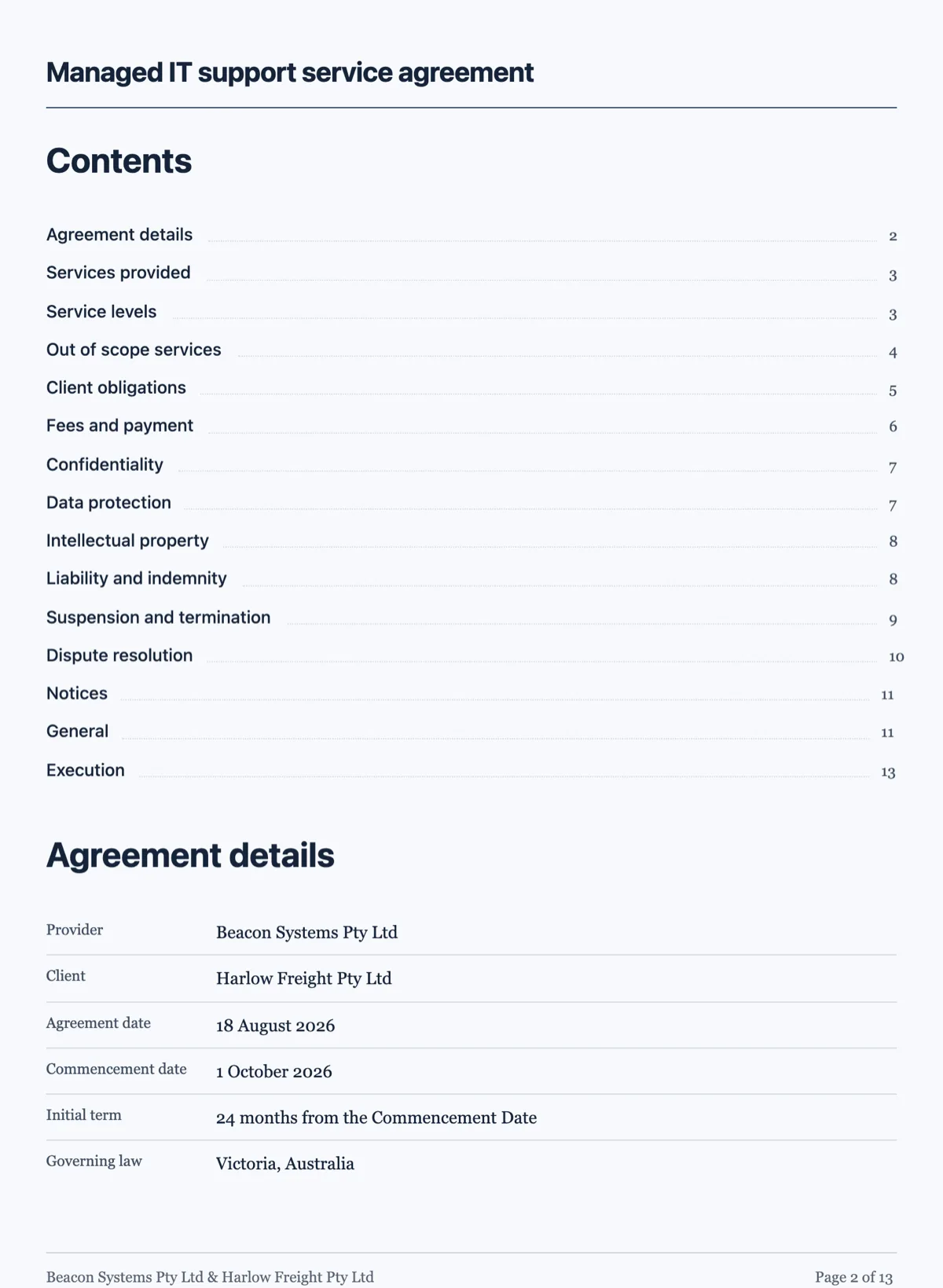
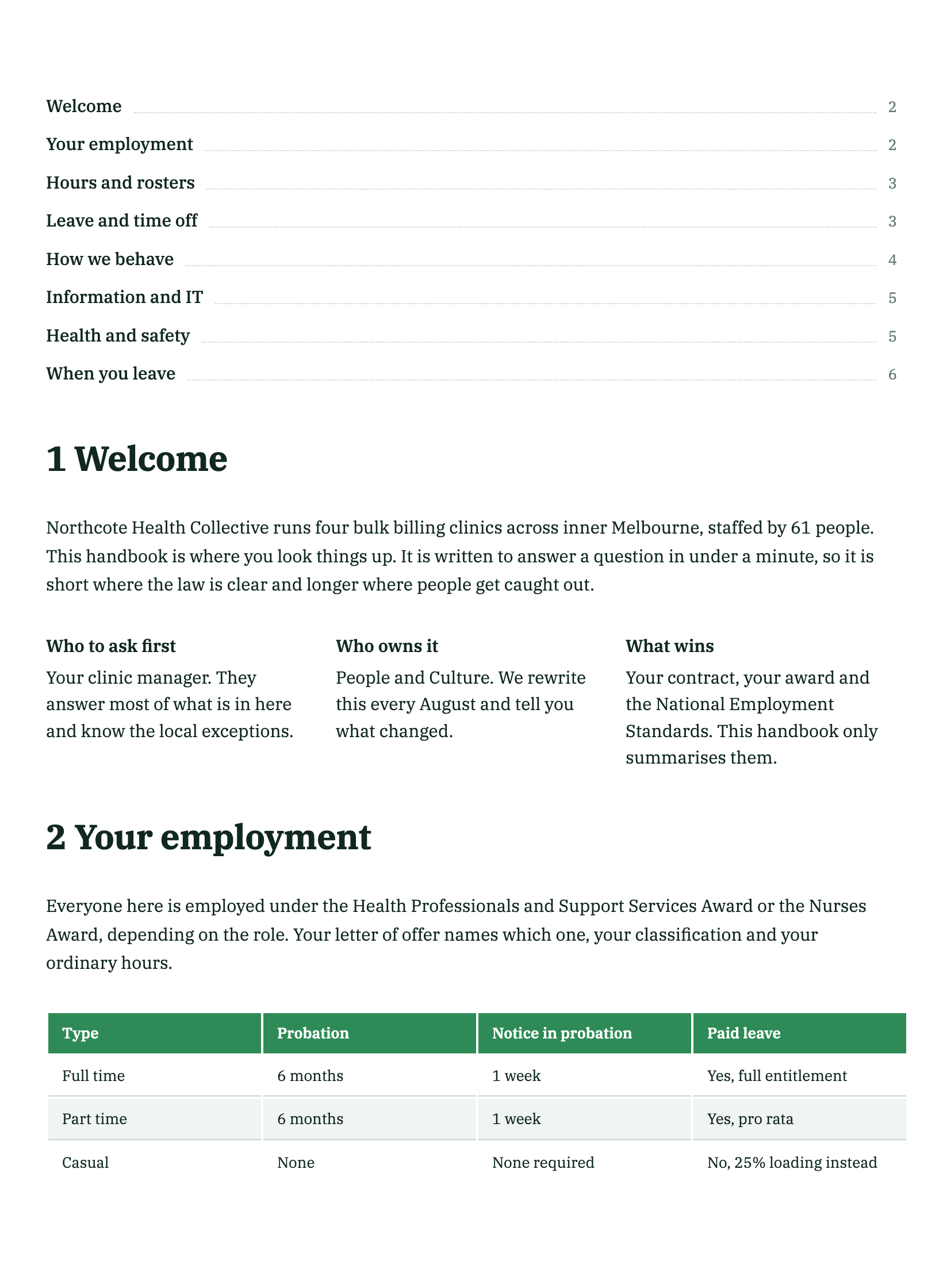
See it on a finished piece
Questions people ask
How do I convert a PDF that runs past 100 pages?
Split it at section boundaries and attach the parts as separate files, up to five per generation. Each file is read on its own and the readings are joined in attachment order, so every part gets its own full reading instead of one file being cut off at page one hundred. Splitting mid section leaves a part that starts halfway through an argument, which reads worse.
Why are the reference numbers exact when the paragraphs are not?
Because the reading of a PDF asks for every labelled field with its value exactly as written, but only for key points from the running text. A reference, date or amount printed against a label is therefore copied, while a paragraph is summarised into points and written out again. If a clause must stay word for word, attach that page as an image.
Can I attach the Word file instead of the PDF?
No. The document generator accepts PDF, plain text and common image formats, not .docx. A plain text file goes through the same reading as a PDF, so it also comes back as key points rather than a transcript. For exact wording, paste the text into the prompt box, which takes up to 10,000 characters, or attach screenshots of the pages.
Can I edit the text once the PDF has been converted?
Yes. Every heading, paragraph, table cell and list item is an ordinary block in the builder, so you click it and type. The AI chat panel can rewrite text across the document for you as well, but it only edits text: it does not add sections, move blocks or change the theme, which you do in the builder yourself.
Does the converted document keep the fonts and colours of my PDF?
No. Nothing visual is imported from the file. The converted document takes a theme instead: one of ten presets, a theme generated from a sentence in the Describe the look box, or your brand kit if you have set one up in account settings. That is usually the point of converting, since the old look is what you wanted to leave behind.
Make your own document
The button opens the generator with this use case already described. Change the wording to match yours, generate, then edit anything you like.
Create a document with OneCraftRelated pages
Convert a PDF to a presentation
To convert a PDF to a presentation, attach the PDF to the slide generator, set the slide count and say who the deck is for. The file is read for its content and the content is rebuilt as slides, so this is not a page for page conversion. A report argues in paragraphs and a deck asserts in headlines, which is why the result keeps the facts and rewrites the sentences.
AI document generator
Most tools that write a document hand you a wall of text. This one decides what kind of document it is first, then writes it and lays it out on A4 pages with the tables, headings, clauses and page breaks a document of that kind actually needs.
Document to PDF
Export is not a print dialog. The document is rendered on the server from the same page layout you have been editing, which is why the PDF matches the screen rather than approximating it.
More finished work of this kind is on the document examples hub.
Written and checked by the OneCraft team. Last checked .