Presentations
AI image generation for slides
Every picture box on a slide can be filled by describing what should be in it. The generated image is requested at the aspect ratio of the box, so it arrives filling the space rather than being cropped into it, and every attempt stays in the deck for you to compare and reuse.
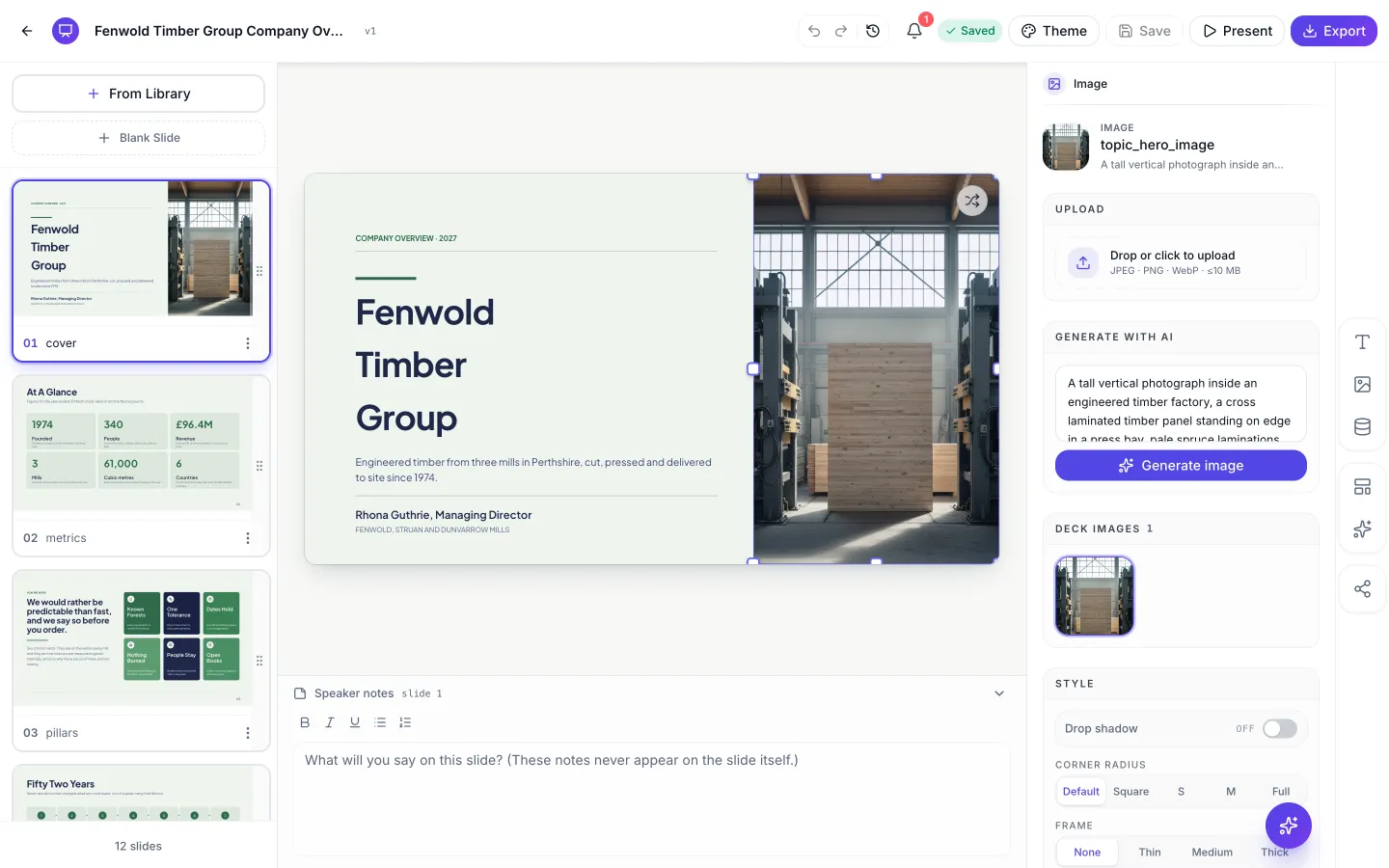
The box decides the shape
When you generate, the width and height of the picture box are sent with your prompt and the closest of eight aspect ratios is chosen: 21 by 9, 16 by 9, 3 by 2, 4 by 3, square, 3 by 4, 2 by 3 or 9 by 16. A tall side panel gets a portrait image and a full width banner gets an ultrawide one. This is the difference between a picture that fits and a picture that has had its subject cropped out.
Headshots and logos are never generated for you
When the deck is built, and when the assistant proposes an image, any picture box whose job is a headshot or a brand mark is skipped and left as a placeholder. Generated faces and invented logos are the two failure modes that make a deck embarrassing rather than imperfect, so the rule is enforced in both paths rather than left as a hint in a prompt. You can still generate into those boxes by hand from the image panel if you know what you are asking for.
Every attempt is kept
Generating does not overwrite the previous attempt. Each image is registered against the deck and appears in a grid in the image panel, so you generate two or three times, then click between them to choose. That grid is also how you reuse one picture across several slides. Deleting an image from it clears every slot in the deck that referenced it, so nothing is left pointing at a missing file.
Some prompt wording is rewritten before it is sent
Phrases that reliably produce a cut out on a white background are rewritten in place: neutral background, plain background, white background and studio backdrop all become an environmental setting, isolated subject becomes subject in context, and tight crop becomes close framing that fills the frame. The reason is that these models weight positive instructions far more heavily than negatives, so asking for the right thing works and asking for not that does not.
When it fails, you get a photograph instead
Generated bytes are checked before they are stored: the long edge has to reach sixty per cent of the requested size, and a file suspiciously small for its dimensions is rejected as a likely blank. During deck building, a rejected or failed image falls back to a stock photograph matched on keywords, with the photographer and source page recorded because the licence requires it. Generating by hand from the panel does not fall back; it reports the failure so you can change the prompt.
How it works, in three steps
Step 1
Click the picture
The image panel opens with an upload area, a Generate with AI box and the deck's existing images below.
Step 2
Describe the subject, not the style
Concrete nouns work. The prompt takes up to 2,000 characters, but two specific sentences beat a paragraph of adjectives.
Step 3
Generate twice and choose
Both attempts stay in the deck's image grid, so picking between them is a click rather than a regeneration.
The full walkthrough with screenshots is in the guide Add and generate images in slides.
Limits worth knowing
- Headshot and brand mark boxes are skipped by automatic generation, in the deck build and in the assistant.
- Prompts are capped at 2,000 characters, and up to 20 keywords.
- Each generated image spends credits from your monthly allowance.
- Undersized or suspiciously small output is rejected before it reaches your slide, which reads as a failed attempt rather than a bad picture.
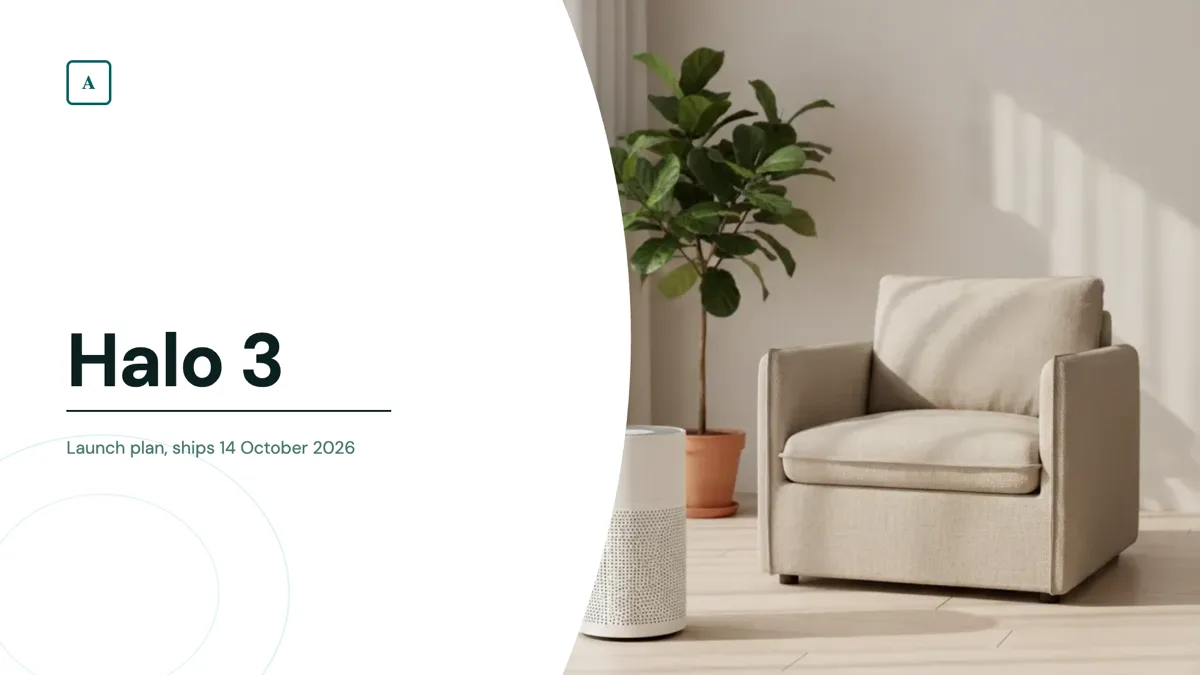
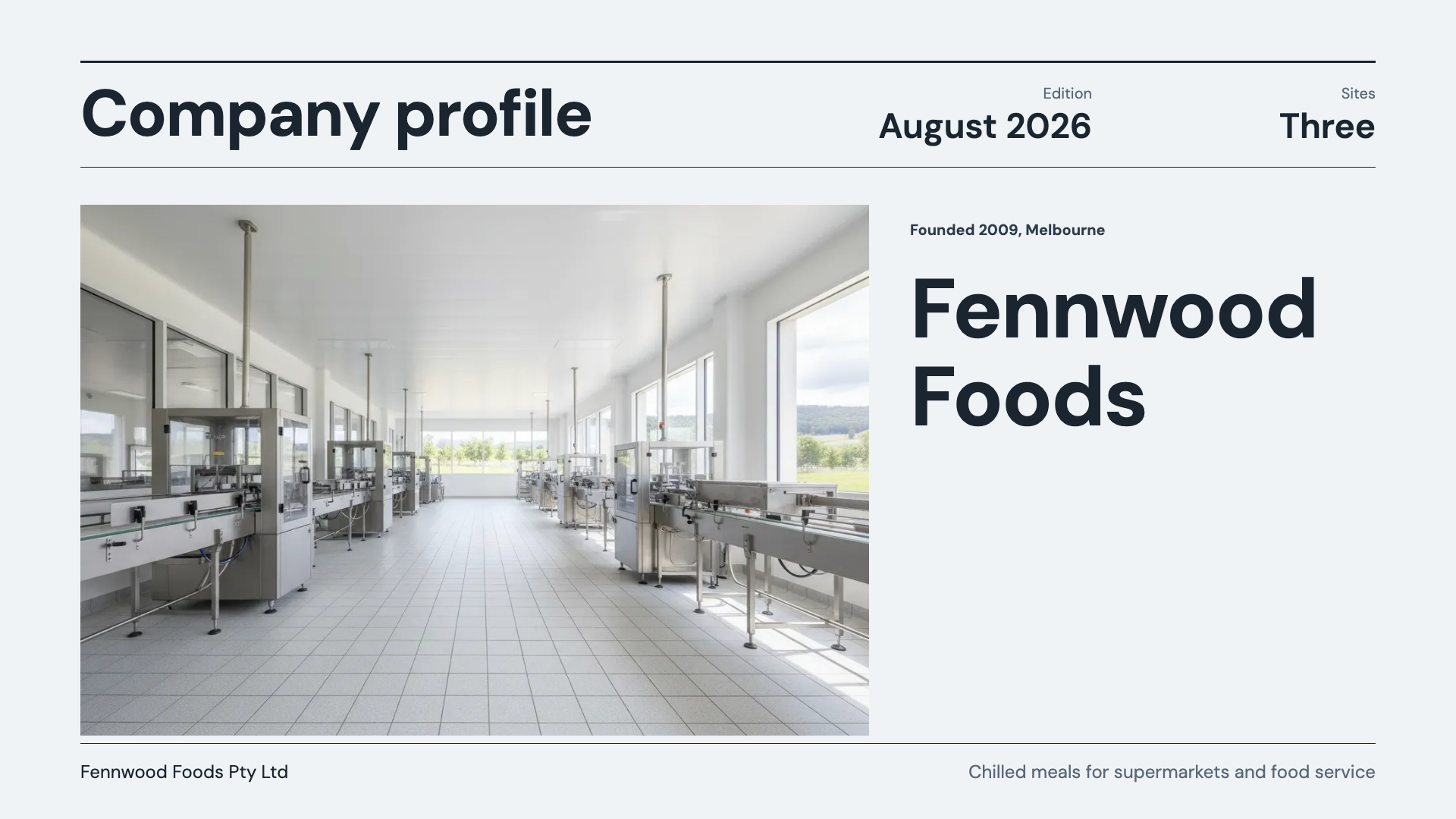
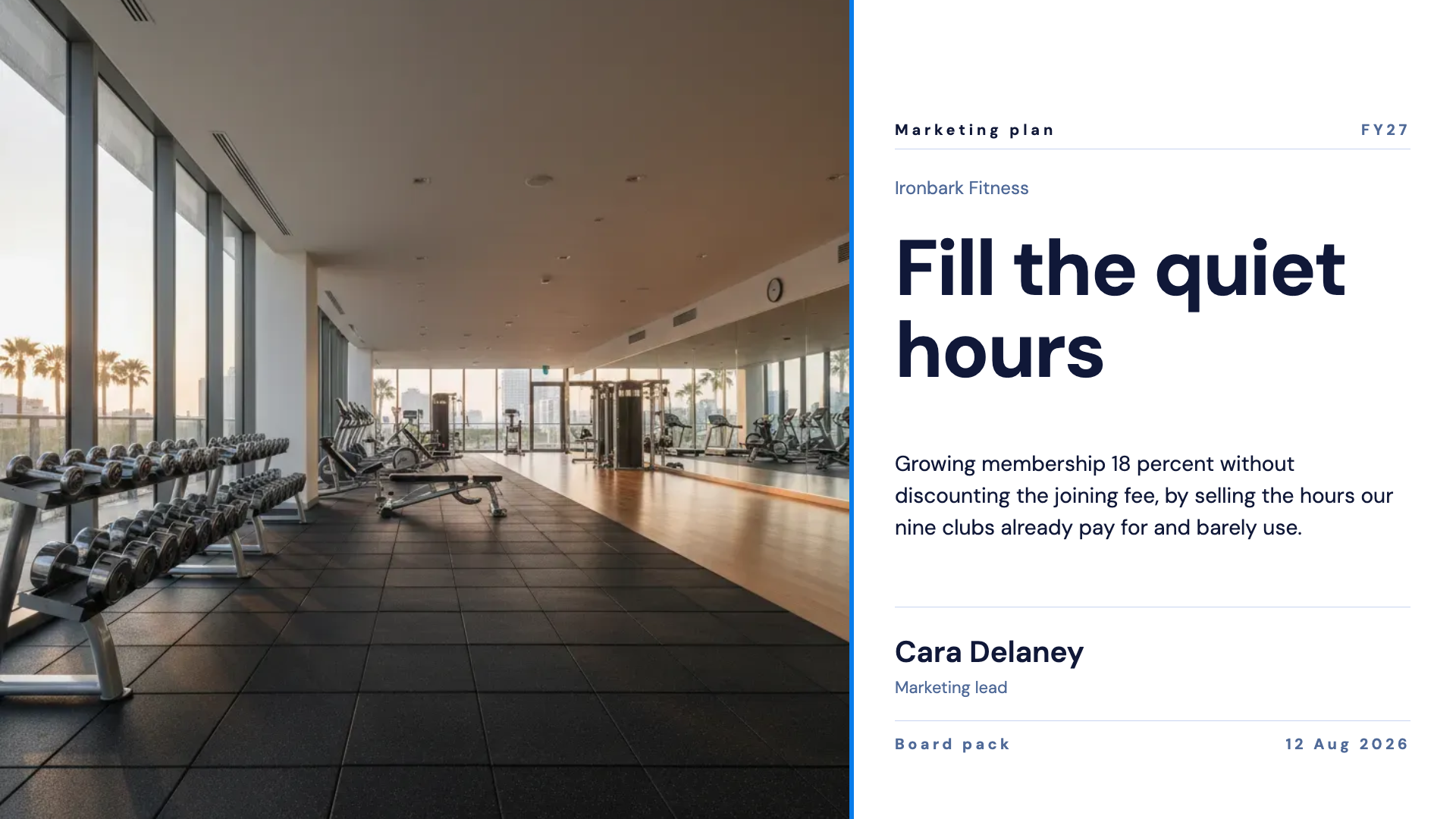
See it on a finished piece
Questions people ask
Why did the team photo slots stay as placeholders?
Because headshot boxes are deliberately skipped by automatic generation. A generated face on a team slide is worse than an obvious placeholder, so it waits for you to upload the real photograph.
Can I get a different version of the same image?
Generate again. Every attempt is kept in the deck's image grid, so you compare them side by side rather than losing the earlier one.
Why does my image not have a plain background?
Because phrases like plain background and white background are rewritten to an environmental setting before the request is sent. They reliably produce a cut out on white, which does not sit well in a slide layout.
Can I reuse one picture on several slides?
Yes. Every image generated or uploaded in the deck appears in the panel's grid on every slide, so reusing one is a click. Deleting it clears every slot that used it.
Make your own presentation
The button opens the generator with this use case already described. Change the wording to match yours, generate, then edit anything you like.
Create a presentation with OneCraftRelated pages
Quiz slide templates
A quiz slide in a deck is not an interactive quiz. Nobody clicks an answer and gets a score. It is a question held on screen while a room answers out loud, followed by a slide that shows which answer was right. That is a smaller thing than a quiz app and a very useful thing in a training session.
Section divider slides
A divider is a deliberate pause: it tells the audience the last thing finished and a new one is starting. Ten layouts carry that job, from a restrained numbered rule to an oversized chapter numeral, a glass panel on a gradient and a full bleed photograph.
Three pillars slides
A pillars slide claims that a thing rests on a small number of supports, and it is only convincing if each support carries a sentence rather than a word. Thirty three layouts hold that shape, from three full colour panels to bento grids, temple diagrams and a seven item numbered row.
More finished work of this kind is on the presentation examples hub.
Written and checked by the OneCraft team. Last checked .