Forms
Address fields in a form
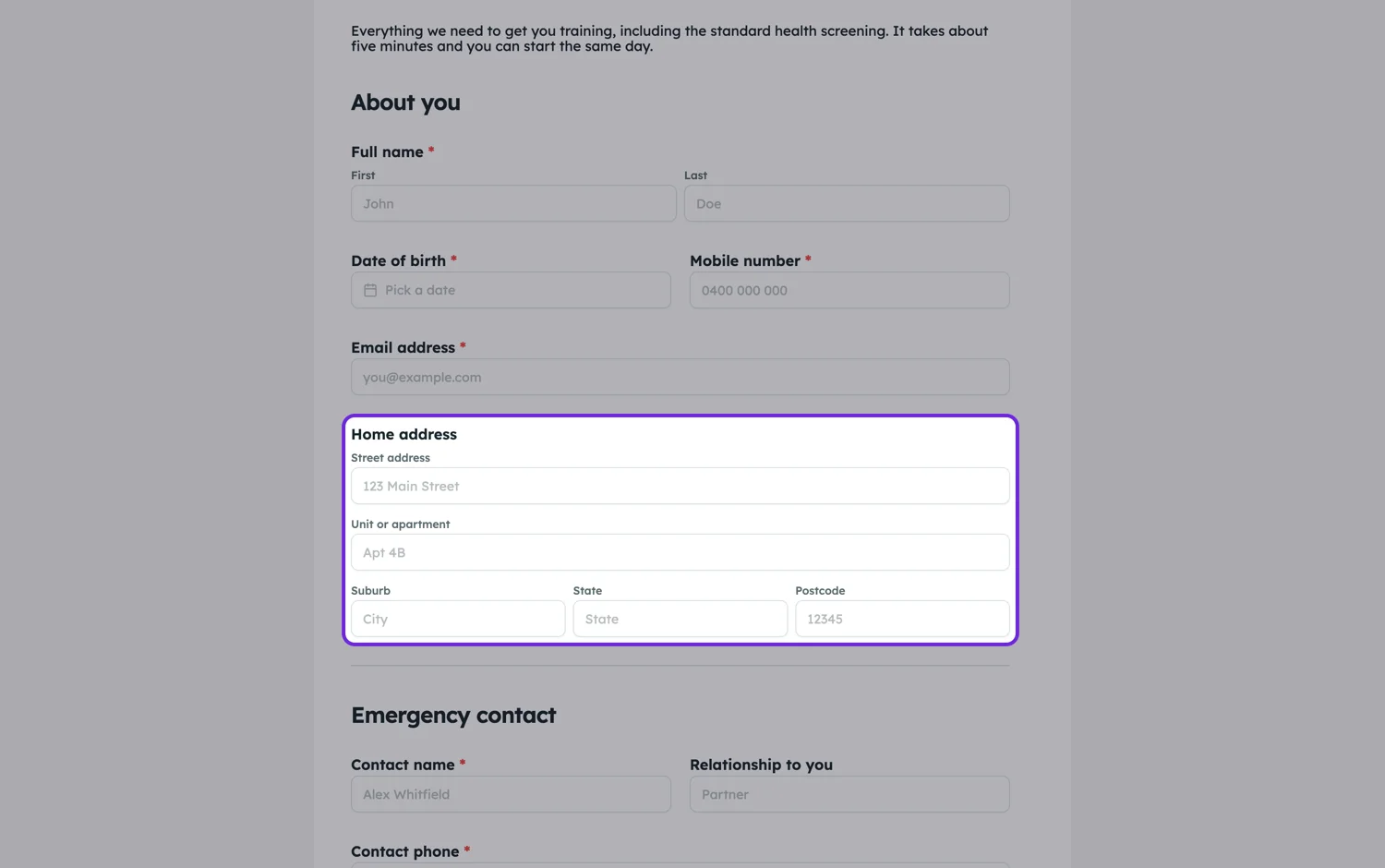
Asking for an address in a single text box gets you five different formats from five people. The address field gives each part its own labelled box, so people fill in what you actually need and nothing gets left out.
The five parts
Street address, a second address line, suburb, state and postcode. Each one can be switched off if you do not need it, and each one can be renamed. That renaming is the part that makes this field usable outside one country: suburb becomes city, state becomes province or county, postcode becomes ZIP code. The data shape stays the same, only the labels change.
Why separate boxes beat one
A single address box relies on the respondent knowing what you need. Separate labelled boxes tell them, which is why postcodes stop going missing and unit numbers stop being appended to the street name. It also reads back consistently: every response has the same parts in the same order in the responses table and in the response PDF, rather than five different house styles.
What to leave off
The second address line is the one to consider dropping. It is genuinely needed for units, levels and care-of lines, and it is also the field people leave blank most often. Keep it if you deliver to apartments, drop it if you are collecting a billing address for records.
In the export
The whole address arrives as one column, with its parts joined by commas in a fixed order. That is worth knowing before you plan a mail merge: the parts are consistent, which makes splitting the column in a spreadsheet reliable, but the export does not do the splitting for you. If you need suburb as its own column from the start, ask for it as a separate dropdown or short text field alongside the address.
How it works, in three steps
Step 1
Add the address field
One component covers all five parts. Put it after the contact details rather than in the middle of them.
Step 2
Rename the parts for your audience
Suburb, state and postcode are the labels to change first if your respondents are not in Australia.
Step 3
Turn off what you do not need
Each part can be switched off. Fewer boxes means fewer abandoned forms.
The full walkthrough with screenshots is in the guide Every form field and when to use it.
Limits worth knowing
- There is no address autocomplete or lookup. People type the address.
- The export gives one column with the parts joined by commas, not a column per part.
- There is no country field inside the component. Add a separate dropdown if you collect from several countries.
- No validation of a postcode against a suburb.
See it on a finished piece
Questions people ask
Does it autocomplete addresses?
No. It gives you clean, separated parts rather than a lookup, so people type the address themselves.
Can I use it outside Australia?
Yes. Rename suburb to city, state to province or county, and postcode to ZIP code. The parts stay the same underneath.
How does an address export?
As one column with the parts joined by commas in a fixed order. Because the order is always the same, splitting that column in a spreadsheet is reliable, but you have to do the splitting.
Make your own form
The button opens the generator with this use case already described. Change the wording to match yours, generate, then edit anything you like.
Create a form with OneCraftRelated pages
One block for name, email, phone and address
Contact details are the boring part of every form, and in a one question at a time form they cost four screens. The profile field puts them on one screen, so the questions worth asking get the attention instead.
Forms with a table for line items
Some answers repeat. Three work references, five line items, two vehicles. A table field asks for them in named columns instead of you copying the same field five times down the page.
Fillable fields for signers
Fillable fields for signers are the boxes the other person completes on their way to the signature: a free text field, a confirmation checkbox, and labelled name, email, title and company boxes. A reference number, a job title, a mark against a clause. You decide which are compulsory; the signer supplies every value.
More finished work of this kind is on the form examples hub.
Written and checked by the OneCraft team. Last checked .