Presentations
Slide layout templates
There are 1,071 slide layout templates in the library, all at 1920 by 1080, and every one is filed under the job a slide does rather than under a look: comparison, metrics, pricing, timeline, testimonial and 21 more. That organising idea is worth understanding, because it is also how the generator picks a layout for each slide it writes.
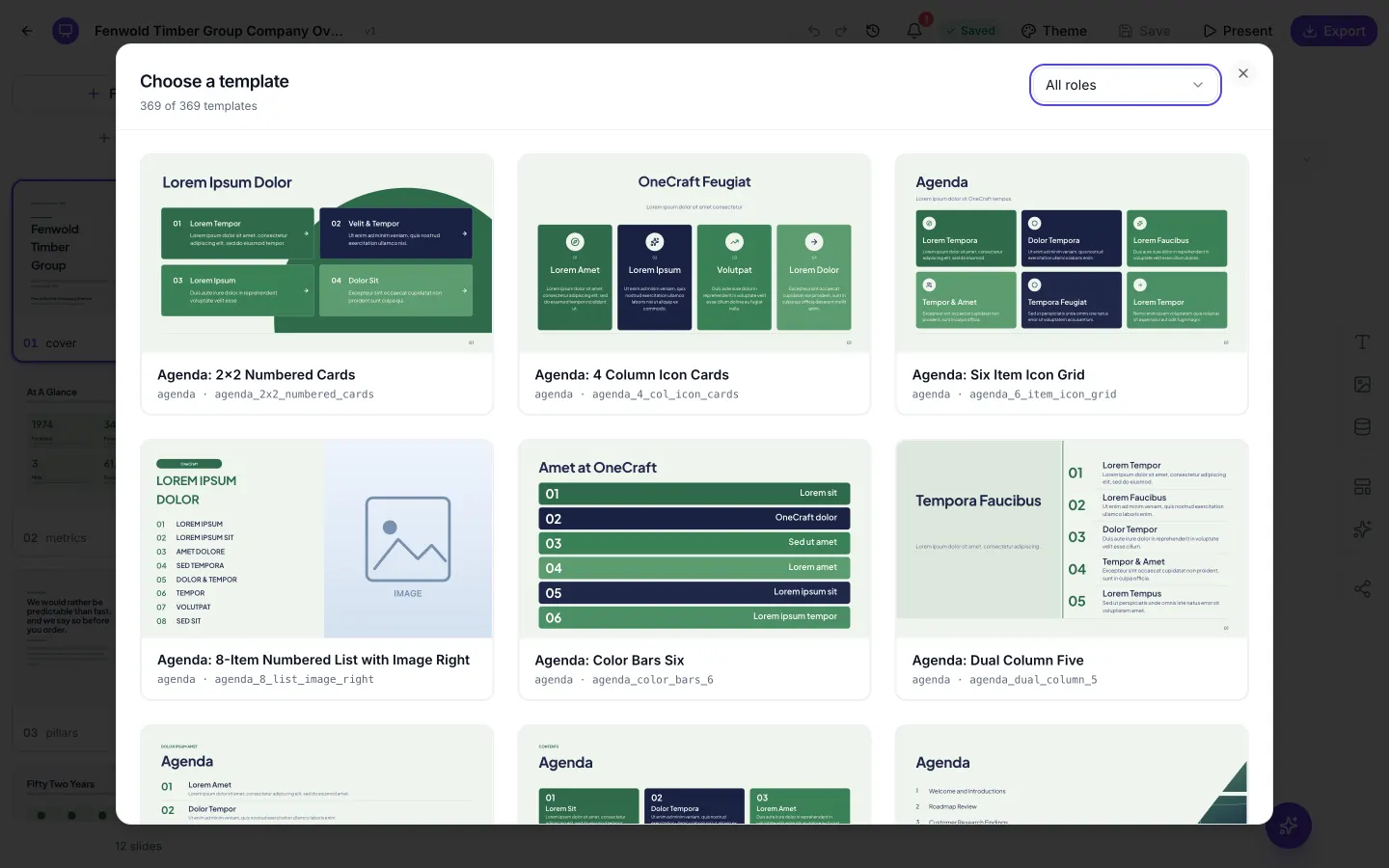
Purpose is the top level, and there are 26
Agenda, calendar, checklist, closing, code, comparison, content, cover, diagram, divider, framework, gallery, intro, investment, metrics, persona, pillars, pricing, process, profile, quiz, a question break, takeaway, testimonial, timeline and tree. Each is a folder in the real sense: a slide belongs to exactly one, that membership is fixed when the slide is created, and it decides which designs the slide can wear.
The distribution is lopsided on purpose
Metrics is the largest purpose with 34 designs filed under it, then pillars 33, comparison 32, cover 27, framework 23, diagram 20, content and timeline 18 each, and process 17. At the other end, calendar, code, quiz and the question break carry 5 each. That mirrors how often each job comes up in a business deck, so the purposes with real variety are the ones you will use repeatedly.
Each purpose owns a fixed vocabulary of slots
Every cover design may only use identifiers from the cover list, every pricing design from the pricing list. That constraint is what makes layout swapping a guaranteed one to one content copy inside a family. It is also why the purposes are described in terms of what they hold: a checklist holds five to ten self contained items each with an icon, a heading and one or two sentences, and any checklist design has to accept exactly that.
38 designs are cross listed
A layout can claim a second job. A design filed under tree that also works as a comparison lists both, and it then appears when you filter on either. Forty six of the 1,071 do this, which is why a comparison slide is offered 93 designs rather than the 80 filed under comparison, metrics 145 rather than 141, agenda 60 rather than 56, profile 57 rather than 54, and pricing 15 rather than 12.
Adding one to a deck by hand
The slide rail has From Library, which opens the whole catalogue with a row of purpose filters across the top and everything grouped by purpose. This is where you go to add a kind of slide the deck does not have yet. A slide added this way arrives as a shell with muted placeholder text in the right shapes, which you then fill or ask the assistant to fill. Blank Slide beside it starts from the plainest title and body design.
Footers and the designs without one
804 of the 1,071 layouts use the theme footer, the band along the bottom that carries a section label on the left and a zero padded page number on the right. The other 267 are mostly full bleed designs: all 69 covers, 45 gallery layouts, 43 dividers, 40 closing slides and a few content, takeaway and metrics layouts. If page numbers matter for a printed handout, check that the layouts you pick are among the 804, because a slide without the footer shows no number at all.
How it works, in three steps
Step 1
Open From Library in the rail
Top of the slide rail on desktop. It shows all 1,071 with a purpose filter across the top, loaded in pages as you scroll.
Step 2
Choose by the job, not the look
Decide whether the slide is comparing, measuring, sequencing or listing. The look follows from the theme anyway.
Step 3
Fill the shell
A newly added slide arrives with placeholders. Type into it, or ask the assistant to write it from a one line hint.
The full walkthrough with screenshots is in the guide Add, reorder and restructure slides.
Limits worth knowing
- 1,071 designs, all at 1920 by 1080. There is no portrait or square slide size.
- You cannot author a new layout. The library is fixed and grows only with product releases.
- A slide's purpose is set when the slide is created and cannot be changed afterwards.
- Some purposes have only five designs, so variety is uneven across the catalogue.
- The library dialog filters by purpose but has no text search, so browsing is by category rather than by name.
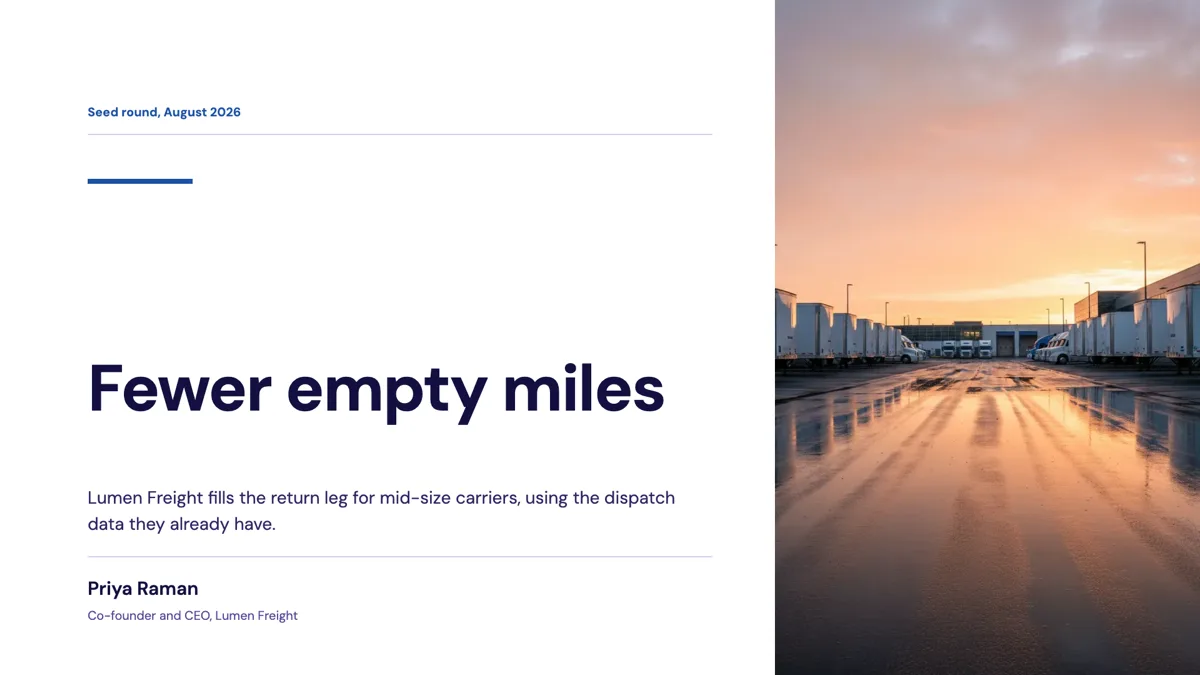
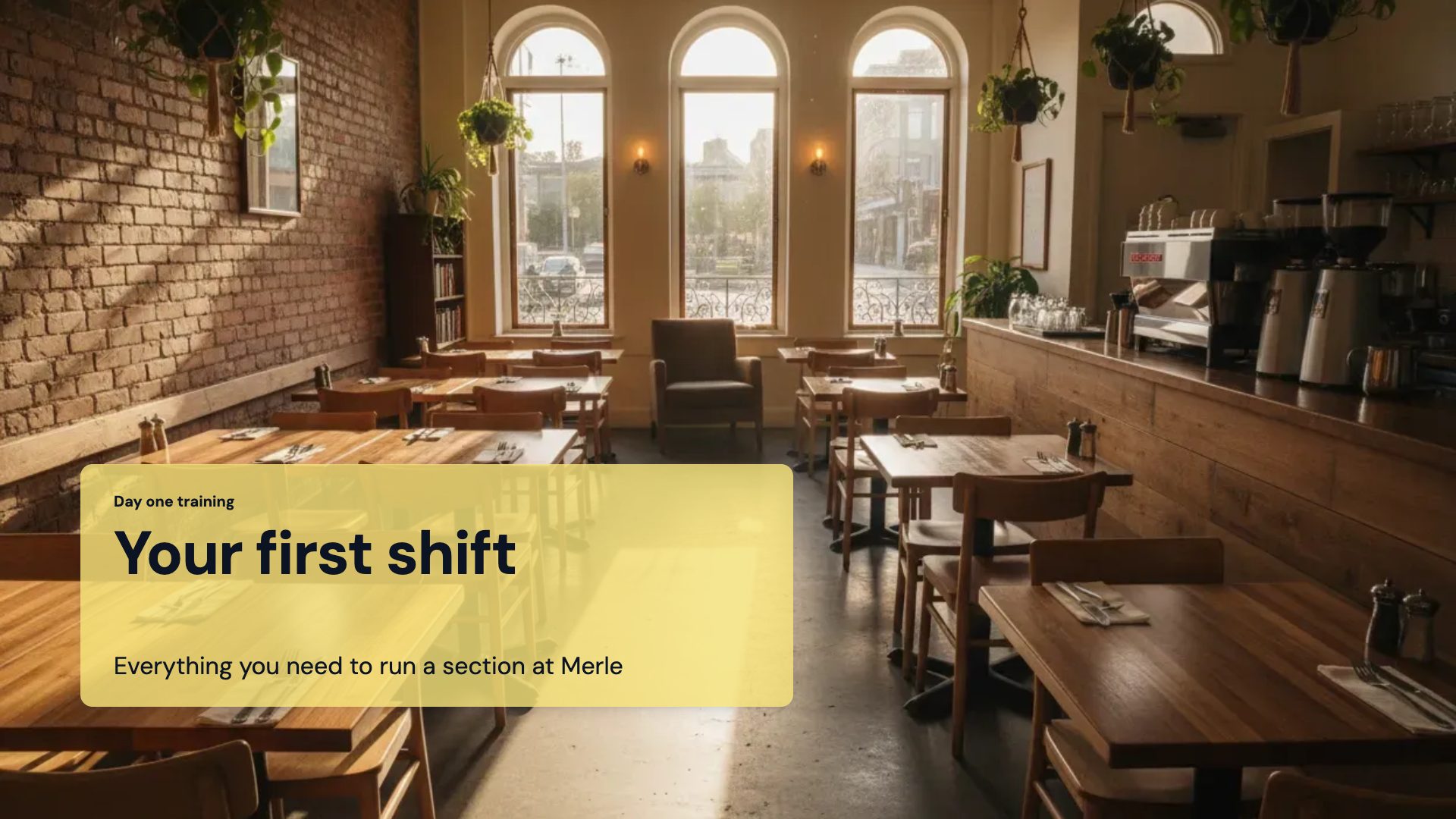
See it on a finished piece

Questions people ask
Can I design my own slide layout from scratch?
No. The 1,071 layouts are fixed and grow only with product releases. What you can do is drop extra elements onto any slide, such as a text box, a chart, a table or an icon, and move them where you want. That covers most of the reasons people want a custom layout, and the added pieces keep their position when you swap the slide to another design.
Why does the swap picker show fewer designs than the library?
Because it filters to the slide's purpose. A comparison slide is offered 93 designs, the 80 filed under comparison plus the cross listed ones, while a quiz slide is offered 8. From Library in the rail shows all 1,071 with a filter row, which is where you go when you want a kind of slide the deck does not have yet.
Are all the layouts the same aspect ratio?
Yes. Every design is 1920 by 1080, which is 16 by 9, and there is no portrait, square or 4 by 3 slide size. That matches the default slide size in PowerPoint and Google Slides, so a PDF or PowerPoint export fills a modern projector or screen share without bars. A deck for an old 4 by 3 projector will show black bands at the sides.
How does the generator choose a layout for each slide?
It decides the slide's purpose first, then looks at the designs registered against that purpose and picks by how many items the slide is carrying against what each design expects. A four point comparison lands on a four column design rather than a two column one. You can swap to any other design in the same purpose afterwards, and the content moves across by box.
Which purposes have the most variety?
Metrics, pillars and comparison, with 34, 33 and 32 designs filed under them, followed by cover with 27 and framework with 23. Those are the jobs a business deck repeats most, so they get the widest choice. Calendar, code, quiz and the question break have 5 each, so two decks using them will look more alike on those slides.
Do layouts change colour when I change the theme?
Yes. A layout sets only the arrangement of boxes and shapes. Colour, type and background come from the deck theme, one of 99, and each slide can also cycle through four colour modes on the canvas. So the same comparison design looks quite different in a dark theme and a light one, and you never have to pick a layout for its colours.
Make your own presentation
The button opens the generator with this use case already described. Change the wording to match yours, generate, then edit anything you like.
Create a presentation with OneCraftRelated pages
Change a slide layout
Swapping a layout is not a template change in the usual sense, where your content gets dumped into a new frame and you spend ten minutes putting it back. The picker only offers designs that hold the same shape of content, and each card is rendered live with your words already in it.
Agenda slide templates
An agenda slide is a promise about the next twenty minutes. The twelve layouts differ in how many items they hold and whether each item carries a time, and the section dividers later in the deck should use the same names so the promise is visibly kept.
Customer persona slide templates
Nine layouts are filed under the persona purpose, and they are not all the same slide. Three are persona cards, two are empathy maps, two are journeys, and the rest sit between. The fields decide which one your research actually fits.
More finished work of this kind is on the presentation examples hub.
Sources
Written and checked by the OneCraft team. Last checked .