Presentations
Change a slide layout
Swapping a layout is not a template change in the usual sense, where your content gets dumped into a new frame and you spend ten minutes putting it back. The picker only offers designs that hold the same shape of content, and each card is rendered live with your words already in it.
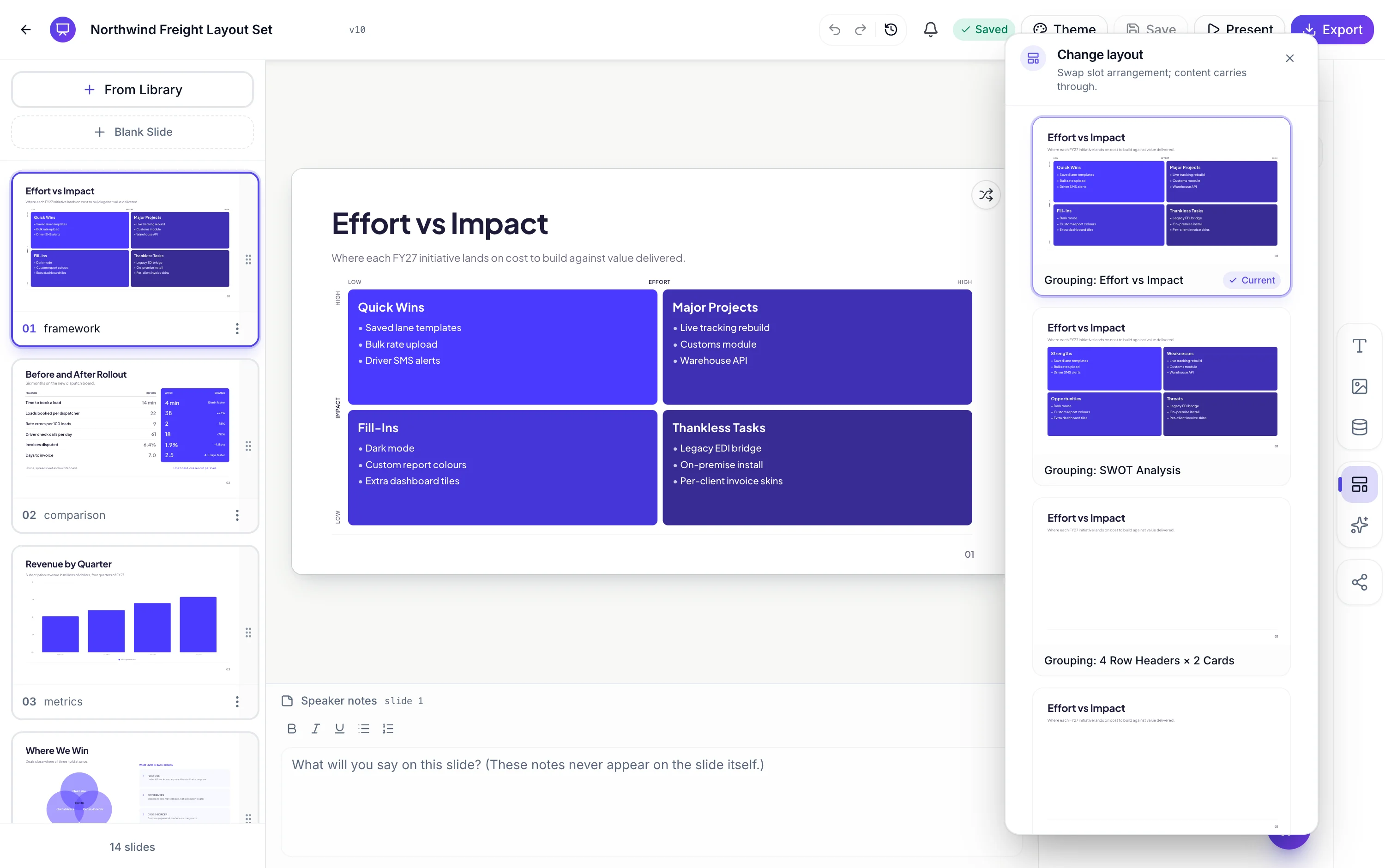
The picker is filtered to one purpose
Every slide carries a purpose, and the layout flyout lists only the designs registered for that purpose, including designs that claim it as a secondary one. A comparison slide sees 43 candidates, a metrics slide 38, a pricing slide 12, a quiz slide 5. You cannot accidentally turn a comparison slide into a photo gallery, which sounds restrictive until you have watched somebody do exactly that in another tool.
Every card is your slide, not a sample
The picker renders each candidate at card size using the current slide's own content, the deck's theme and the slide's colour mode. So you are looking at your headline, your five items and your numbers in fifteen different arrangements, which is a completely different decision from looking at fifteen lorem ipsum thumbnails and hoping.
Content carries because the slot names match
Designs sharing a purpose are built against a shared list of box identifiers, so the title on one is the title on the next, and the item list is the item list. The swap re-keys your content against the new design's boxes: anything whose identifier exists on both moves straight across, which is what makes it a copy rather than a re-entry job. A test suite checks every design's identifiers against its purpose's list.
Content with nowhere to go is set aside
If the new design has no box matching something you had, that value is not deleted. It is parked on the slide, and if you swap back to a design that has the box again it reappears in place. That is what makes going out and back lossless, and it means trying five layouts in a row costs you nothing.
Two style settings are deliberately dropped
Colour, weight, font and alignment you set on a text box survive the swap, because they are stored against the box identifier and the identifier survives. Two things do not: a box you had dragged to a custom position, and a chart kind you had switched. Both are reset to whatever the new design specifies, because carrying them would undo the visual identity you just chose.
How it works, in three steps
Step 1
Select the slide
Click it in the rail, or on the canvas. The picker always acts on the current slide.
Step 2
Open the layout panel
In the left rail. It fills with every design registered for this slide's purpose.
Step 3
Click a card
The canvas updates immediately. Undo reverts it, and the picker stays open so you can try the next one.
The full walkthrough with screenshots is in the guide Add, reorder and restructure slides.
Limits worth knowing
- You can only swap within the slide's own purpose. Changing purpose means deleting the slide and adding a new one.
- Content stored against a box the new design does not have is parked rather than shown. Swapping back restores it.
- A custom position you dragged a box to, and a chart kind you switched, are reset by the swap.
- Pictures move with the slide, but a layout with no picture box will not show one.
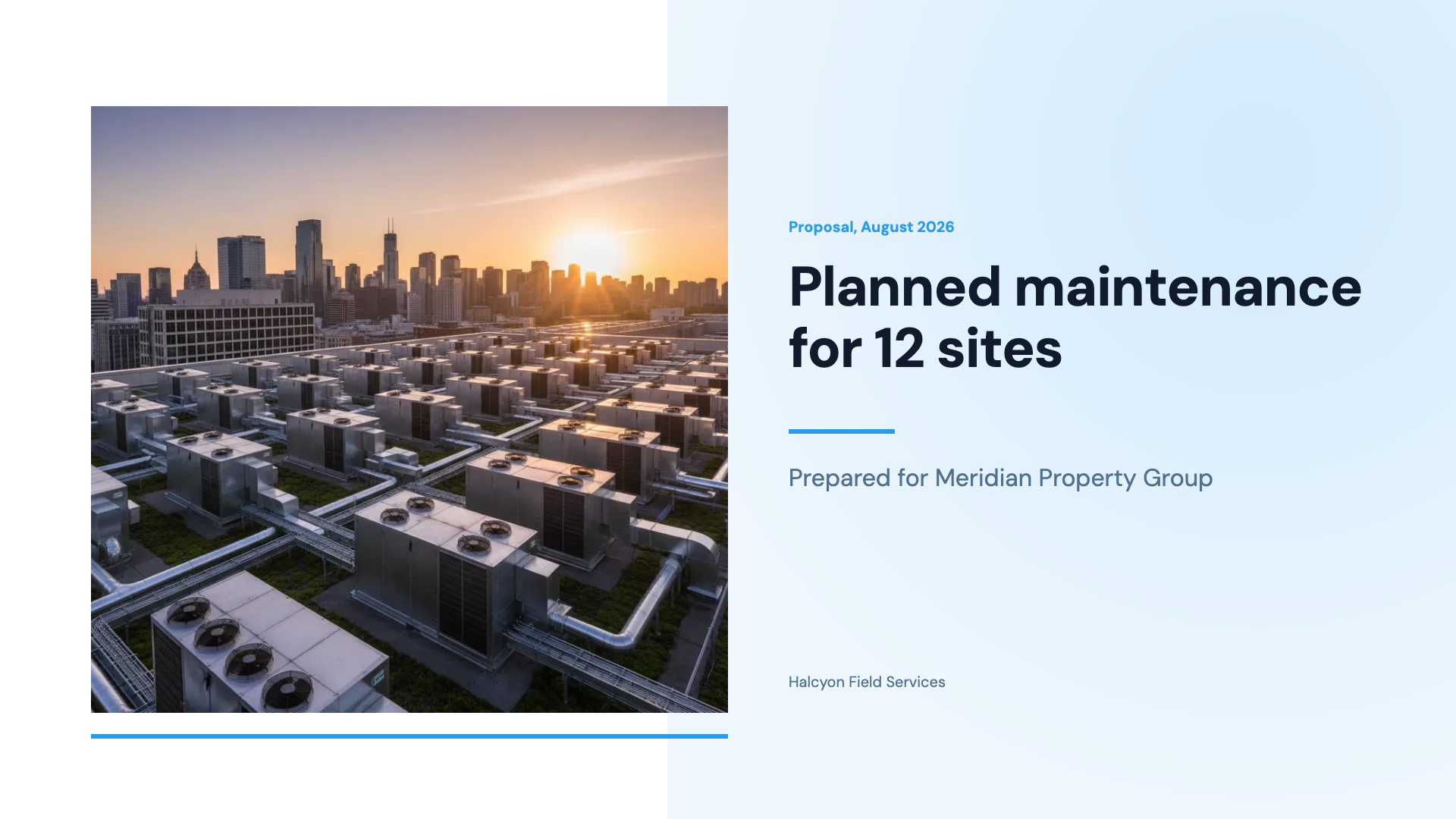
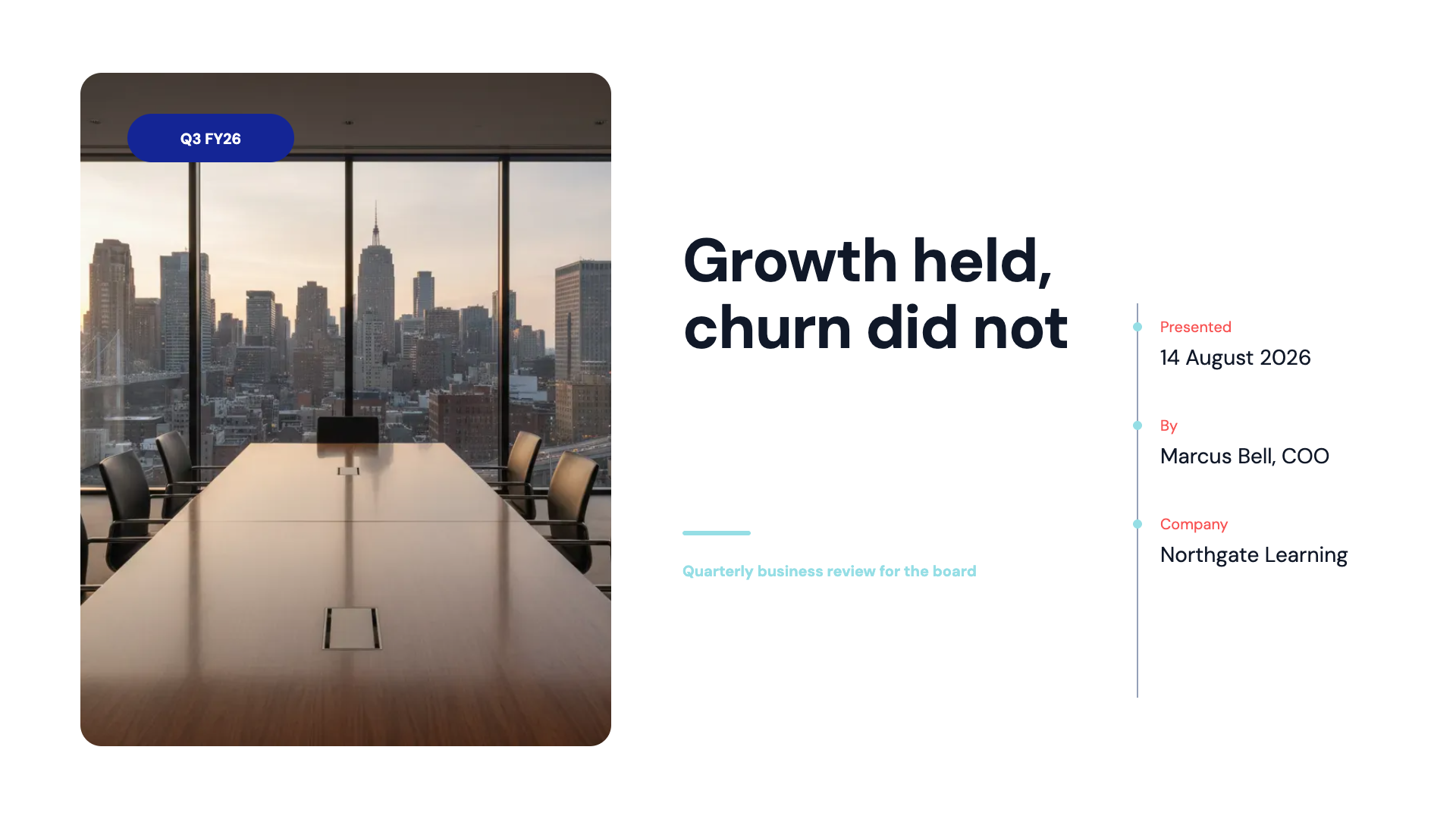
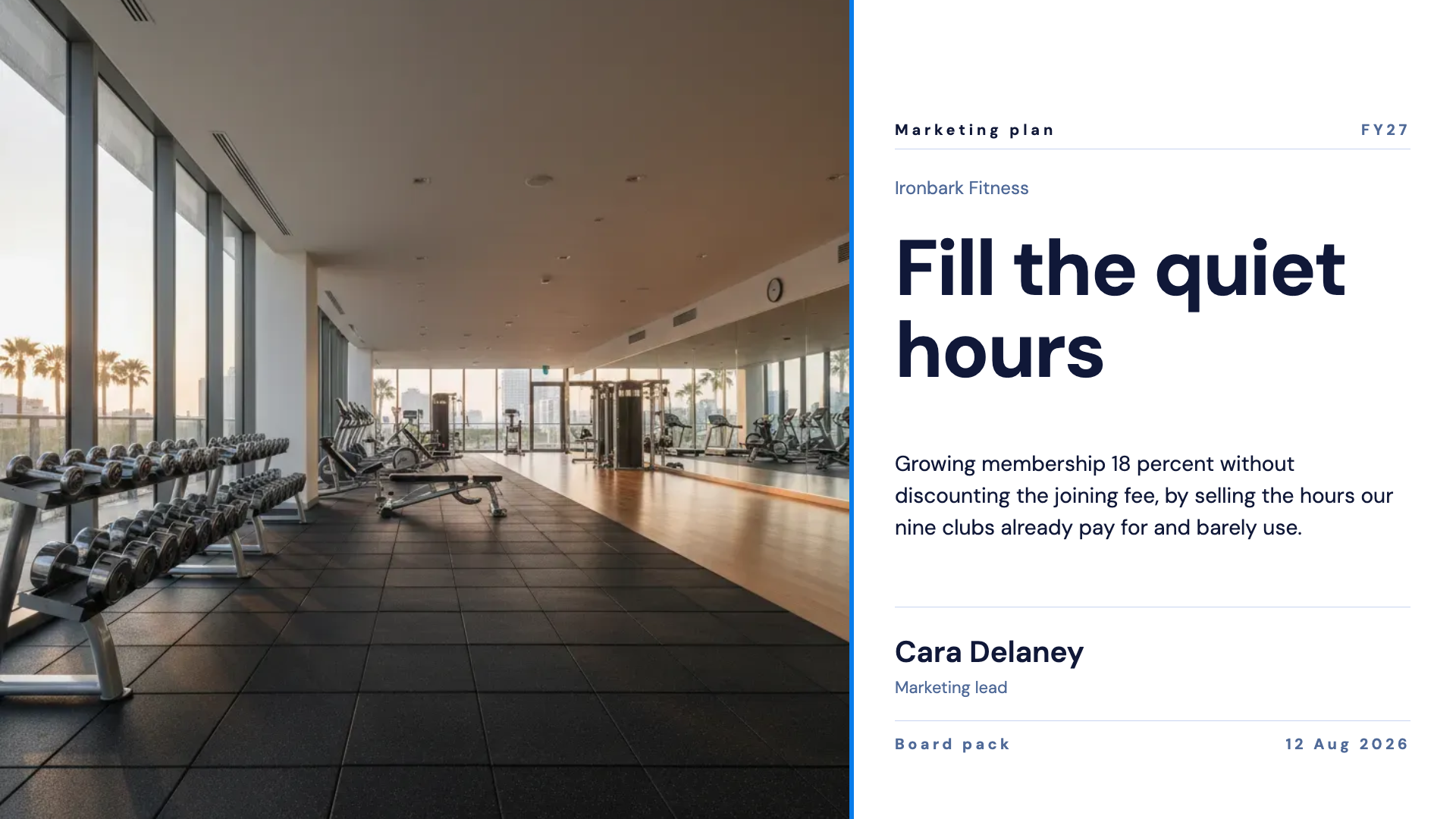
See it on a finished piece
Questions people ask
Will I lose my edits?
No. Text, data and per box styling such as colour and weight all move across. The two things reset are a box you had dragged to a custom position and a chart kind you had switched.
Why can I not pick any layout in the product?
Because the picker filters to the slide's purpose, which is what guarantees the content lands in the right slots. To use a design from another family, add a new slide from the library instead.
What if the new layout holds fewer items?
It is parked on the slide rather than deleted, and swapping back to a design that has that box brings it straight back.
Can the AI assistant swap layouts for me?
Yes. Swapping a layout is one of the nine operations it can propose, and it shows you the change as a preview before anything is applied.
Make your own presentation
The button opens the generator with this use case already described. Change the wording to match yours, generate, then edit anything you like.
Create a presentation with OneCraftRelated pages
Convert a Word document to slides
To convert a Word document to slides, either save it as a PDF and attach that to the slide generator, or copy the sections you need into the prompt box. A .docx file is not an accepted attachment, so one of those two routes is required. The PDF route gives the planner a summary and key points of the whole document, while pasted text is used exactly as written, and which one you pick decides how close the slides stay to your wording.
Undo flyer changes
Two safety nets exist on a flyer and it is worth knowing where each one stops. Undo goes back fifty steps but only while the tab is open, and the Flyer 1 and Flyer 2 switch takes you between the AI designs you were originally offered. There is no version history drawer, and this page is about working around that.
Presentation themes
The theme panel lists ninety nine entries: eighty eight colour palettes, twenty one hand built themes, and the ten places where a hand built theme takes over a palette's name. Picking one restyles the whole deck immediately, including charts, tables and diagrams.
More finished work of this kind is on the presentation examples hub.
Written and checked by the OneCraft team. Last checked .