Presentations
Presentation themes
The theme panel lists ninety nine entries: eighty eight colour palettes, twenty one hand built themes, and the ten places where a hand built theme takes over a palette's name. Picking one restyles the whole deck immediately, including charts, tables and diagrams.
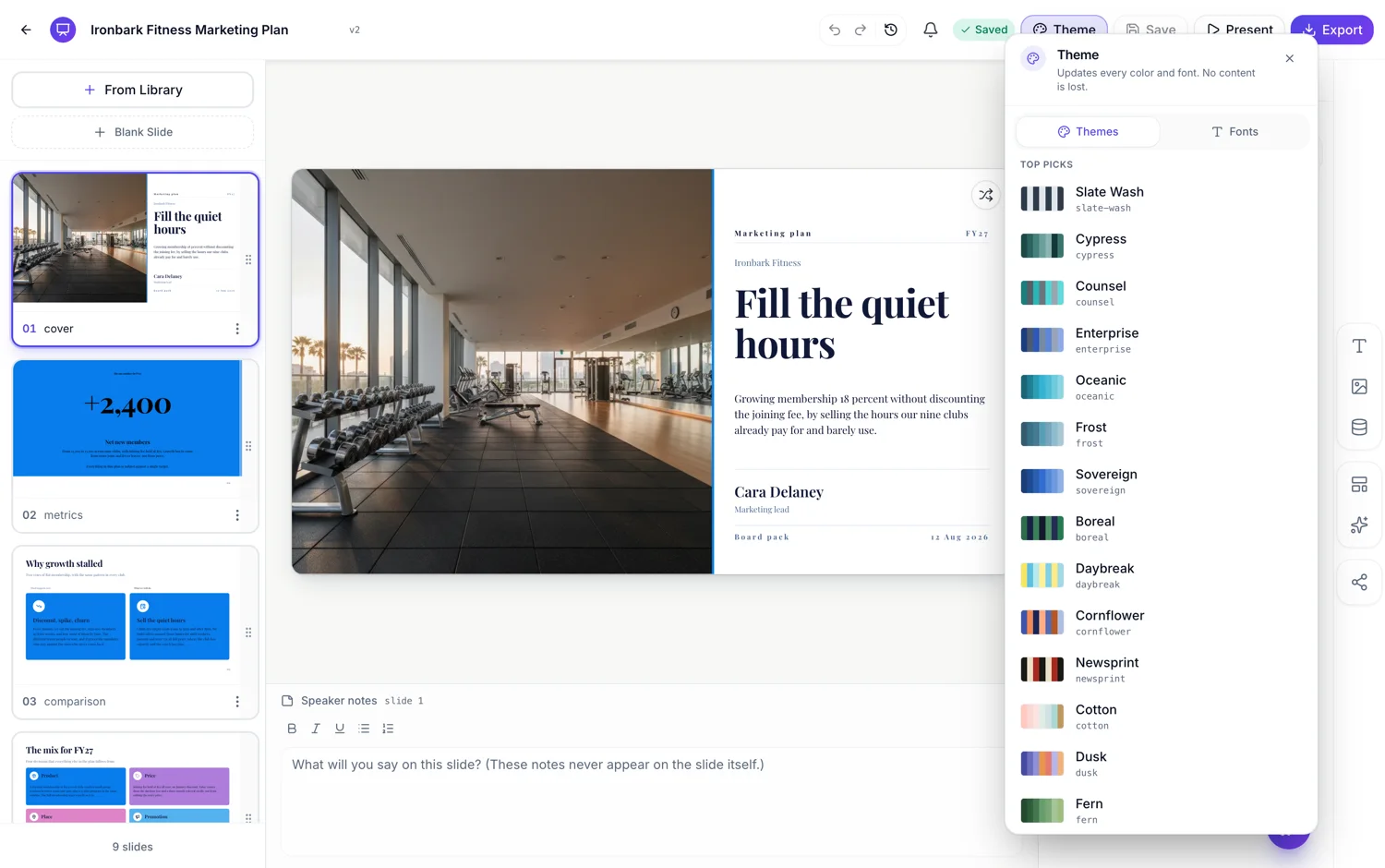
Two sections, Top picks and More palettes
The panel opens on a Themes tab with forty two curated entries under Top picks, then everything else under More palettes. Each row shows a seven band colour strip, the theme name and its identifier, so you are choosing by the colours themselves rather than by a name that promises something. The strip is generated from the theme, so it cannot fall out of date.
Nothing on a slide stores a colour
This is the mechanism that makes a one click restyle work. A slide records that a heading uses the ink token, a panel uses the brand token and a card uses the third element colour. It never records a hex value. When you swap the theme, the tokens resolve against the new palette and every slide moves together, including the chart series, the table header fill and the diagram segments.
A theme is three things pointing at each other
A palette, a font pairing and a geometry, which is the layer holding the type ramp, corner radii, shadows, stroke weights and the footer band. Twenty one of them were assembled by hand. The remaining palettes get a theme composed automatically, with the font chosen from the palette's temperature, which is why every palette works as a theme even without a designer having sat with it.
Warm, cool, neutral and vibrant
Every palette declares a temperature, and separately declares whether its accent colours sit in one hue family or several. One family reads as executive and editorial. Several families read as launch material and multi topic decks. The practical rule: a board pack wants a tonal palette, a product roadmap with eight workstreams wants a diverse one, because the colours have to tell the workstreams apart.
Every theme has to survive four colour modes
Each palette carries a light block and a dark block, and every slide can be set to any of four colour modes independently. A palette is only accepted when text on background clears seven to one contrast, muted text clears four and a half to one, and every accent colour clears four and a half to one against its own text colour, in both blocks. That is why swapping to a dark theme does not produce a slide where a white panel has vanished.
How it works, in three steps
Step 1
Open the theme panel
The left rail in the builder. It opens on Themes with Fonts as the second tab.
Step 2
Scan the colour strips
Top picks first. The seven band strip on each row is the palette itself, so judge from that rather than the name.
Step 3
Click one and look at a data slide
Charts and tables are where a palette either works or does not. Check one before you commit.
The full walkthrough with screenshots is in the guide Change your presentation's theme, fonts and colours.
Limits worth knowing
- There is no custom theme editor here. You choose from the ninety nine, you do not author a new palette.
- The theme is deck wide. A single slide cannot use a different palette, only a different colour mode.
- Individual colours cannot be overridden globally, though a single text box can be given a different token.
- A picture you uploaded is not recoloured by a theme swap. Only theme driven elements move.
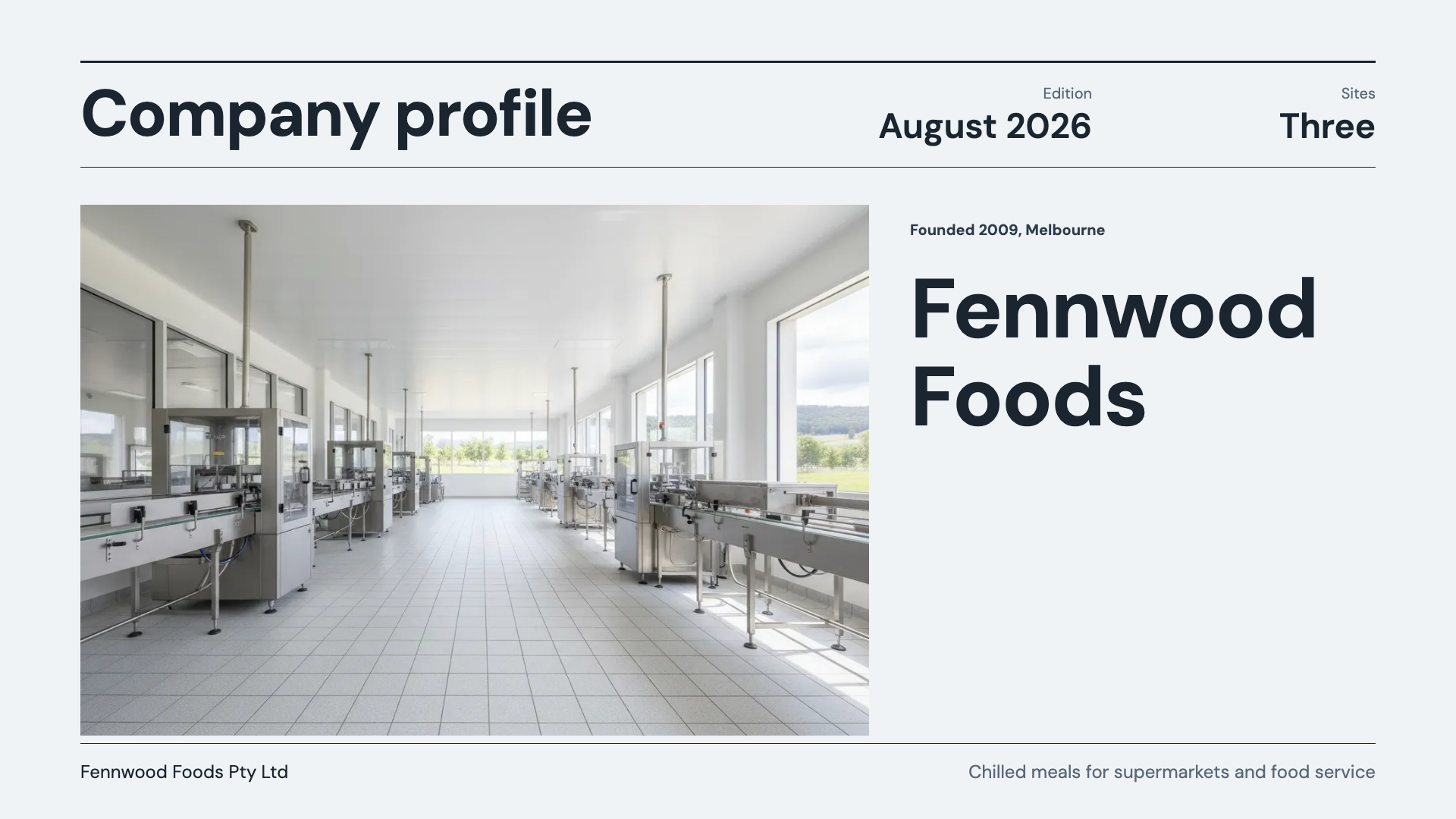
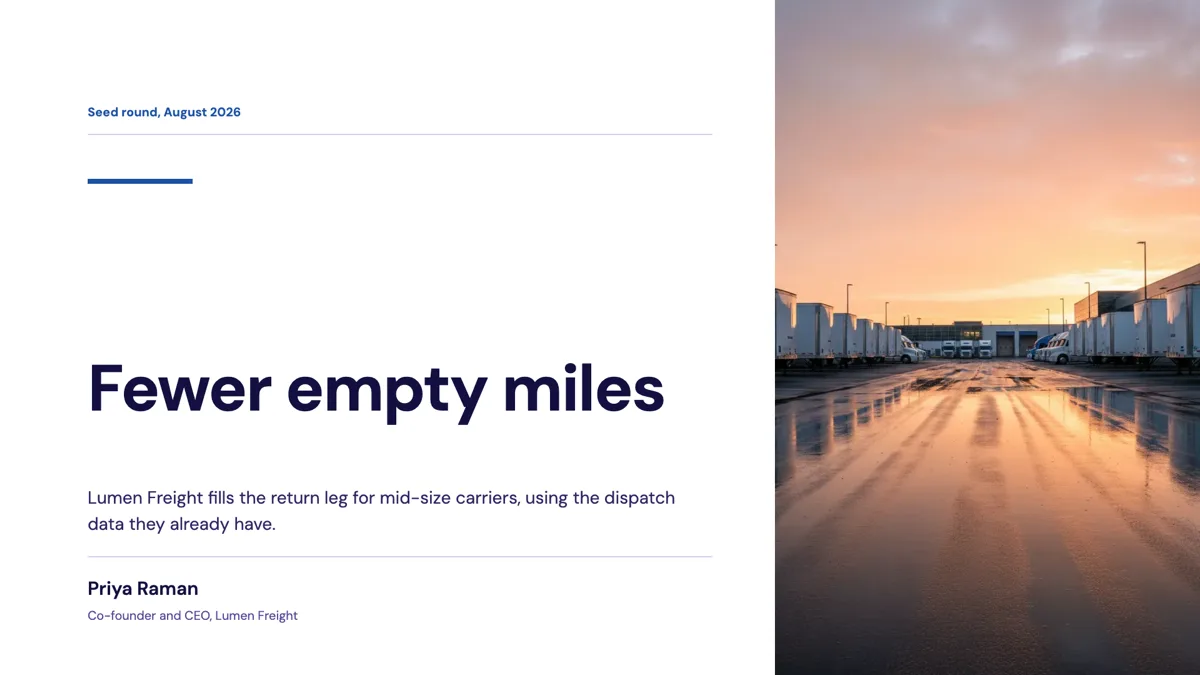
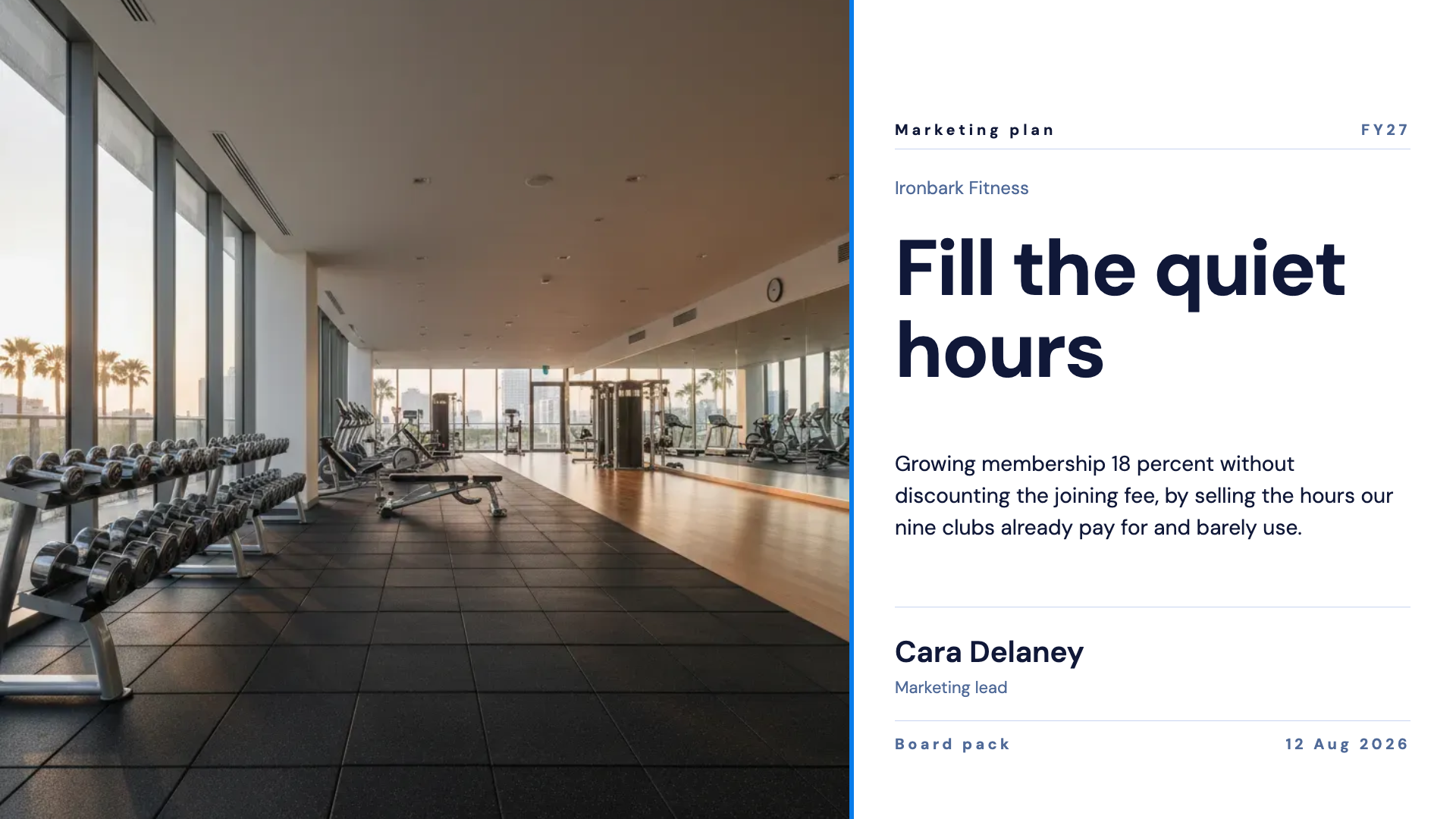
See it on a finished piece
Questions people ask
Will swapping the theme break my edits?
No. Your text and data are separate from the styling, so a swap restyles and leaves the content alone. Text you gave a specific colour token to keeps that token and resolves it against the new palette.
Can I use my own brand colours?
Not as a custom palette. Pick the closest of the ninety nine, then add your logo from the brand panel, which is where most of the brand signal comes from anyway.
Why do some entries look like palettes rather than designed themes?
Because they are. Twenty one themes were assembled by hand and the rest are composed from a palette with a font matched to its temperature. Both behave identically once applied.
Does the theme affect the exported file?
Yes. Exports render the saved deck, so the PDF and the PowerPoint carry whatever theme is applied at the time you export.
Make your own presentation
The button opens the generator with this use case already described. Change the wording to match yours, generate, then edit anything you like.
Create a presentation with OneCraftRelated pages
Flyer colour themes
A theme is not a background colour. It is a palette, a type scale and a set of geometry rules that every element on the flyer reads from, which is why choosing a different one repaints the headline, the panels, the icons, the chart series and the borders in one move rather than one box at a time.
Video colour themes
A look is three decisions bundled into one: a colour palette, a typeface and whether the video is light or dark. They are bundled because the three go wrong together. A serif on a neon palette in dark mode is a specific mistake, and a preset is how you avoid making it by accident.
Dark mode website: one switch, every palette, readable contrast
A dark mode website uses a dark background with light text, which suits photography, nightlife, music and premium products. Done badly it is hard to read; done well every colour pair is retuned for the dark background rather than simply inverted.
More finished work of this kind is on the presentation examples hub.
Written and checked by the OneCraft team. Last checked .