Flyers
Flyer colour themes
A theme is not a background colour. It is a palette, a type scale and a set of geometry rules that every element on the flyer reads from, which is why choosing a different one repaints the headline, the panels, the icons, the chart series and the borders in one move rather than one box at a time.
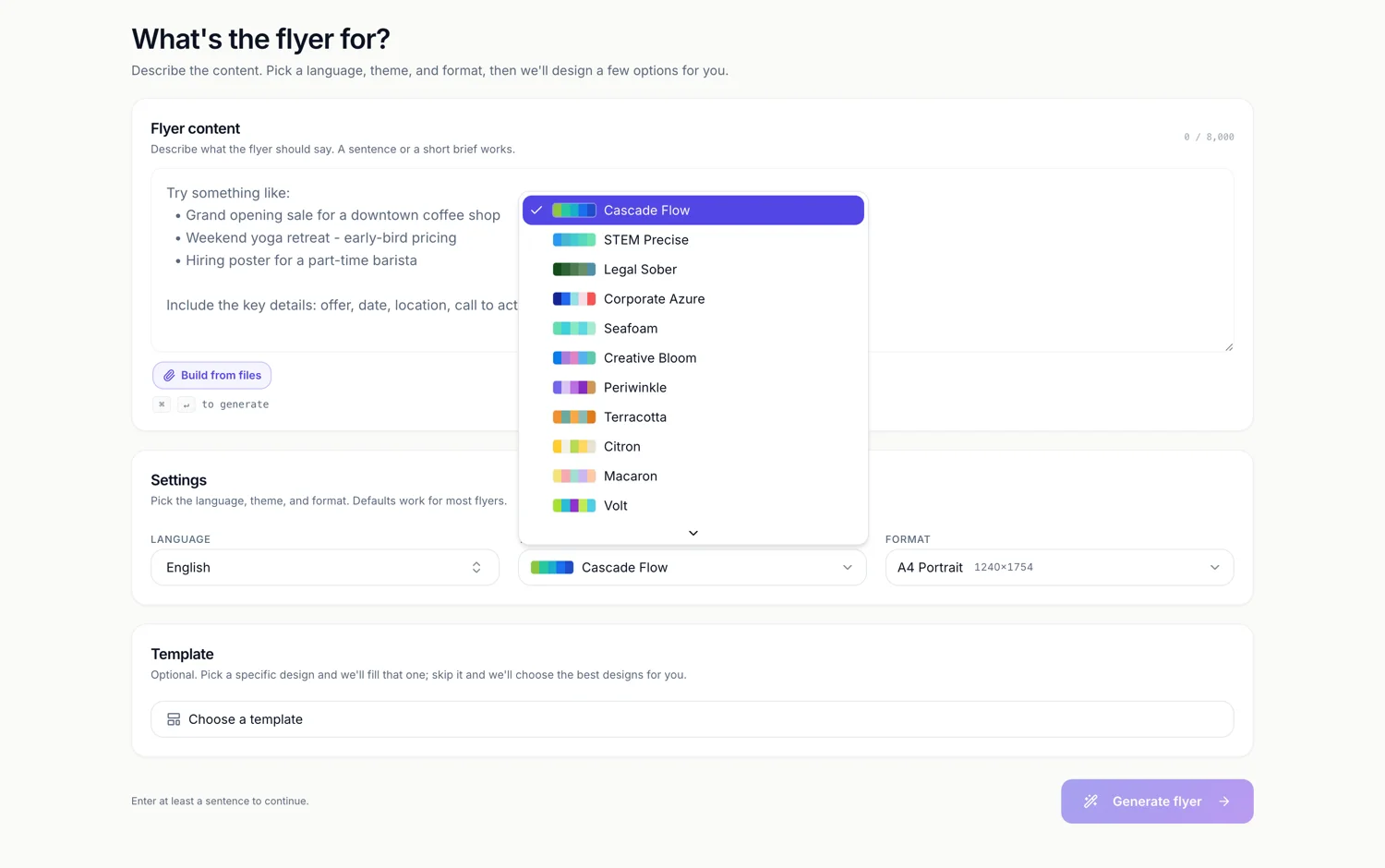
Ninety nine to choose from, built on eighty eight palettes
Twenty one themes are composed by hand and the rest are generated from the palette library, one theme per palette, so a palette id works as a theme id. Ten of the hand made themes share a name with a palette and take precedence over the generated version. The list you scroll in the builder is ninety nine rows long.
Two bands: top picks, then the rest
The Themes tab opens with a curated Top picks band of forty two, then a More palettes band with everything else. Each row shows a strip of the palette's first seven element colours beside the theme name and its id, so the strip is the palette rather than a decorative swatch. Clicking a row applies it immediately.
Warm, cool, neutral and vibrant
Every palette declares a temperature: thirty five are cool, eighteen warm, twenty one vibrant and fourteen neutral. They also declare a hue variety, either tonal, meaning one hue family, or diverse, meaning several. Fifty six are tonal and thirty two diverse. Tonal palettes suit anything that has to look established; diverse ones suit launches and events.
Every palette carries at least eight element colours
That matters because cards, icon tiles, chart series and callouts cycle through them. The smallest palette in the library carries eight distinct element colours and the largest carries ten, each with a paired text colour chosen for contrast against it. So a six card grid recolours into a new theme without two cards landing on the same hue.
The one thing that survives a swap
Element colours come from eight theme tokens by default, ink, muted ink, soft ink, brand, brand secondary, brand accent, surface on brand and highlight, and all eight follow the theme. The inspector also lets you set a literal hex colour on a single piece of text. That hex is not a token, so it stays exactly as typed when the theme changes and it is the one thing that can clash afterwards.
How it works, in three steps
Step 1
Open the Theme control
It sits in the builder's top bar and shows the current theme's name on hover.
Step 2
Scan the strips, not the names
Each row's seven colour strip is the palette itself. It tells you more in a second than the theme name does.
Step 3
Click to apply
The whole flyer repaints at once. Try three or four; nothing is committed until you save.
The full walkthrough with screenshots is in the guide Change a flyer's colours and fonts with themes.
Limits worth knowing
- The theme applies to the entire flyer. Individual pages cannot carry different themes.
- You cannot author a new palette from inside the builder. The ninety nine are the whole set.
- A custom hex set on a text element is not a theme token, so it does not follow a theme change.
- Flyer charts have no colour control at all; series colours always come from the theme.
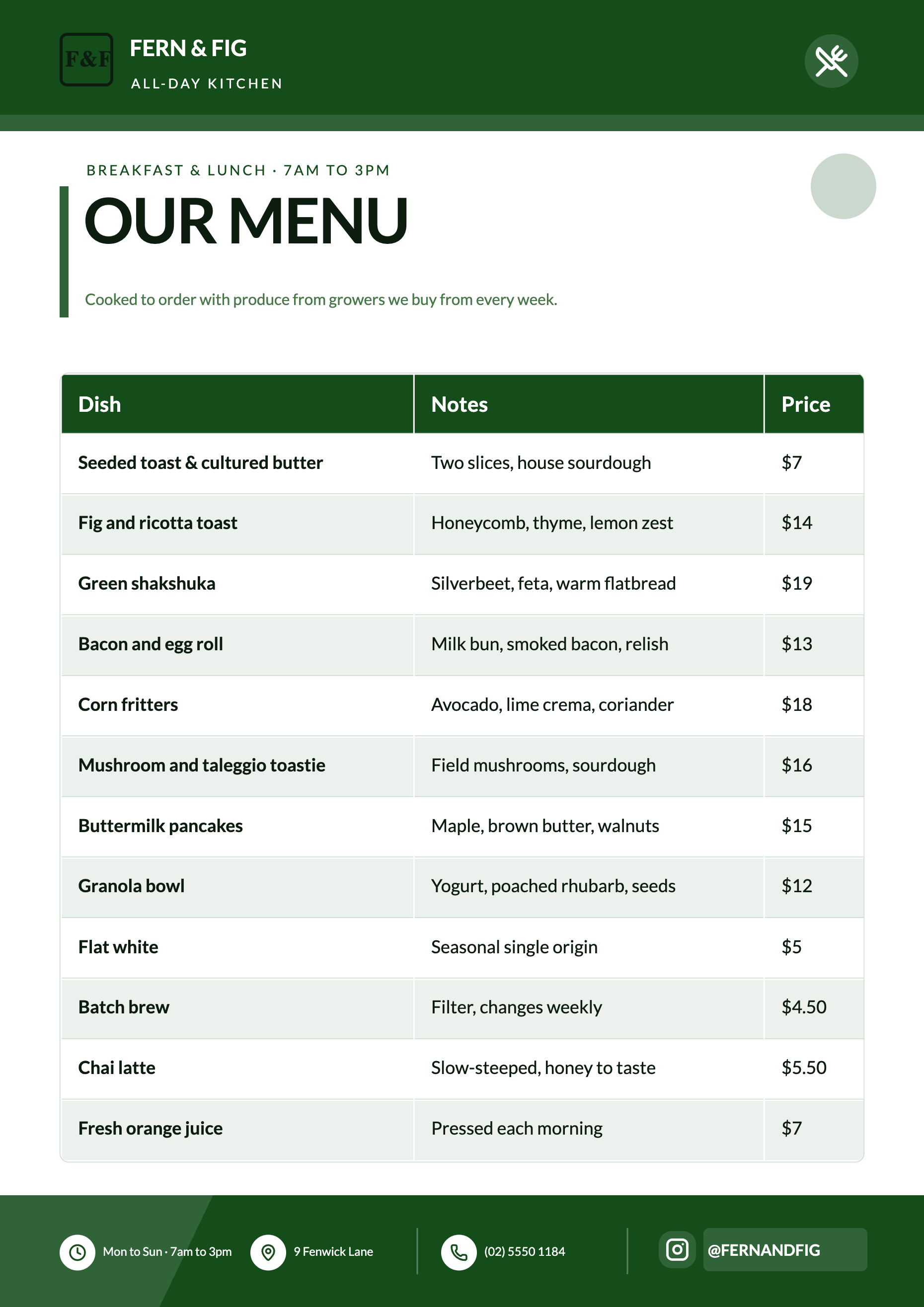
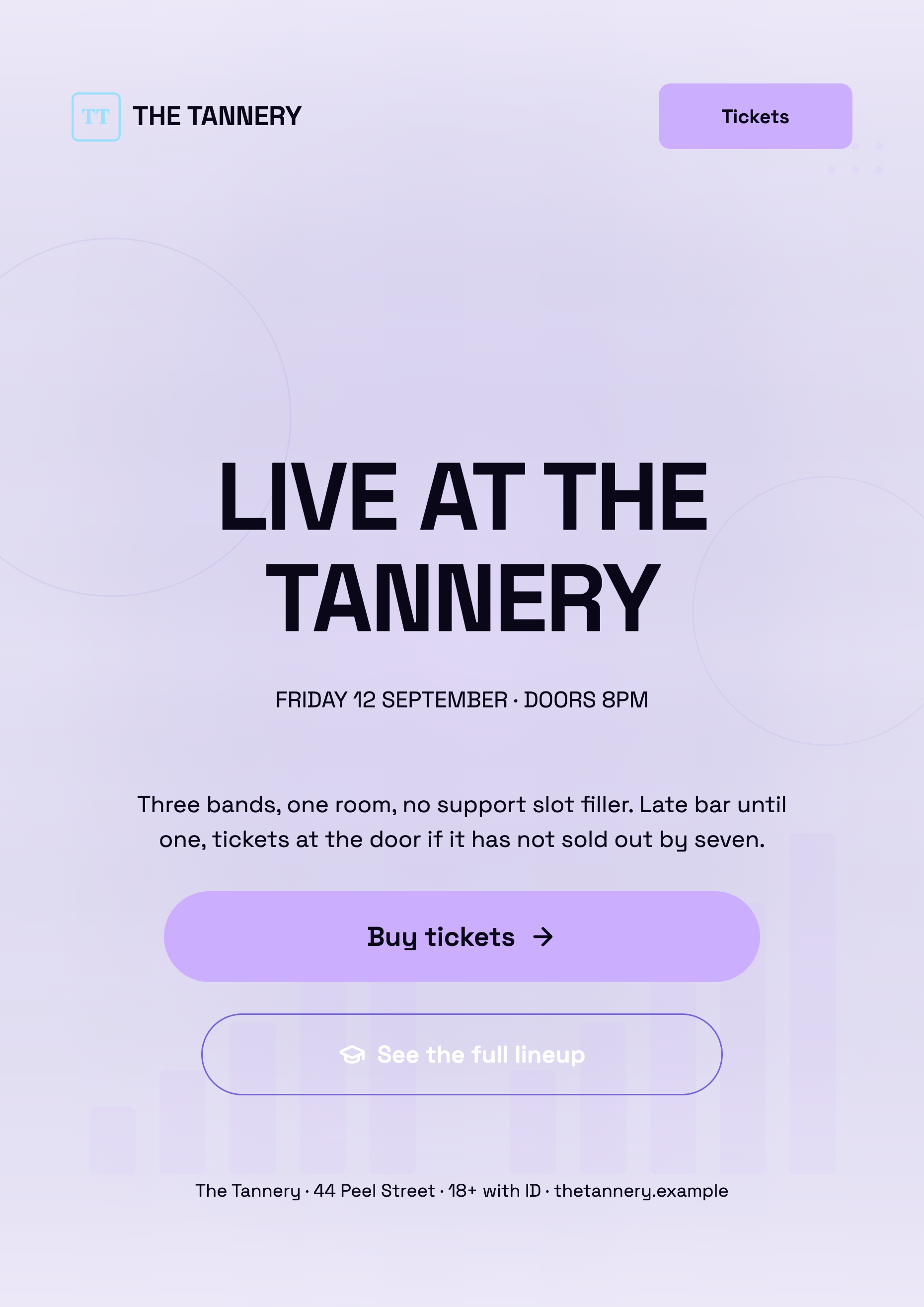
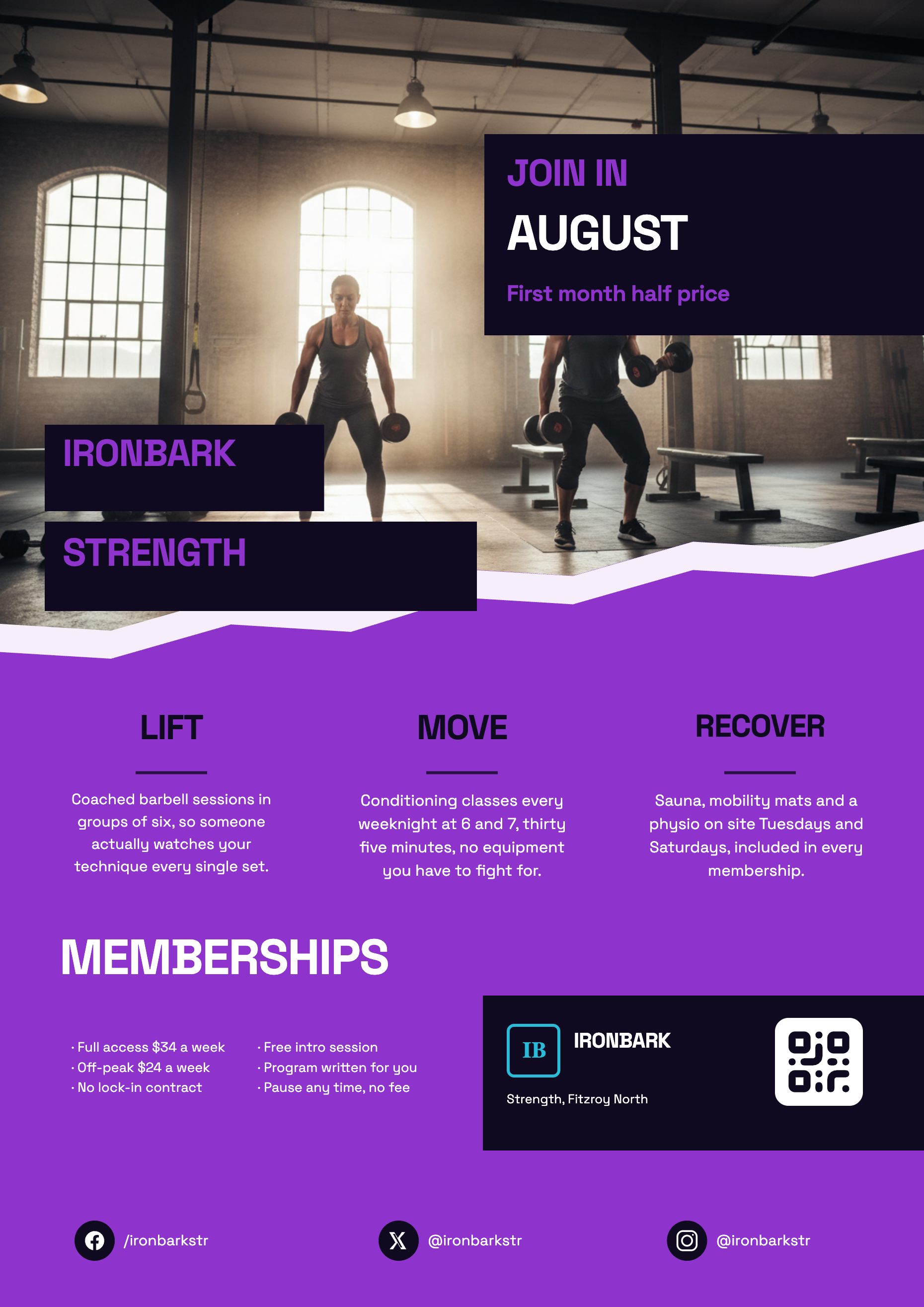
See it on a finished piece
Questions people ask
Does changing the theme change my words?
No. The theme touches colour, type scale and geometry only. Content lives separately, which is why you can cycle through a dozen themes and never lose an edit.
Can I use my exact brand colour?
On a single text element, yes, through the custom hex control in the inspector. Across the whole flyer, no. Pick the palette closest to your brand instead, since panels, icons and charts all draw from it.
Does the theme also set the font?
Yes, each theme carries a default type family. The Fonts tab beside it lets you override that for the whole flyer with any of the twenty seven catalogue fonts, and the inspector can override it again per element.
Can I set the theme before generating?
Yes. Theme is one of the four settings above the Generate button, and the template previews in the picker render in whichever theme you have chosen.
Make your own flyer
The button opens the generator with this use case already described. Change the wording to match yours, generate, then edit anything you like.
Create a flyer with OneCraftRelated pages
Video colour themes
A look is three decisions bundled into one: a colour palette, a typeface and whether the video is light or dark. They are bundled because the three go wrong together. A serif on a neon palette in dark mode is a specific mistake, and a preset is how you avoid making it by accident.
Flyer fonts
A flyer does not use a heading font and a body font. It uses one family, and the theme's type scale does the rest: nineteen named sizes from a display headline down to a footer line, each with its own weight. Changing the font changes one thing and the whole page follows.
Facebook cover maker
820 by 312 pixels is the smallest canvas in the set and by some distance the most abused by the platform that shows it. Desktop, mobile and the page card each crop it differently, so a cover is designed around the part that always survives rather than around the whole rectangle.
More finished work of this kind is on the flyer examples hub.
Written and checked by the OneCraft team. Last checked .