Websites
Website SEO settings: what you set and what is done for you
Website SEO settings decide how your site appears in search results and when a link is shared: the title, the description, the small icon and the share image. The rest of technical SEO, such as a sitemap and canonical tags, should simply be right without you touching it.
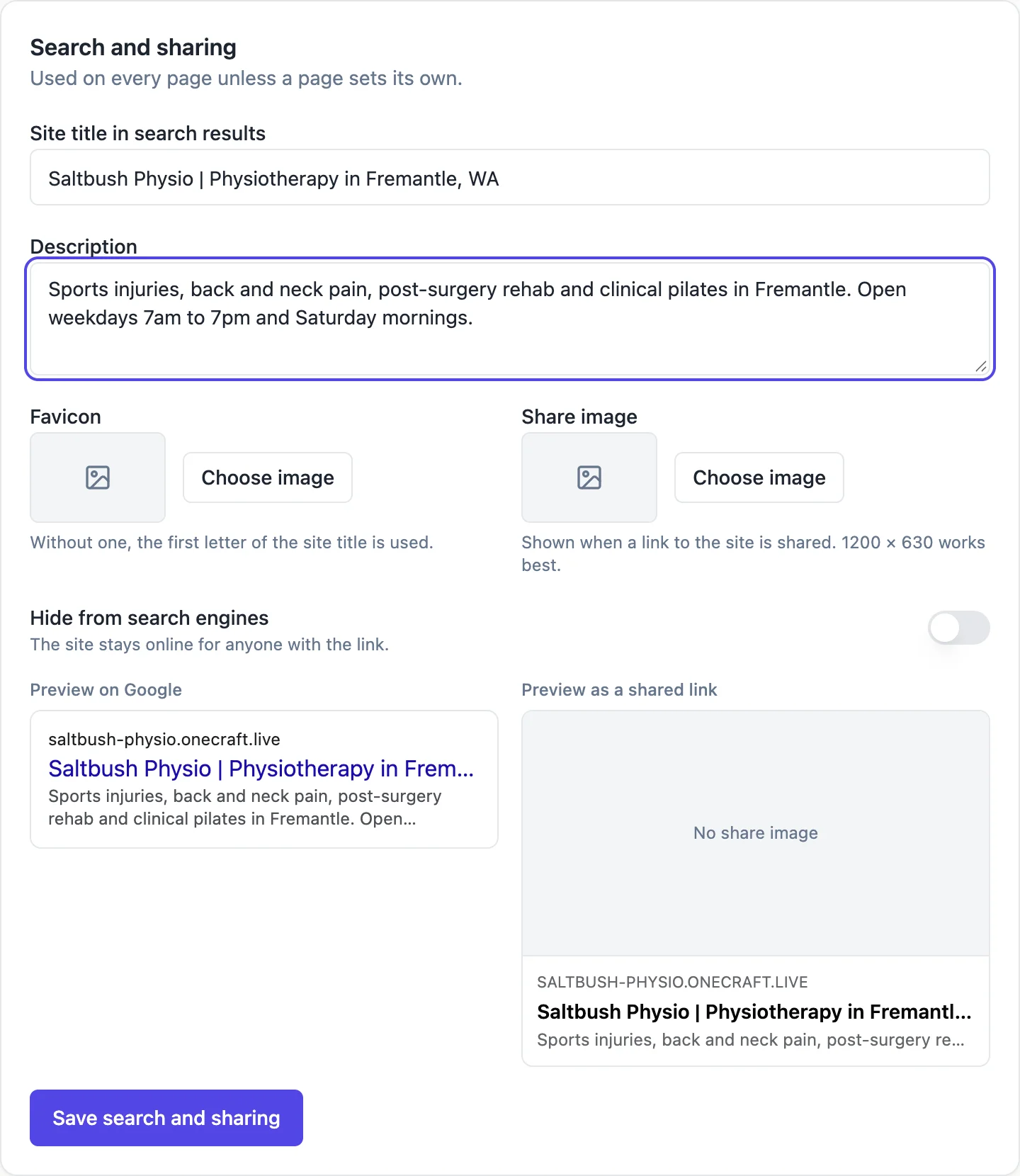
The card, field by field
Site title in search results is the title Google shows, used on every page that does not set its own. Description is the snippet under it. Favicon is the small icon in tabs and results; without one, the first letter of the site title in your brand colour is used. Share image is the picture shown when a link is shared, best at 1200 by 630. The previews update as you type.
Per page settings
Each page has its own search title and description in the Page tab of the builder, which win over the site defaults, and its own Hide from search engines switch. A page without its own title shows the page name and the site name together. Give your main pages their own titles that say what the page offers and where.
What the published pages already do
Each page gets a canonical address on your primary domain, Open Graph and Twitter card tags, the language tag, and a sitemap.xml listing every published page with its date. robots.txt allows everything except the thank you page. The home page carries LocalBusiness structured data when the site has an address or opening hours, else Organization, with your name, contact details and social links.
Hide the whole site
Hide from search engines on the card adds noindex to every page and empties the sitemap, while the site stays online for anyone with the link. Use it for a site you are still building or one only for existing clients. Turn it off when you are ready to be found; search engines will pick the pages up as they recrawl.
What still needs you
Settings cannot make a page useful. Search engines rank pages that answer what people search for, in words they use, on a fast page. Write a page per service, name your suburb or city where it matters, keep hours and contact details consistent with your Google Business Profile, and earn links from local directories and partners.
How it works, in three steps
Step 1
Open Search and sharing
In site settings, fill the site title and description and choose a favicon and share image.
Step 2
Set page titles
In the builder, open each main page in the Page tab and give it its own search title and description.
Step 3
Publish
Publishing writes the tags, sitemap, robots file and structured data with the new settings.
Limits worth knowing
- The share image works best at 1200 by 630 pixels.
- robots.txt blocks only the thank you page; there is no custom robots editor.
- Structured data is generated from your sections; there is no custom JSON-LD field.
- Settings changes take effect on the next publish.
Questions people ask
How long should the search title be?
Aim for 50 to 60 characters so it shows in full on most results. Put the main thing first, such as Tax Returns and BAS in Wollongong, then the business name. Search engines may rewrite a title they think does not match the page, so make sure the page itself says the same thing.
Do I need to submit a sitemap to Google?
It helps but is not required. The sitemap is published at /sitemap.xml on your site and listed in robots.txt, so search engines find it. Adding it in Google Search Console lets you see which pages are indexed and any problems, which is worth ten minutes for a business site.
What is the share image for?
It is the picture that appears when someone shares your link on social media or in a messaging app. Without one the link shows as text only, which gets fewer taps. Use a clear photo or your logo on a plain background at 1200 by 630 pixels.
Will my site rank on Google?
The technical basics are in place, but ranking depends on content, competition and reputation. A local business with a clear page per service, consistent details and a Google Business Profile usually starts appearing for its name and suburb within weeks. Generic searches take longer.
Does changing a page address hurt SEO?
Changing an address means search engines see a new page, so rename only when needed. Inside the site, the builder updates your own links on a rename. Old links from other sites will lead to the not found page, so contact sites that link to you if a renamed page mattered.
Can I add Google Search Console verification?
There is no field for a verification meta tag. Search Console can verify a custom domain through a DNS TXT record at your domain provider instead, which works for every page on that domain. Use the domain property option when adding the site to Search Console.
Make your own website
The button opens the generator with this use case already described. Change the wording to match yours, generate, then edit anything you like.
Create a website with OneCraftRelated pages
Multi page website builder: pages, menus and addresses that stay linked
A multi page website gives each service, audience or topic its own page with its own address and search listing. The work is less in making pages than in keeping the menu, the links and the addresses consistent as the site grows, which is what a builder should do for you.
Website visit stats: views, visitors and referrers, no cookies
Website visit stats answer three plain questions: how many people came, which pages they read and where they came from. For a small business site that is usually all you need to know whether a post, a flyer or a profile link is working.
Add Google Analytics to your website: paste the G- ID and publish
Adding Google Analytics to a website means loading Google's tag on every page with your property's measurement ID, which starts with G-. On a site built here there is no code to paste, only the ID, and it runs beside the built in visit counter.
More finished work of this kind is on the website examples hub.
Written and checked by the OneCraft team. Last checked .