How to
Change your presentation's theme, fonts and colours
One click restyles every slide. Pick from 99 colour themes, set a font for the whole deck, switch a single slide between four colour looks, and add a background pattern.
Presentations5 min readUpdated
This guide shows you how to restyle a presentation: swap the whole deck’s colours and fonts in one click, change how a single slide is coloured, and put a background pattern behind it.
The point of a theme is that you never recolour anything by hand. Every colour on a slide points at the theme, so changing the theme changes all of them at once, and nothing needs cleaning up afterwards.
Open the Theme panel
Click Theme in the top bar of the builder. A panel opens on the right with two tabs, Themes and Fonts, under the line “Updates every color and font. No content is lost.”
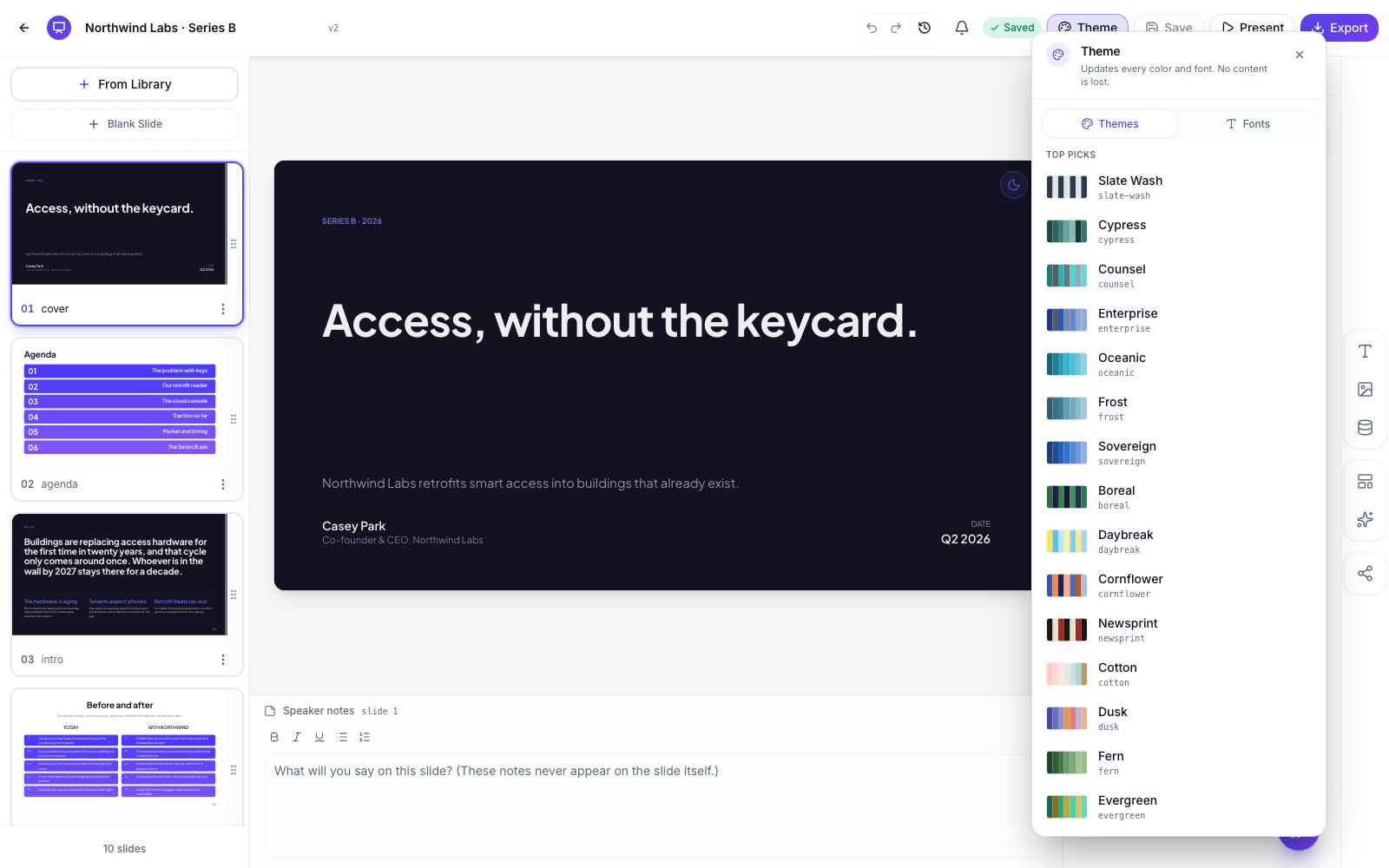 The Theme button lives in the top bar. Themes and Fonts are two tabs in one panel.
Pick a theme
There are 99 themes in the list, split into two groups: Top picks, the 42 we recommend starting from, and More palettes below it.
Each row shows a strip of seven colours, the theme’s name, and its id underneath. Judge on the strip rather than the name, because the strip is literally the palette the deck will wear: the heading colour, the accent, the card colours behind your points.
Click one and the whole presentation restyles immediately. Every slide, every chart, every table header, every diagram. There is no “apply to all” step and nothing to fix afterwards.
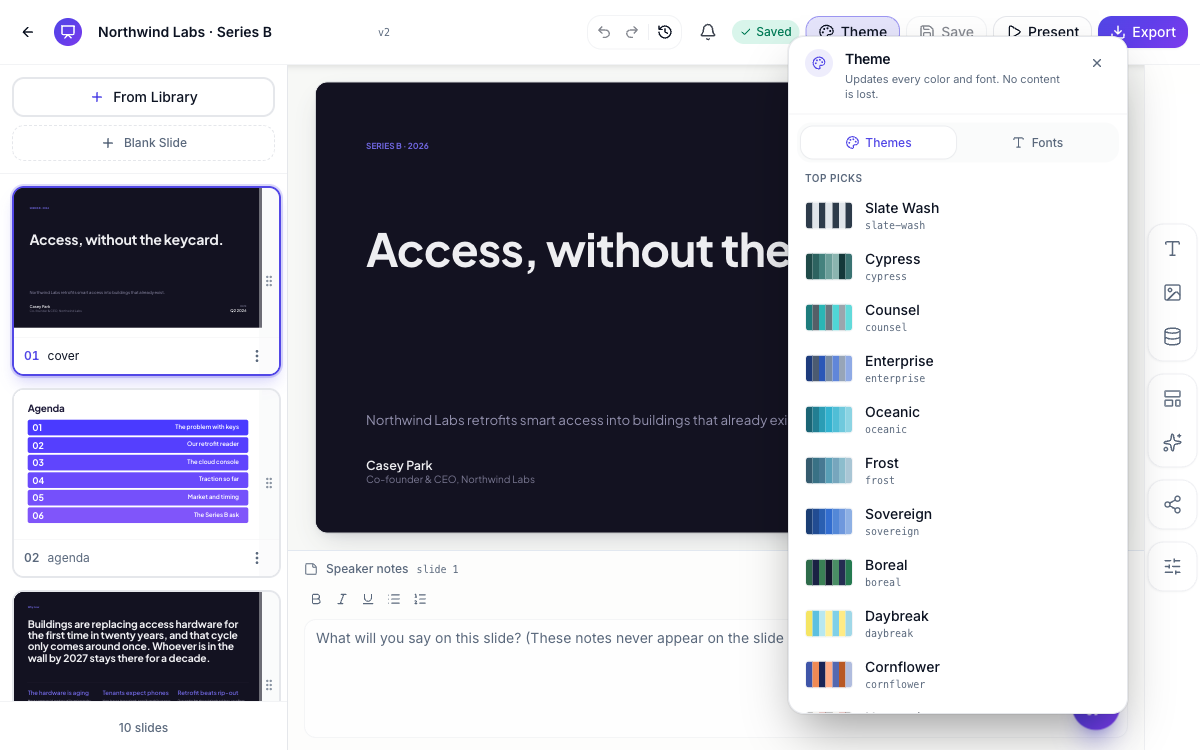 Ninety-nine palettes. The tick marks the one your deck is wearing.
Try a few. Swapping is free and instant, and there’s no penalty for changing your mind on slide 20.
Set the font for the whole deck
Switch to the Fonts tab. The first row is Theme default, followed by the name of the font your current theme uses. Under it are 27 fonts, each rendered in its own typeface so you can read it before you pick it: sans faces like Inter, Montserrat, Poppins, DM Sans and Space Grotesk, and serif faces like Playfair Display, Merriweather, Lora and Cormorant Garamond.
Picking one sets it for the entire presentation and overrides whatever the theme brought with it. Picking Theme default hands control back to the theme, so a later theme swap changes the font again.
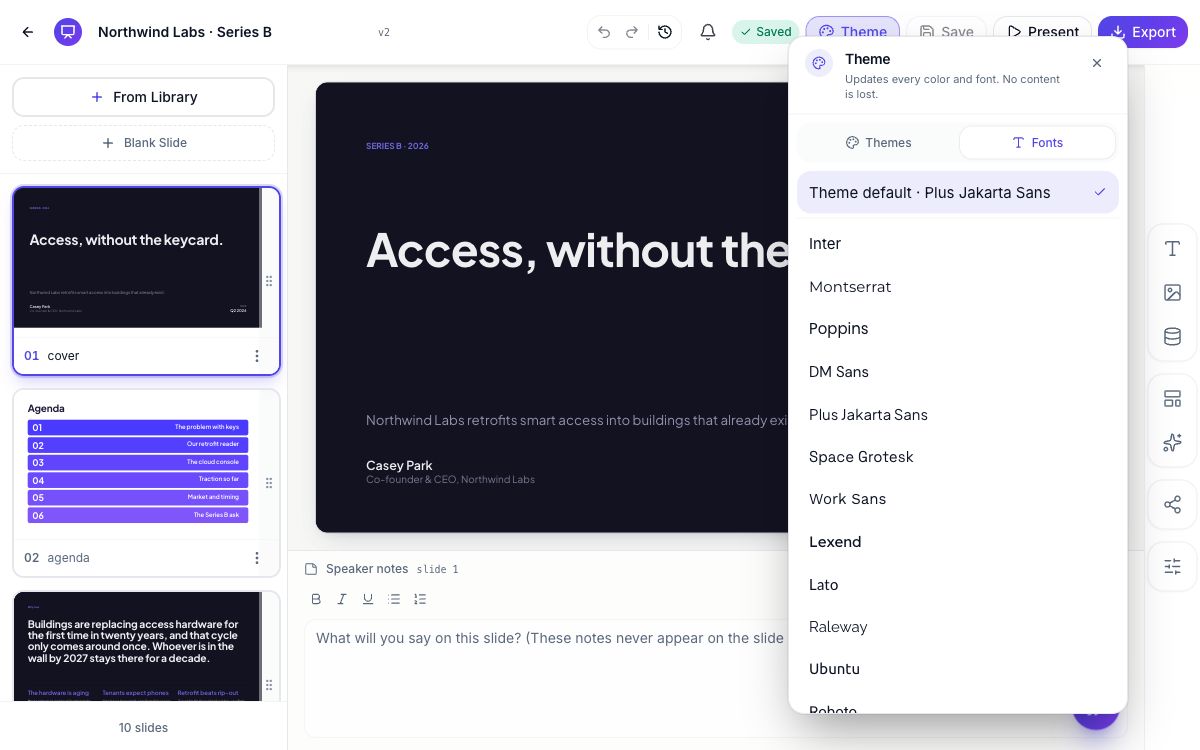 Each row is set in its own font. Pick one for the deck, or leave it to the theme.
Need one heading in a different face rather than the whole deck? That’s a per-text setting in the inspector, covered in style text and add callouts, stats and lists.
Four colour looks, one per slide
Look at the top-right corner of the slide on the canvas. The small round button there is Change color mode, and it cycles the current slide through four ways of using the same palette:
- Spectrum — cards and blocks each take a different colour from the palette. The liveliest look, good for agendas, pillars and feature grids.
- Matching — everything uses the one brand colour. Calm and corporate.
- Outline — cards become outlines instead of fills, so the slide breathes. Good when a slide is dense.
- Dark — the slide flips to a dark surface with light text. Good for covers, section dividers and closings.
It applies to the slide you’re on, not the deck, so a dark cover in front of light content slides is a normal thing to do. The button tints itself whenever the slide is on anything other than spectrum, so you can see at a glance which slides you’ve changed.
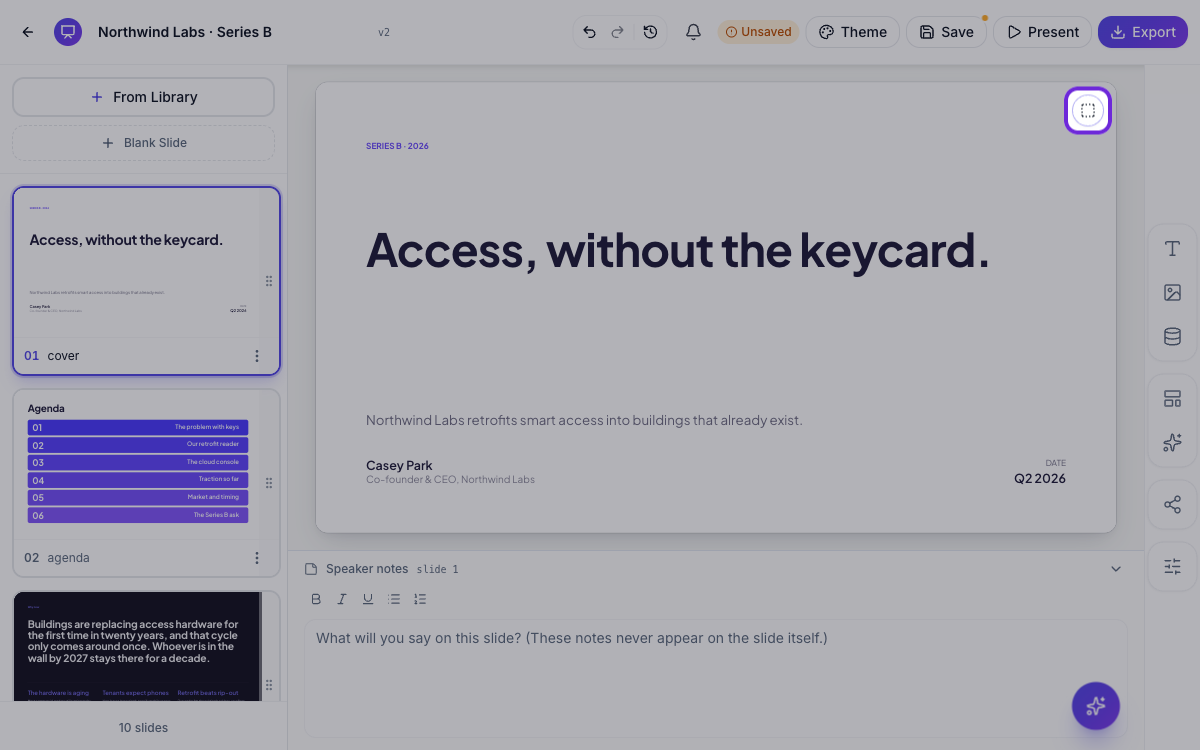 One button, four looks, and it only touches the slide you’re on.
Every template is built to work in all four, so you can cycle a slide without checking whether the text is still readable. Charts are the deliberate exception: they keep their multi-colour series in every mode, because flattening a chart to one colour makes it unreadable.
Put a background behind a slide
Backgrounds are the last section in the inspector on the right, under the heading Background. Click the row and you get None plus 15 patterns grouped by kind:
| Group | Patterns |
|---|---|
| Geometric | Quarter Circle, Corner Triangle, Split Diagonal, Floating Squares, Editorial Pipes, Editorial Pipes (Bottom Left) |
| Organic | Bokeh, Corner Rings, Editorial Circles, Soft Spotlight, Gradient Mesh, Top Curve, Bottom Wave |
| Accent | Left Panel, Subtle Line |
Each option previews as a small live tile in your theme’s colours, so you see the real thing rather than a generic swatch. Like colour mode, a background belongs to one slide, which is how you make a cover or a section divider stand apart without touching the rest of the deck.
 Fifteen patterns, previewed in your own theme colours.
What’s deck-wide and what’s per slide
| Setting | Where | Scope |
|---|---|---|
| Theme | Top bar → Theme → Themes | Whole deck |
| Font | Top bar → Theme → Fonts | Whole deck |
| Colour mode | Button on the slide corner | One slide |
| Background | Inspector → Background | One slide |
| Font, colour, size of one text box | Inspector, with the text selected | One element |
You can also just ask. Open the AI assistant and say “swap to a darker theme” and it does the same swap, described in edit your deck with the AI assistant.
Ready to try it yourself?
Start free. Describe what you need and let OneCraft do the first draft.
Get startedSee it in the product
More presentations tutorials
- Add and generate images in slidesReplace any picture on a slide. Upload your own, describe one and let AI make it, reuse an image you already have, then set its corners, frame and shadow.
- Add charts, maps and diagrams to slidesPut real data on your slides. Ten chart types, world maps, Gantt timelines, flowcharts and classic frameworks like SWOT and Venn, all editable and styled by your theme.
- Add, reorder and restructure slidesAdd slides from a library of 353 designs or start blank, drag slides into a new order, duplicate or delete them, swap a slide's layout without losing its content, and set how each one enters.