How to
Edit your deck with the AI assistant
Ask for slide changes in plain language. The assistant adds, deletes and reorders slides, rewrites text, swaps layouts and themes, and generates images, applying each change as you watch.
Presentations2 min readUpdated
This guide shows you how to edit a presentation by describing the change, using the AI assistant built into the slides builder.
There are two ways to fix a deck: click through panels, or say “the closing is weak, make it land harder”. The assistant is the second way, and it can restructure the deck, not just reword it.
Open the assistant
Click the sparkle button in the bottom corner of the builder. The panel opens with a few examples of the kind of thing you can ask.
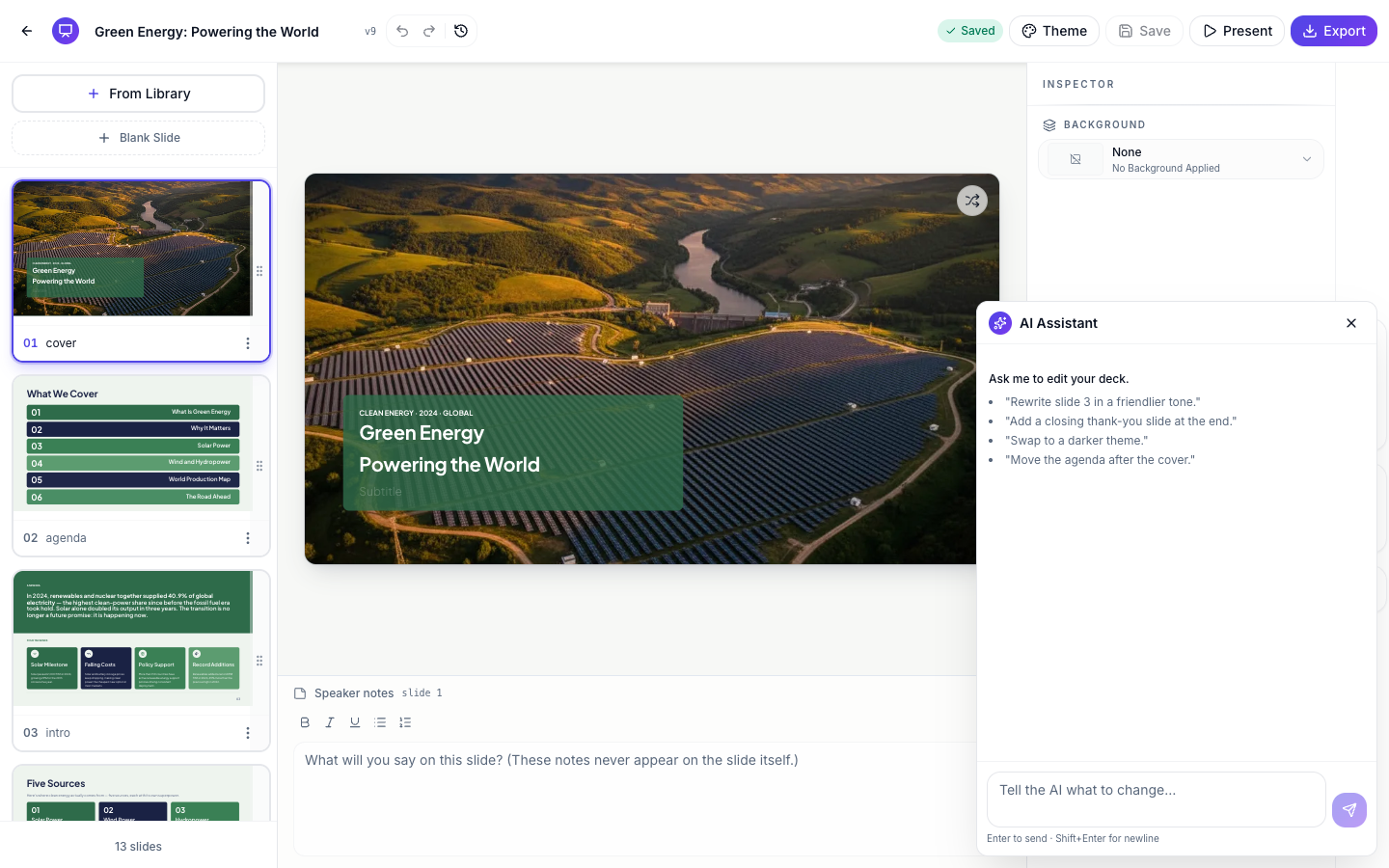 Ask me to edit your deck. Rewrites, new slides, theme swaps and reordering all work.
What it can do
The assistant edits the deck the way you would:
- Rewrite anything. “Rewrite slide 3 in a friendlier tone.” “Shorten every headline.”
- Add, delete and move slides. “Add a closing thank-you slide at the end.” “Move the agenda after the cover.”
- Swap a slide’s layout or change the whole theme. “Swap to a darker theme.”
- Regenerate a slide it can’t fix by editing, and generate new images for image slots.
- Look things up. Ask for “a stat about battery costs” and it can check the web before writing it in.
It works on the whole deck at once, so “make the tone consistent” is a fair request. The one thing it will not touch is your logo.
Changes apply as you watch
There is no approval step. The assistant makes the edit, the canvas updates, and the reply walks through what changed, ending with a green Changes applied note. When it adds slides you’ll see a progress line while they generate.
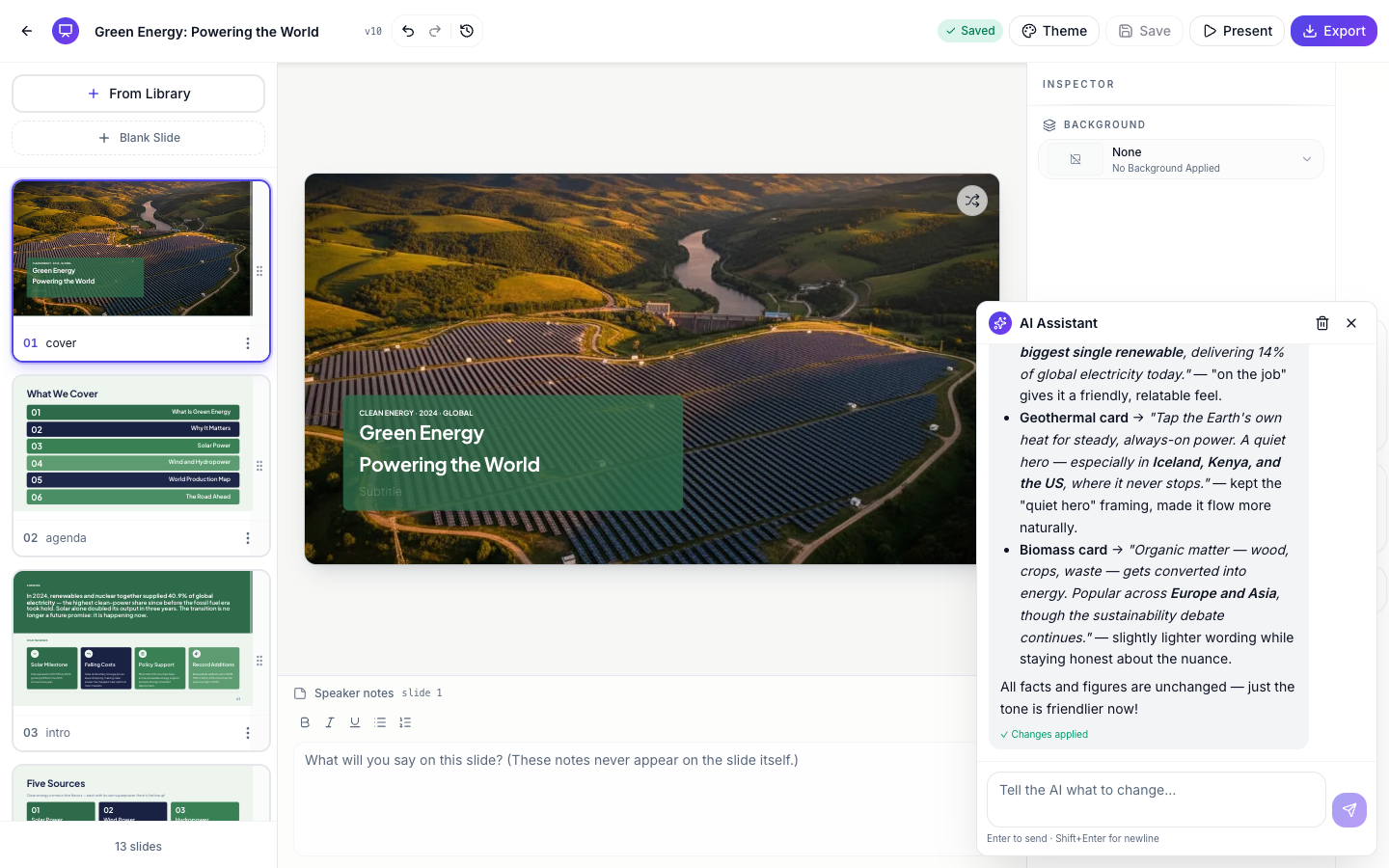 The reply is a receipt: what changed, where, and why the facts stayed intact.
If a turn misses, one undo takes the whole thing back, every edit from that request at once. Then ask again with more direction. The trash icon in the panel clears the conversation when you want a fresh start; the deck itself keeps all its changes.
What it costs
Each request spends AI tokens from your plan, the same pool the generator uses. Run out and the upgrade window appears instead of the edit.
The assistant is the fast half of editing; the panels are the precise half. For chart data, maps and diagrams see add charts, maps and diagrams to slides, and for building the deck in the first place, make a pitch presentation with AI.
Ready to try it yourself?
Start free. Describe what you need and let OneCraft do the first draft.
Get startedSee it in the product
More presentations tutorials
- Add and generate images in slidesReplace any picture on a slide. Upload your own, describe one and let AI make it, reuse an image you already have, then set its corners, frame and shadow.
- Add charts, maps and diagrams to slidesPut real data on your slides. Ten chart types, world maps, Gantt timelines, flowcharts and classic frameworks like SWOT and Venn, all editable and styled by your theme.
- Add, reorder and restructure slidesAdd slides from a library of 353 designs or start blank, drag slides into a new order, duplicate or delete them, swap a slide's layout without losing its content, and set how each one enters.