How to
Undo changes and restore an earlier version
Step back one edit at a time, or open version history, preview any earlier save of the deck and restore it. Restoring is itself reversible.
Presentations3 min readUpdated
This guide shows you how to walk back a change in a presentation: undo for the last few edits, and version history for everything older, including a slide you deleted yesterday.
Undo, one step at a time
The undo and redo arrows sit in the top bar, next to the deck title. Keyboard works too: ⌘Z to undo and ⌘⇧Z to redo, or Ctrl on Windows.
Undo holds the last 50 steps of the session you’re in. It’s for the ordinary mistake, the paragraph you shouldn’t have rewritten, the slide you moved into the wrong place.
If you asked the AI assistant for something and don’t like the result, don’t unpick it edit by edit. One undo in the assistant panel takes the whole request back at once, described in edit your deck with the AI assistant.
Saving is deliberate
There’s no save-on-a-timer. The pill in the top bar tells you where you stand: Saved when everything’s written, Unsaved with an amber dot when you have changes waiting, Saving… while it writes.
That’s on purpose. A save is a checkpoint you decide to make, and every one becomes a version you can return to. Save before you try something risky and you’ve made yourself a way back.
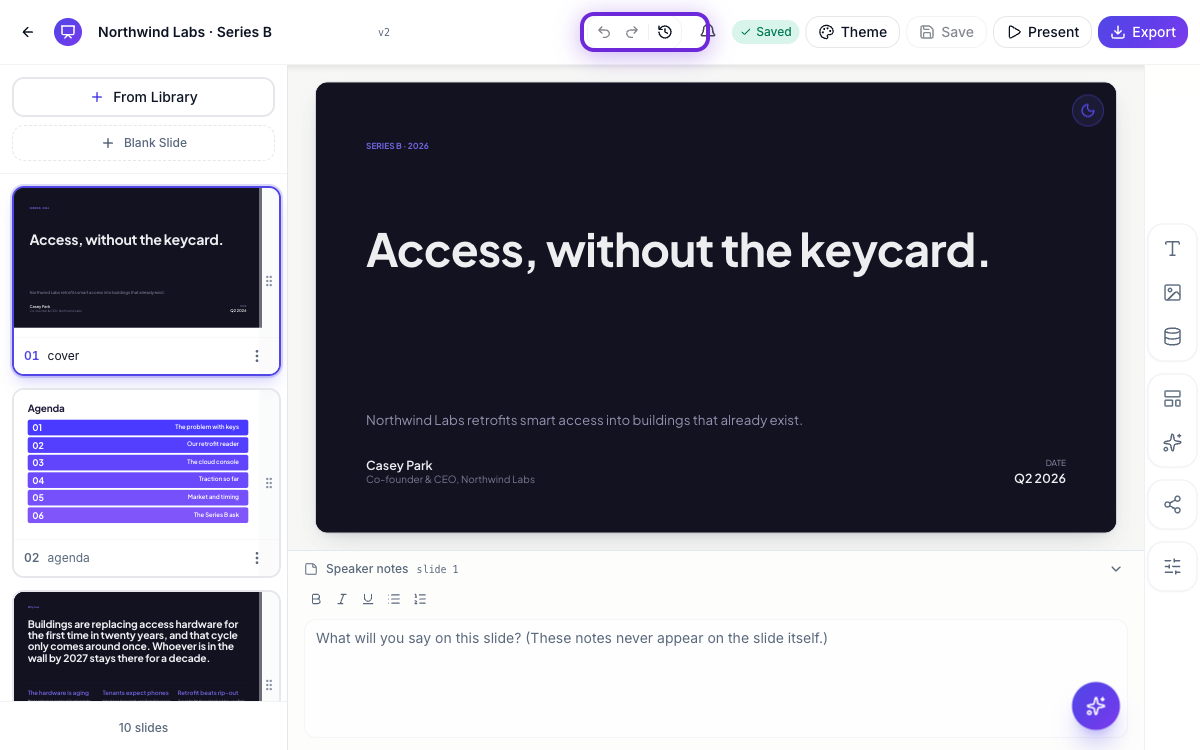 Undo, redo, history, and the pill that tells you whether you’ve saved.
Version history
Click the clock icon in the top bar. A panel slides in listing every saved version of this deck, newest first, up to the last fifty.
Each row shows the version number, how long ago it was, a short summary of what changed, and a tag: current for the one you’re editing, manual for a save you made, autosave for one the system wrote while generating or applying an assistant change.
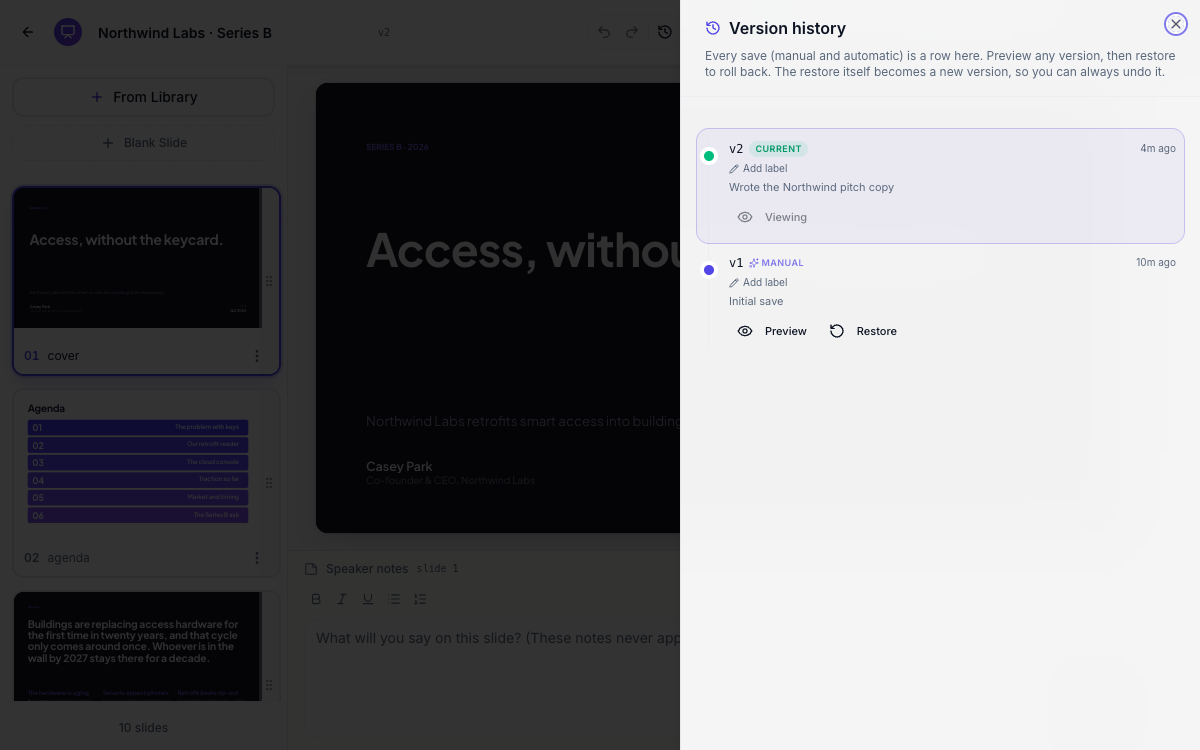 Every save, newest first, with what changed and when.
Add label on any row lets you name it. “Before client feedback” or “v2 pricing” is far easier to find two weeks later than “v14”, and it takes three seconds when you write it and saves ten minutes when you need it.
Preview before you commit
Preview opens that version in the builder, read-only. An amber banner across the top says you’re viewing an older version and can’t edit it, with Back to latest next to it. The inspector says the same thing if you try to change something.
Preview as many versions as you like. Nothing is being restored while you look, and Back to latest always returns you to your working deck.
Restore
Found the one you want? Restore, then confirm.
The old version becomes your current deck, and it’s added to the top of the history as a new version rather than overwriting anything. Everything you did after it is still in the list. So a restore that turns out to be wrong is undone by restoring the newer version instead. There is no destructive step here at all.
That is the answer to the deleted slide, the rewrite that was better before, and the theme experiment that went too far: find the version from before it, preview it, restore it.
Ready to try it yourself?
Start free. Describe what you need and let OneCraft do the first draft.
Get startedSee it in the product
More presentations tutorials
- Add and generate images in slidesReplace any picture on a slide. Upload your own, describe one and let AI make it, reuse an image you already have, then set its corners, frame and shadow.
- Add charts, maps and diagrams to slidesPut real data on your slides. Ten chart types, world maps, Gantt timelines, flowcharts and classic frameworks like SWOT and Venn, all editable and styled by your theme.
- Add, reorder and restructure slidesAdd slides from a library of 353 designs or start blank, drag slides into a new order, duplicate or delete them, swap a slide's layout without losing its content, and set how each one enters.