Presentations
Export to PowerPoint
Two PowerPoint exports exist and they solve different problems. This is the one whose entire job is looking right: each slide is placed into the file as a picture, so what opens in PowerPoint is exactly what you designed, on any machine, with no fonts to install.
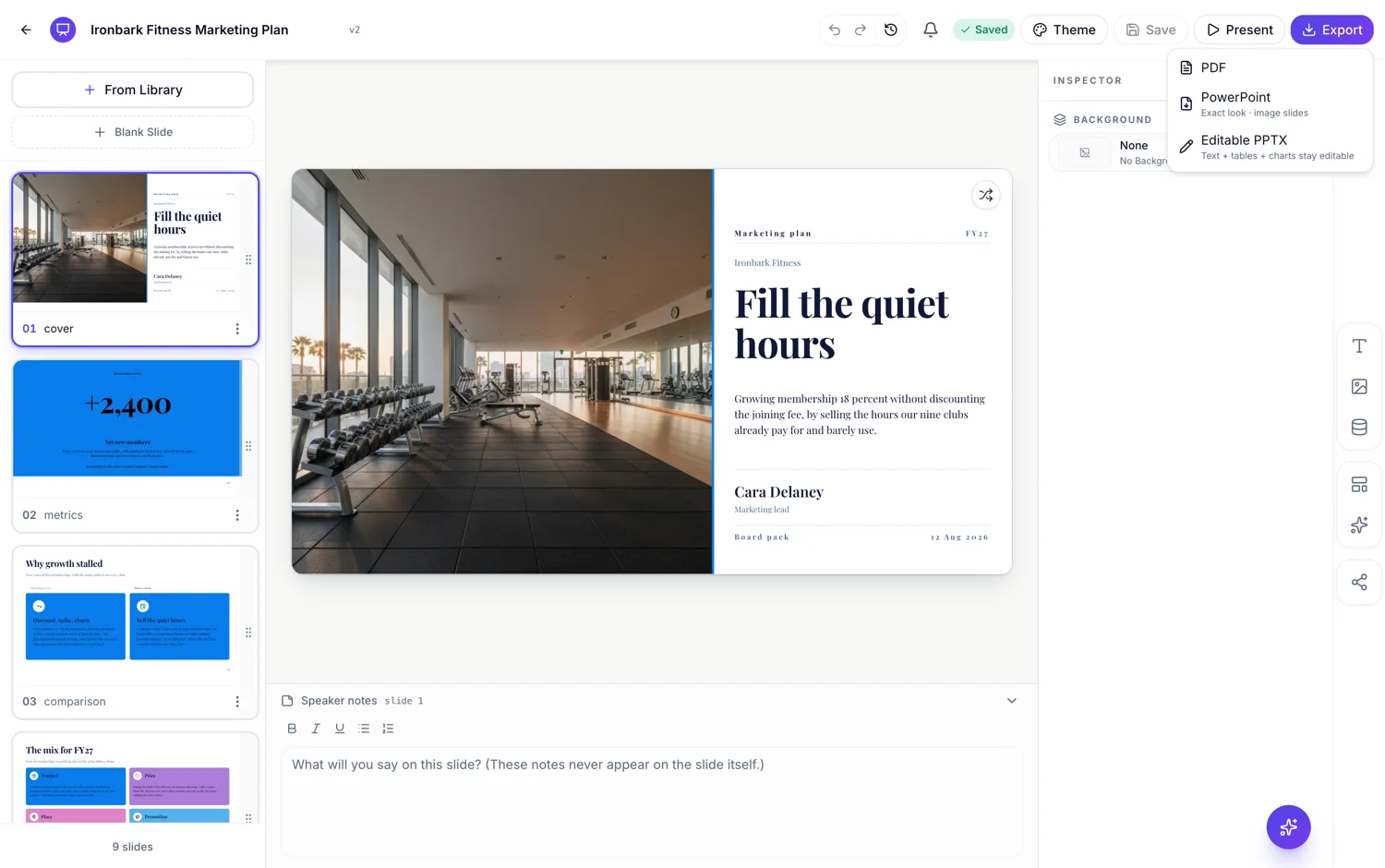
One picture per slide, edge to edge
Each slide is captured on the server at twice its canvas size and placed into the .pptx filling the whole slide, corner to corner. There are no text boxes, no shapes and no chart objects underneath. PowerPoint sees a deck of full bleed images, which is why it opens identically on Windows, macOS, the web version and Keynote.
Widescreen, at the size PowerPoint expects
The file uses the 13.333 by 7.5 inch widescreen layout, which is PowerPoint's own 16 by 9 standard and matches the 1920 by 1080 canvas exactly. So nothing is letterboxed and nothing is stretched, and presenting from the file gives you the same framing as presenting from the browser.
The point is that nobody can break it
This is the export to send when the file leaves your hands and has to survive. Fonts cannot substitute, because they were rendered before capture. Layouts cannot reflow on someone else's screen resolution. A colleague opening it on a laptop without your typefaces sees your typefaces. The trade off is stated plainly on the menu entry itself: exact look, image slides.
When to use the other one instead
If the person receiving it has to change a headline, correct a figure in a table or restyle it to their own template, this export gives them nothing to work with and they will have to rebuild the slide. That is what the editable PowerPoint export is for. Choose this one for a client, a tender or a conference organiser, and the editable one for a colleague who will keep working on it.
Plan gate and reuse
PowerPoint export needs a Starter plan or higher, and on a free account the menu entry carries a padlock and an upgrade line rather than being hidden. Like every export, the file is produced from the version you saved and stored against it, so exporting the same version again returns the same file immediately without a second render or a second charge.
How it works, in three steps
Step 1
Save, then choose PowerPoint
Pressing it saves first, because the render happens on the server against a saved version.
Step 2
Wait for the notification
A long deck takes a moment. The file downloads when it is ready.
Step 3
Open it once before sending
Confirm the slide count and the cover. It is a set of pictures, so any missing image is obvious immediately.
The full walkthrough with screenshots is in the guide Export a presentation to PowerPoint or PDF.
Limits worth knowing
- Nothing in the file is editable. Every slide is a single picture with no text, shapes or charts under it.
- Needs a Starter plan or higher. Free accounts see a padlock on the menu entry.
- No speaker notes and no PowerPoint transitions are set in the file.
- Slide size is fixed at 13.333 by 7.5 inches. There is no 4 by 3 or custom size.
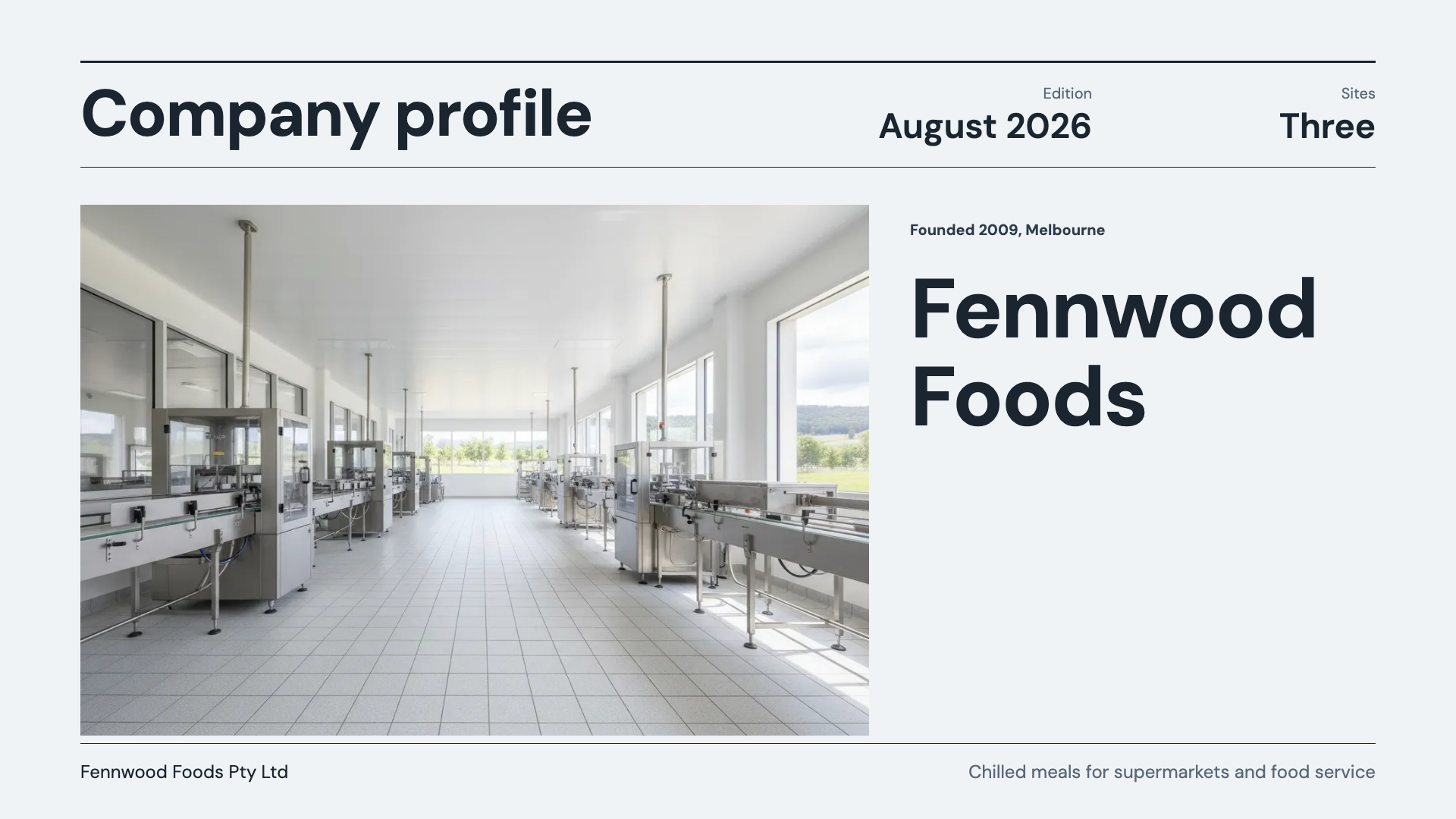
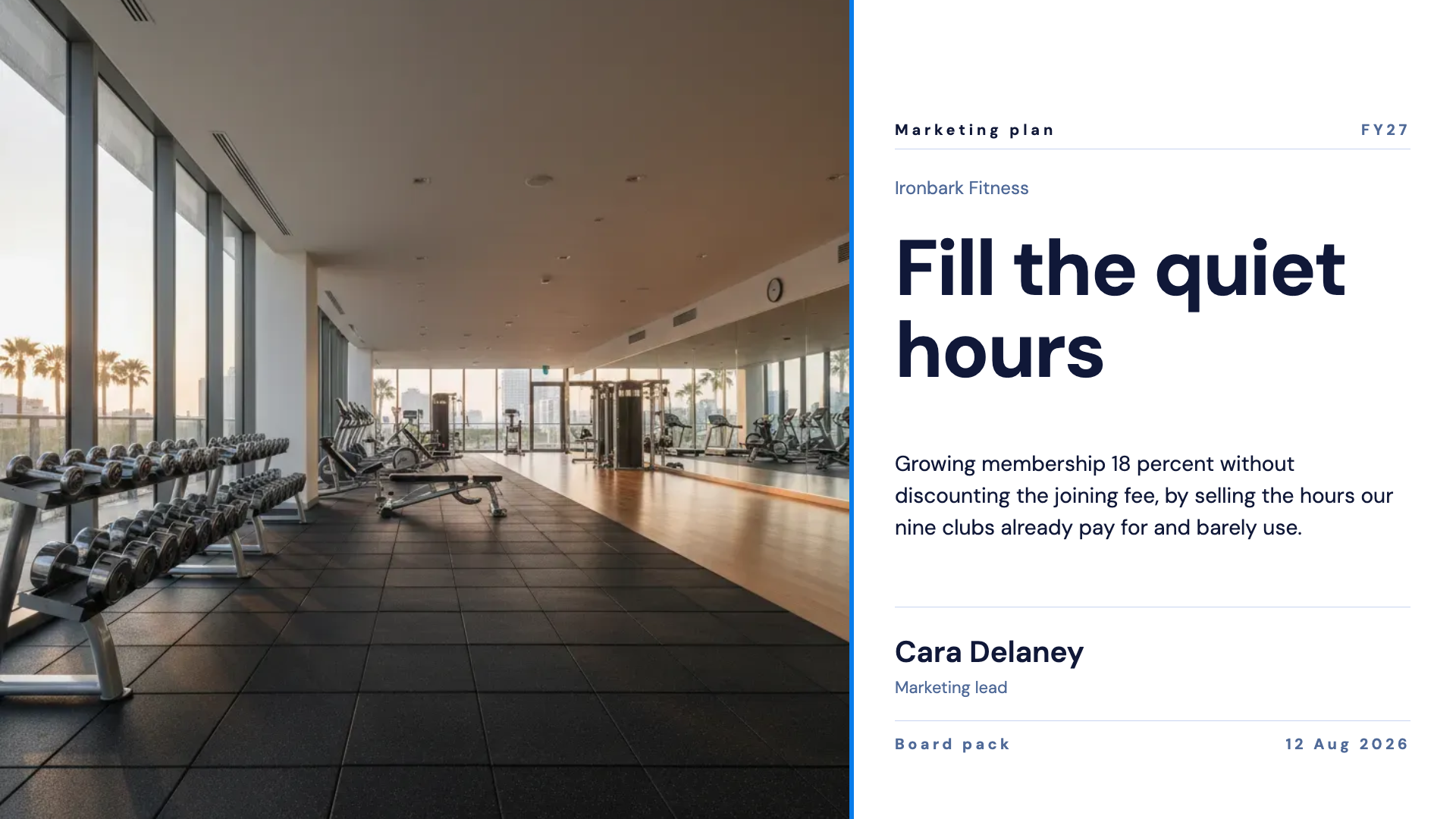
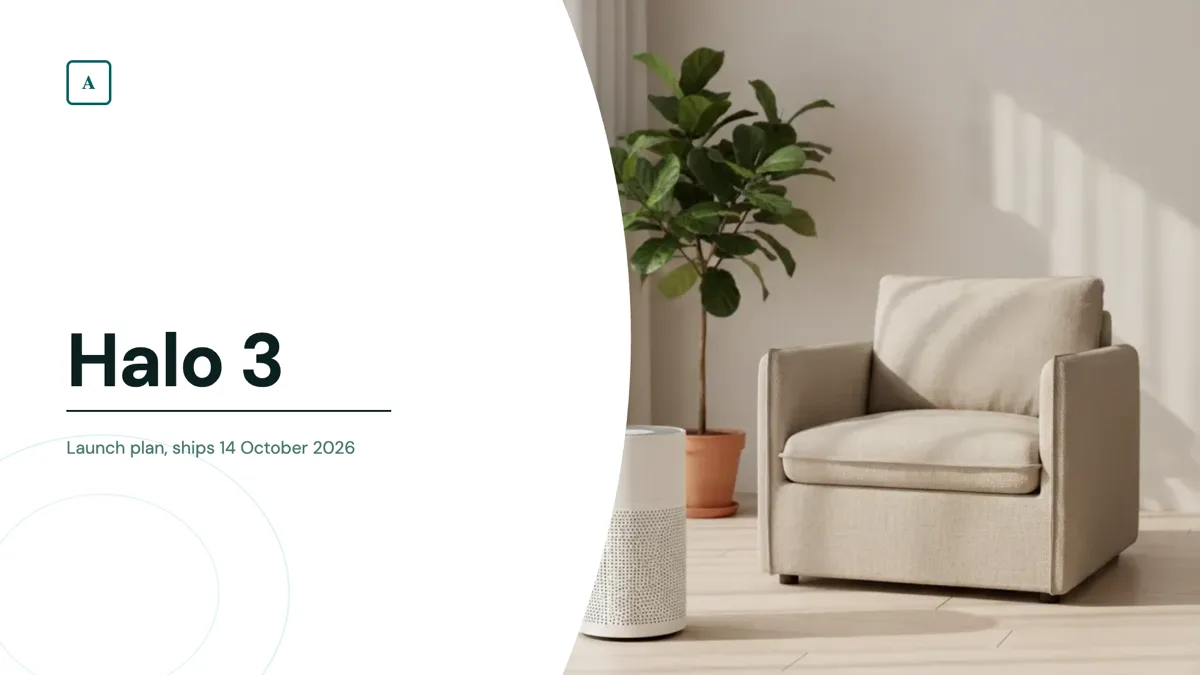
See it on a finished piece
Questions people ask
Can the person I send it to edit the text?
No. Every slide is one picture. If they need to edit, send the editable PowerPoint export instead, which emits real text, tables and charts.
Will my fonts look right on their machine?
Yes, always. The type was rendered before the slide was captured, so there is no font to install and nothing can substitute.
Does it work in Keynote or Google Slides?
Yes. A deck of full bleed images in a standard .pptx opens correctly in anything that reads the format.
Why is it locked on my account?
Both PowerPoint exports need a Starter plan or higher. PDF export is available on every plan including free.
Make your own presentation
The button opens the generator with this use case already described. Change the wording to match yours, generate, then edit anything you like.
Create a presentation with OneCraftRelated pages
Editable PowerPoint export
This export takes a slide apart. Anything PowerPoint has a native equivalent for is emitted as that object, and only the artwork it cannot express is left as a picture behind them. The result is a file somebody can actually keep working on.
Change a video's aspect ratio
Cropping a wide video into a tall one throws away two thirds of the frame and whatever was in it. Switching format here does something different: every element already knows where it belongs in each shape, so the design is rebuilt at the new aspect rather than trimmed to it.
Flyer to PNG
PNG and JPG are the social formats, and they behave differently from the PDF in two ways that catch people out: each one exports a single page rather than the whole flyer, and every file comes out at exactly twice the canvas dimensions.
More finished work of this kind is on the presentation examples hub.
Written and checked by the OneCraft team. Last checked .