Documents
Tidy a document layout
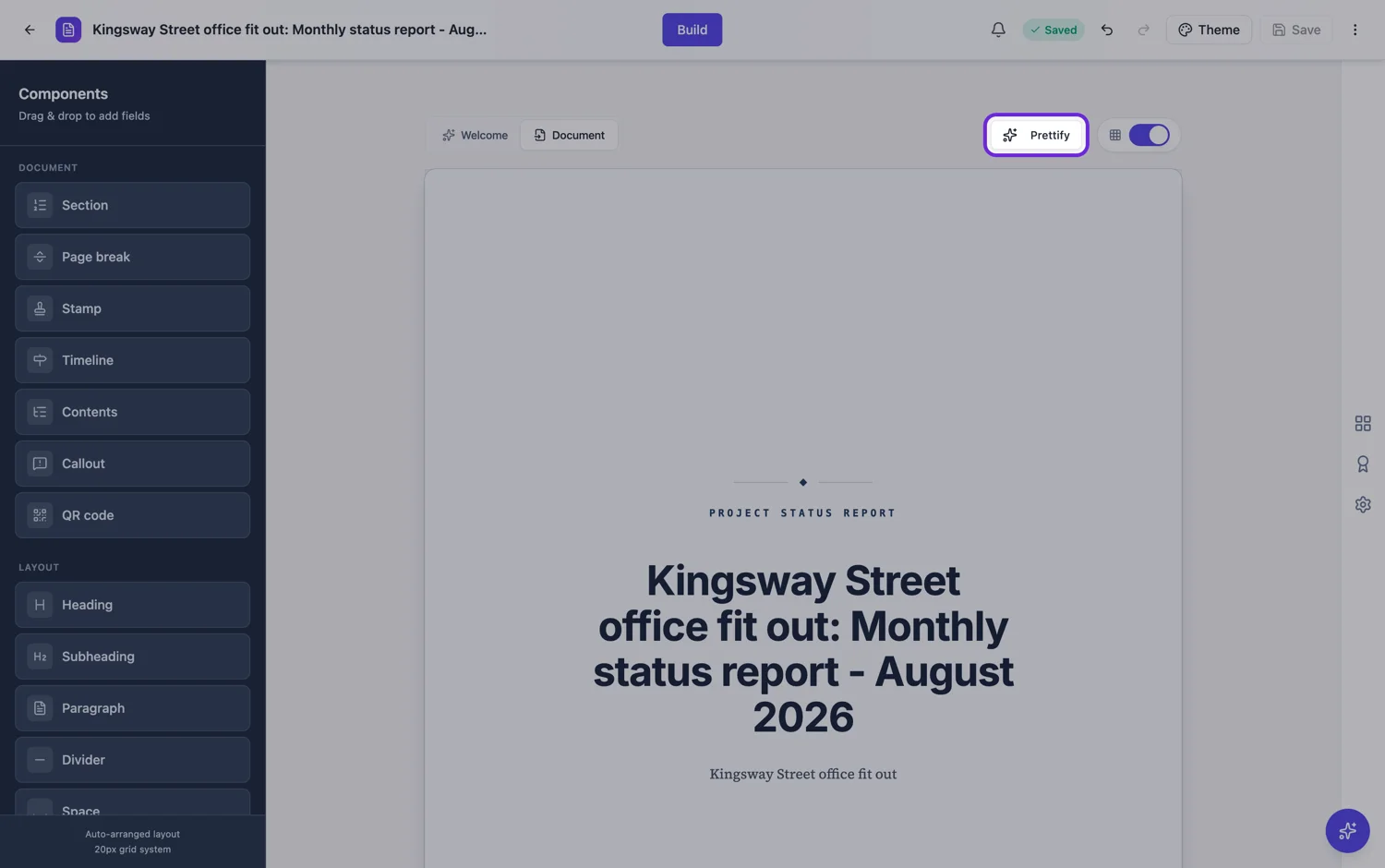
Hand editing drifts. Each block is placed relative to the one above it, small errors are inherited, and after twenty edits the top of the document is on a rhythm and the bottom is not.
One gap table for everything
There is a single set of spacing rules: a wider gap above a heading than between paragraphs, a smaller gap between a block and the block that belongs to it. The canvas, the PDF and the layout engine all read the same table, which is why the document you tidy on screen prints with the same rhythm.
The gap belongs to the block below
The space above a row is that row’s own spacing, not the previous row’s. It sounds like a detail and it is the reason moving a section moves its breathing room with it, instead of leaving a gap where it used to be and arriving somewhere too tight.
Spacing, not structure
Prettify changes vertical spacing. It does not reorder blocks, resize them, rewrite text or change which page anything lands on. That makes it safe to run at any point, including on a document you have spent a long time arranging.
Run it before you export
The habit worth forming is to run it as the last step before the PDF. Drifted spacing is invisible while you are working, because you have been looking at each block as you placed it, and it is obvious in a printed page seen for the first time by somebody else.
Why documents drift in the first place
Because every block is placed relative to what is already on the page. Nudge one paragraph down to make room, and everything after it inherits that nudge. Do it twenty times over an afternoon and the document has three different gap sizes doing the same job. Nobody can point at what is wrong, which is exactly why it goes out of the door unfixed: it looks slightly amateur without looking broken.
It does not change page breaks
Prettify is a spacing pass. It resets the gap above every block from one table of values, so the rhythm of the document becomes consistent, and it does nothing else. Where the pages break is the engine's decision, derived from the heights of what is on them, so a tidy up can move a break as a consequence of changing a gap but it never sets one. If you want a break in a particular place, that is a page break block.
Run it before export, and after the chat
Two moments are worth the click. Before an export, because that is when inconsistent spacing becomes permanent in a file somebody else reads. And after a run of AI chat edits, because rewriting text changes how tall blocks are and the gaps that looked right around the old wording rarely look right around the new. Outside those two, leave it alone: it is a tidy up, not a formatter you need to run constantly.
How it works, in three steps
Step 1
Finish the content first
Prettify fixes spacing, so run it once the blocks are where you want them.
Step 2
Run it
The whole document is re-spaced against the same gap rules the PDF uses.
Step 3
Then export
It is the cheapest step between a document that reads as typed and one that reads as designed.
The full walkthrough with screenshots is in the guide Lay out a document exactly how you want it.
Limits worth knowing
- It changes vertical spacing only, never order, size or text.
- It does not choose page breaks; the layout engine does that afterwards.
- Deliberate large gaps you added as spacer blocks are kept.
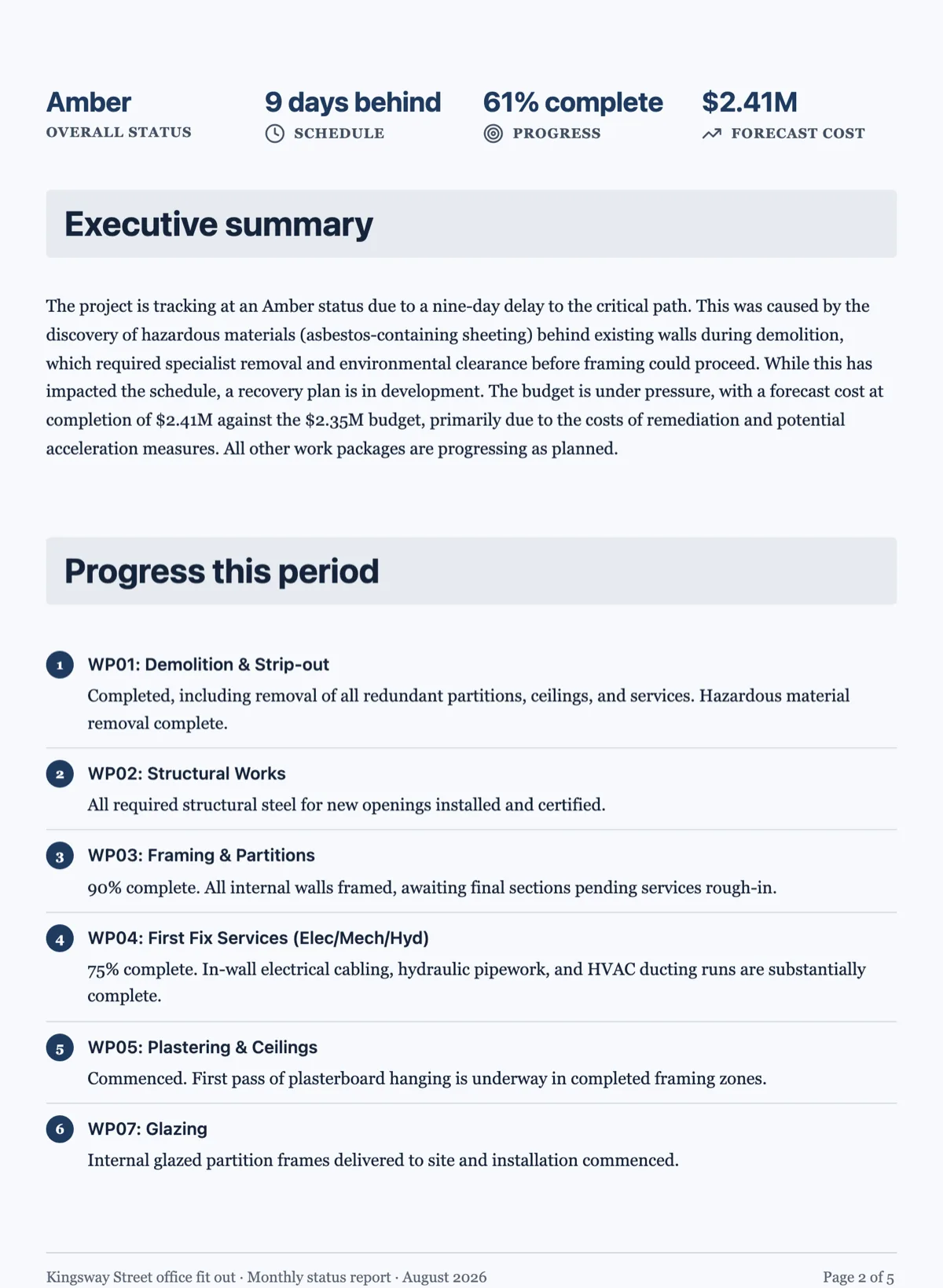
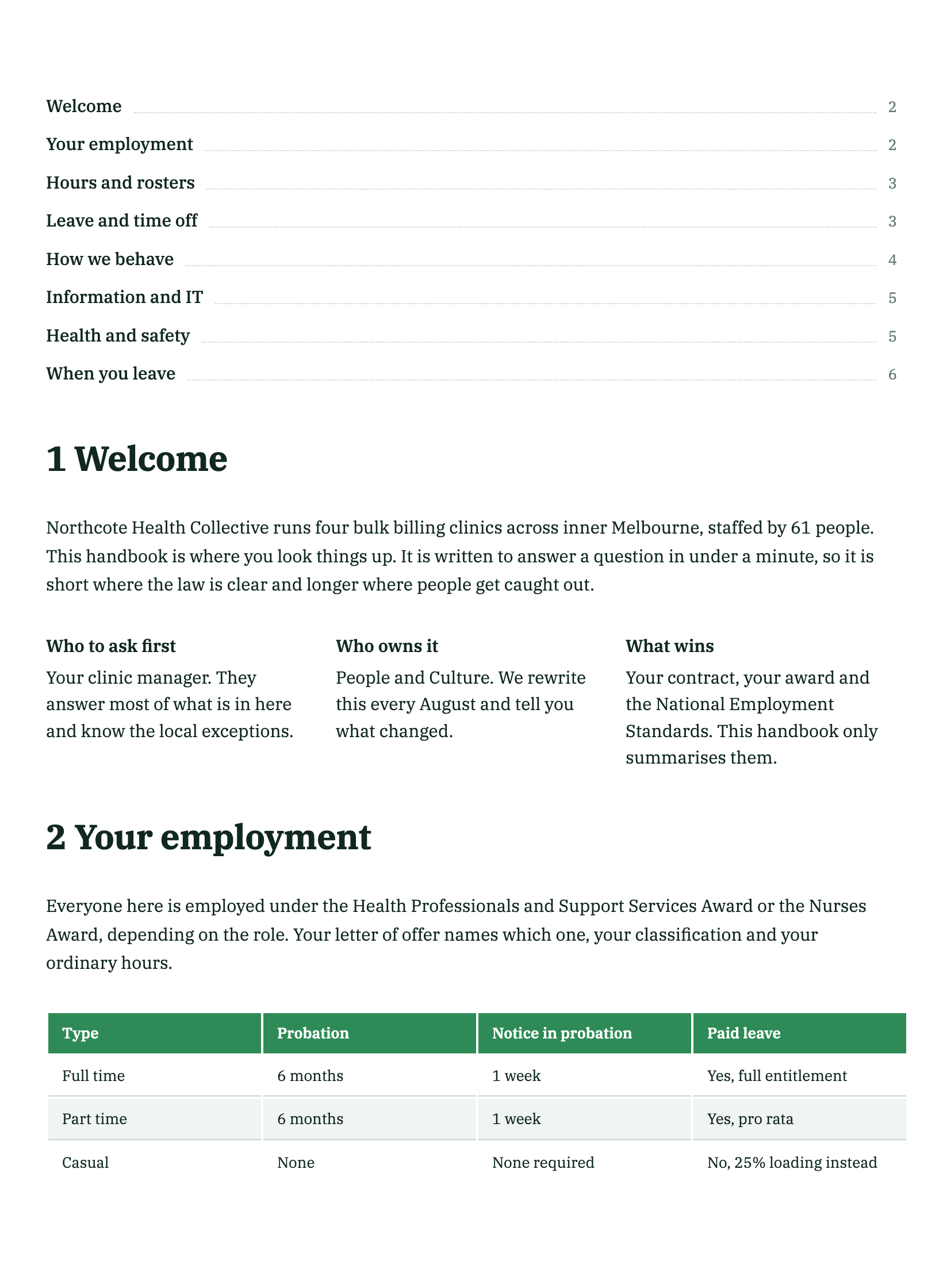
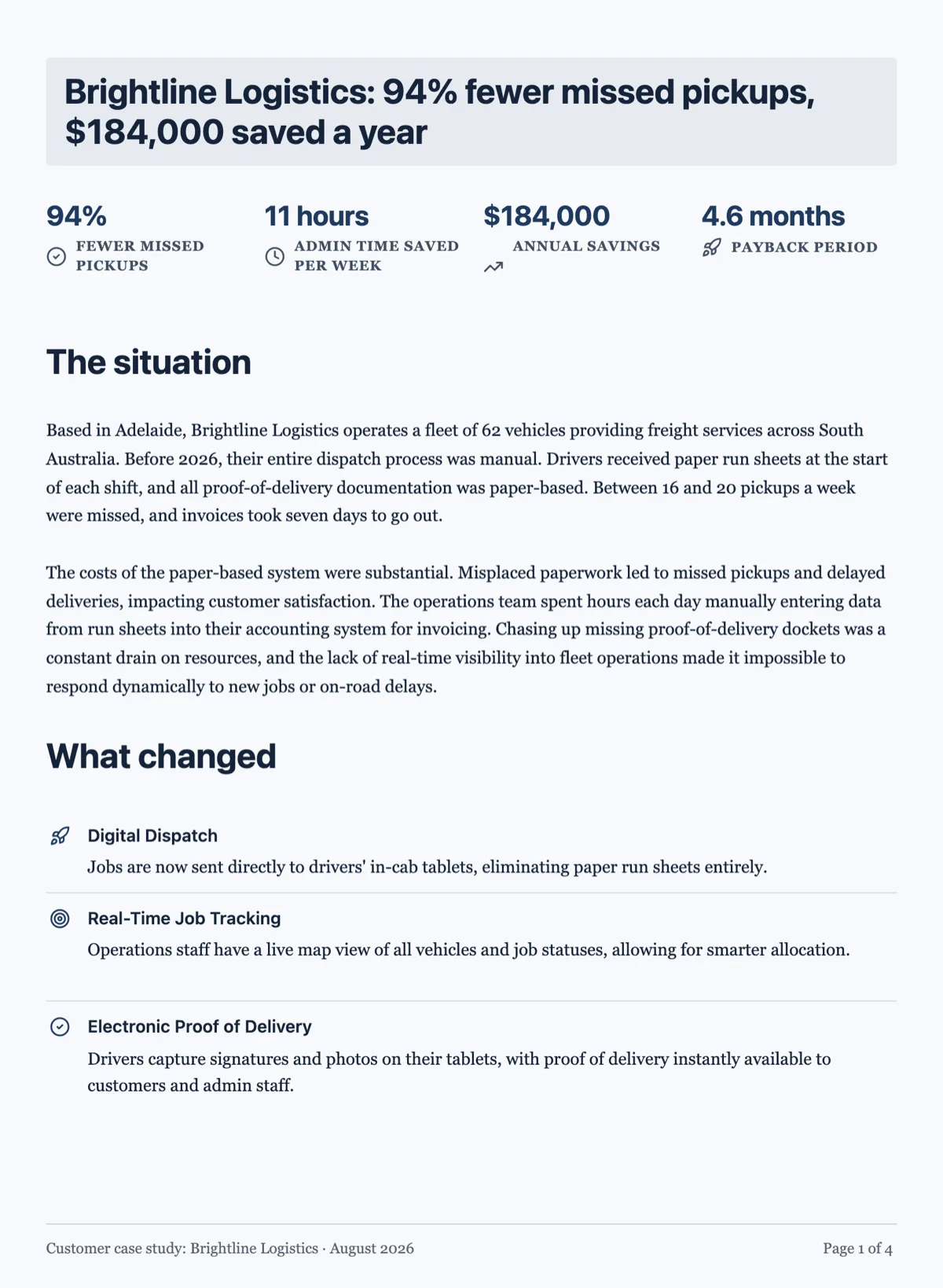
See it on a finished piece
Questions people ask
Will Prettify move my blocks around?
No. It changes the gap above each block, nothing else. The order stays, the grouping stays, the side by side rows stay side by side. What you get back is the same document on a consistent vertical rhythm rather than a rearranged one, which is why it is safe to run on a document you have already read through.
Does it change my page breaks?
Not directly. Breaks are derived from block heights, so changing the gaps can push a block over a boundary as a side effect, but nothing in the pass decides where a page ends. A break you placed yourself with a page break block is untouched.
When should I run it?
Before an export and after a batch of AI chat edits. Those are the two points where spacing has drifted and where it is about to matter. Running it every few minutes while you write is wasted effort, because the next edit will move things again anyway.
Is it reversible?
Yes, it is one step on the undo stack, so a single undo puts the spacing back where it was. That is worth knowing before the first time you run it on a document you have hand tuned: try it, look at the whole document, and step back if the hand tuning was doing something you wanted to keep.
Does it touch containers?
It works on the gaps between blocks in the flow, so the space around a container moves with everything else while the arrangement inside it stays as you built it. Cells keep their contents and their order; what changes is how much air sits above the row.
Make your own document
The button opens the generator with this use case already described. Change the wording to match yours, generate, then edit anything you like.
Create a document with OneCraftRelated pages
Drag and drop document editor
The canvas is a page, not a text box. Blocks are dragged, resized and snapped to a grid, and the pagination is worked out from what is on the page rather than from where you pressed enter.
Undo changes in a document
You can undo document changes up to fifty steps back while the document is open, with edits made within half a second grouped into one step, and redo them again. The header's save badge is the other half of the story: it tells you whether what is on screen has been written down. Documents have no version history, so both are worth understanding before you need them.
Control page breaks in a document
Most page break problems fix themselves, because the engine already refuses to strand a heading or split something that would fit a page whole. The rest are fixed with one block, deliberately placed.
More finished work of this kind is on the document examples hub.
Written and checked by the OneCraft team. Last checked .