Websites
Import products from CSV, with a preview before anything is added
Importing products from a CSV moves a whole catalogue in one go: titles, descriptions, options, prices, SKUs and stock. The risk is a half right import you then fix by hand, which is why a preview of exactly what will be created matters more than the import itself.
What files it reads
The import recognises the column layouts of Shopify, WooCommerce and Square exports and plain sheets with sensible headers such as title and price. Rows that share a handle are one product with several variants, which is how Shopify exports options. HTML in descriptions is turned into plain text with paragraphs. If the header rules cannot find a title or a price, an AI model maps the columns instead, and the rules win if the model fails.
The dry run comes first
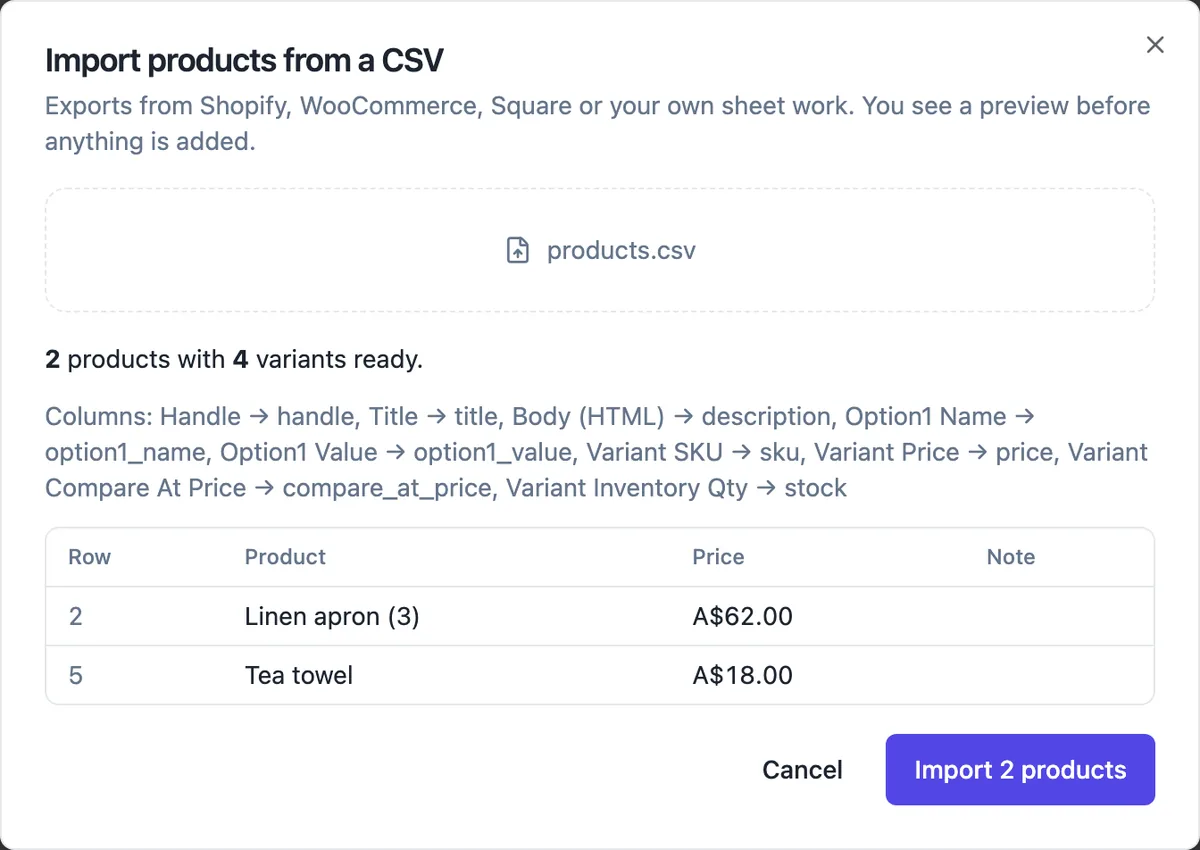
Choosing a file runs a dry run: nothing is saved. The dialog shows how many products and variants are ready, the mapping from your columns to product fields, a preview row per product with its price, and a note on any row with a problem. Fix the file and choose it again until the preview is right, then press Import.
What gets created
Each product gets its title, description, options and variants with price, compare at price, SKU and stock, a web address made from its title, and its collections; collections named in the file are created by title if they do not exist. Images are not downloaded from the old shop, so add photos afterwards in the product editor.
Rules worth knowing
A product takes up to three options and 100 variants; larger ones are reported as problems. Prices are read as amounts and stored in cents. Handles must be unique within your store, so an import that repeats an existing handle gets a numbered one. Files up to 2 MB are accepted, which is thousands of rows of text.
After the import
Open Products to check a few entries, add photos, and set which products are active; only active products show on the site. If the site is published, catalogue changes are pushed to the live pages within about half a minute, so imported products appear without a full publish once they are active.
How it works, in three steps
Step 1
Export from the old shop
Download a product CSV from Shopify, WooCommerce or Square, or save your sheet as CSV.
Step 2
Choose the file
In Products press Import CSV and choose the file; read the dry run summary, mapping and preview.
Step 3
Import and finish
Press Import, then add photos and check prices and stock in the product editor.
Limits worth knowing
- CSV files up to 2 MB.
- Up to 3 options and 100 variants per product; larger products are reported.
- Images are not copied from the old shop.
- The AI column mapping runs only when the header rules miss the title or price.
Questions people ask
Will my product photos come across?
No. Image links in the CSV are not downloaded, partly because old shop image links often stop working when you close that shop. Upload photos in the product editor after the import; the first photo is the one product cards show.
Can I import the same file twice?
You can, but each import creates new products, and repeated handles get numbered versions, so you would get duplicates of everything. Import once, then make changes in the product editor, or archive the first batch with the bulk status action and import again if the first attempt went wrong.
Does it import stock levels?
Yes, when the file has an inventory or stock column, which Shopify, WooCommerce and Square exports do. Each variant gets the stock from its row. Products without a stock column start untracked, which you can change per variant in the editor.
What if my columns are named differently?
The header rules recognise common names in the three platforms and plain sheets. If they cannot find a title or price, an AI model reads the headers and proposes a mapping, shown in the dry run as such. If the mapping still looks wrong, rename the columns to title, price, sku and stock and choose the file again.
Does importing need a paid plan?
Adding products works before the store is switched on, so you can import and prepare a whole catalogue first and check it at leisure. Taking orders needs the store switched on, which is part of the paid plans, and an active Stripe connection for the checkout.
Can I export my products again later?
Orders and customers export to CSV from their screens. Products are edited in the store screens and, on a published site, the catalogue is also published as a catalog.json file the site reads. Keep your original import file as your own copy of the catalogue, updated when you make large changes.
Make your own website
The button opens the generator with this use case already described. Change the wording to match yours, generate, then edit anything you like.
Create a website with OneCraftRelated pages
Product variants: every size and colour with its own price and stock
Product variants are the buyable versions of one product, such as a linen apron in oat, charcoal or rust and in regular or long. Each variant needs its own price and stock, because the long rust apron can sell out while the regular oat one is plentiful.
Booking request form for your website: requests in, confirmations out
A booking request form lets a client ask for a time, and leaves the confirming to you. It suits businesses whose diary has judgement in it, such as the right practitioner, the length of a first visit or travel between jobs, where a self service calendar would book the wrong thing.
Custom domain for your website: two records and a Verify button
Connecting a custom domain means telling the internet that your name, such as www.saltbushphysio.com.au, should open your site. You add two DNS records at the company where you bought the domain, one to prove you own it and one to point it, and the platform does the rest.
More finished work of this kind is on the website examples hub.
Written and checked by the OneCraft team. Last checked .