Websites
Brand kit for your website: your colours, light and dark, in one click
A brand kit is a saved set of your logo, colours and fonts that every design tool can reuse. On a website it should do one thing well: turn three brand colours into a full, readable theme, so buttons, backgrounds and text all feel like you without picking each shade.
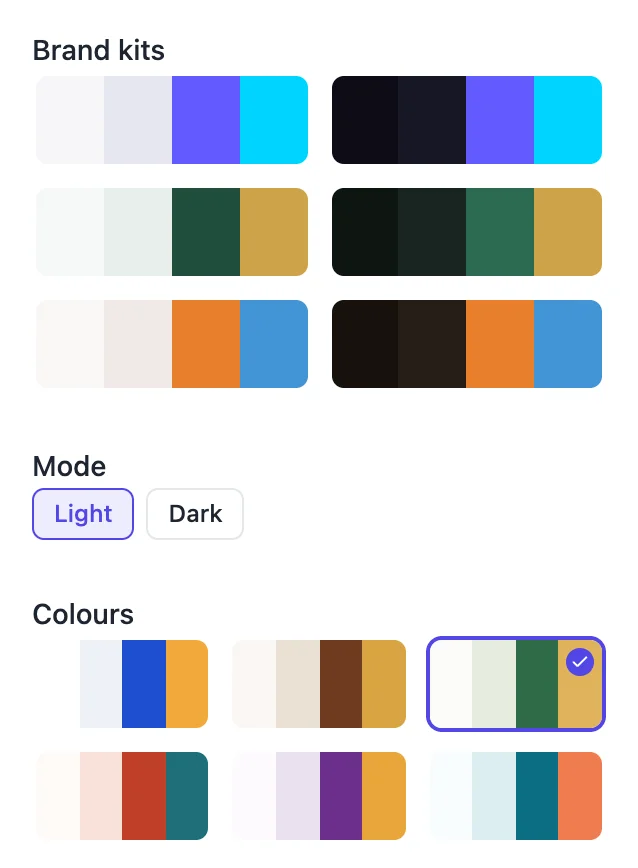
From three colours to a whole theme
A brand kit stores a primary, a secondary and an accent colour, plus a logo and, when it was generated by AI, a heading and body font pairing. The site builder converts the kit into two full sets of site colours, light and dark, covering the page background, surfaces, text, brand buttons, accents and borders, with contrast checked. That is why each kit shows as two swatches.
Two places to apply it
In the generator, the Brand kit menu under Options makes the AI use your kit instead of choosing a palette; the kit wins over a palette you also picked. In the builder, the Theme tab lists every saved kit as light and dark swatches; clicking one recolours the whole site at once and, if the kit has a font pairing, sets the fonts too.
Where kits are made
Kits live in your account settings under Brand, shared by every module: sites, slides, flyers and posters, documents, forms and video. You can enter colours and a logo by hand, or press Generate brands to have the AI propose three kits from a description, your website and up to four images. Up to 20 kits load in the pickers.
What the kit does not set
A kit made by hand has no fonts, so the site keeps its current pair until you choose one of the 16 curated pairs in the Theme tab. The logo from the kit is not placed on the site automatically, so the menu keeps showing the business name until you add an image where you want it. Corner style and spacing stay your choice.
Keep it consistent everywhere
The point of a kit is that your flyer, your proposal and your website match. Apply the same kit across modules and update it in one place when your colours change. The site keeps the colours it was given, so after editing a kit, click it again in the Theme tab and publish to bring the site in line.
How it works, in three steps
Step 1
Save a kit
In account settings under Brand, enter your colours and logo, or generate three kits with AI and keep one.
Step 2
Apply it
Pick it in the generator Options before generating, or click its light or dark swatch in the builder Theme tab.
Step 3
Publish
Check buttons and text in the preview, then publish to put the new colours live.
Limits worth knowing
- Kits made by hand carry no fonts; only AI generated kits include a font pairing.
- The kit logo is not placed in the site menu automatically.
- Editing a kit does not change sites already themed with it until you apply it again.
- Up to 20 saved kits load in the pickers.
Questions people ask
Do I need a brand kit to make a website?
No. Without one, the generator picks a palette and fonts, or you choose from 24 palettes and 16 font pairs in the Theme tab. A kit is useful when you already have brand colours, or when you want the website to match flyers, slides and documents you make in other modules.
Why does my brand colour look slightly different on the site?
The kit colours are turned into a theme whose text and buttons pass contrast checks, so a very light or very dark brand colour may be adjusted for readability, especially in dark mode. If the result looks off, try the other mode or adjust the kit colour slightly.
Can the AI create a brand kit for me?
Yes. In account settings under Brand, Generate brands reads a description, your website and up to four images and returns three kits with colours and a font pairing. Save the one you like, then apply it to the site. It is a quick start if you have no brand guide.
Can I use different kits on different sites?
Yes. Each site keeps its own theme, so one kit can style your main site and another kit your side project or a seasonal campaign page. Kits are stored on your account, so every site and every module can pick from the same saved list.
Will applying a kit change my content?
No. A kit changes colours and, when it has a pairing, fonts. Text, images, sections and pages stay as they are. If you do not like the result, press Undo in the builder header to go back to the previous theme.
Does the kit work in Code mode?
In Code mode the brand kit is frozen into the brief when the site is generated: its colours, name and tagline guide the AI as it writes the project tokens. Changing the kit later does not recolour the code project; ask the AI chat to update the colours instead.
Make your own website
The button opens the generator with this use case already described. Change the wording to match yours, generate, then edit anything you like.
Create a website with OneCraftRelated pages
Presentation themes
The theme panel lists ninety nine entries: eighty eight colour palettes, twenty one hand built themes, and the ten places where a hand built theme takes over a palette's name. Picking one restyles the whole deck immediately, including charts, tables and diagrams.
Embed a YouTube or Vimeo video on your website
Embedding a video means showing a YouTube or Vimeo player on your page so visitors watch without leaving. Done carelessly, a player loads megabytes of script before anyone presses play; done well, the page shows a still and loads the player on the click.
Form themes and colours
A theme restyles the whole form at once: background, form surface, input borders, focus colour, buttons and type. There are 12 for classic forms and 25 for conversational ones, and you can change your mind after every one of them.
More finished work of this kind is on the website examples hub.
Written and checked by the OneCraft team. Last checked .