Websites
Website newsletter signup: collect the address, then take it to your email tool
A newsletter signup on a website asks for one thing, an email address, in exchange for a clear promise of what will arrive and how often. The form is the easy part; the promise and what you do with the list are what decide whether it grows.
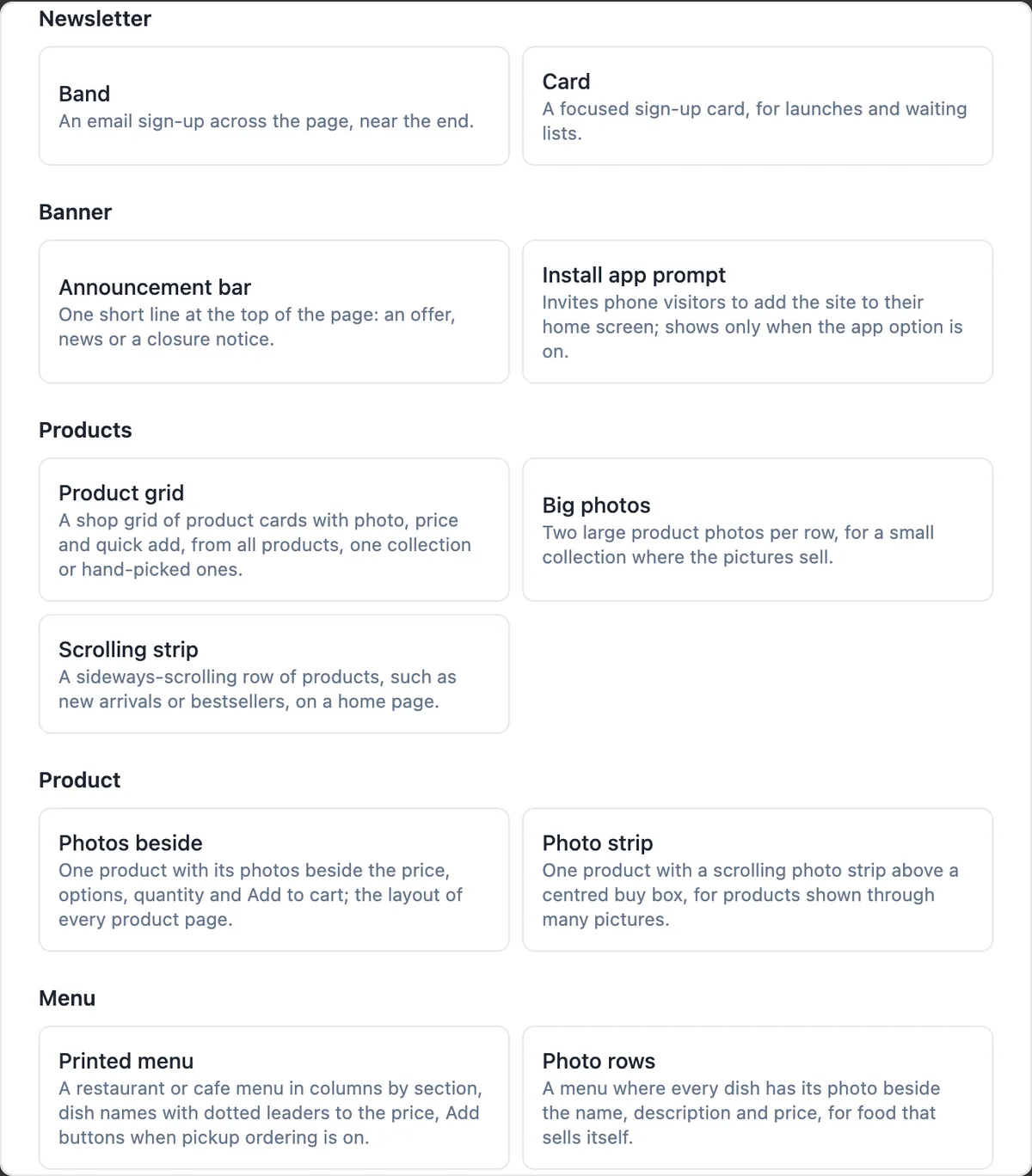
Two layouts
Band runs an email sign-up across the page, usually near the end, after a visitor has read enough to want more. Card is a focused sign-up card for launches and waiting lists, where the sign-up is the main point of the page. Both have a heading, a line of text, the button label and the thank you message, and both carry the hidden spam field every form here has.
Where the addresses go
Each sign-up lands in the messages inbox for the site as a newsletter message, and you get an email. A person who signs up twice is stored once, but still sees the thank you message. Filter the inbox by newsletter to see only sign-ups, and export them as a CSV with the received date and the page they signed up on.
There is no send button
The builder collects addresses; it does not send newsletters. Import the CSV into the email tool you use, where you write and schedule the emails and handle unsubscribes. Do that regularly, weekly for a busy list, so new subscribers get their first email while they still remember signing up.
Write the promise, not just the box
Sign up for our newsletter promises nothing. One email per harvest with first pick of limited batches tells people what they get and how often. Put the sign-up where the promise makes sense: after a product range, at the end of a blog style news section, or on a launch page as the only action.
Consent and the law
An email address given for a newsletter is personal information, and sending marketing email needs consent and a working unsubscribe in most countries. Say on the form what people are signing up for, keep the privacy page the generator added up to date, and only email the addresses for what you promised.
How it works, in three steps
Step 1
Add a newsletter section
In the builder press Add section and pick Band or Card under Newsletter.
Step 2
Write the promise
Set the heading, the line about what people get and how often, the button label and the thank you line.
Step 3
Export and send
After publishing, export sign-ups from the messages inbox as CSV and import them into your email tool.
Limits worth knowing
- Sign-ups are collected only; there is no newsletter sending, scheduling or unsubscribe handling.
- Duplicate addresses on one site are stored once.
- Sign-ups are accepted only while the site is published.
- The CSV export covers up to 20,000 messages per site.
Questions people ask
Can I connect the form to Mailchimp directly?
There is no direct connection to an email service. Export the newsletter messages as a CSV and import them into your email tool, which accepts that format. If you need instant syncing, embed your email tool's own sign-up form on the page with Code mode, or link to its hosted sign-up page from a button.
Does the sign-up ask for a name?
The newsletter sections ask for an email address only, which keeps the form fast and usually lifts sign-ups. If you need a name or preferences, use a contact form with the right fields, or embed a OneCraft form, and say in the intro that it is for your mailing list.
What happens if someone signs up twice?
The second sign-up is recognised as the same address for that site and not stored again, but the visitor still sees the thank you message, so they are not told whether they were already on the list. That keeps the list clean without leaking who is subscribed.
Where should the sign-up go on the page?
Near the end of a page, after the visitor has seen enough to want more, for a business site. At the top as the main action for a launch or waitlist page. A sign-up in the first screen of an ordinary business site usually distracts from booking or buying.
Do I need double opt-in?
The form records the address once; there is no confirmation email from the site. Many email tools send a confirmation when you import or when the first email goes out, and some countries expect clear consent records. Check the anti spam rules where you and your subscribers are before you send.
Will sign-ups slow my site down?
No. The form is plain HTML with a small script that sends the address in the background and shows the result line, so it adds almost nothing to page weight. Nothing loads from an outside email service, which also keeps the page free of third party trackers.
Make your own website
The button opens the generator with this use case already described. Change the wording to match yours, generate, then edit anything you like.
Create a website with OneCraftRelated pages
AI website builder that writes code: a real project, edited by chat
An AI website builder that writes code produces the source files of a site, not a layout in a proprietary format. Here that means a React Router project with Tailwind and shadcn/ui, built and checked on every change, with a git history and a zip download.
Add Google Analytics to your website: paste the G- ID and publish
Adding Google Analytics to a website means loading Google's tag on every page with your property's measurement ID, which starts with G-. On a site built here there is no code to paste, only the ID, and it runs beside the built in visit counter.
Website in another language: the copy, the tags and the direction
A website in another language needs more than translated paragraphs: the page has to declare its language to browsers and search engines, the small interface words have to match, and right to left scripts have to flip the layout. A generator can do most of that from one setting.
More finished work of this kind is on the website examples hub.
Written and checked by the OneCraft team. Last checked .