Forms
Background designs for forms
A conversational form gives each question a whole screen, and a plain screen with one question on it can feel bare. Background designs fill that space without competing: 24 patterns across four families, applied per form or per page.
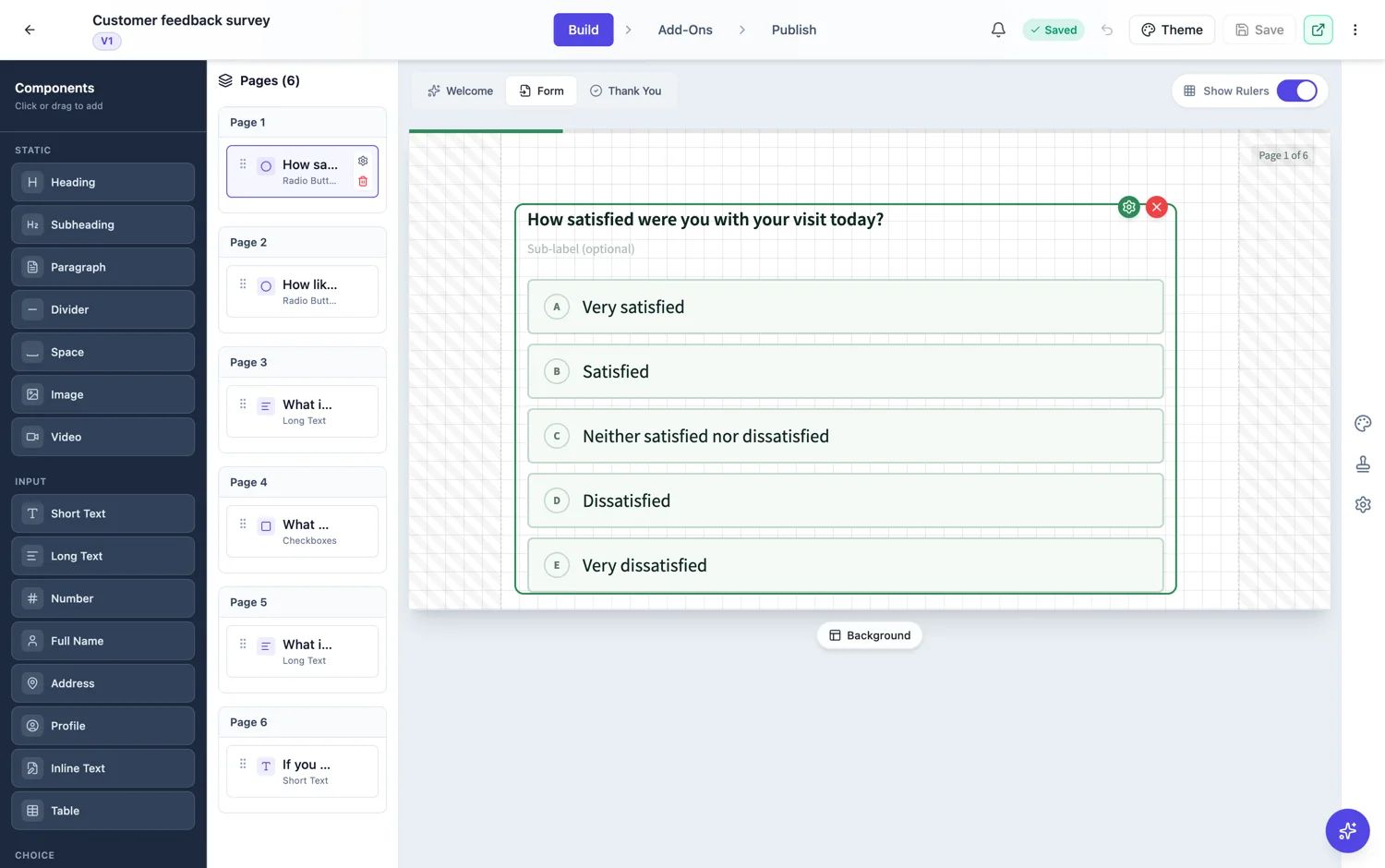
Four families
Geometric covers chevrons, corner triangles, floating squares, diamonds, steps and a diagonal split. Organic covers flowing curves, a bottom wave, an arc and bokeh spots. Minimal is a single line, a corner detail or a soft gradient mesh. Accent is the largest family and the softest: gradients from a corner, a quarter circle, a thin top curve, a left panel, glows and rings.
Per form or per page
A background can be set for the whole form, or overridden on a single question page, chosen as Page 1, Page 2 and so on in the panel's scope list. Per page is worth using sparingly and deliberately: a different background on the first and last question pages marks the beginning and the end of the form, while everything in between stays consistent. Changing it on every question makes the form feel like a slideshow.
The pattern takes the theme colour
Backgrounds are drawn in the theme’s colour at low opacity rather than in a fixed colour of their own, so changing your palette changes the background with it. That is why the accent family works on almost anything: it is your own colour, softened.
When to use none
There is a None option and it is the right answer for serious forms. An incident report, a complaint, a medical intake or a legal declaration should look plain. Decoration on those reads as carelessness. Save the patterns for events, signups, feedback and anything meant to feel light.
How it works, in three steps
Step 1
Pick one for the whole form
Start from the accent family, which is the softest and takes your palette colour.
Step 2
Consider an override on the first and last pages
A different background on the first and last question pages marks the start and the end without making the middle noisy.
Step 3
Use None on anything serious
Incident reports, complaints and consent forms should look plain.
The full walkthrough with screenshots is in the guide Create a conversational form with AI.
Limits worth knowing
- Background designs apply to conversational forms.
- The pattern is drawn in the theme colour, so it is not independently colourable.
- One of the 25 entries is None, which leaves the background clean.
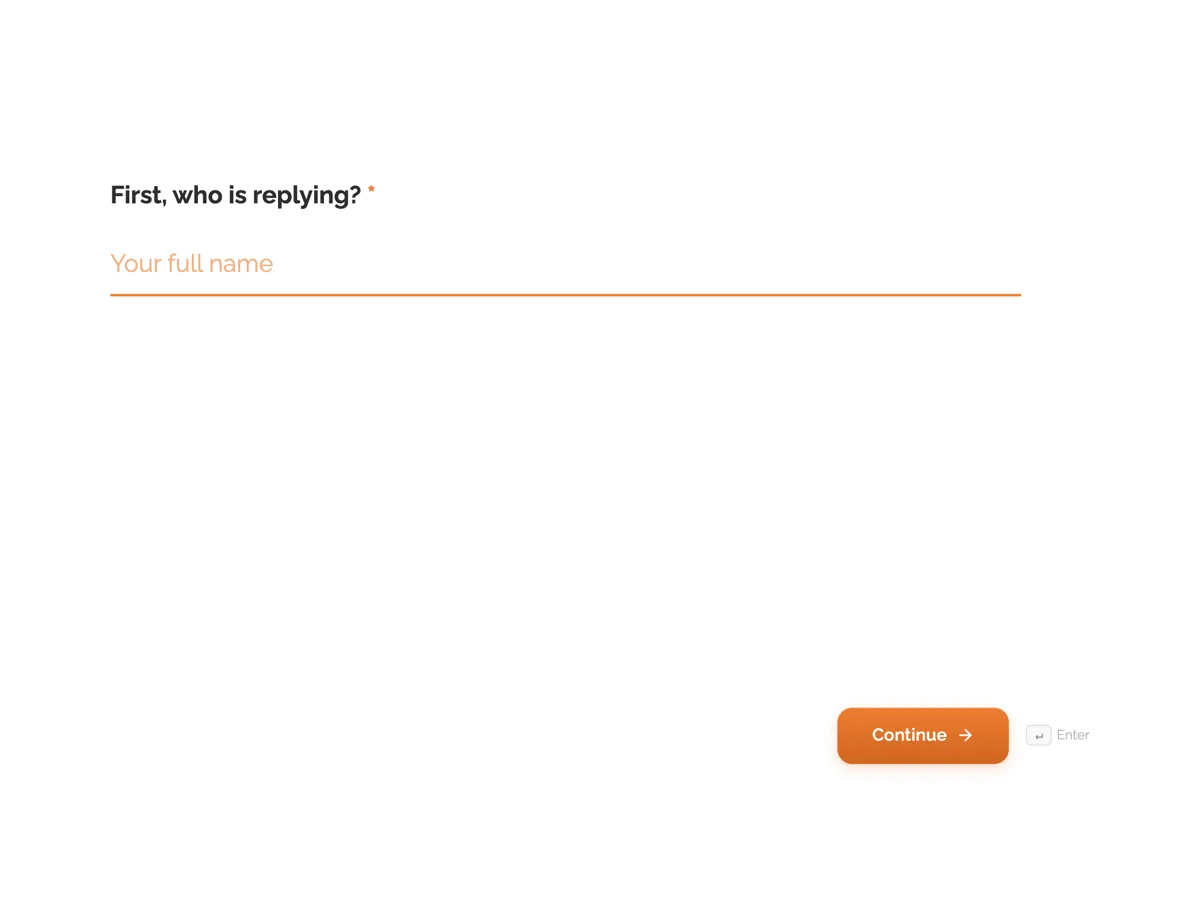
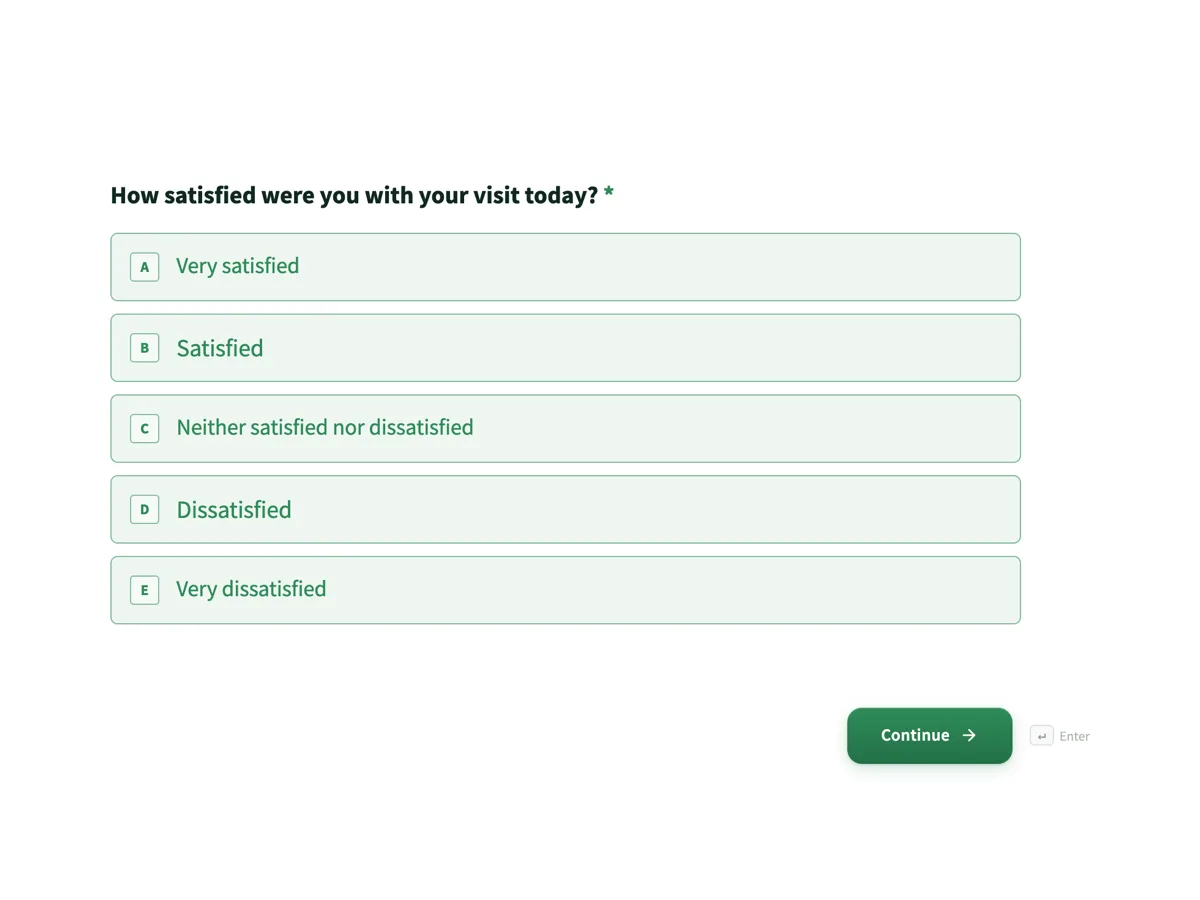
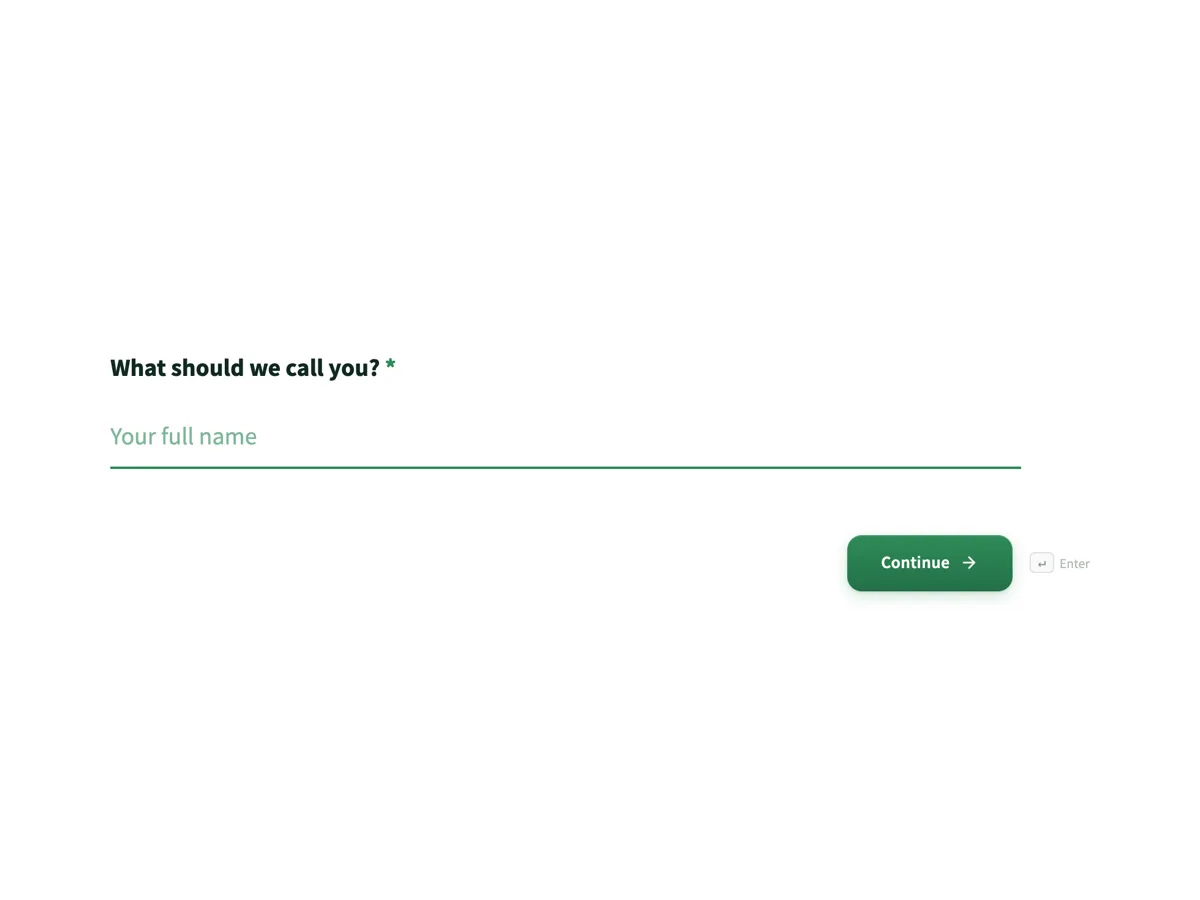
See it on a finished piece
Questions people ask
How many backgrounds are there?
Twenty five options, one of which is None, so twenty four actual patterns across the geometric, organic, minimal and accent families. Accent is the largest family and the softest, with corner gradients, quarter circles, glows and rings. They apply to conversational forms, and each one is drawn in your theme colour rather than a fixed colour of its own.
Can each question have its own background?
Yes. A background can be set for the whole form and then overridden on a single question page, picked as Page 1, Page 2 and so on in the panel scope list. It is worth doing on the first and last pages to mark the start and the end, and worth avoiding in between, where a new pattern on every question makes the form feel like a slideshow.
Can I change the colour of the pattern?
Not directly. Each pattern is drawn in your theme colour at low opacity rather than a colour of its own, so changing the palette changes the background with it. To get a different colour, switch the theme or palette. That tie is also why the accent family works on almost any form: it is your own colour, softened, never a clash.
Make your own form
The button opens the generator with this use case already described. Change the wording to match yours, generate, then edit anything you like.
Create a form with OneCraftRelated pages
AI images in forms
Conversational forms have real space for pictures: a split layout gives half the screen to an image. Rather than hunting for a photo that fits, describe the one you want and it is made at the shape the slot needs.
Form themes and colours
A theme restyles the whole form at once: background, form surface, input borders, focus colour, buttons and type. There are 12 for classic forms and 25 for conversational ones, and you can change your mind after every one of them.
Auto arrange form fields
A form that has been edited by hand for an hour drifts. Fields sit two pixels out, gaps vary, and the whole thing looks slightly wrong without any single thing being wrong. Prettify re-spaces it in one action.
More finished work of this kind is on the form examples hub.
Written and checked by the OneCraft team. Last checked .