Websites
Website from a template: open it as is, or let the AI rewrite it for you
Starting a website from a template means beginning with a finished design for your kind of business and replacing its words and photos with yours. It is the fastest route when a starter already looks right, and the AI can do the rewriting from your description if you prefer.
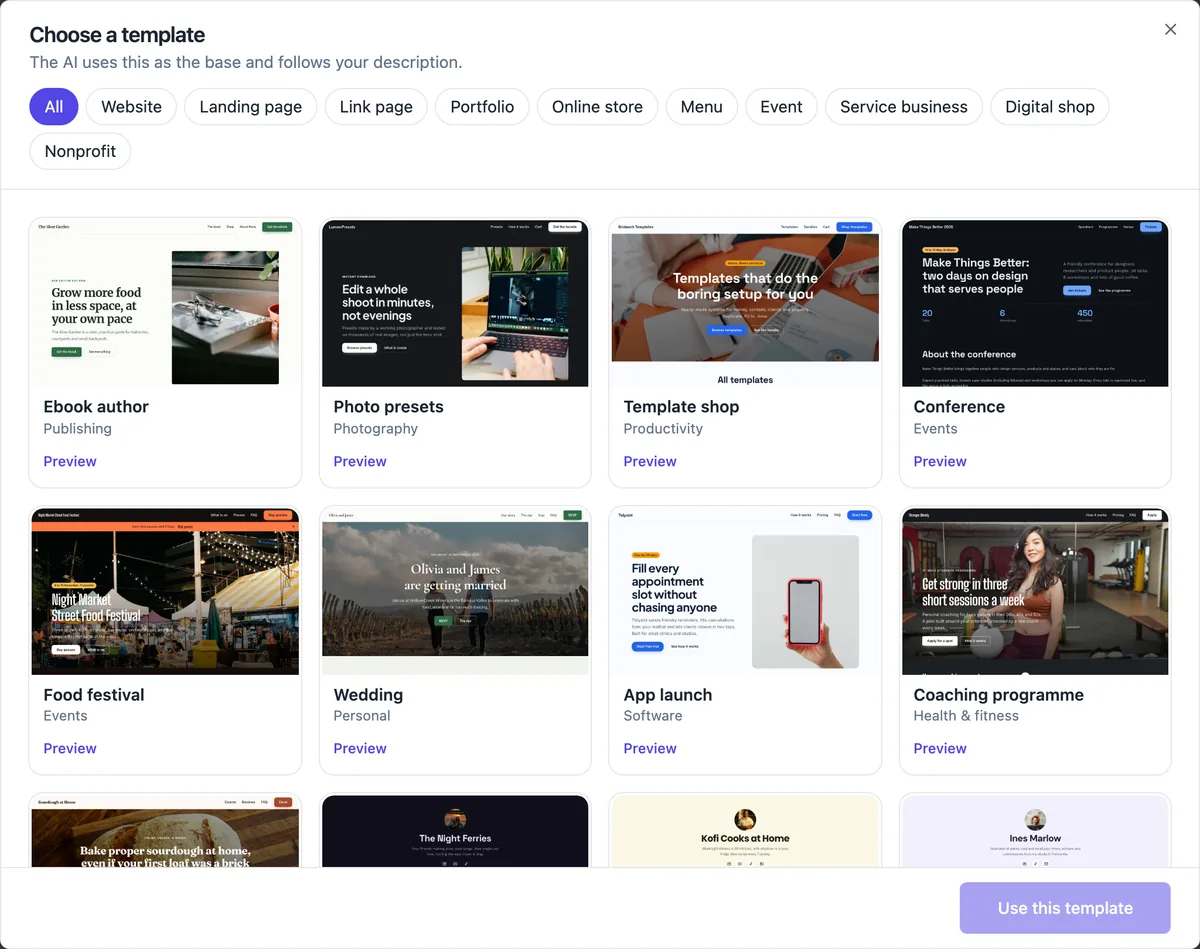
What is in the library
There are 30 Sections templates, three for each of the ten kinds: websites (an accounting firm, a cafe, a hair salon), landing pages, link pages, portfolios, service businesses, nonprofits, events, online stores, restaurant menus and digital shops. The nine store, menu and digital templates carry six to twelve sample products. Each one has its own page in the template gallery with the full list of sections it uses.
Two ways to use a template
Open as is copies the template unchanged into a new site, with its sample business, words and photos, for you to edit in the builder. Use this template with a description lets the AI write your own business into that design: it keeps the template as the base and follows your brief for the copy and the sections. The first is predictable; the second saves typing.
Store, menu and digital templates open as they are
In the section builder the AI does not yet write store, menu or digital shop sites, so their templates only open as is. You then replace the sample products with yours in the store screens, or import them from a CSV export of an old shop. The site copy around the products, such as the hero and about sections, you edit in the builder.
What to change first
The business name in the menu and the search title, every heading, the photos (template photos are placeholders for a business that does not exist), the contact details and the hours. Then the theme: pick your own palette or apply a brand kit, and the whole template recolours. A template with your logo, photos and words no longer looks like a template.
Template or description, which to pick
Pick a template when one in your kind already has the sections you need and you mainly need to change words. Describe the business from scratch when your offer has an unusual shape, because the generator then picks sections to fit your brief rather than the template. Either way the result is the same kind of site and you can change any section later.
How it works, in three steps
Step 1
Choose a template
In the generator press Choose a template, filter by kind and open Preview to see one full size.
Step 2
Pick how to use it
Open as is for an unchanged copy, or keep it chosen and write your description so the AI rewrites it.
Step 3
Replace and publish
Swap in your words, photos, contact details and colours, then publish.
Limits worth knowing
- There are 30 Sections templates, three per kind, plus six templates for Code mode on paid plans.
- Store, menu and digital templates only open as is in the section builder.
- Starting from a template costs 1 credit, like any new site.
- Template photos are placeholders and should be replaced before publishing.
Questions people ask
Are the templates free?
There is no extra charge for a template. Any new site, whether generated, blank or opened from a template, uses 1 credit and counts toward your plan site limit, and the free plan includes 150 credits a month and one site.
Can I switch templates after I start?
There is no button that swaps a whole template under existing content. You can change each section to another layout of its type, change the theme, or start a new site from another template and copy your words across. Choosing carefully at the start saves that work.
Do templates work on phones?
Every template is checked at phone, tablet and desktop widths for sideways scrolling, overflowing text and clipped copy before it ships, and the section layouts are built mobile first. Your own long headings can still wrap differently, so look at the phone preview in the builder before publishing.
What are the Code mode templates?
Six templates written as real code projects: a creative agency, an online course, an event with RSVP and tickets, a photographer portfolio, a restaurant with reservations and a SaaS landing page. They are for Code mode on a paid plan, where the AI edits the project by chat and the site can read data collections.
Can I use a template for a different kind of business?
Yes. A template is a design and a set of sections, not a rule about your industry. A salon template can carry a beauty clinic, and a plumber template suits most trades. Change the kind of photos and the section headings, and the template no longer reads as its original business.
Does a template include the privacy and terms pages?
The website, service, nonprofit, store, menu and digital templates include privacy and terms pages, because those kinds usually collect details or take orders. They are written as general starting text for a fictional business, so replace the business name and read them against the way you actually handle personal information before you publish.
Make your own website
The button opens the generator with this use case already described. Change the wording to match yours, generate, then edit anything you like.
Create a website with OneCraftRelated pages
AI website generator from a prompt: what to write so the draft is right
A website generator reads a prompt the way a designer reads a brief: who the business serves, what it sells, why people trust it and what a visitor should do next. A prompt that answers those four things gets a draft that needs polishing, and one that only names the business gets a generic page.
AI website builder: describe the business, get the whole site
An AI website builder turns a short description of a business into a complete site: the pages, the sections on each page, the copy, a colour theme and photos. The good ones then give you a normal editor, so the AI writes the first draft and you decide what stays.
Edit your website with AI chat: describe the change, review it, keep or undo
Editing a website with AI chat means typing what you want, add a pricing section after services, and having the AI make the change on your draft. The useful part is not the typing, it is that every change is listed, previewed and reversible before you publish.
More finished work of this kind is on the website examples hub.
Written and checked by the OneCraft team. Last checked .