How to
How to publish a website made with AI
Choose a free onecraft.live address, press Publish and visit the live site. How to publish later changes, change the address and what the plans allow.
Sites3 min readUpdated
This guide shows you how to publish a website made with AI in OneCraft: pick a free address, put the site online and update it later.
Publishing copies the version in your preview to a public address, in about a minute. Nothing about the site changes on the way, so what you checked in the preview is what visitors get.
Before you publish
Open the site in the builder and look at the status line under the preview. Publish is ready once the site has a finished build, and the line reads “Preview up to date” when the newest build matches the latest change. Check the pages at phone width first; how to preview my website on my phone shows how.
The Publishing panel on the right says what will go online: “Nothing is live yet. Publish puts version … , the one in the preview, online.”
Choosing the address
Click Publish at the top right. The first time, a dialog asks you to Choose your address: “This is where people will find your site. You can change it later in Settings.”
Type the part before .onecraft.live, using letters, numbers and hyphens. The address is checked as you type. When it reads This address is free., the Publish button in the dialog is ready; an address someone else has is refused, and Publish waits until you pick a free one.
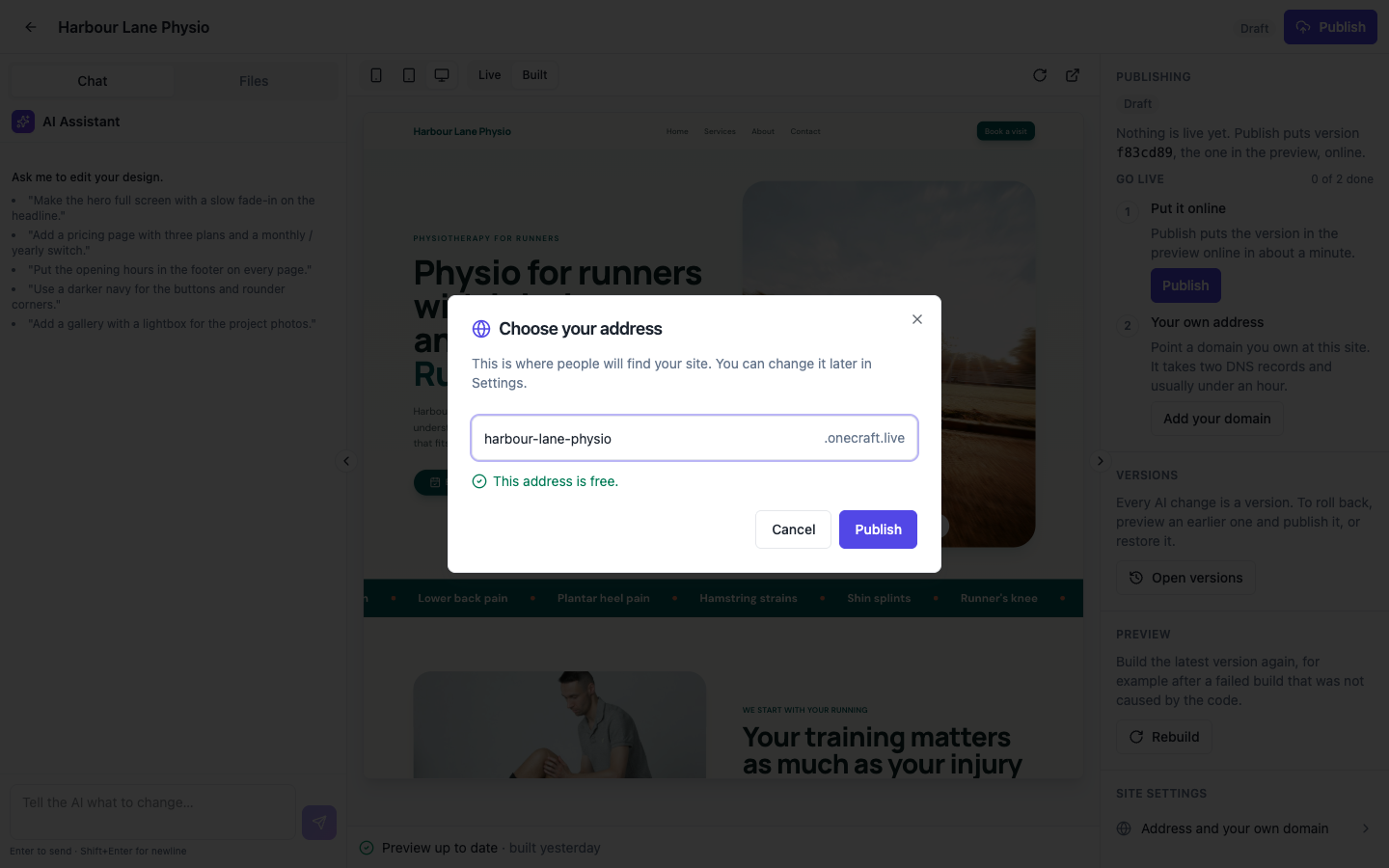 Pick something short that matches the business name. It can change later.
Publishing
Click Publish in the dialog. The button in the header shows the progress, and the chip next to it turns to Live when the site is online, usually in about a minute.
The Publishing panel then reads “Live version … The version in the preview is the live one.” and the Go live checklist ticks Put it online.
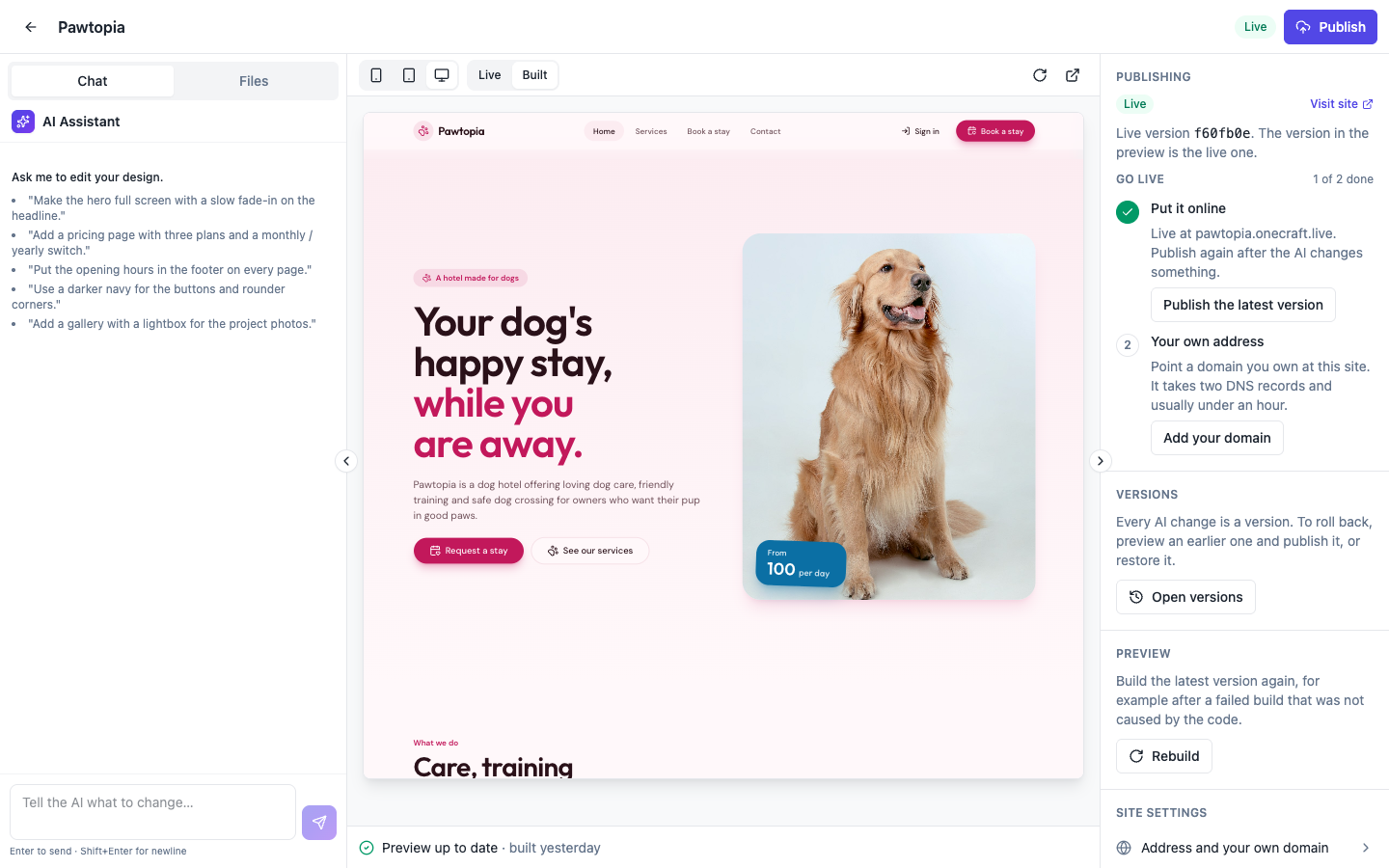 Live in the header and the panel means the address is serving this version.
Click Visit site in the panel to open the address in a new tab.
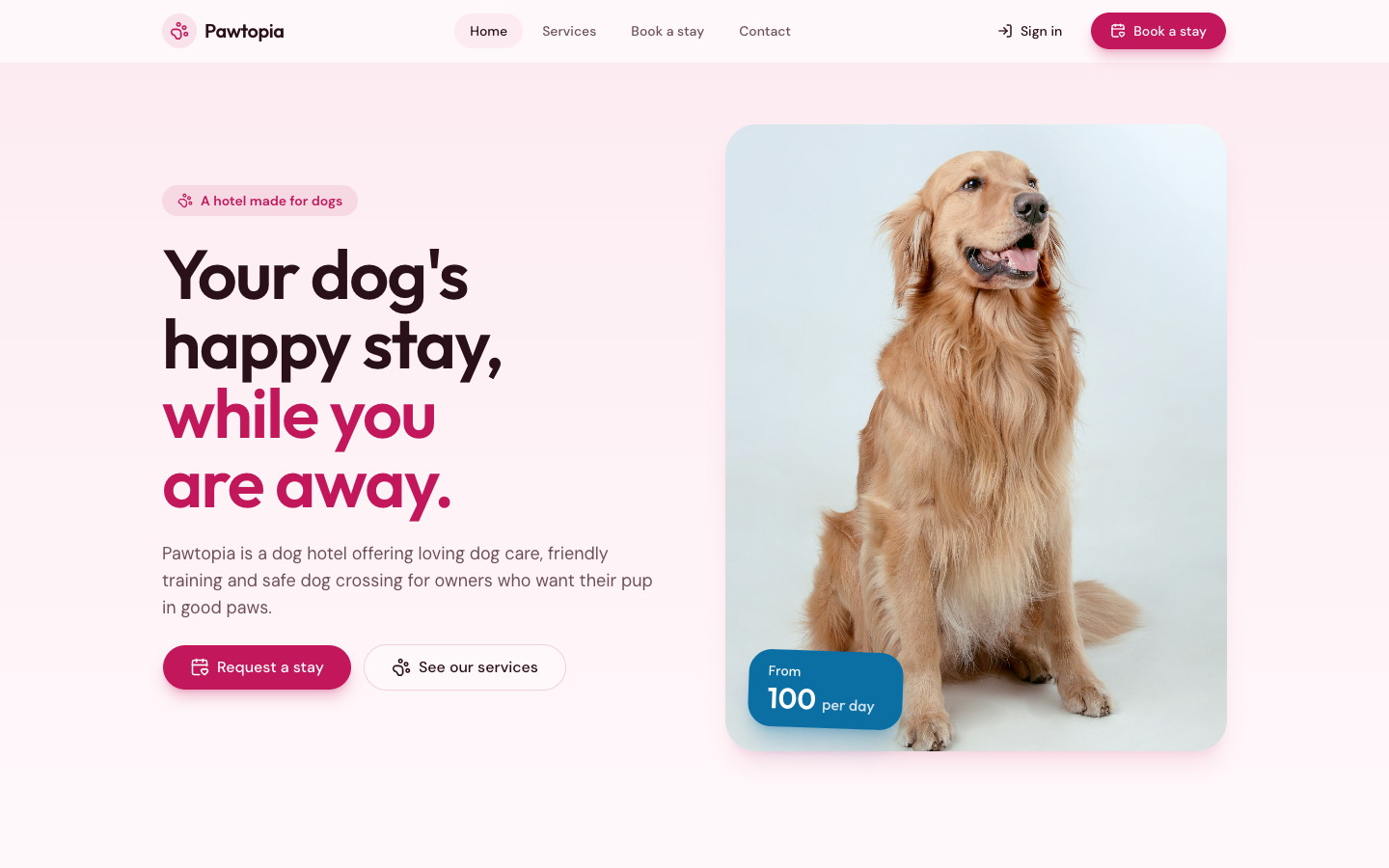 The live site at its free address. Share the link anywhere.
Updating the live site
Changes you make by chat do not go live on their own. After a change, the panel says which version the preview shows and the Go live step offers Publish the latest version. Click it, or Publish in the header, and the new version replaces the old one at the same address.
If you have pinned an earlier version in Versions, Publish puts that version online, and the builder asks first before publishing anything other than the latest. How to restore an old version of my website covers that path.
Changing the address
Open Site settings from the gear in the builder header, or Address and your own domain at the bottom of the right panel. The Address card holds the free address with Save address. “Changing the free address keeps the old one sending visitors here for 30 days,” so links you already shared keep working while people catch up.
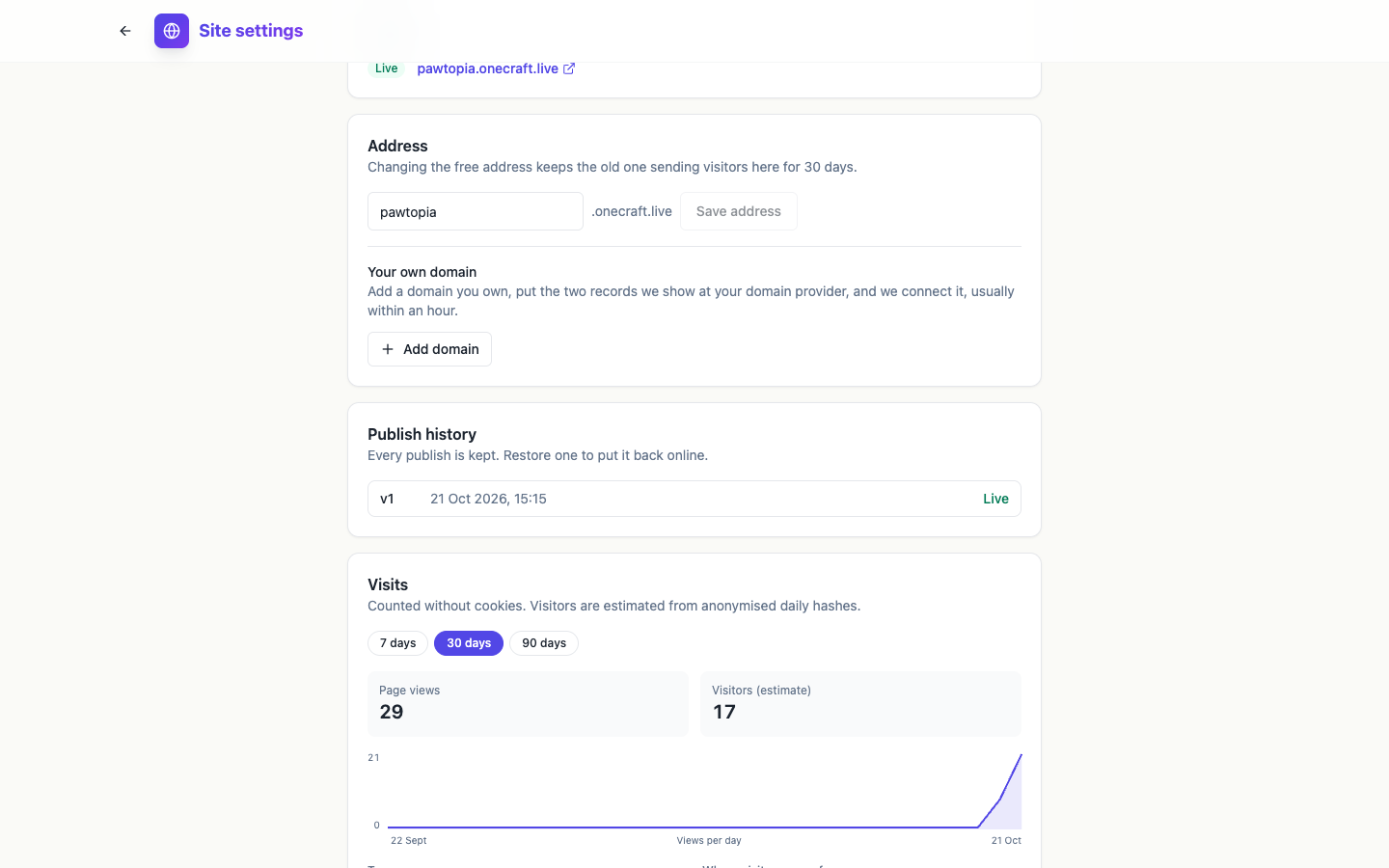 The same page holds your own domain, the publish history and, once the site is live, its visits.
Plans
Publishing is part of the paid plans, with no cap on how many sites. On the free plan, the Go live step reads “Preview and share your site for free. Publishing it at an address is part of the paid plans.”
To use a domain you own, follow how to verify domain ownership with a TXT record. The free website address page explains how the onecraft.live address works.
Ready to try it yourself?
Start free. Describe what you need and let OneCraft do the first draft.
Get startedSee it in the product
More sites tutorials
- How to make a phone app with AIPick Mobile app in the generator, base it on one of your websites or not, describe what it should do, press Generate app and check every tab in the phone and tablet frames.
- How to create a website with AI, step by stepDescribe your business, give it a name, fill the options that matter, press Generate site and make your first change by chat. Every screen of the website generator, shown in order.
- How to install my app on my phone for testingBuild a test version of your app with Expo, scan the QR code on Android or add your Apple account for iPhone, and install the real app without a store. Costs and limits included.