How to
How to preview my website on my phone
Check your website at phone width in the builder, then open the preview link on a real phone before you publish. What the 15 minute link does, and how apps differ.
Sites3 min readUpdated
This guide shows you how to preview your website on your phone: first at phone width inside the builder, then on a real phone with a preview link, all before you publish.
The phone view in the builder catches most layout problems. A real phone catches the rest: how the text reads at arm’s length, whether buttons are easy to tap and how quickly the page loads away from your desk Wi-Fi.
The Phone view in the builder
Open your site in the builder. Above the preview are three device buttons: Phone (375 pixels), Tablet (768) and Desktop (1280). Click the phone icon and the site redraws at phone width, with the menu folded behind its button just as visitors will see it.
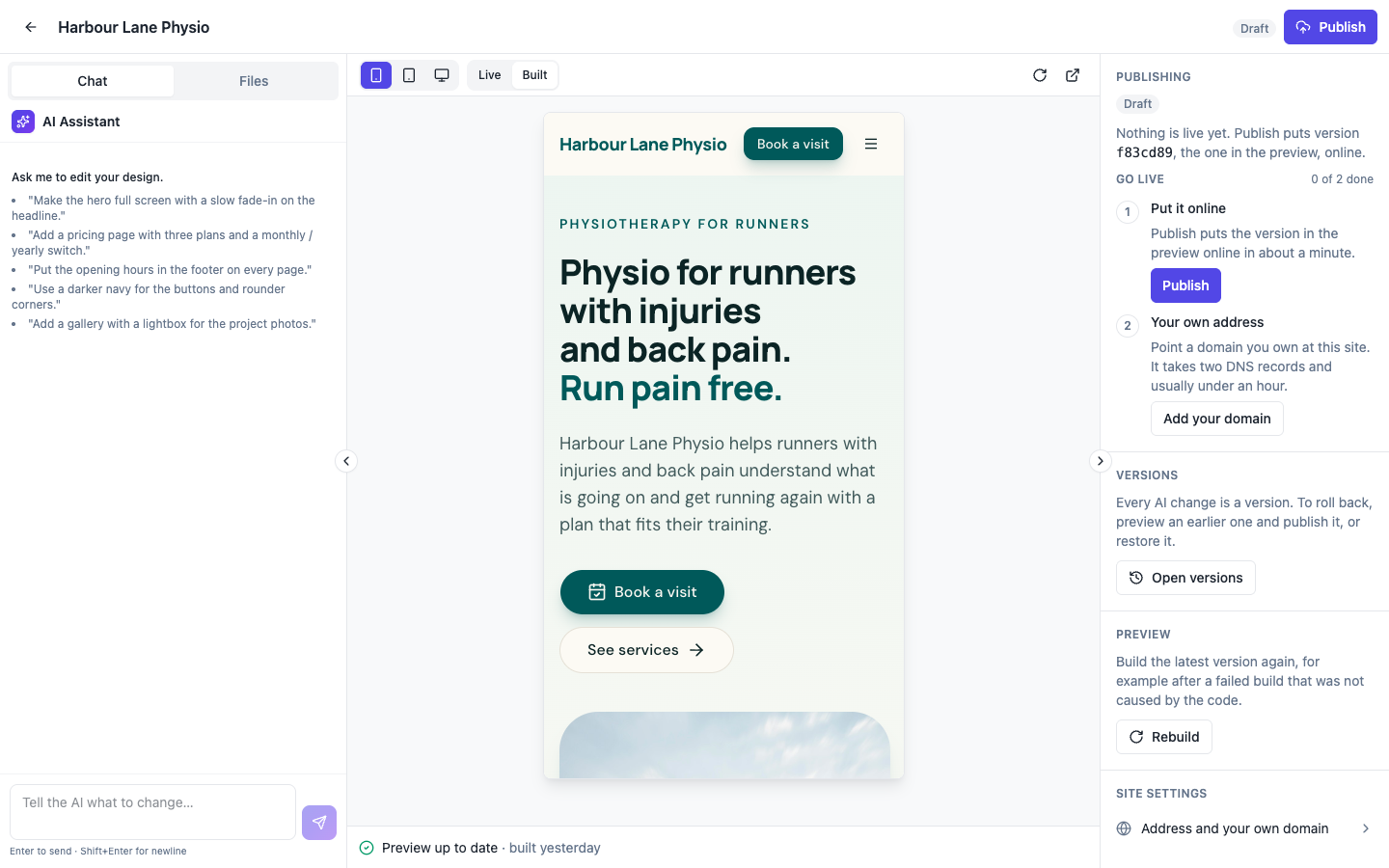 The phone icon is the first of the three device buttons. Every build is checked at these three widths.
Next to the device buttons are Live and Built. Live shows your code compiled in the browser, updated as the AI edits; Built shows the newest finished build. The status line at the bottom reads “Preview up to date” when the newest build matches the latest change.
Opening the preview on a real phone
Pick Built. At the right end of the preview bar, next to the reload button, click the open in a new tab icon (“Open the preview in a new tab”). The site opens in its own tab at a preview address.
Copy that address and get it to your phone: message it to yourself, email it, or use your browser’s send to device option. Open it on the phone and the site loads full screen, with real fonts, scrolling and taps.
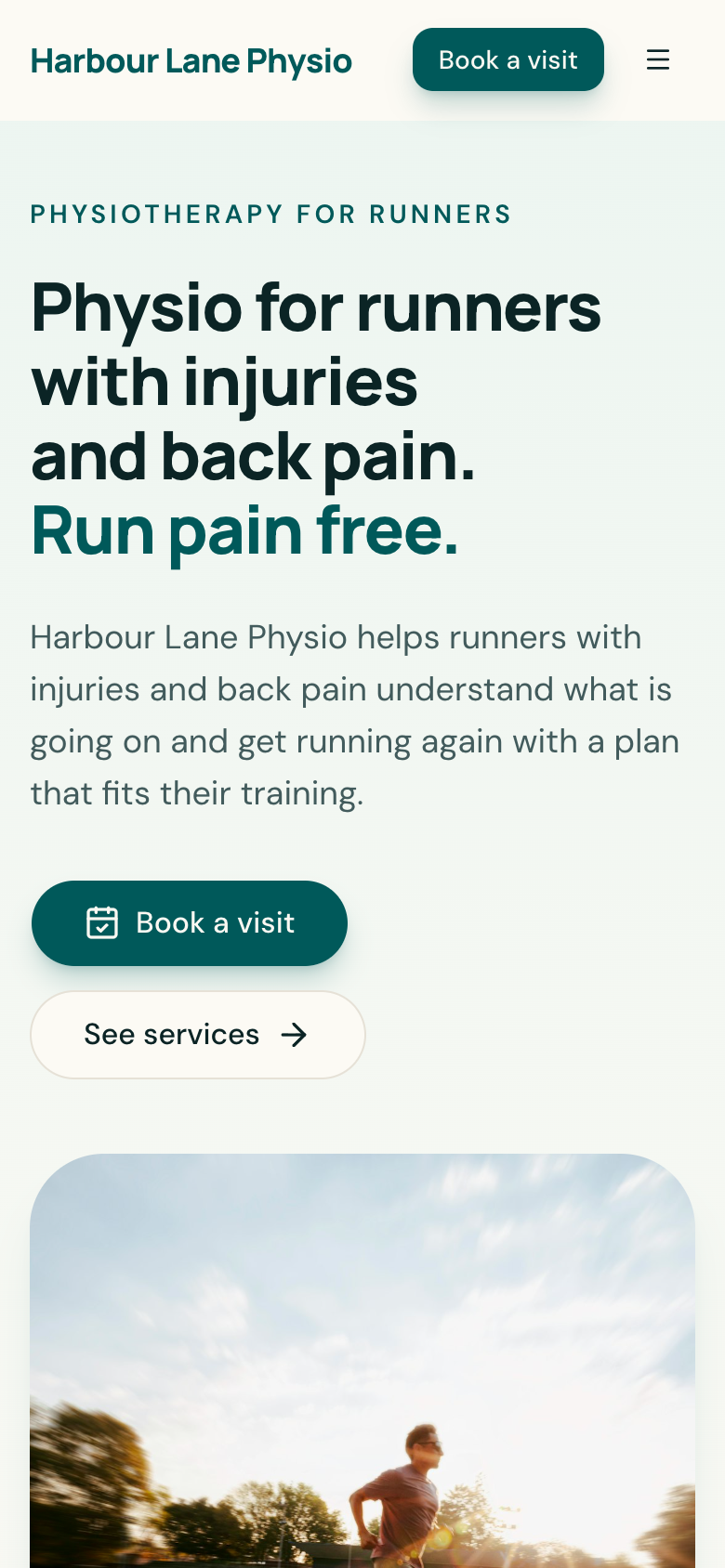 The preview link on a phone. It works for a draft that has never been published.
Why the link expires
A preview link lasts 15 minutes. Open it later and the page reads “This preview has expired” and “Preview links last 15 minutes. Go back to the builder and open the preview again.”
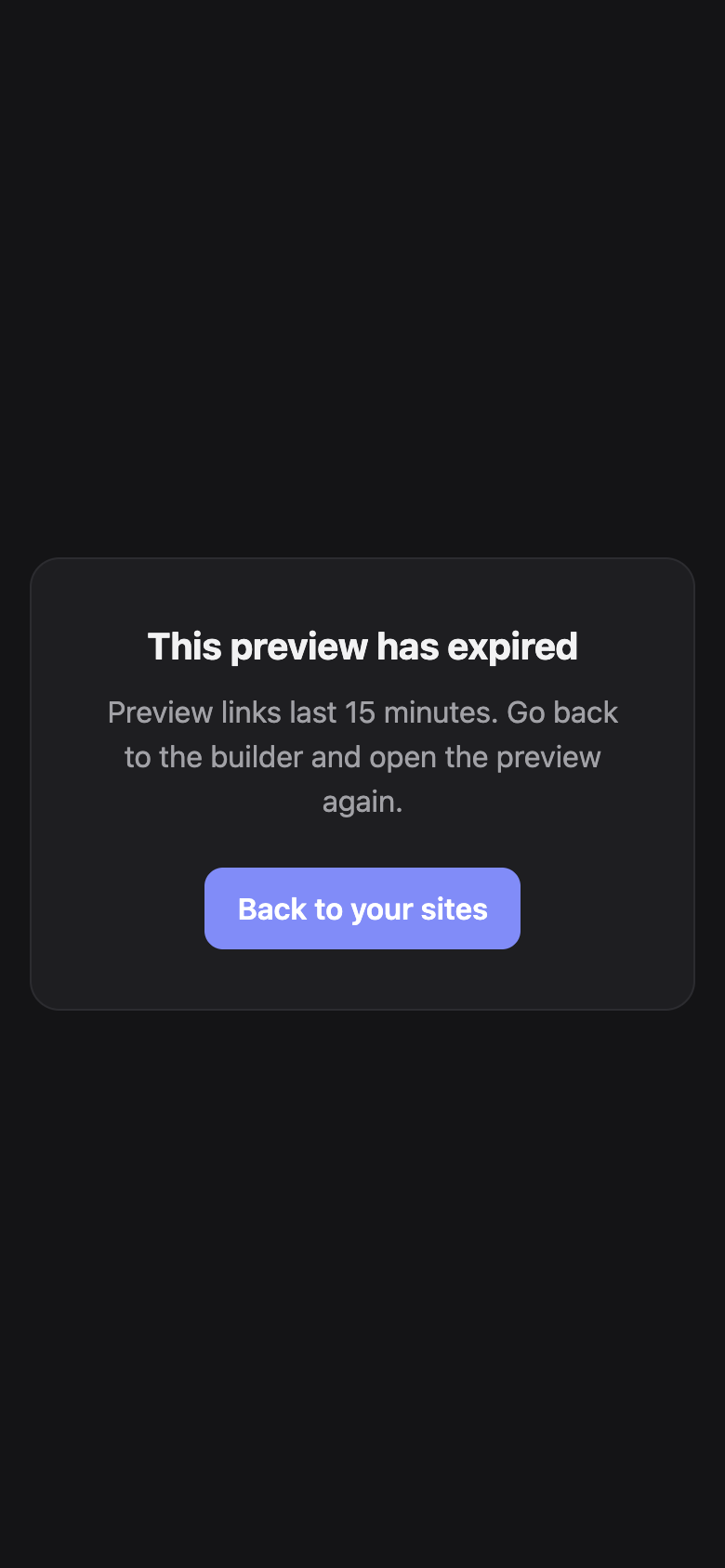 An old link shows this page. Open the preview again from the builder for a fresh one.
What to check on the phone
- Read every page top to bottom. Long headings and prices are where narrow screens break first.
- Open the menu and every link in it.
- Tap each button and form field. A field that is hard to tap is too small.
- Fill in a form, such as a booking request, to see the whole flow.
- Turn the phone sideways once.
Write down what you find and ask for the fixes in the chat one at a time.
Apps
A phone app has its own builder with Phone and Tablet frames above the preview; it has no desktop view. To try the real app on your own phone, build a test version with Expo, as shown in how to install my app on my phone for testing.
When the site looks right on the phone, publish it at a free address. If you have not made one yet, start with how to create a website with AI. The live website preview page covers the Live view while the AI builds.
Ready to try it yourself?
Start free. Describe what you need and let OneCraft do the first draft.
Get startedSee it in the product
More sites tutorials
- How to make a phone app with AIPick Mobile app in the generator, base it on one of your websites or not, describe what it should do, press Generate app and check every tab in the phone and tablet frames.
- How to create a website with AI, step by stepDescribe your business, give it a name, fill the options that matter, press Generate site and make your first change by chat. Every screen of the website generator, shown in order.
- How to install my app on my phone for testingBuild a test version of your app with Expo, scan the QR code on Android or add your Apple account for iPhone, and install the real app without a store. Costs and limits included.