How to
How to restore an old version of my website
Open Versions, preview an earlier version, then restore it as a new version or publish it as it is. How to roll back the live site, and what the limits are.
Sites3 min readUpdated
This guide shows you how to restore an old version of your website when an AI change did not turn out the way you wanted.
Every change the AI makes is saved as a version, so nothing is ever lost. You can look at any earlier version in the preview, bring it back as a new version, or put it straight online.
How versions work
Open the site in the builder. The right panel has a Versions section: “Every AI change is a version. To roll back, preview an earlier one and publish it, or restore it.” Click Open versions, or click Files on the left and then the Versions tab.
The list runs newest first. Each row has a title, a short version code and when it was made. Tags mark the Latest version, the one that is Live on your address and the one In preview. A generated site starts with Start from the OneCraft starter, then one row for each build step, then the review.
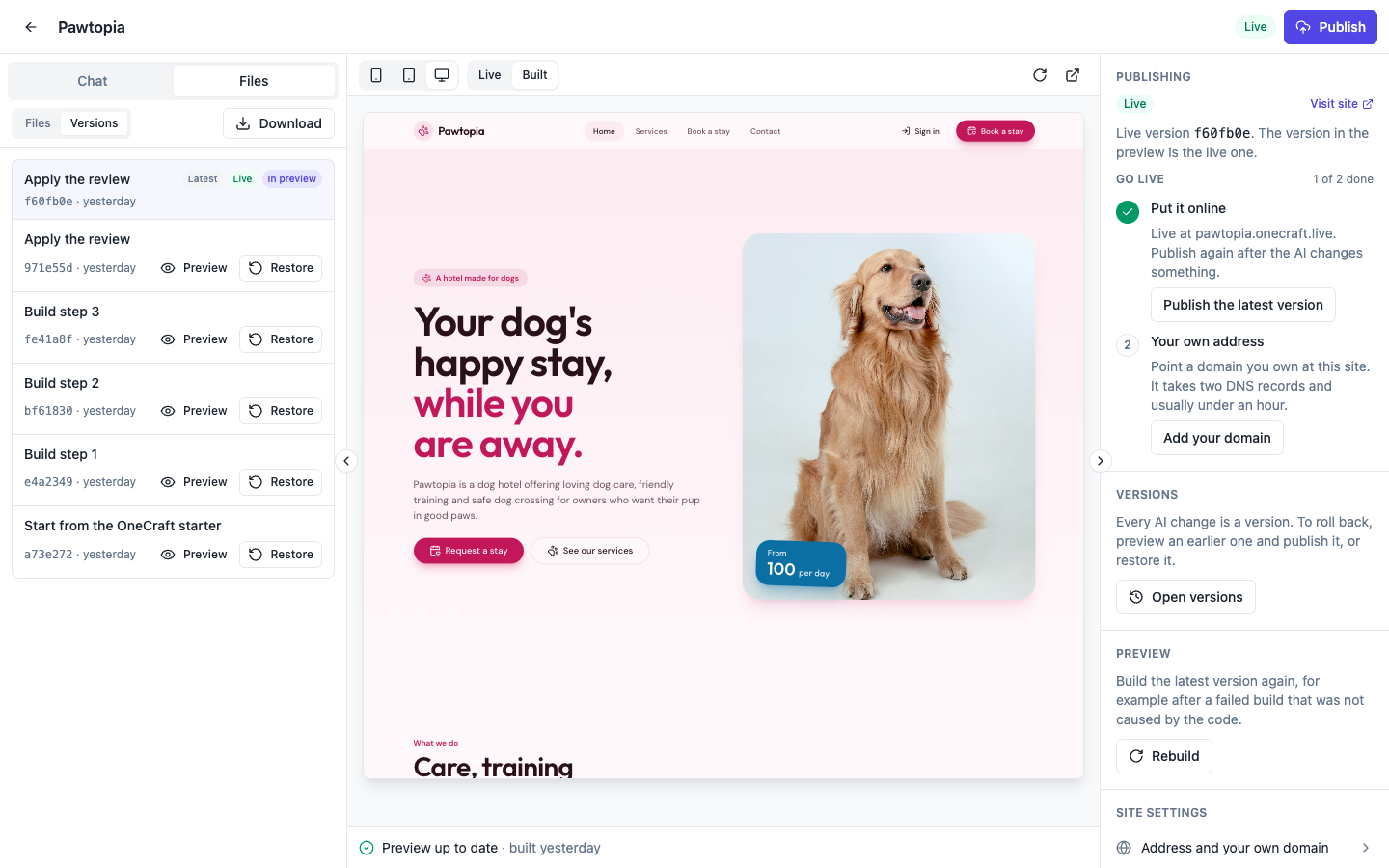 Each row is one change. Every older version has Preview and Restore; the latest has nothing to restore.
Previewing an earlier version
Click Preview on any row. The preview switches to that version, the row is tagged In preview, and the bar above the preview reads Version with its code and a Back to latest link. The status line at the bottom reads “Showing version …”.
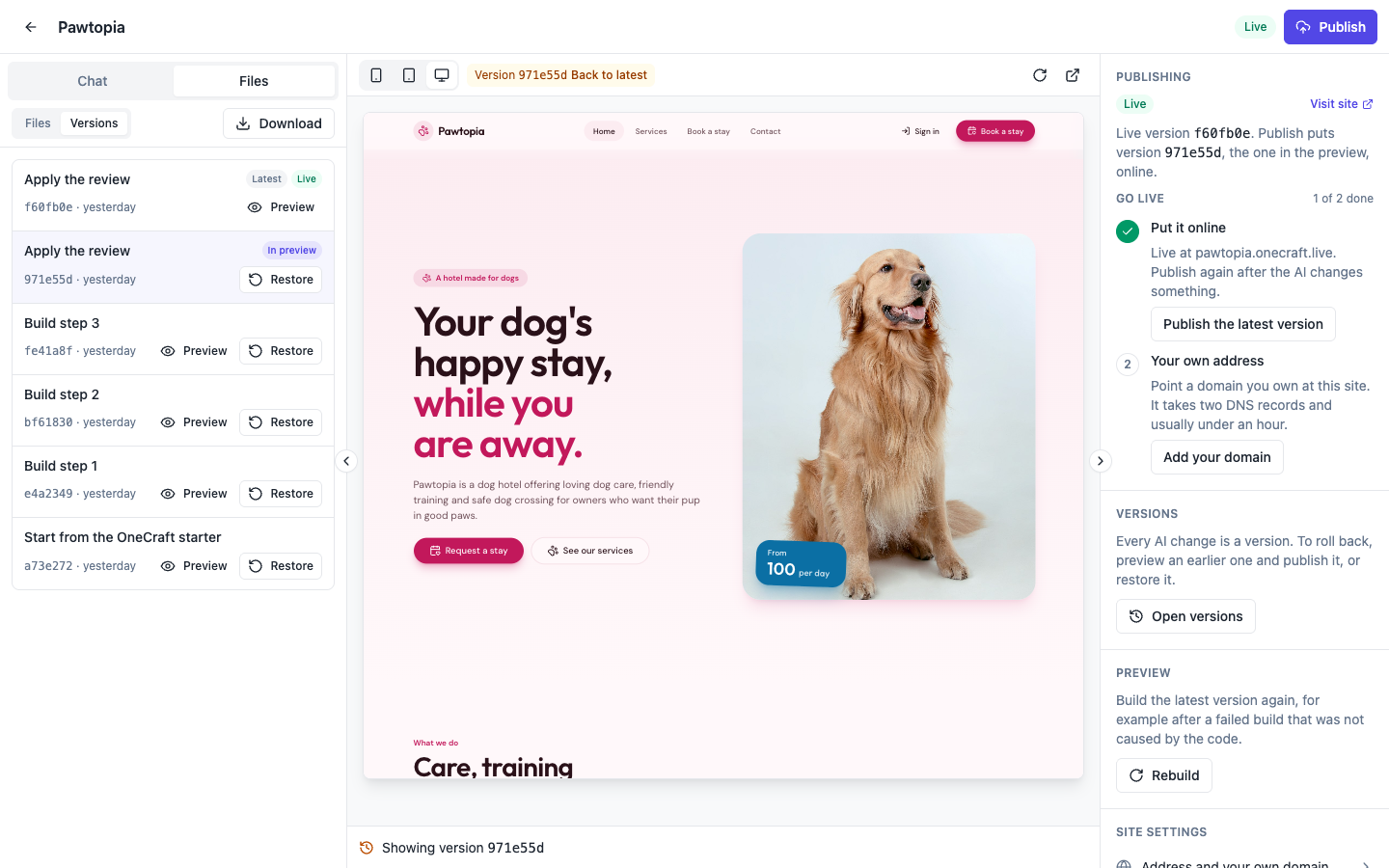 Previewing changes nothing. Click Back to latest to return to the newest version.
Click through the pages to be sure this is the version you want. Previewing is free and does not change the site.
Restoring it
Click Restore on the version. A dialog asks Restore this version? “Its files come back as a new version on top of the history, so nothing is lost. The preview rebuilds, and the live site changes only when you publish.” Click Restore to go ahead, or Cancel.
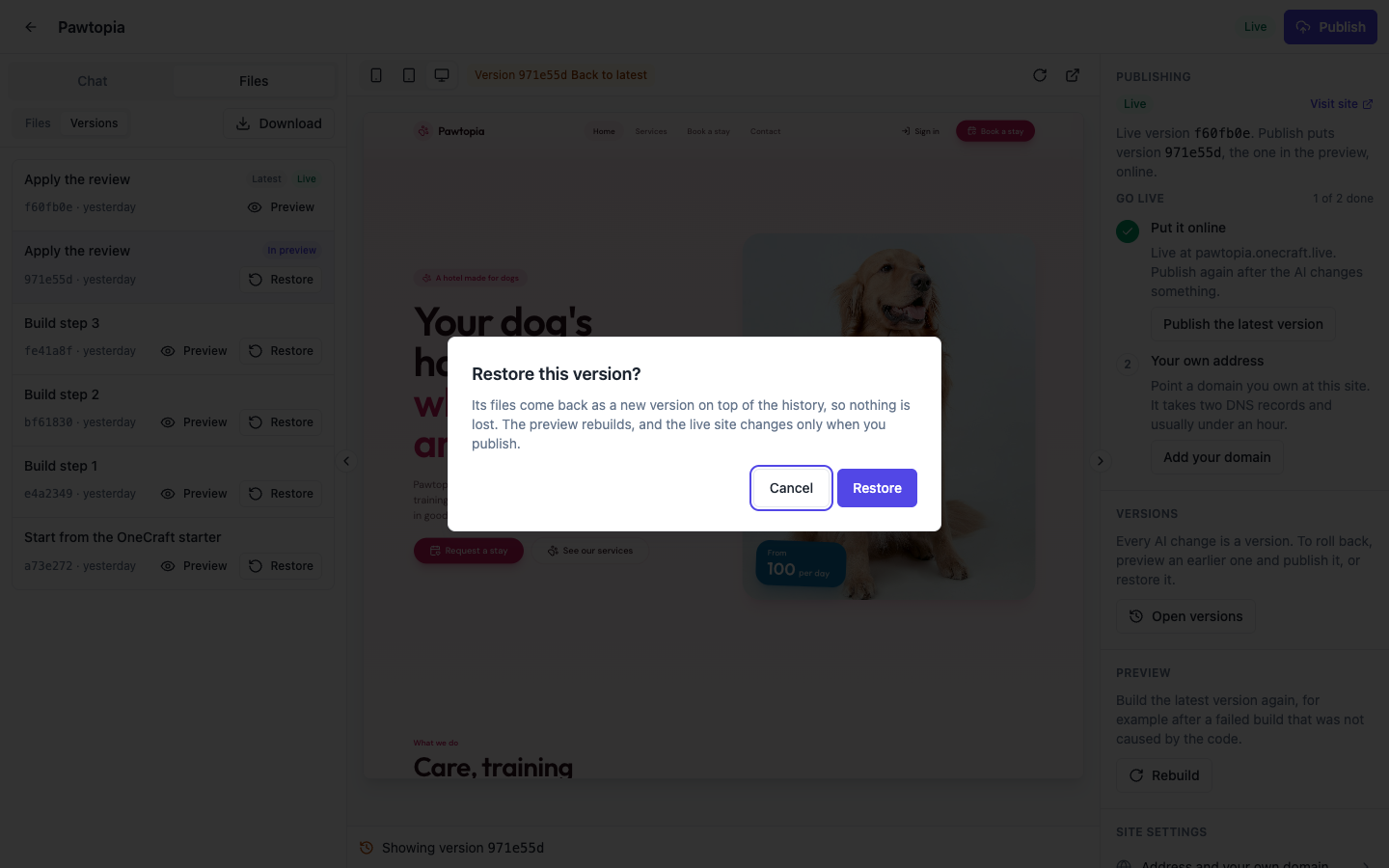 Restore adds a version; it never deletes the newer ones.
The restored files become the new Latest version, and the next chat change builds on them.
Publishing it
A restore stays in the builder until you publish. Click Publish in the header to put it on your address, as in how to publish a website made with AI.
You can also skip the restore: while an earlier version is in the preview, the Publishing panel reads “Publish puts version …, the one in the preview, online.” Publishing it puts that version live without adding a new one, and the builder asks first because it is not the latest.
Rolling back the live site from Settings
Site settings has a Publish history card: “Every publish is kept. Restore one to put it back online.” Each publish is listed with its number and date, and the current one is marked Live. Restore on an earlier publish puts that one back online.
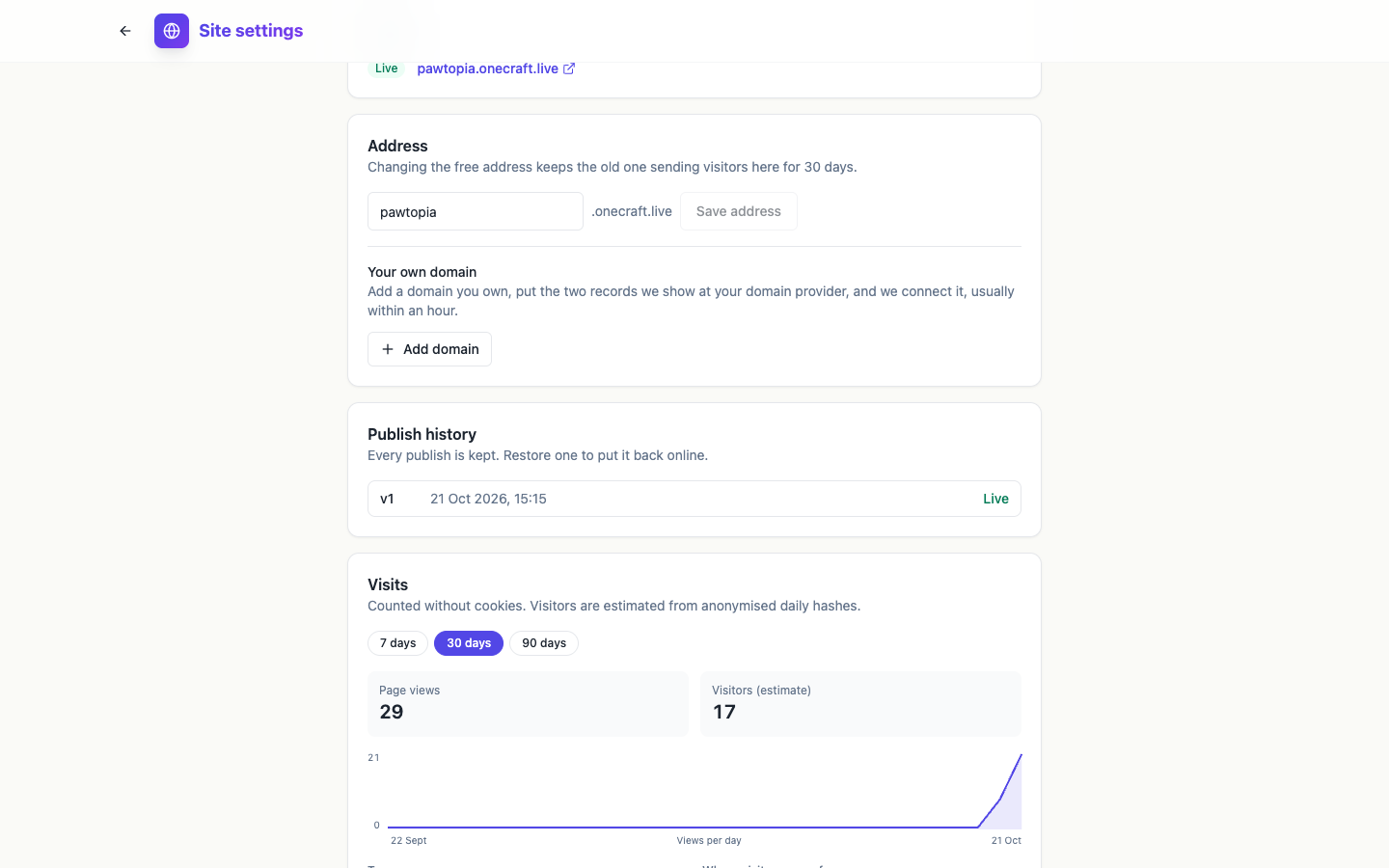 A site published once has one entry. Each new publish adds a row you can go back to.
Limits
- Versions lists the newest 50 versions.
- A restore and its build are free, and so is previewing.
- An earlier publish can be restored from Publish history for 7 days after it stopped being live, while its files are kept.
To change the site again after a restore, keep chatting; the edit a website with AI chat page has tips. The website version history page explains versions in more depth, and how to create a website with AI starts from the beginning.
Ready to try it yourself?
Start free. Describe what you need and let OneCraft do the first draft.
Get startedSee it in the product
More sites tutorials
- How to make a phone app with AIPick Mobile app in the generator, base it on one of your websites or not, describe what it should do, press Generate app and check every tab in the phone and tablet frames.
- How to create a website with AI, step by stepDescribe your business, give it a name, fill the options that matter, press Generate site and make your first change by chat. Every screen of the website generator, shown in order.
- How to install my app on my phone for testingBuild a test version of your app with Expo, scan the QR code on Android or add your Apple account for iPhone, and install the real app without a store. Costs and limits included.