How to
Ask OneCraft from Slack or WhatsApp
Connect Slack or WhatsApp once, then ask for flyers, slides, videos, documents, proposals, forms and websites in a message, approve email replies with one tap, and post finished work to your social channels after you have seen the caption.
Everything together5 min readUpdated
This guide shows you how to connect Slack or WhatsApp to OneCraft, ask for work in a message, and approve replies and posts from the same chat.
Most of a small business day happens on the phone, not at a desk. With the assistant connected, “make a flyer for the weekend sale” or “reply to Maria that Friday works” is one message away.
Connect Slack or WhatsApp
On the dashboard, click Settings and choose Connections. Two cards are for the chat:
- Slack: click Connect Slack, pick your workspace and click Allow. The OneCraft app appears under Apps in Slack, and you talk to it in its direct message. You can also type
/onecraftfollowed by your request in any channel. - WhatsApp: click Connect WhatsApp. You get a six digit code and the OneCraft number. From your personal WhatsApp, send
JOINand the code to that number. The card switches to Connected when the message arrives.
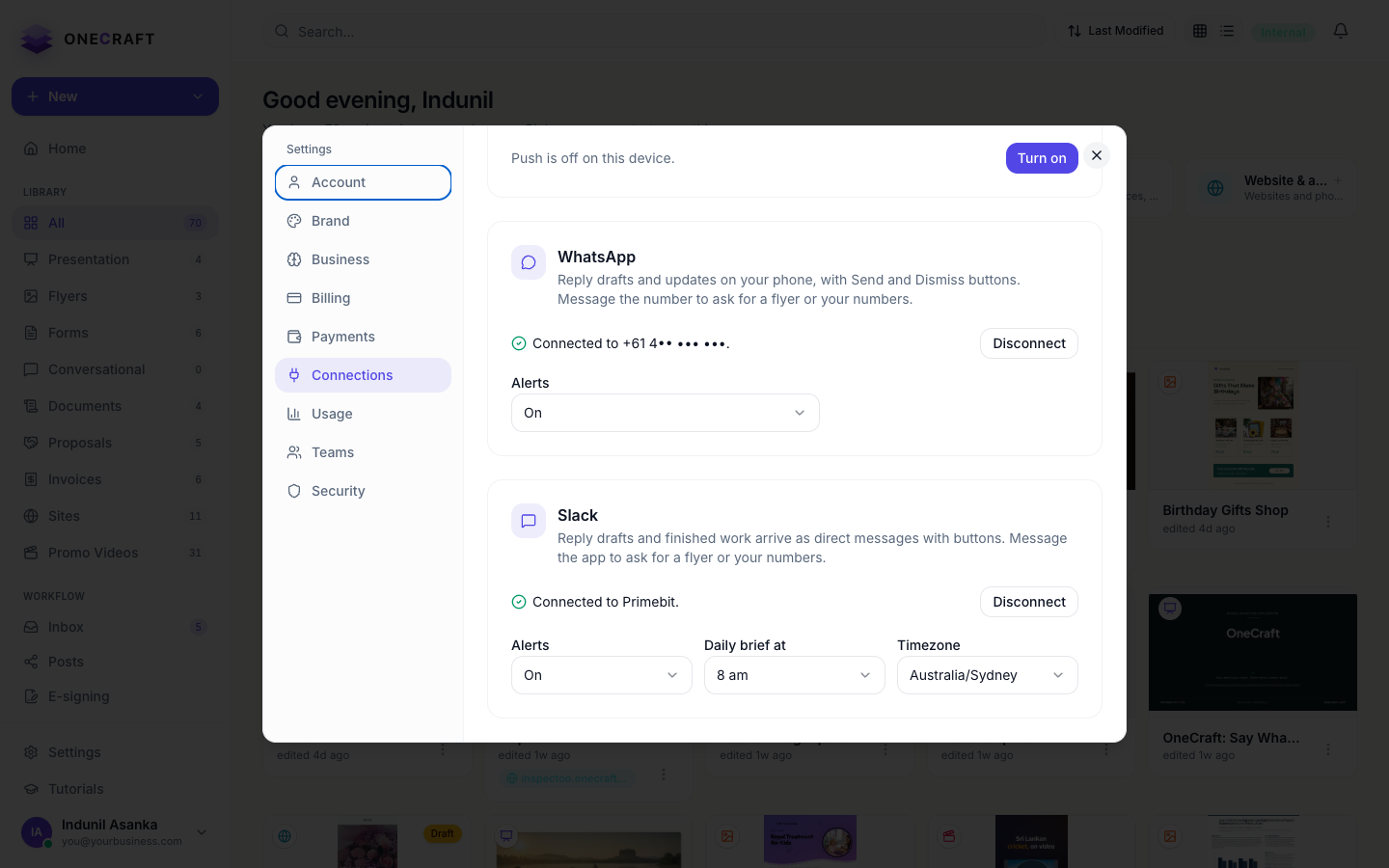 Each card has an Alerts switch. Slack also lets you pick the hour of your daily brief and your time zone.
Both channels can be connected at the same time. Alerts, drafts and finished work then arrive in both.
Ask in your own words
Send what you need the way you would say it to a colleague. OneCraft reads the message, decides what to do and answers in the same chat. Send help at any time to see what it can do and what is waiting for you right now.
| You write | What happens |
|---|---|
flyer for our weekend sale, instagram size | OneCraft makes flyer designs and sends you a link to pick one. |
make slides about our spring pricing | A slide deck starts, with a link to watch it build. |
make a video about our new winter menu | A short promo video is generated from your words. |
write a document: welcome pack for new staff | A document starts. |
quote for a kitchen renovation, 12k budget | A proposal with pricing starts. |
make a form for party bookings with name, date and guests | A form starts. |
create a website for my plumbing business | A website starts. OneCraft asks for the business name if your brand kit has none. |
status | Your last 24 hours: replies waiting, form responses, proposals, money, posts. |
remember we close at 3 on Fridays | Kept as a fact about your business and used in every flyer, reply and post. |
what do you know | The business summary OneCraft writes from. |
Flyers and forms usually take about a minute, documents, proposals, slides and videos a few minutes, a website 20 to 40 minutes. When the work is ready, the link to open it arrives in the chat. You can send the next request straight away.
Answer with a tap
When something is missing, OneCraft asks and offers the choices as buttons, or as a list when there are more than three. Tap one, or type its number. For example, “post something” with two channels connected asks where it should go, with Facebook, Instagram and All of them to pick from. “Reply to Sam” with two emails from Sam waiting asks which one.
Typing cancel at any question drops it.
Post to your channels after seeing the caption
Once a flyer or video is finished and exported, say where it should go: post the sale flyer to facebook, post it to instagram, or just post the latest flyer. OneCraft writes a caption from your business summary and shows it with the picture and three buttons:
- Post publishes to the channel you named.
- Change caption takes your next message as the caption and shows the preview again.
- Cancel posts nothing.
Nothing is published until you tap Post. The result and a link to the Posts page follow in the chat. Social channels are connected under Business, Connections, Social accounts.
Approve email replies
When a customer email arrives through your forwarding address, OneCraft drafts the reply and sends it to the chat with Send reply, Edit and Dismiss.
- Send reply sends the draft from your own mailbox.
- Edit asks how to change it. Reply in plain words, for example “shorter, and offer Friday afternoon”, and a new draft comes back with the same three buttons.
- Dismiss closes it without sending.
You can also start from the chat: reply to Maria: Friday 2pm works finds the waiting email from Maria, writes the reply with your words in it and shows it for approval.
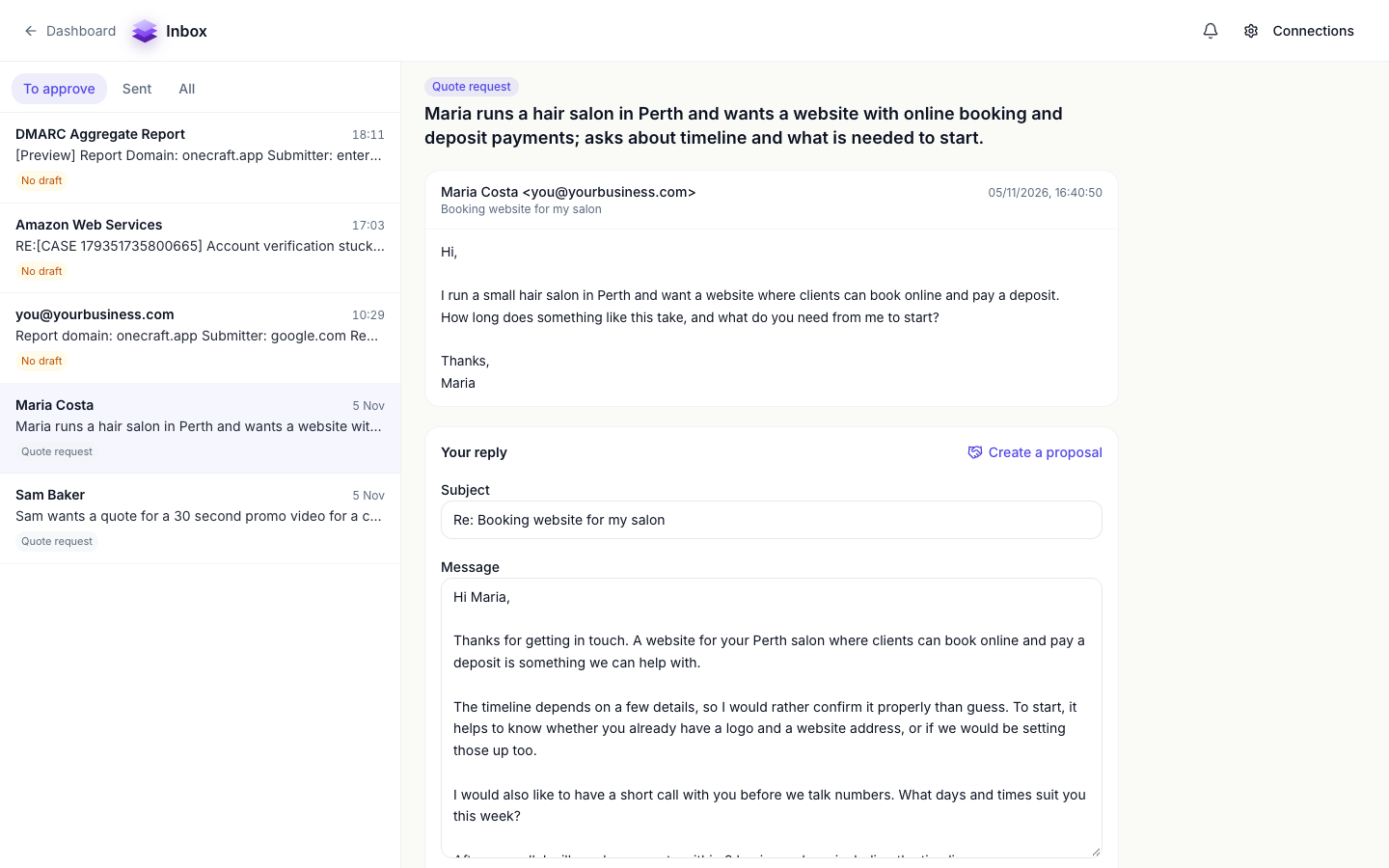 The same drafts live on the Inbox page, where you can read the whole thread and edit the text by hand.
Talk instead of typing
Send a voice message in WhatsApp, or record a clip in Slack. OneCraft answers Listening…, writes down what it heard and then replies as if you had typed it. The reply starts with Heard: … so a wrong word is easy to spot. If the recording cannot be understood, it asks you to type the request.
Choose which emails reach you
Not every email deserves a buzz on your phone. Under the Email card, Tell me about lists the kinds of email that may interrupt you: Quotes and questions, Bookings, Complaints, Payments and Everything else that gets a draft. Switch a chip off and click Save; those drafts stay on the Inbox page and in the bell, but no push, Slack or WhatsApp message is sent.
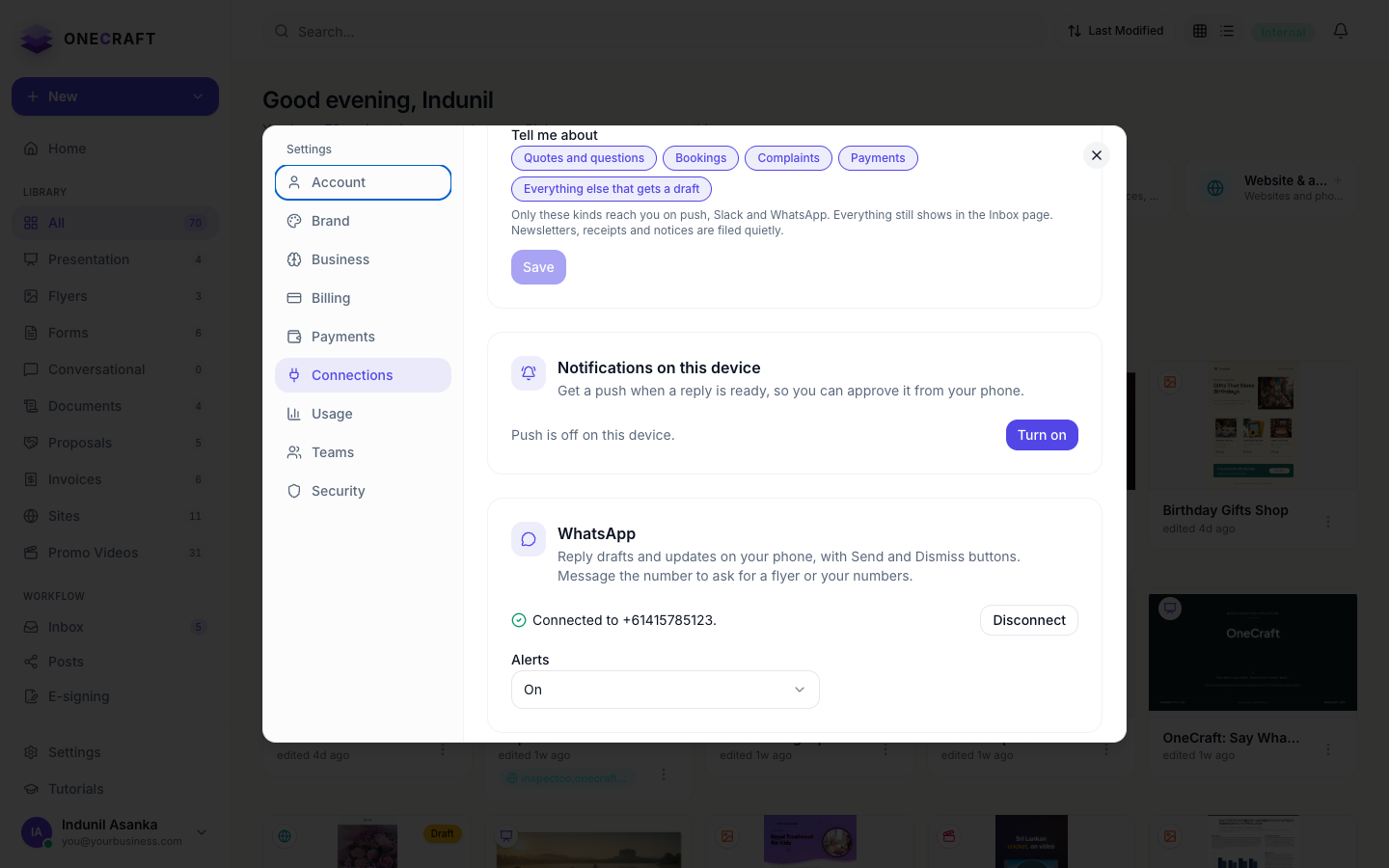 Newsletters, receipts and notices never get a draft at all. They are filed quietly, and the daily brief tells you how many.
Good to know
- Everything the assistant makes costs the same credits as on the website. When you are out of credits it says so in the chat and starts nothing.
- OneCraft keeps the last few messages of the conversation, so “post it to Facebook” right after a flyer means that flyer.
- Each channel’s Alerts switch on the Connections card silences the chat without disconnecting it.
Ready to try it yourself?
Start free. Describe what you need and let OneCraft do the first draft.
Get startedSee it in the product
More everything together tutorials
- Generate a brand kit from your websiteGive OneCraft your website, a few words about the business or your logo, pick one of three generated brands, fine tune the colours and save it for every slide, flyer, document, form, video and proposal.
- Add a cover page to your documentTurn on the cover page, pick one of seven layouts, and set the title, eyebrow, date and who it was prepared by.
- Add a pricing table with optional extrasSet up the items in a proposal or quote, mark some as optional extras, let the client choose quantities, and control how the pricing table looks on the page.