Websites
Class timetable website with booking and waitlists
A class timetable website shows the week's classes with times, instructors and spots left, and lets members book a place. What makes it work for a studio is capacity that cannot be overbooked, a waitlist that fills a cancelled spot by itself, and a cancel cutoff everyone can see.
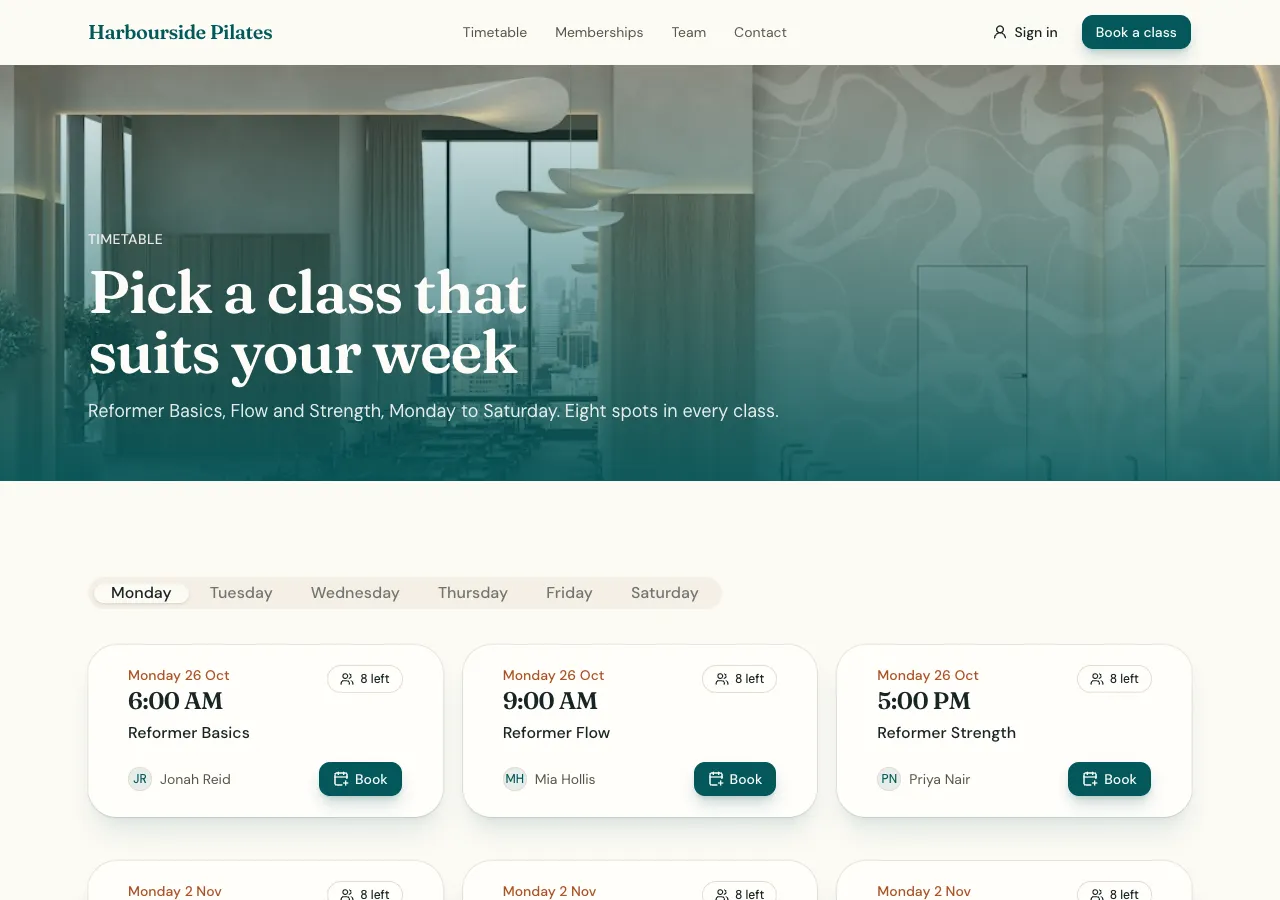
The weekly timetable
Ask for classes and the AI follows its classes guide: class types, instructors, a weekly schedule pattern, and dated sessions generated from it, each with a room and a capacity. The timetable shows days as columns on desktop and a day strip with a list on phones, with filters by class and instructor, and each session says how many spots are left, Full or Cancelled.
Capacity and the waitlist
Booking a place goes through a database function that locks the session, checks the person may book, and either takes a spot or adds them to the waitlist. When someone cancels before the cutoff, the first person waiting gets the spot and a notification in the site's bell. Capacity is enforced in the database, so two last minute bookings cannot both take the last spot.
Passes, memberships and drop ins
Who may book is decided in the same function: an active membership plan, a pass with credits left, or a drop in paid through Stripe Checkout on your connected account. A cancelled booking gives a pass credit back. Members see their upcoming classes with the cutoff, and past classes with attended ticks.
Instructors and staff
An instructor signs in and sees the roster of their sessions, and checks people in with a tap. Staff in the admin area edit the schedule pattern, generate sessions weeks ahead, cancel a session for everyone, and see attendance per class and per member. A phone app based on the site gets a Timetable tab and a check in list.
Reminders and calendars
On the phone app a member can turn on a local reminder before each booked class. On the website, members can add a class to Google Calendar, Outlook or Apple Calendar from a link or a downloaded file when you ask for it. There are no text messages and no pushes from a server.
How it works, in three steps
Step 1
Describe the classes
List the class types, the weekly times, instructors, capacity, cutoff and how people pay.
Step 2
Generate sessions
Sign in to the site's admin area and generate the coming weeks from the pattern.
Step 3
Check and publish
Book, cancel and join a waitlist in the preview, then publish on a paid plan.
Limits worth knowing
- The data lives in the site's own database: a hosted one on every plan, or your own Supabase account.
- Card payments need a paid plan and Stripe connected in account settings; the platform fee is 2% on Starter, 1% on Pro and 0.5% on Pro+, with Stripe fees on top.
- Waitlist moves show in the site's notification bell and the app's local reminders, not by SMS or push.
- The default cancel cutoff is 2 hours unless your brief sets another.
Questions people ask
What happens when a class is full?
The Book button becomes Join waitlist. People on the waitlist are kept in the order they joined, and when someone cancels before the cutoff, the first person waiting takes the spot and gets a notification in the site's bell. Members always see their own place in their account.
Can I sell class packs?
Yes. A pass holds a number of credits and an optional expiry, bought through Stripe Checkout. Each booking takes a credit inside the booking function, and a cancellation before the cutoff gives it back. Members see their remaining credits in their account, and staff can adjust passes in the admin.
Can instructors see who is coming?
Yes. An instructor with an account sees the roster for their own sessions and checks people in, which records attendance. They cannot see other instructors' rosters unless you ask for that. Staff in the admin area see every session and the attendance counts per class and per member.
Can I cancel a class for everyone?
Yes. Cancelling a session in the admin cancels every booking on it and sends each booked member a notification in the site's bell. Pass credits come back with the cancellation. Members see Cancelled on the timetable, so nobody turns up to a closed room.
Does it work for kids classes or schools?
Yes, with an account for each parent who books. Ask for a child's name on the booking and for term enrolments instead of single classes if that is how you run, and the AI shapes the tables that way. The capacity and waitlist rules are the same.
Can members see the timetable without signing in?
Yes. The timetable is public, so visitors see the classes, times and spots left. Booking needs an account, because the booking belongs to a person and the waitlist and passes follow them. The sign in prompt appears only when someone presses Book.
Make your own website
The button opens the generator with this use case already described. Change the wording to match yours, generate, then edit anything you like.
Create a website with OneCraftRelated pages
Website with online booking, written from your brief
A website with online booking lets a customer pick a service, a person and a free time, and get a confirmed booking without a phone call. What makes it trustworthy is that two people can never take the same slot, and that customers can see and cancel their own bookings.
Rental booking website with availability and deposits
A rental booking website lets customers see when something is free, book it by the hour, day or night, and secure it with a deposit. It works when several identical units are counted correctly, cleaning time between rentals is kept, and the price is worked out in one place.
Edit your website with AI chat: describe the change, review it, keep or undo
Editing a website with AI chat means typing what you want, such as add a pricing page after services, and having the AI change the site's code and rebuild it. The useful part is not the typing, it is that every change is listed, built, previewed and reversible before you publish.
More finished work of this kind is on the website examples hub.
Written and checked by the OneCraft team. Last checked .