Websites
Client portal website with projects, files and invoices
A client portal is a signed in area where each client sees their own project: progress, updates, files, approvals and invoices, instead of an email thread. It is only useful if one client can never see another's work, and if clients can act there, approving a design or paying an invoice, without emailing you.
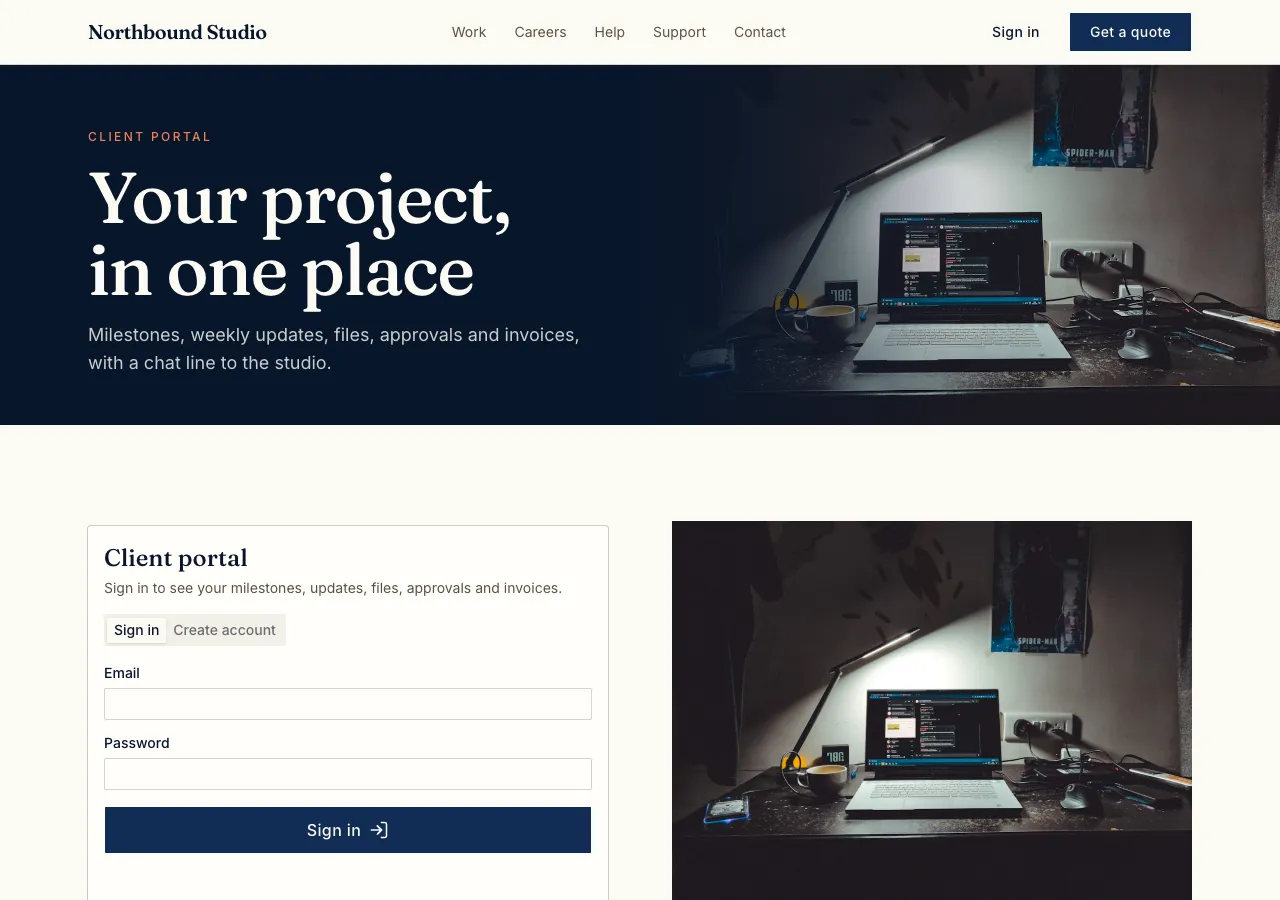
A project per client
Ask for a client portal and the AI follows its portal guide: projects with milestones and a status, members who belong to each project, updates with comments, files, approvals, and invoices linked to the project. A client sees their projects as cards and opens one into tabs: Overview, Updates, Files, Approvals, Invoices and Messages.
Access checked per project
Every portal table is guarded by a database rule that asks whether the signed in person is a member of that project, or staff. Files sit in private storage under the project's folder and can be read only by its members. The AI tests these rules as an anonymous visitor, as a signed in stranger and as staff before it finishes.
How clients join
Staff create the project in the admin and make an invite, which gives a link to copy and an Email button that opens your own mail app. The client signs in or creates an account, and the link makes them a member of that project. Accounts are never matched by email alone, so a forwarded invite cannot be claimed twice.
Approvals and invoices
Staff request an approval with a file and a description; the client presses Approve or Request changes with a comment, and staff get a notification. Invoices built from the invoices guide carry their lines and totals worked out in the database, and the client pays through Stripe Checkout on your connected account, or by the bank details on the invoice.
What it does not do
The site cannot email clients for you: updates and approvals reach a client through the portal and its notification bell, and invites go from your own mail app. There is no time tracking or proposal writing here; for proposals with e-signatures, OneCraft's proposals product does that separately.
How it works, in three steps
Step 1
Describe the portal
Say what clients should see: milestones, updates, files, approvals, invoices and messages.
Step 2
Invite a client
In the site's admin area create a project and send the invite link from your own email.
Step 3
Check and publish
Sign in as a test client and as a stranger in the preview, then publish on a paid plan.
Limits worth knowing
- Files up to 25 MB each, in private storage readable by the project's members and staff.
- Clients join by invite link sent from your own mail; the site does not email them.
- Card payments need a paid plan and Stripe connected in account settings; the platform fee is 2% on Starter, 1% on Pro and 0.5% on Pro+, with Stripe fees on top.
- The data lives in the site's own database: a hosted one on every plan, or your own Supabase account.
Questions people ask
Can one client see another client's files?
No. Every portal table and every file path is checked against project membership in the database, not just hidden on the screen. The AI tests a signed in stranger against the projects and files before it finishes, so a client outside a project is refused even if they guess a link.
Can clients upload files too?
Yes. Members of a project can upload files up to 25 MB into that project's private folder, and download the files staff share. Larger files are links you share from your own storage. Uploads and downloads are refused for anyone who is not a member.
How do clients pay invoices?
Each invoice has a page with the business details, lines, totals and a status, and Pay now opens Stripe Checkout on your connected account on a paid plan. Bank transfer details can sit on the invoice too. Staff mark bank or cash payments as paid in the admin.
Can clients message us in the portal?
Yes. Ask for messages and each project gets a conversation that updates every few seconds while it is open, with unread counts. There are no pushes to phones, so clients see new messages in the portal and its notification bell when they visit.
Do clients need to remember another password?
They create an account with email and password, or sign in with Google on the published site, which most clients find easier. Password reset is built in. The invite link connects their account to the project once, after which they simply sign in.
Can staff see every project?
Yes. Staff listed as site admins see every project in the admin area, where they create projects, edit milestones, post updates, upload files, request approvals and send invoices. Clients only ever see the projects they were invited to, whatever links they try.
Make your own website
The button opens the generator with this use case already described. Change the wording to match yours, generate, then edit anything you like.
Create a website with OneCraftRelated pages
Membership website builder with free and paid tiers
A membership website keeps some pages, courses or a community for people who joined, free or paid, and bills paid members every month or year. The parts that matter are who can see what, how members pay and how they change or cancel without emailing you.
Subscription website with plans, a billing portal and access rules
A subscription website charges people every month or year for a plan, a box, a service or access to something. The site has to know at every moment who has an active plan, let subscribers change their card or cancel by themselves, and never trust a price that came from the browser.
Auction website builder: bids, reserves and online payment
An auction website lets signed in bidders raise the price on items until a closing time, then asks the highest bidder to pay. It is only fair if every bid is checked in one place, the reserve stays hidden, late bids cannot snipe the item, and the winner pays online.
More finished work of this kind is on the website examples hub.
Written and checked by the OneCraft team. Last checked .