Websites
Website with login: visitor accounts, Google sign in and profiles
A website with login gives visitors an account, so they can see their own bookings, orders, courses or messages and nobody else's. The hard parts are not the sign in form but the rules behind every page: who may read each row, and what a signed out visitor sees.
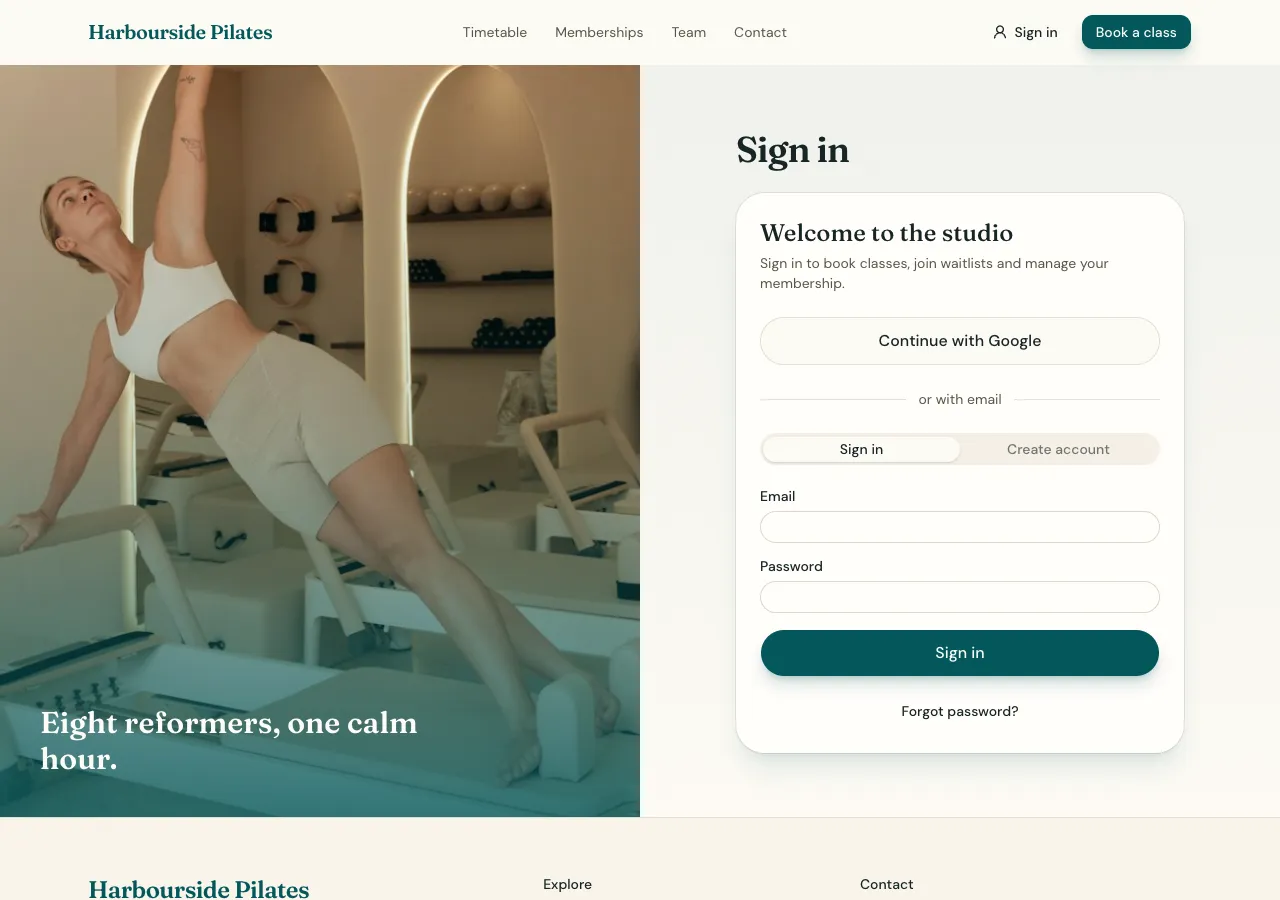
Accounts and sign in
Ask for visitor accounts and the AI follows its auth guide: it adds a database for the site, with sign in held by Supabase Auth, and writes the screens: a login page with Sign in and Create account tabs, Forgot password, a reset page, and a name or avatar menu with Account and Sign out. Errors appear in plain words, such as wrong password or check your inbox.
Google sign in
Ask for Google and visitors get Continue with Google through OneCraft's sign in broker, so you do not set up a Google client yourself. It works on the published site and in an installed app, not in the builder's preview. The session belongs to the site, keyed by its own id.
Profiles
A profile gives each person a display name, a photo and a short bio others may see, such as on reviews or in a community. Private details, such as a phone number or address, stay on the tables that need them with own row rules. Nobody else ever sees a visitor's email.
Pages only members see
Every protected page shows a calm loading state, then a one line sign in prompt when signed out, because the site is static and never redirects on a server. The real guard is in the database: own row rules on every table, tested by the AI as an anonymous visitor and as a signed in person before it finishes.
Staff and admins
Staff are accounts listed as site admins, with an admin area visitors never see. The AI creates the first admin from the contact email in your brief and tells you the password to change. In a phone app based on the site, the Account tab holds sign in, sign out and the profile.
How it works, in three steps
Step 1
Ask for accounts
Say who signs in, whether Google is wanted, and what each person should see.
Step 2
Check as each person
In the preview, sign up, sign out and try a protected page; the AI has already tested the rules.
Step 3
Publish
On a paid plan, publish; Google sign in works on the live site.
Limits worth knowing
- Google sign in works on the published site and installed app, not in the builder preview.
- Emails are never shown to other visitors.
- The data lives in the site's own database: a hosted one on every plan, or your own Supabase account.
- The free plan builds and previews the site; publishing starts on Starter.
Questions people ask
Can visitors sign in with Google?
Yes, when you ask for it. Visitors press Continue with Google and come back signed in, through OneCraft's sign in broker, so you do not create Google credentials yourself. It works on the published site and in installed apps; in the builder preview, test with email and password instead.
How are passwords reset?
Forgot password sends a reset link by email through Supabase Auth, which brings the visitor back to a reset page where they choose a new password. The site never stores passwords, tokens or emails itself; Supabase Auth holds the accounts.
Can I see who has signed up?
Staff see accounts and profiles in the site's admin area, and the AI can list or remove accounts it created for the site. With a database on your own Supabase account, you also see the users in Supabase's own dashboard, with their sign in method and last sign in.
Is a login page enough to protect content?
No, and the site does not rely on it. Each table has row level security, so a signed out or wrong person is refused by the database even if they find the page's data request. The AI tests those rules for every new table before a generation step can finish.
Can people delete their account?
Ask for privacy tools and signed in people get Delete my account, which removes their rows from the site's tables. Their sign in record stays, because sign in is shared at the database level. Mention that in your privacy policy.
Do apps use the same accounts?
Yes, when the app is based on the website: it reads the same database, so a parent who signs up on the website signs in on the app with the same email or Google. The app's Account tab holds sign in, the profile and sign out.
Make your own website
The button opens the generator with this use case already described. Change the wording to match yours, generate, then edit anything you like.
Create a website with OneCraftRelated pages
Website privacy and terms pages with a consent banner
Privacy and terms pages tell visitors what a website collects and on what terms they use it, and a consent banner asks before anything non essential loads. The AI builds the pages, the banner and the tools for data requests, but the legal words have to be yours.
Website with customer reviews and moderation
A website with customer reviews lets real customers rate a product, a service or the business and say why. Reviews are only worth showing if they come from real people, appear after a check, and are never mixed with quotes the owner picked or numbers the owner made up.
Connect your own Supabase to an AI written website
Connecting your own Supabase account means the site's database lives in a project you own and pay for, not on the builder's servers. The AI still writes the tables, access rules and screens; the data, the backups and the dashboard are yours.
More finished work of this kind is on the website examples hub.
Written and checked by the OneCraft team. Last checked .