How to
How to set the pace of a video
Switch a video between the Dynamic and Calm pace in the Theme panel, see what each one does to transitions, camera moves and narration, and pick the right one for a promo or a tutorial.
Promo Videos3 min readUpdated
This guide shows you how to set the pace of a video in the builder, and what the Dynamic and Calm settings change.
Pacing is the feel of a video between its words: how fast the cuts come, how much the camera moves, how long a scene holds. A product launch wants energy; a walkthrough wants room to read. One switch decides which.
Find the pace setting
Open your video in the builder and click Theme in the top bar. The Theme panel opens on the right with three tabs: Colors, Font and Motion. Switch to Motion and you get two choices, each with a one line description.
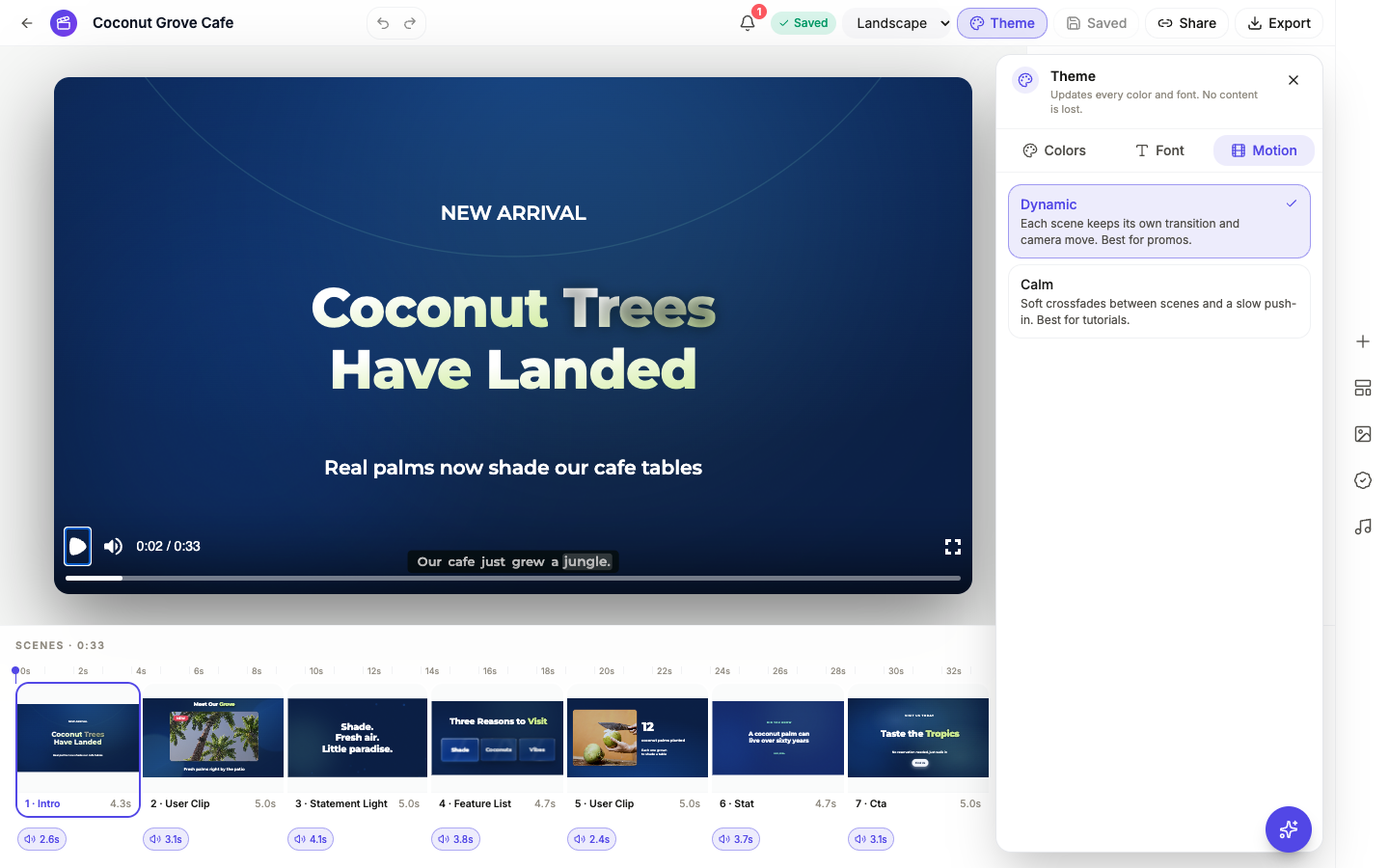 The tick shows the current pace. This promo started on Dynamic.
The pace covers the whole video. There is no per scene version, and there is no separate transition picker: this switch is the motion control.
Dynamic: for promos
Dynamic reads “Each scene keeps its own transition and camera move. Best for promos.” Every scene comes with movement designed for it, a push, a pan or a wipe, and Dynamic plays those moves.
It also edits them so the video does not feel frantic. Camera moves are slowed to a steady speed, the same move never runs twice in a row, and the loudest transitions and the big hero camera moves only come back after a few scenes. The first scene cuts straight in, and a logo scene or an outro fades in through black.
Use Dynamic for ads, launches, offers and anything meant to stop a scroll.
Calm: for tutorials
Calm reads “Soft crossfades between scenes and a slow push-in. Best for tutorials.” Scene changes become gentle crossfades, and each scene gets one slow push-in instead of its own camera move, so the screen holds still enough to read. A plain cut stays a cut, and steps in a walkthrough that move to the next screen keep their zoom, because that motion carries meaning.
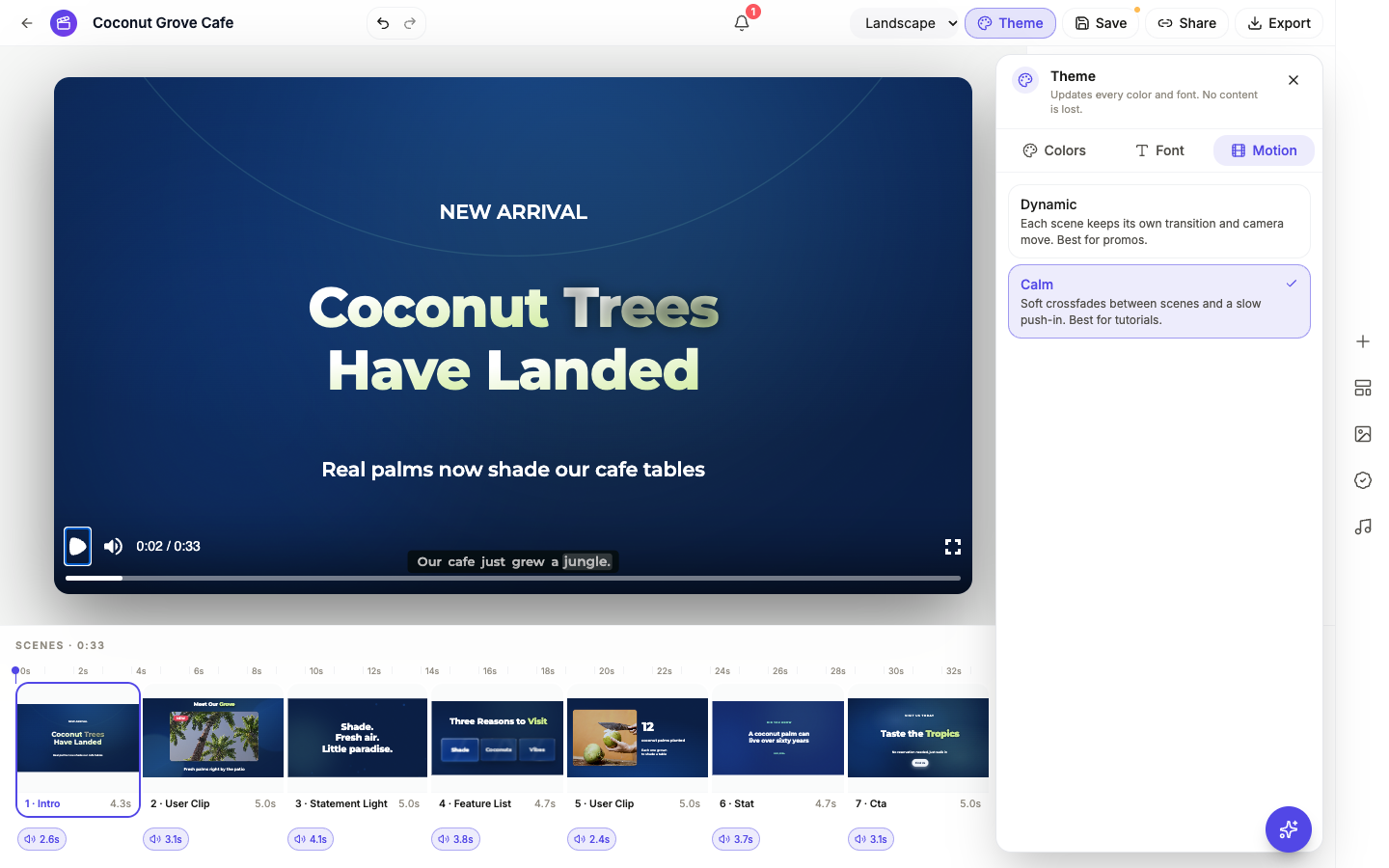 Switching to Calm keeps every scene, word and voiceover. Only the motion changes.
Use Calm for how to videos, onboarding, explainers and anything where people need to follow along. Tutorials made with the generator already start on Calm.
How pace affects the voiceover
The two paces treat a long narration line differently. On Calm, a scene stretches until its whole voiceover line has played. On Dynamic, a scene grows by up to half its length to make room, and any words left over carry on over the next scene change, which keeps the edit moving.
If a Dynamic video feels rushed under the voice, slow the narration in the voice settings or shorten the line, as covered in add voiceover, captions and music to a video.
Save and export
Changing the pace marks the video as unsaved. Click Save in the top bar to keep it; the builder never saves on its own. The exported MP4 plays at the pace you saved, so play the preview through once before you export.
For a full walkthrough of a promo from brief to export, see make a promo video with AI voiceover, and for tutorials, make a how to video with AI. The AI tutorial video maker page has more on videos that start Calm.
Ready to try it yourself?
Start free. Describe what you need and let OneCraft do the first draft.
Get startedSee it in the product
More promo videos tutorials
- Add voiceover, captions and music to a videoGive every scene its own narration in the language and voice you pick, turn on captions, and add a music track that ducks under the voice automatically.
- Capture your screen and turn it into a tutorial videoShare your screen once, snap a shot for every step from a small floating button, then let OneCraft turn those shots into a narrated walkthrough video.
- Export one video for YouTube, Reels and TikTokBuild the video once, then switch between landscape and vertical and export an MP4 for each platform. Your edits are kept per format, so nothing breaks.