Conversational form
HR inquiry form with a confidential concern path
An HR inquiry form routes routine questions about pay, leave, policies and personal details to the right person, and keeps sensitive concerns out of a shared inbox. This conversational version for a health service sends anyone with a confidential concern to a screen listing private options, asks only how to make contact, and ends.
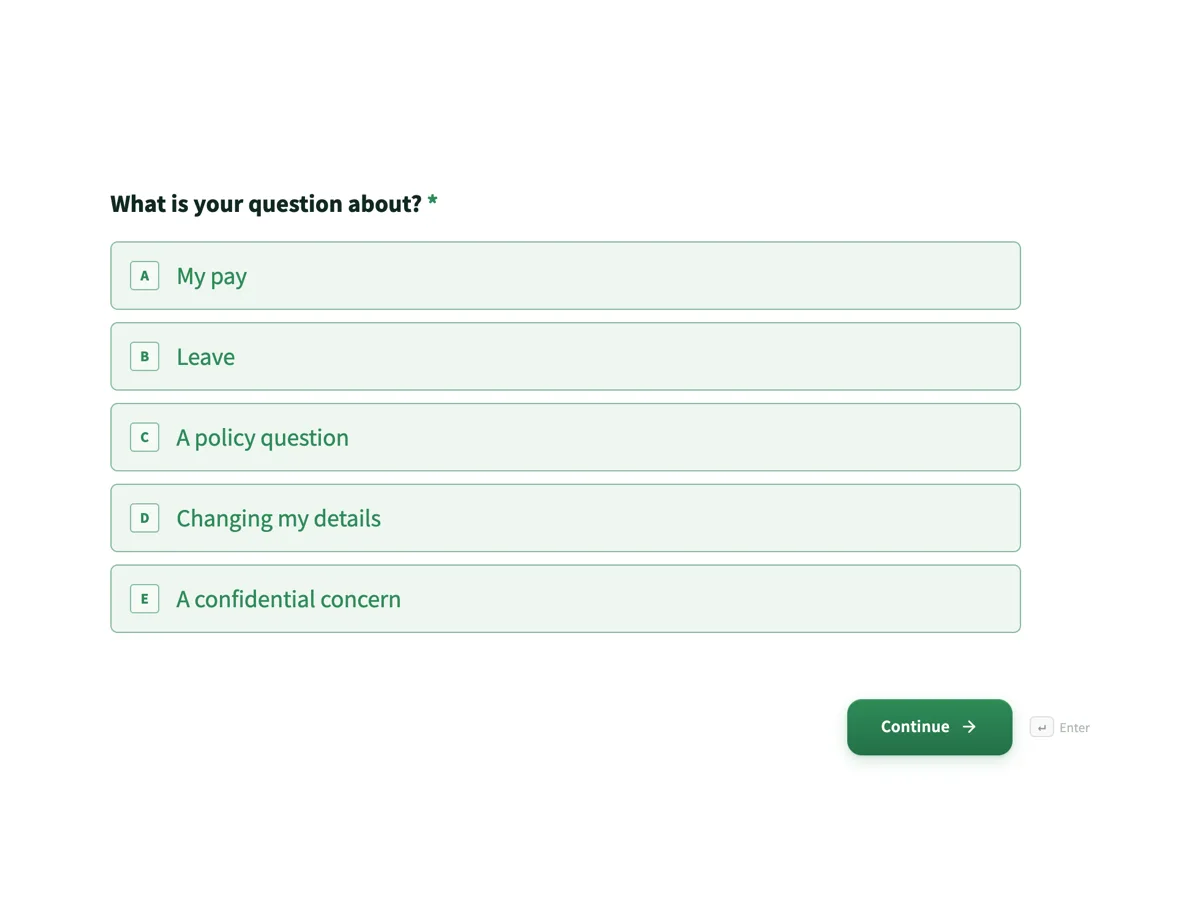
The form itself
The first screen of the form. A conversational form shows one question per screen, so the remaining screens are listed in the field table below. Nothing here can be filled in or submitted, so read it as a reference and build your own from the button above.
Every field, and what it collects
The complete field list, in the order respondents meet it.
- What is your question about?Single choiceRequired
- Options: My pay · Leave · A policy question · Changing my details · A confidential concern
- Which pay period, and what looks wrong?Short text
- Which kind of leave?Dropdown
- Options: Annual leave · Personal or carer's leave · Long service leave · Parental leave · Family and domestic violence leave · Something else
- Which policy?Short text
- What has changed?Single choice
- Options: Address · Name · Bank details · Emergency contact
- How should the People and Culture manager contact you? OptionalShort text
- Your questionLong text
- Your name and staff numberShort text
- How would you like a reply?Single choice
- Options: Email · Phone · In person
What each field on this form collects
Screen 1 asks the topic from five choices. Screen 2 asks which pay period and what looks wrong, screen 3 which kind of leave, screen 4 which policy and screen 5 what has changed. Screen 6 is the confidential screen: a heading, the private options and one optional contact field. Screen 7 takes the question, screen 8 the name and staff number, and screen 9 the reply preference.
The rules, as the Logic tab shows them
All five rules sit on screen 1. If What is your question about is My pay, go to screen 2; Leave, screen 3; A policy question, screen 4; Changing my details, screen 5; A confidential concern, screen 6. Screens 2, 3, 4 and 5 are each set to go to screen 7, so every routine path skips the other topic screens and joins the shared ending. Screen 6 is set to End and submit, so a confidential concern never reaches the screens asking for a name, staff number or details.
Why the confidential path asks for no detail
Responses to a form are visible to whoever can open the responses table, and HR inquiry forms are often shared with a team. A concern about bullying, harassment or a manager should not sit there in full. The confidential screen lists the private channels, the People and Culture manager, the whistleblower line and the Employee Assistance Program, and asks only how to make contact, which is optional. The ICO's employment guidance in the UK and Australian privacy guidance both stress handling worker information with care, and the simplest care is not collecting the detail at all.
How to adapt this form
A school adds a topic for professional learning with its own screen. A business with a payroll provider adds a rule from screen 2 that ends the form with the provider's contact for certain questions. A company where details changes need evidence replaces screen 5 with a link to a separate details change form and ends there.
What makes this form work
Sensitive concerns leave the queue
A confidential concern jumps to its own screen and ends. Its detail never lands in a shared inbox, and the person still has three private ways to raise it.
Each topic asks one thing
Pay asks the period, leave asks the type, policy asks which one. People and Culture gets the detail they would otherwise reply to ask for.
Name only on routine paths
The name and staff number sit on screen 8, which the confidential path never reaches. The form never asks someone with a sensitive concern to identify themselves on it.
Questions people ask
What can staff ask HR through a form?
Routine questions about pay, leave, policies, rosters and personal details are well suited to a form, because they can be answered in writing and routed by topic. Sensitive concerns such as bullying or harassment are better raised in person or through a confidential channel, which this form points to.
Is an HR inquiry confidential?
Inquiries should be treated as private and seen only by the people who need them. A form's responses are visible to whoever has access to the responses table, so limit access to the HR team. This form keeps confidential concerns out of it entirely by asking no detail.
How long should HR take to reply?
Many teams aim for two working days for routine questions and faster for pay, especially before a pay run. State the timeframe on the thank you screen, as this form does, so staff know when to expect an answer and do not send the question twice.
Should staff be able to submit anonymously?
For routine questions a name is needed to answer. For concerns, anonymous channels such as a whistleblower line matter, which is why the confidential screen lists one. The contact field on that screen is optional, so a concern can be raised without a name.
Why is only the first question required?
Because the confidential path ends at screen 6. The server checks every required question on submit, even on screens a jump skipped, so a required name or question on later screens would stop that path. Keeping them optional lets every route submit.
Can the form be limited to employees?
Yes. The form can require a login, or be limited to people with an email address at the organisation's domain. Either keeps the public from submitting and lets People and Culture trust that inquiries come from staff. The confidential screen still asks no detail even when the person is signed in.
Build your own in about a minute
The button below opens the generator with this use case already described. Change the wording to match your own, generate, then edit anything you like.
Make one like thisOther form examples
Help desk request form that routes by problem
A help desk request form that asks the right follow up for each problem saves the first reply, because the technician starts with the detail they would otherwise have to ask for. This conversational version also stops anyone whose work has stopped completely and tells them to phone, while still logging the outage.
Facilities request form with a safety hazard path
A facilities request form sends a spill, a cold meeting room and a broken chair to three different people, with the floor, location and urgency each needs. This conversational version for a multi tenant office building sends anyone reporting a safety hazard straight to a screen telling them to call security.
Customer support form for an online store
A customer support form that sorts by problem answers many orders without a reply, because a customer whose parcel is not late yet is told so on the spot. This conversational version for a homewares store asks for photos only when something arrived damaged, and never asks a product question for an order number.
Want the steps in the builder? Read Create a conversational HR form, then Limit the form to staff. For everything this generator can do, see the form maker.
Written and checked by the OneCraft team. Last checked .