Websites
Photo gallery website with albums, a lightbox and before and after
A photo gallery website shows work large and uncropped, grouped so a visitor finds the kind of job they care about. The details that matter are a lightbox that works with a keyboard and a thumb, photos that load fast, alt text on every image, and an easy way for the owner to add new work.
Albums and the grid
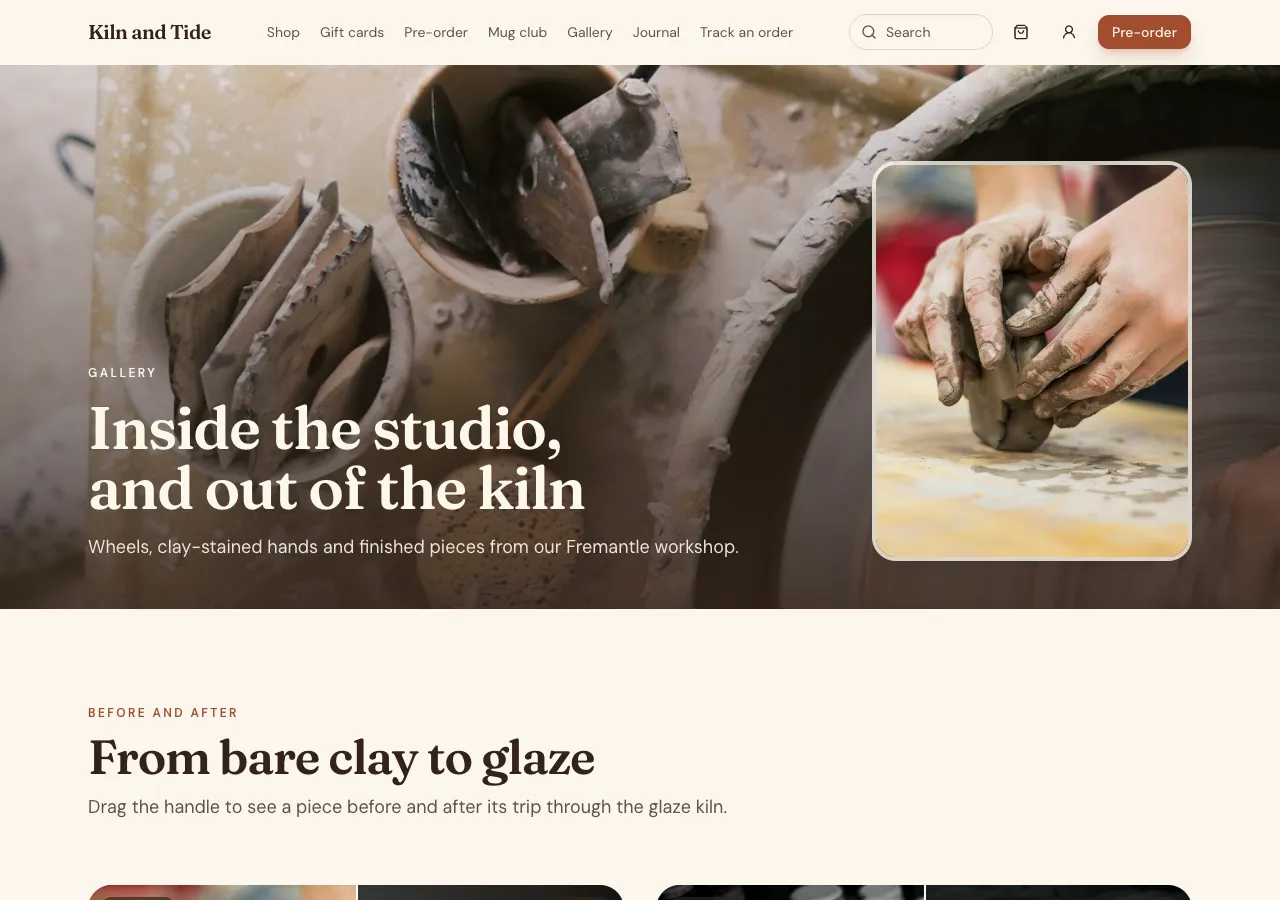
Ask for a gallery and the AI follows its gallery guide: albums with a cover, and photos with a caption, alt text and order, in the site's own database. The gallery page has album chips and a masonry grid that keeps portrait and landscape photos uncropped, with each image's width and height set and lazy loading below the first screen.
The lightbox
Clicking a photo opens a full screen view over a dark background, with the caption, a counter such as 3 of 24, Previous and Next buttons with labels, arrow keys and swipes, and focus returning to the thumbnail on close. Each album also has its own page with a title and description for search.
Before and after
For renovations, retouching or cleaning, a before and after slider stacks two photos and lets the visitor drag a handle to compare, with a range control that works by keyboard. In a phone app the comparison is a Before and After toggle over one image.
Adding photos
Photos are added in the site's admin area: multi file upload into an album, one row per file, alt text required before saving, captions, order, Set as cover and Delete, which removes the file too. Each photo is up to 10 MB, with a note to export at 2,400 pixels wide or less.
Speed and limits
Large photos are the main cost of a gallery, so export them at sensible sizes before uploading. The app version's viewer swipes but has no pinch zoom. Videos play from YouTube or Vimeo embeds rather than being uploaded.
How it works, in three steps
Step 1
Describe the gallery
Name the albums and whether you need before and after comparisons.
Step 2
Upload the work
Sign in to the site's admin area and upload photos with alt text and captions.
Step 3
Publish
On a paid plan, publish and link the gallery from the menu.
Limits worth knowing
- Photos up to 10 MB each, alt text required.
- The app viewer swipes but has no pinch zoom.
- Videos play from YouTube or Vimeo; video files are not hosted.
- The data lives in the site's own database: a hosted one on every plan, or your own Supabase account.
Questions people ask
Can I upload many photos at once?
Yes. The album screen in the admin takes several files at once, one row per photo, and asks for alt text on each before it saves. Captions and order can be edited afterwards, and Set as cover picks the album's thumbnail.
Why is alt text required?
Alt text describes the photo for people using screen readers and for search engines, and a gallery without it is invisible to both. The admin refuses to save a photo without it. Describe what is in the photo in a short sentence, not a list of keywords.
Are my photos compressed?
Photos are stored as you upload them, up to 10 MB each, so size them before uploading: around 2,400 pixels on the long edge keeps detail on large screens without slow pages. The page sets image sizes and loads photos below the first screen only when needed.
Can I make a private gallery for a client?
Not in the public gallery, which anyone can see. Ask for a client portal instead: each client signs in and sees their own project's files in private storage, readable only by them and your staff. That suits proofing a shoot or sharing drafts.
Does the gallery work in a phone app?
Yes. A phone app based on the website shows the albums as a two column grid, three on tablets, and a full screen viewer you swipe through with captions. The viewer has no pinch zoom, and new photos are added from the website's admin.
Can visitors enquire about a photo?
Ask for an enquiry button on each photo or album, and the AI links it to the site's enquiry form with the album or photo named, so you know which job prompted it. Enquiries are stored in the site's own database and read in the admin.
Make your own website
The button opens the generator with this use case already described. Change the wording to match yours, generate, then edit anything you like.
Create a website with OneCraftRelated pages
Embed a YouTube or Vimeo video on your website
Embedding a video means showing a YouTube or Vimeo player on your page so visitors watch without leaving. Done carelessly, a player loads megabytes of script before anyone presses play; done well, the page shows a still and loads the player on the click.
Dark mode website: one switch, every palette, readable contrast
A dark mode website uses a dark background with light text, which suits photography, nightlife, music and premium products. Done badly it is hard to read; done well every colour pair is retuned for the dark background rather than simply inverted.
Brand kit for your website: your colours, light and dark, in one click
A brand kit is a saved set of your logo, colours and fonts that every design tool can reuse. On a website it should do one thing well: turn three brand colours into a full, readable theme, so buttons, backgrounds and text all feel like you without picking each shade.
More finished work of this kind is on the website examples hub.
Written and checked by the OneCraft team. Last checked .