Websites
Pricing page builder with plans, testimonials and your team
A pricing page shows what each plan or package costs and what it includes, so buyers can choose without a sales call. It earns trust when prices are real, the comparison is easy to scan on a phone, and the quotes and faces around it belong to real clients and staff.
Plans from the database
Ask for pricing and the AI follows its pricing guide: plans as rows with a price in cents, currency, monthly or yearly interval, features, a highlighted flag and order, plus a comparison of features per plan. A card with no price, such as By quote, sits in the page's content and links to a quote request. Prices shown are only those in the rows, never invented discounts.
The page itself
Cards sit side by side from tablet width and stack on phones, with the highlighted one ringed and marked Most popular. A Monthly and Yearly switch picks each plan's row for the interval and shows Save N percent worked out from the two prices. A real comparison table follows, scrolling sideways on phones with a sticky first column and Included or Not included for screen readers.
Buying from the page
A plan with a price can be bought: signed out visitors are asked to sign in, then Stripe Checkout opens a subscription at the row's price on your connected account. Subscribers manage their plan in the billing portal. A one off package can be a product bought through the cart instead.
Testimonials and logos you choose
Testimonials are quotes you add in the admin, with the client's name, role, company, photo and an optional rating, shown in a slider or a wall; client logos sit in a greyscale strip. The AI never writes a quote for anyone, and empty sections stay hidden until you add rows. Owner chosen quotes never feed review stars in search data.
The team
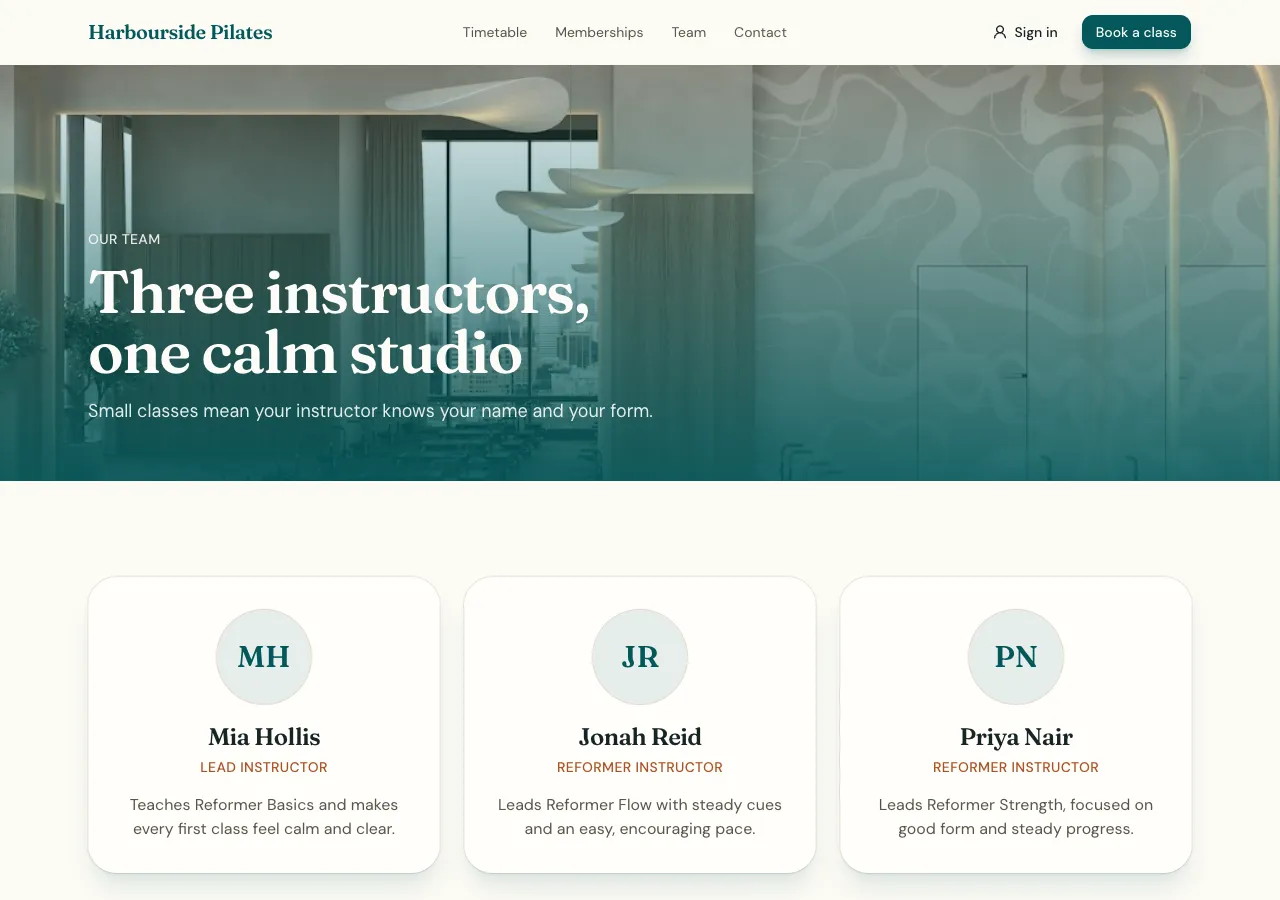
Team members have a photo, name, role, bio, specialties and links, each with its own page. Photos are yours, uploaded in the admin; without one the page shows initials, never a stock face presented as your staff. With bookings, a member's page can offer Book with them.
How it works, in three steps
Step 1
Describe the plans
List each plan or package with its price, interval and what it includes.
Step 2
Add proof
In the admin, add testimonials and logos from real clients and your team's photos and bios.
Step 3
Publish
On a paid plan, publish; connect Stripe if plans are bought online.
Limits worth knowing
- Prices come only from the plans rows; no invented discounts.
- Testimonials and team photos are yours; empty sections stay hidden.
- Card payments need a paid plan and Stripe connected in account settings; the platform fee is 2% on Starter, 1% on Pro and 0.5% on Pro+, with Stripe fees on top.
- The data lives in the site's own database: a hosted one on every plan, or your own Supabase account.
Questions people ask
Can the page show monthly and yearly prices?
Yes. Each interval is its own row, and the switch shows the matching price for every plan. The saving is worked out from the two prices you set, not made up. A yearly price change applies to new subscribers; existing ones keep what they pay.
Can I show a plan without a price?
Yes. A Contact us or By quote card lives in the page's content beside the priced plans and links to the contact page or a quote request form. It is not a plans row, so it can never be bought by accident at a wrong price.
Will the AI write testimonials for me?
No. The AI never writes a quote for a real sounding person, and empty testimonial sections stay hidden until you add real ones in the admin. Ask your clients for a line and permission, then add their name, role and company with it.
Can I change prices without the AI?
Yes. Plans live in the site's own database and are edited in the admin: type the monthly and yearly prices in dollars, the features one per line, and the highlighted plan. The page shows the change at the next load, with no publish needed.
How does the comparison table work on phones?
It is a real table that scrolls sideways inside its box, with the feature names in a sticky first column, so phone readers keep their place. Ticks and dashes carry hidden labels such as Included for screen readers. In a phone app, each plan's features are a list instead.
Can staff photos be stock images?
No. The AI never presents a stock face as your owner or staff, because a stranger shown as your team misleads customers. Until you upload real photos in the admin, team cards show initials on your colours, which looks deliberate rather than empty.
Make your own website
The button opens the generator with this use case already described. Change the wording to match yours, generate, then edit anything you like.
Create a website with OneCraftRelated pages
Giveaway website with entries, rules and a fair draw
A giveaway website runs a prize draw people enter online, with clear rules and a draw nobody can rig. It needs one entry per person, rules written by the owner for their state or country, and a draw that runs once, at random, after entries close.
Website with customer reviews and moderation
A website with customer reviews lets real customers rate a product, a service or the business and say why. Reviews are only worth showing if they come from real people, appear after a check, and are never mixed with quotes the owner picked or numbers the owner made up.
Directory website builder with filters and submissions
A directory website is a list people browse and filter, such as local tradies, rentals, cars for sale or job ads, and often one they can add to. It stays useful only if the filters match what people look for and new listings are checked before they appear.
More finished work of this kind is on the website examples hub.
Written and checked by the OneCraft team. Last checked .