Websites
Help centre website with FAQs and search
A help centre website answers customers' common questions before they write to you. It works when people can search in their own words, answers are short and current, and the owner can see which answers are read most and which do not help.
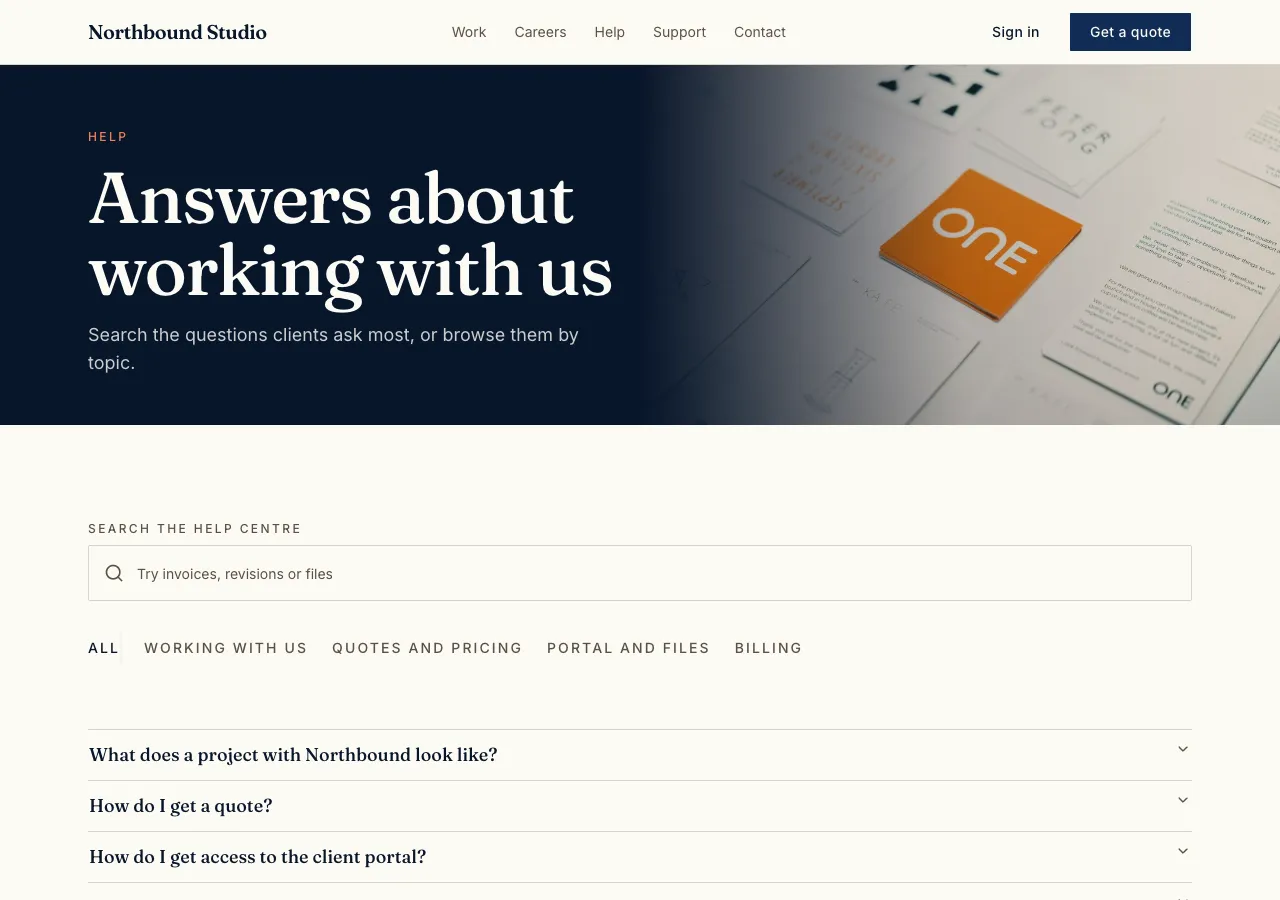
Categories and answers
Ask for a help centre and the AI follows its faq guide: categories with an icon and description, and articles with a question, slug, answer in Markdown, order and a published switch, in the site's own database. The help page leads with a large search box, then category cards and the most viewed questions; each category opens its questions as an accordion.
Search as you type
Search runs over questions and answers 300 milliseconds after typing stops, using a trigram index so near misses still match. Drafts never appear, because the search reads through the same rules as the page. When nothing matches, the page says No answer yet and links to the contact form, a support ticket or chat.
Knowing which answers help
Each article counts views and Yes or No votes on Was this helpful. The admin shows the helpful percentage and a Most viewed, least helpful list to fix first. Votes are rough, one per browser, and the counts change only through database functions, never directly from the page.
Editing answers
Staff edit categories and articles in the admin area with Up and Down ordering, the answer in Markdown with a live preview, and a published switch. Long answers get their own page with related questions. A phone app based on the site gets a Help screen with the same search and categories.
FAQs search engines can read
Help articles load in the browser after the page. For the handful of questions that should appear in search results, ask the AI to keep them in the page content with FAQPage structured data; articles in the database stay as the full help centre.
How it works, in three steps
Step 1
Describe the help centre
List the categories and the first questions with their answers.
Step 2
Fill the articles
Sign in to the admin area and add or edit answers in Markdown.
Step 3
Publish
On a paid plan, publish and link Help from the menu and the contact page.
Limits worth knowing
- Helpful votes are one per browser, a hint rather than a guard.
- Articles load in the browser; questions meant for search results belong in the page content.
- The data lives in the site's own database: a hosted one on every plan, or your own Supabase account.
- The free plan builds and previews the site; publishing starts on Starter.
Questions people ask
Can customers search in their own words?
Yes. Search matches words in questions and answers and tolerates near misses through a trigram index, so printr still finds printer. Results update as people type. When nothing matches, the page offers the contact form or a ticket, so a search never ends in a dead end.
How do I know which answers to improve?
Each article counts views and helpful votes, and the admin shows a list of the most viewed and least helpful answers. Fix those first. The counts are rough, since a vote is remembered per browser, but they point at the questions that matter most.
Can the help centre live in my app?
Yes. A phone app based on the website gets a Help screen with the search field, a section per category and the answers, plus a Contact link. Articles are edited once in the website's admin and appear in both, with no separate copy to keep in step.
Will my FAQs show in Google?
Questions kept in the page content with FAQPage structured data can be read by search engines. Help articles from the database load in the browser after the page, which search engines see less reliably. Keep the few most searched questions in the page itself.
Can I hide an article while I rewrite it?
Yes. Switch Published off in the admin and the database rule hides it from visitors and from search on the site at once. Switch it back on when it is ready; its view and vote counts are kept, so its history is not lost.
Does it replace a support desk?
It reduces what reaches one. Many questions are answered by search and the help pages, and the rest go to your contact form, support tickets or chat. Ask for tickets alongside the help centre and the AI links the two.
Make your own website
The button opens the generator with this use case already described. Change the wording to match yours, generate, then edit anything you like.
Create a website with OneCraftRelated pages
Website with a blog you write in the admin
A website with a blog lets the owner publish news, guides and updates without asking a developer, and lets each post be found on its own in search. The work is in a simple editor, drafts that stay hidden until ready, and posts that carry their own titles, descriptions and images.
Website visit stats: views, visitors and referrers, no cookies
Website visit stats answer three plain questions: how many people came, which pages they read and where they came from. For a small business site that is usually all you need to know whether a post, a flyer or a profile link is working.
Multi page website builder: pages, menus and addresses that stay linked
A multi page website gives each service, audience or topic its own page with its own address and search listing. The work is less in making pages than in keeping the menu, the links and the addresses consistent as the site grows, which is what a builder should do for you.
More finished work of this kind is on the website examples hub.
Written and checked by the OneCraft team. Last checked .