Websites
Support ticket website with priorities and response times
A support ticket website gives every customer request a number, a thread and a status, so nothing gets lost in an inbox. Staff need priorities, an owner for each ticket and a clear view of what is overdue; customers need to see the reply and answer back without starting again.
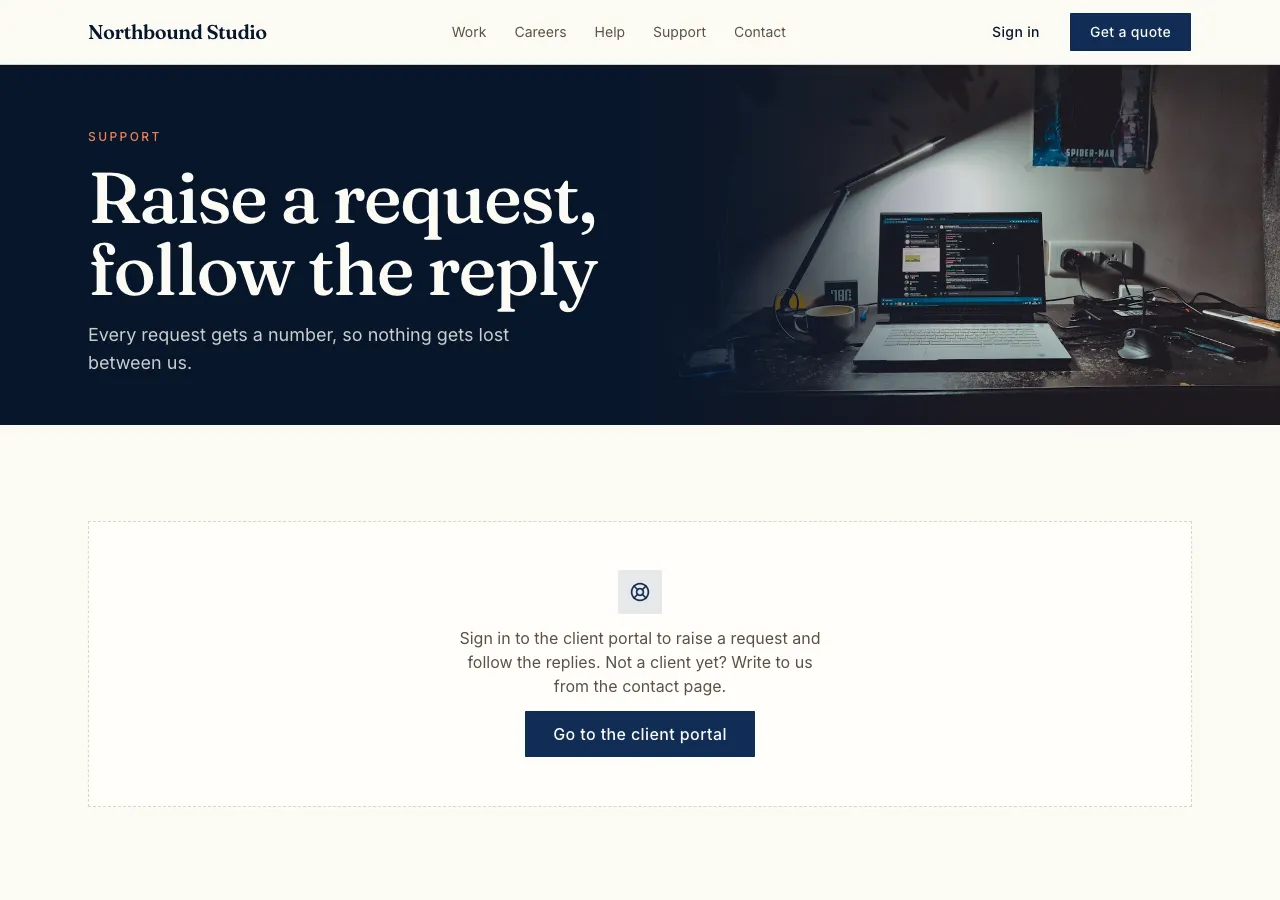
Numbered requests
Ask for a help desk and the AI follows its tickets guide: tickets numbered T-0001 onwards by a counter in the database, with a subject, category, status, priority, assignee and a private link token, and a thread of messages. A support page has a New request form and lists the person's tickets with status badges.
Guests and signed in customers
Signed in customers see all their tickets and reply in the thread. Guests can raise a ticket too: they land on a private link page that shows the thread and a reply box, and are told to keep the link. A database function opens the ticket and refuses more than five an hour from one email.
The staff queue
Staff work a queue in the admin area filtered by status, priority, Mine, Unassigned and Overdue, sorted by when a response is due. A ticket view shows the thread with internal notes shaded, a reply or note toggle, saved replies, and selects for assignee, priority and status, plus the customer's other tickets.
Response targets without a scheduler
Response hours by priority live in the site's content, for example urgent 4, high 8, normal 24 and low 72. A ticket with no first reply past its target shows as overdue, worked out when the queue is shown, with a green, amber or red badge. The first staff reply records the response time.
How replies reach customers
A staff reply sets the ticket to pending and reaches a signed in customer in the site's notification bell and on the ticket page. The site cannot email staff replies to customers, because site mail only reaches the signed in sender or the owner, so guests check their ticket link.
How it works, in three steps
Step 1
Describe the desk
List the categories, priorities and response targets, and who answers tickets.
Step 2
Try both sides
In the preview, raise a ticket as a guest and as a signed in customer, then answer it as staff.
Step 3
Publish
On a paid plan, publish and link Support from the menu.
Limits worth knowing
- Replies reach signed in customers in the notification bell; the site does not email replies.
- Guests follow their ticket by a private link.
- The data lives in the site's own database: a hosted one on every plan, or your own Supabase account.
- The free plan builds and previews the site; publishing starts on Starter.
Questions people ask
Can customers raise a ticket without an account?
Yes. Guests give a name and email and get a private ticket link that shows the thread and lets them reply. Signed in customers see all their tickets in one place. The open ticket function limits each email to five tickets an hour to stop floods.
Can staff write notes customers do not see?
Yes. A reply box toggles between a reply and an internal note. Notes are shaded in the staff view and hidden from customers by the database rule on messages, which the AI tests as a signed in customer before it finishes. Saved replies speed up common answers.
How is the response time tracked?
Each priority has a target in hours. The first staff reply records when the ticket was first answered, and the queue marks a ticket overdue when it has no reply past its target. The numbers come from the ticket's own times, worked out when the queue loads.
Is this the same as live chat?
No. Tickets suit requests answered over hours or days, with numbers, priorities and owners. Live chat suits quick back and forth while someone is on the site. Many businesses use both: chat for quick questions, tickets for anything that needs follow up.
Will customers get an email when I reply?
Not from the site. Site mail reaches only the signed in sender or the owner, so customers see replies in the notification bell and on the ticket page. A signed in customer can get an email copy of their own new ticket, and you get an alert when one opens.
Can I assign tickets to team members?
Yes. Any site admin can be an assignee, and the queue filters Mine and Unassigned so each person sees their own work. Reassigning is a select on the ticket view. Every change keeps the thread intact, so the next person sees the whole history.
Make your own website
The button opens the generator with this use case already described. Change the wording to match yours, generate, then edit anything you like.
Create a website with OneCraftRelated pages
Nonprofit website maker: show the mission, prove the impact, ask for help
A nonprofit website has to earn trust from people who will never visit in person: donors, volunteers, partners and the people it serves. It does that with a plain statement of the mission, numbers that show the work, one real story and a clear way to help.
Quote request website where clients accept and pay online
A quote request website turns get a quote into a structured request with the details and photos you need, then lets you send back a priced quote the customer can accept and pay without a phone call. It saves the back and forth that eats a tradie's or a studio's evenings.
Website contact form: every message stored in your site's admin
A website contact form lets visitors send you a message without opening their email, and keeps each message where you can answer it. On OneCraft the agent writes the form and its table with the forms guide, and you read and mark responses in an admin area on your own site.
More finished work of this kind is on the website examples hub.
Written and checked by the OneCraft team. Last checked .