Presentations
Content slide layouts
Some slides have to carry words: a definition, a comparison in prose, an objection and its answer. Eighteen layouts are filed under the content role, and each one is budgeted for a specific amount of text, which is the difference between a readable slide and a wall.
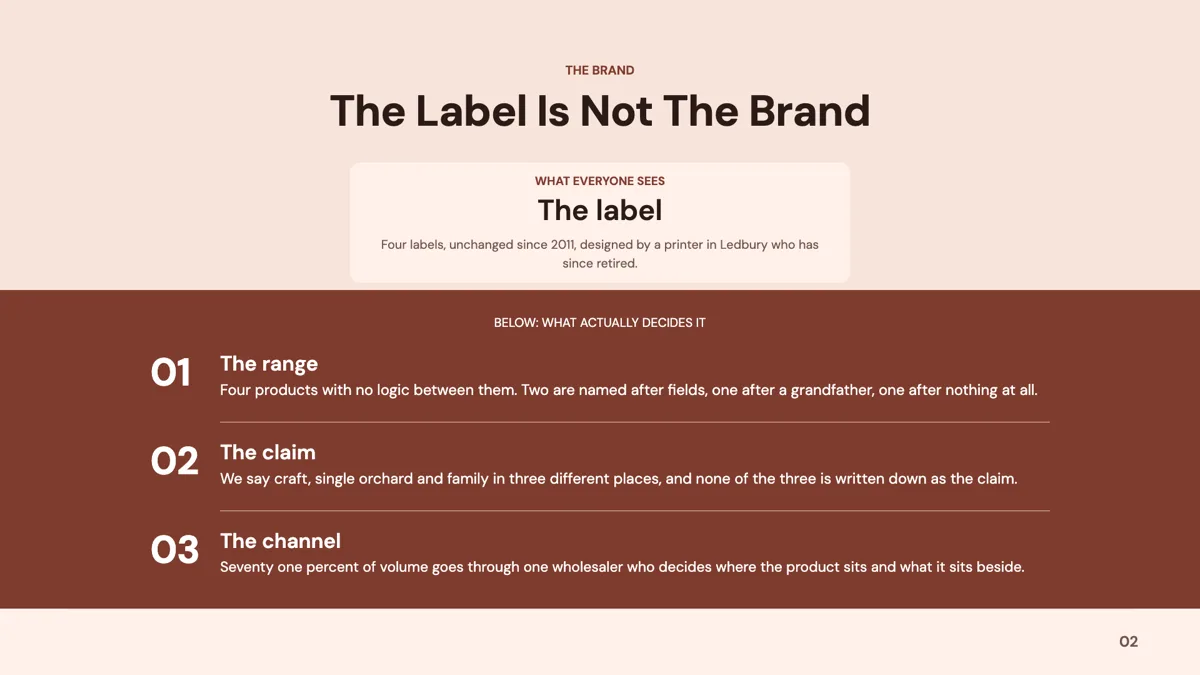
Bullets, and the seven item rule
The title and bullets layout takes exactly seven tinted bullet cards, each with its own icon. That is a lot for a spoken slide and about right for a document. Two column bullets and the two column text layout each take four items a side, budgeted at roughly 140 characters per bullet, which is one or two sentences. The counts are fixed by the template, so an eighth bullet means a different layout rather than a longer list.
Two columns, for a real comparison in prose
Three layouts set two things side by side in words rather than in a table: two column text with four prose bullets a side, do and do not columns with check and cross icons, and two column question and answer panels. These are the slides that stop a deck resorting to a table for something that is not really tabular. The do and do not layout in particular is the one that survives being read without a presenter.
Definitions, objectives and FAQs
The definition list takes exactly six term and definition pairs in one column, with the terms in the brand colour and one or two sentences each. Learning objectives and an objectives and members panel exist for training. The FAQ stack holds a run of question and answer pairs. These are the layouts for the part of a deck people screenshot, because each item stands alone.
When a content slide is the wrong choice
If the words are a sequence, the process role has 17 layouts that number them. If they are peers, pillars has 33. If they are a recap, the takeaway role has seven. Content is for prose that does not decompose into any of those, and it is worth checking that assumption before reaching for the bullets, because a numbered process read as a bullet list loses the one thing that made it a process.
How the AI picks this slide
Content is the role the outline falls back to when a section is explanatory: an overview, a definition, a policy, an objection. The fill writes to the template's own budgets, rewriting long copy shorter rather than truncating it, so a slide never arrives with a sentence cut in half. Text is also fitted to its box after render, which is why a slide that looked full in the outline can arrive with smaller type.
How it works, in three steps
Step 1
Decide what shape the words are
A sequence, a set of peers, a comparison or prose. Only the last is a content slide; the other three have their own roles.
Step 2
Add the slide from the library
From Library on the slide rail with the Role filter set to content. Eighteen layouts come back, each named for the count it holds.
Step 3
Write to the count
Seven bullets, four a side, six definitions. The number in the layout name is the number of items it draws.
Step 4
Read it as a stranger would
If the slide will be sent rather than presented, keep the full sentence. If it will be spoken over, cut it to the phrase you will say.
The full walkthrough with screenshots is in the guide Style text and add callouts, stats and lists.
Limits worth knowing
- Item counts are fixed: seven bullet cards, four bullets a side, six definition pairs.
- A bullet is budgeted at about 140 characters on the two column layouts, and longer copy is rewritten rather than wrapped.
- Text fits itself to the box after render, so adding words makes the type smaller instead of making the slide taller.
- Speaker notes are stored per slide but never rendered on it, and no export carries them.
See it on a finished piece
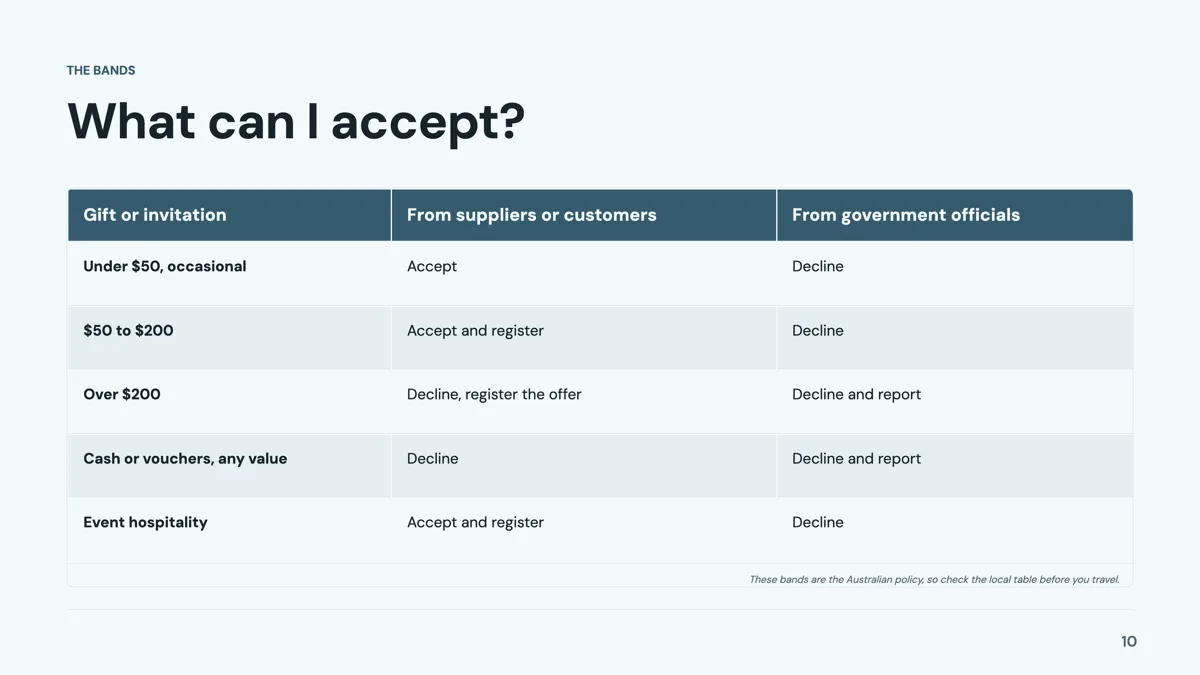

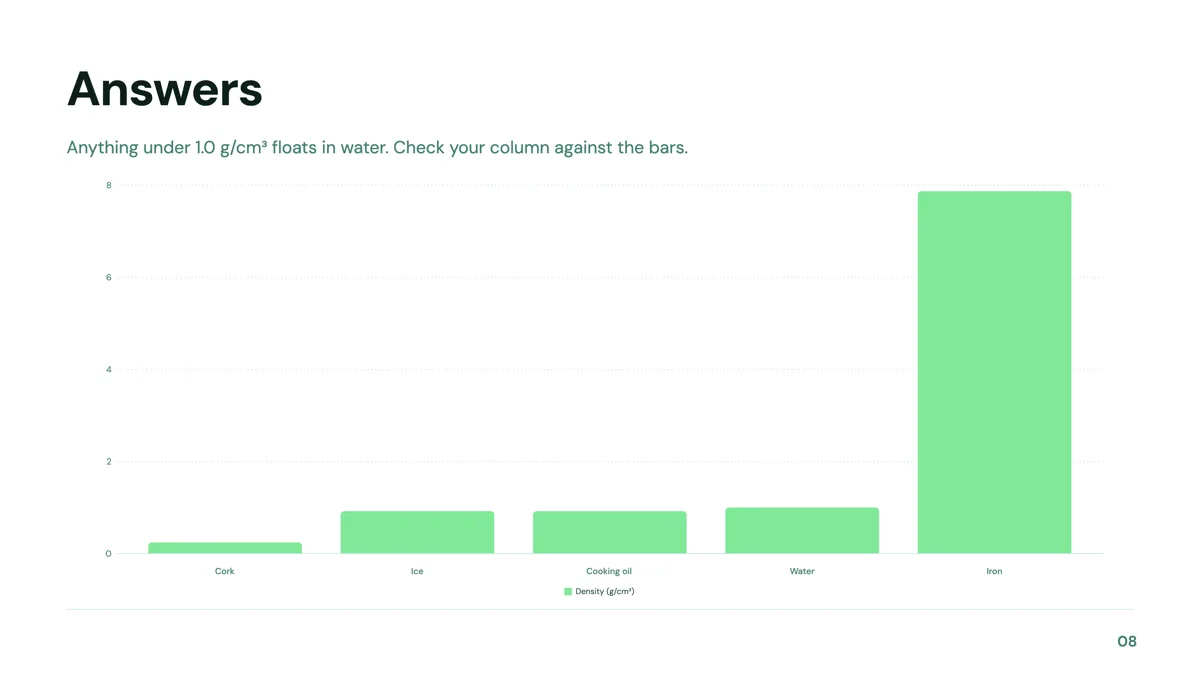
Slide examples
Finished single slides on this layout, each one built from a real template and written out in full.
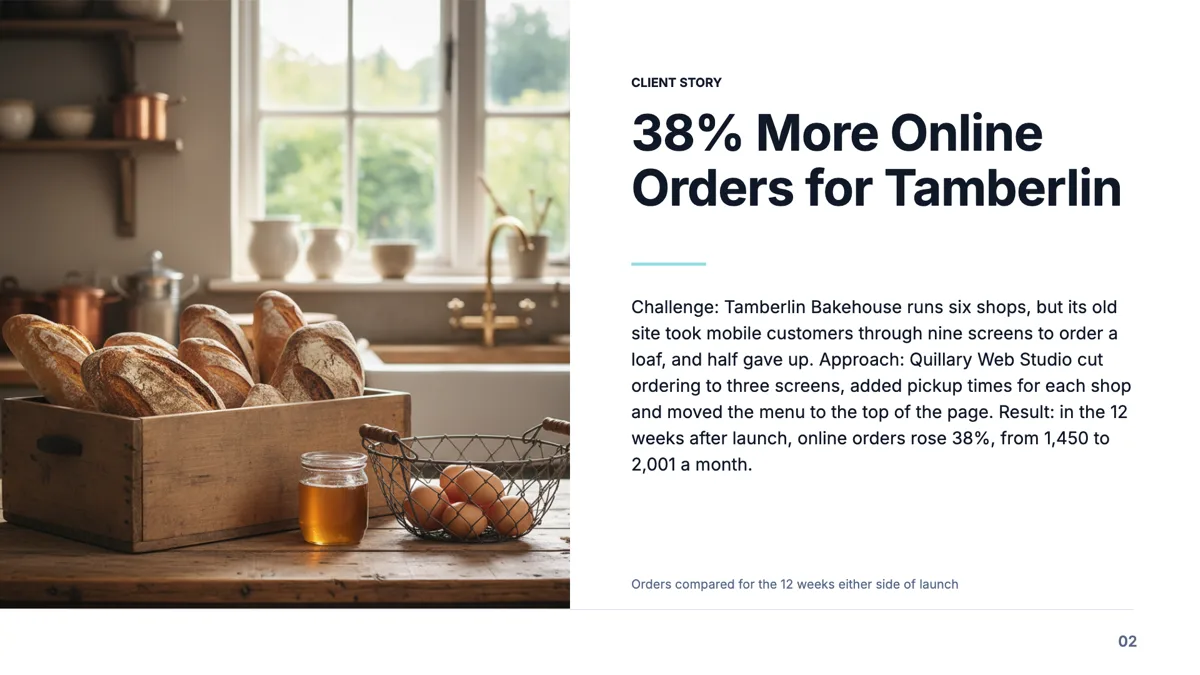
Case study slide that tells one client story in three parts
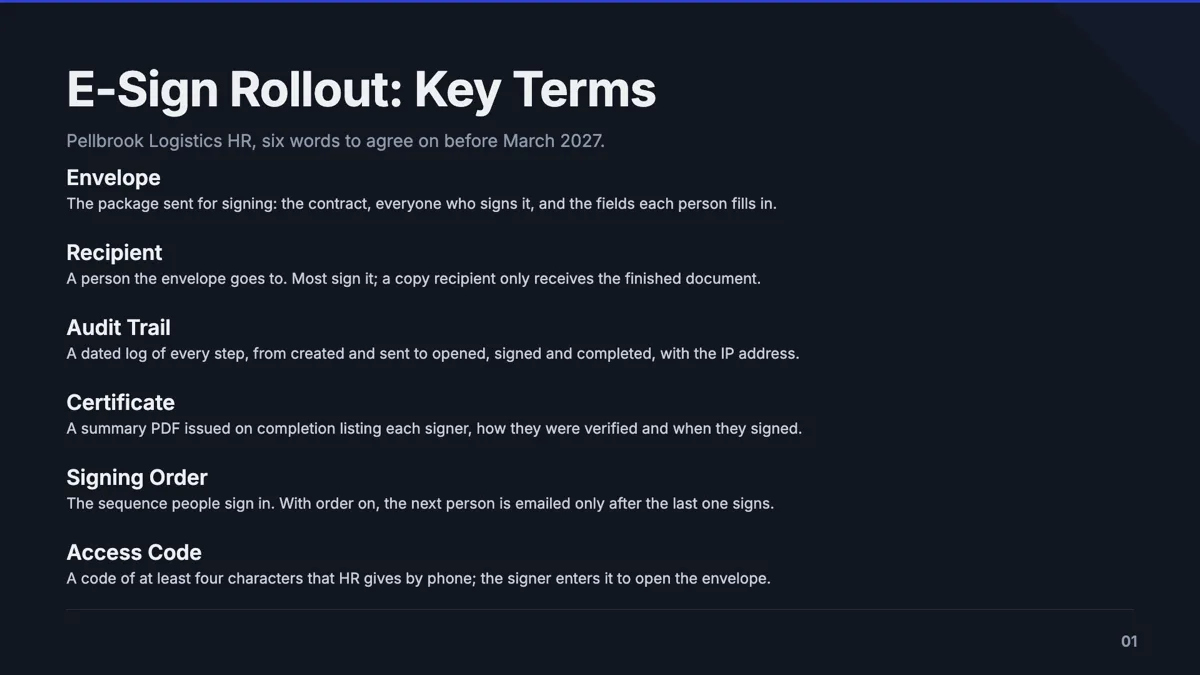
Definitions slide with six terms an HR team must share
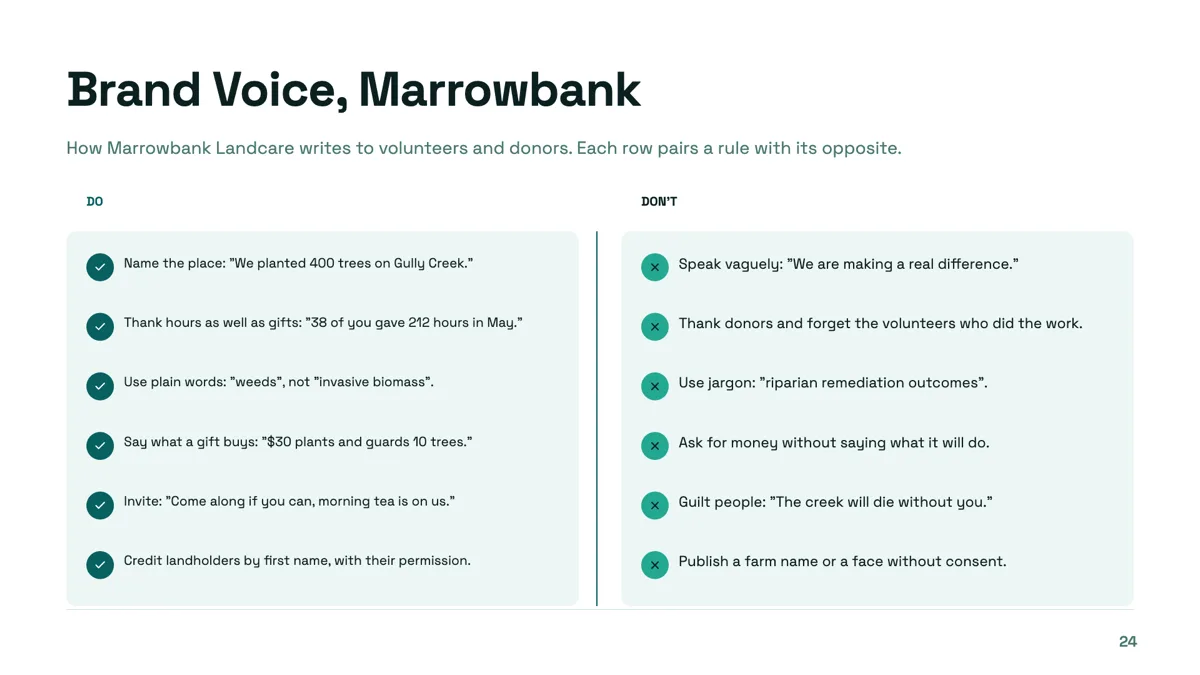
Do and don't slide with a sample line for every rule
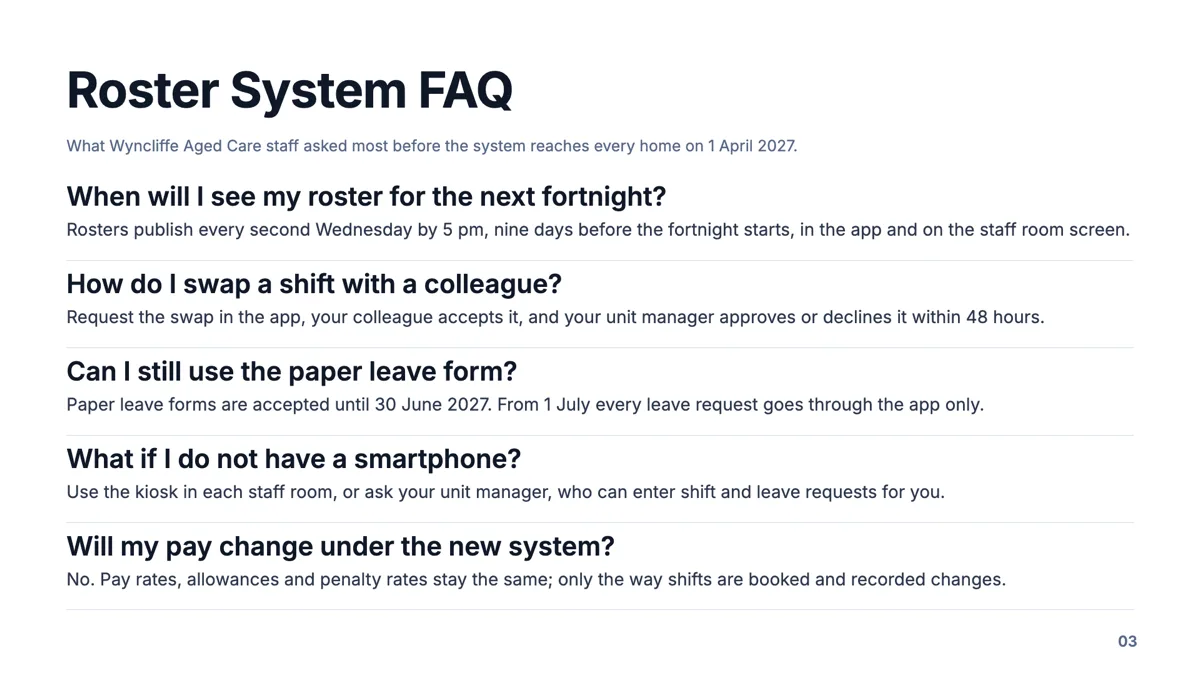
FAQ slide with the five questions staff actually asked
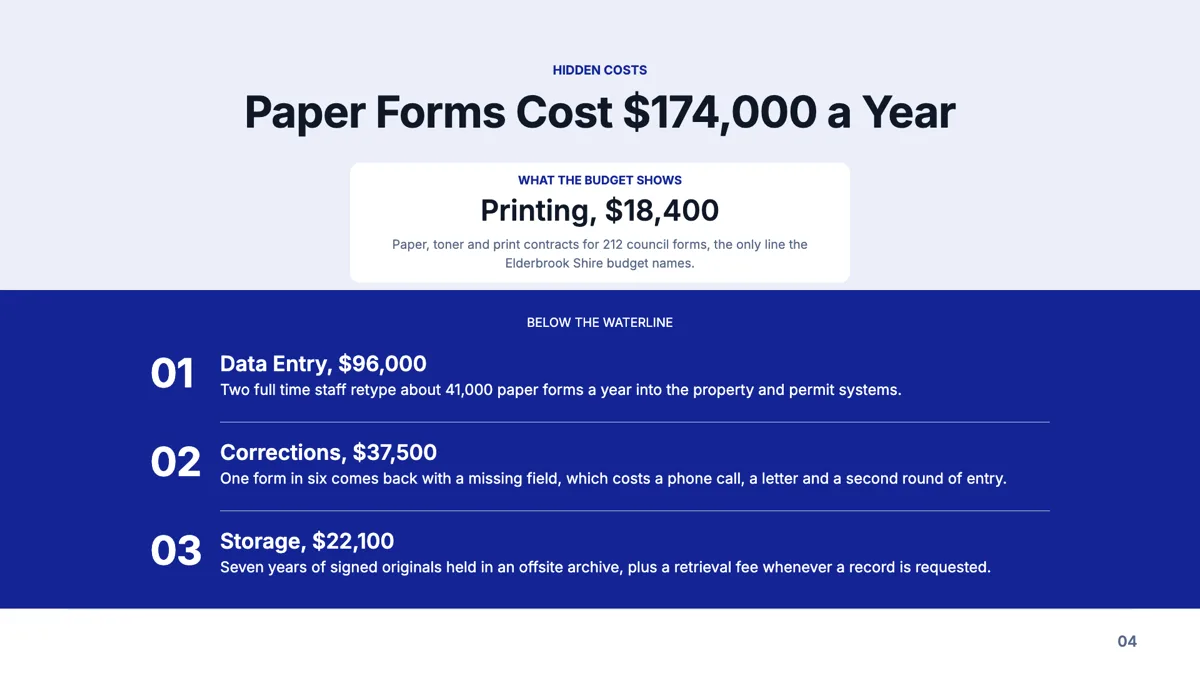
Iceberg slide that shows the cost the budget does not name
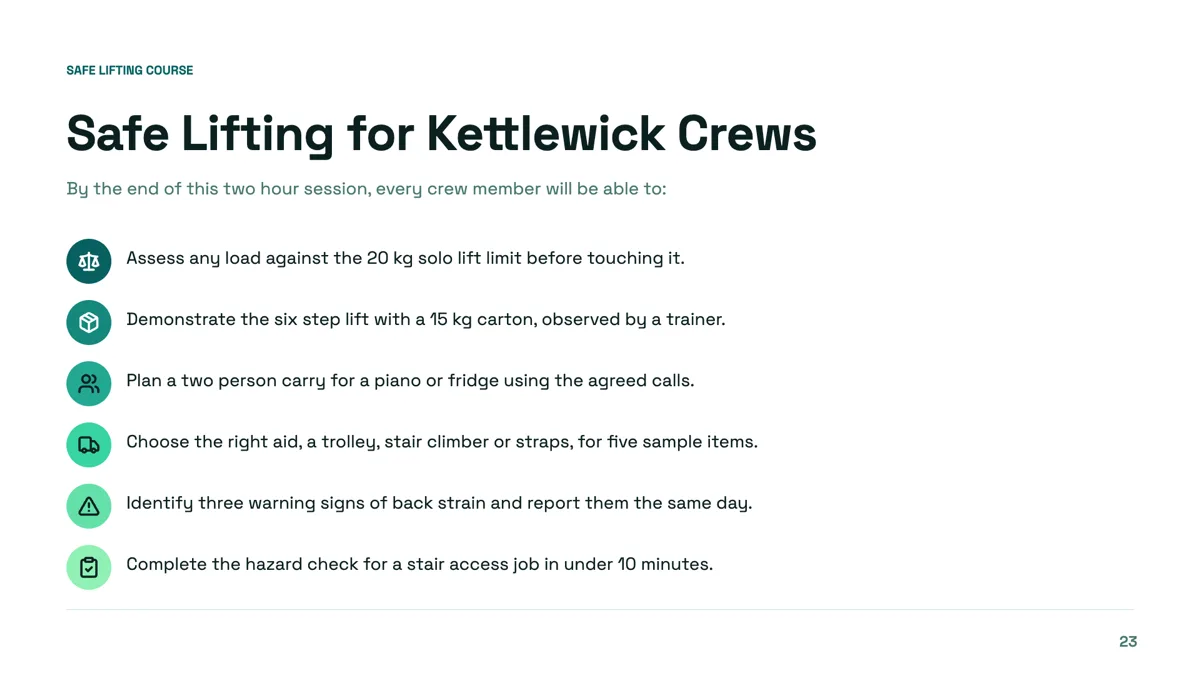
Learning objectives slide with outcomes a trainer can assess
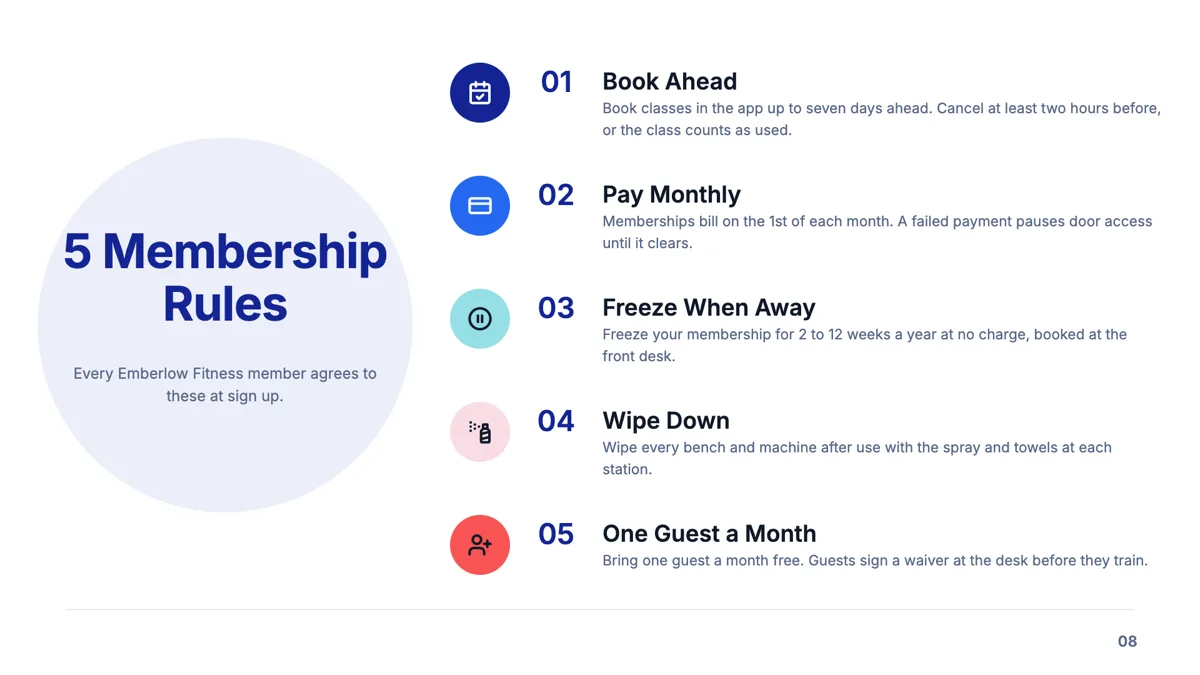
Numbered points slide anchored on one big number
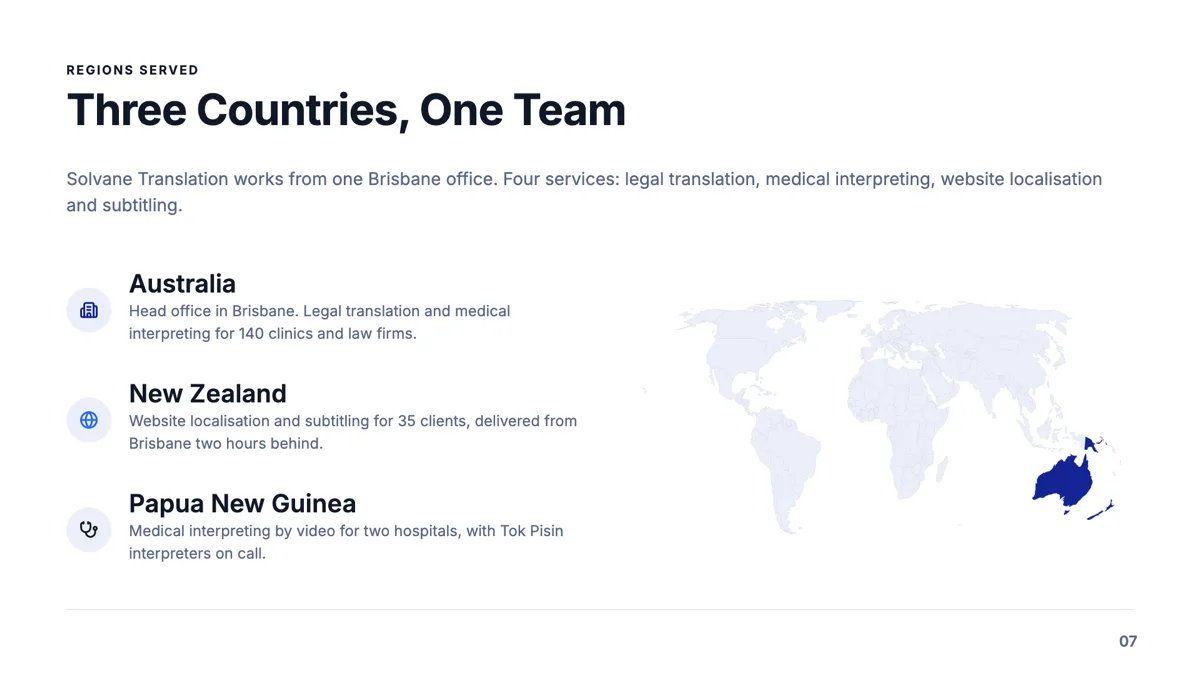
Regional map slide with three countries and what happens in each
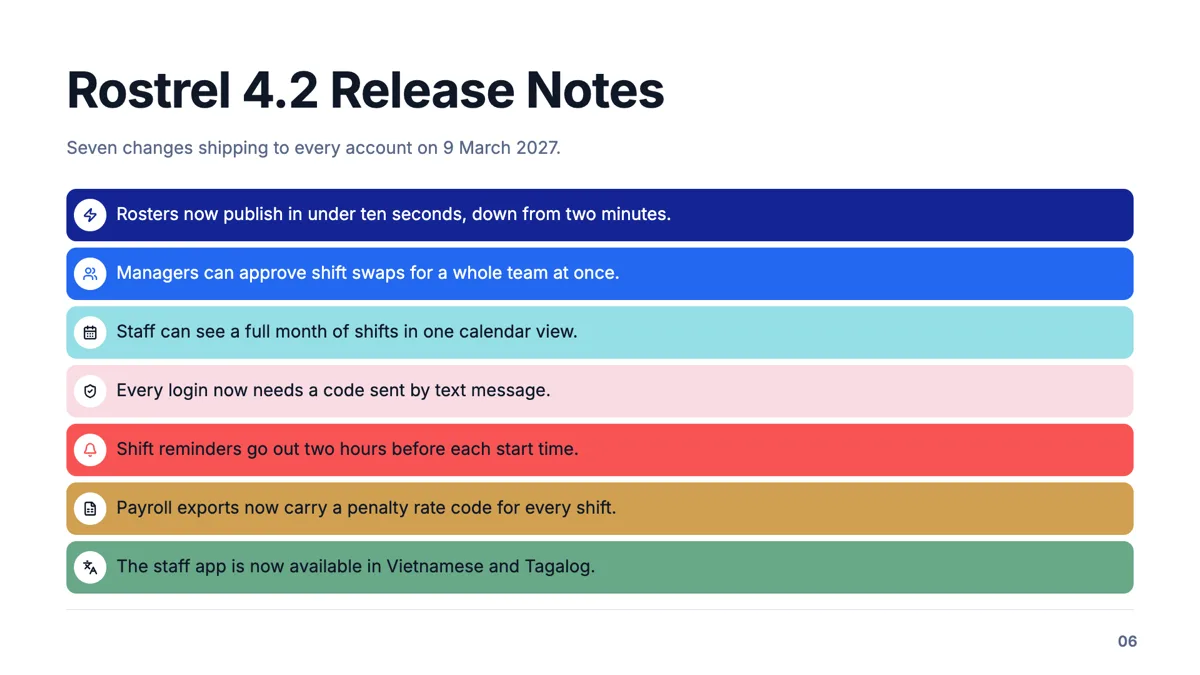
Title and bullets slide where every bullet is a full claim
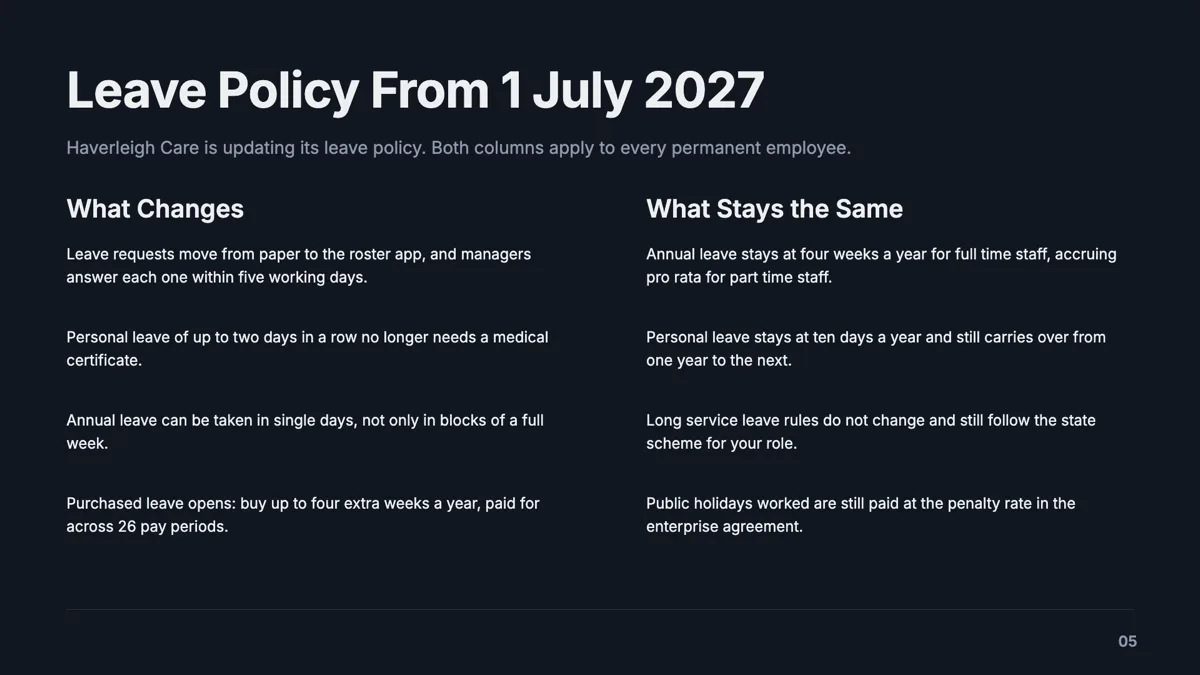
Two column text slide that explains a policy change
Questions people ask
How many content layouts are there?
Eighteen carry content as their primary role, covering bullets, two column text, definitions, do and do not columns, a case study with a photograph, learning objectives, an FAQ stack, an iceberg metaphor and a regional map with a pillar list.
How many bullets should a slide have?
The bullet card layout is built for seven and the two column layouts for four a side. Seven is a document density; for a spoken slide, fewer and shorter usually wins.
Can I write a paragraph on a slide?
Yes, on the title and body text layout or the case study layout. Text fits itself to the box, so a long paragraph renders smaller rather than overflowing, which is the practical limit.
Can I use rich text in a bullet?
Text slots support inline rich text, and speaker notes support bold, italic, underline and lists. Notes are never shown on the slide and are not included in any export.
Is there a layout for questions and answers?
Two: a two column question and answer panel under content, and an FAQ stack. There is also a separate qa role with five layouts for a question and answer section at the end of a deck.
Why does my text look smaller than on another slide?
Each slot fits its own text, so a fuller slot renders at a smaller size. The type ramp has 19 classes and a slot's class sets its starting size; the fit pass takes it down from there.
Make your own presentation
The button opens the generator with this use case already described. Change the wording to match yours, generate, then edit anything you like.
Create a presentation with OneCraftRelated pages
Regenerate a slide
There are three different things people mean by redo this slide, and they have three different mechanisms with three different costs. Picking the wrong one is how you lose an edit you wanted to keep.
Pricing slides
A pricing slide is a short form with strict fields, and the reason so many look amateur is that the copy was written before the fields were known. Tier names get twenty characters. Prices get twelve. Feature lines get sixty. Write to those and the slide designs itself.
Add your own images to slides
Photographs of your product, your team, your site or your work are the pictures a deck actually needs, and no generator produces them. Every picture box takes an upload, and four small controls decide how the result sits on the slide.
More finished work of this kind is on the presentation examples hub.
Written and checked by the OneCraft team. Last checked .