Slides templates
Project kickoff deck templates
A kickoff has to answer four questions before anyone leaves the room: what are we doing, who decides what, when does it happen and who is on it. Nine layouts across four roles carry those answers, taken from the 1,071 slide templates in the library.
9 designs
What these designs are for
Use this for the first meeting of a project, where scope, decisions, phases and people all have to be agreed in one sitting. These layouts give the decision structure a real diagram rather than a bullet list, and give the team slide enough room to name who does what.
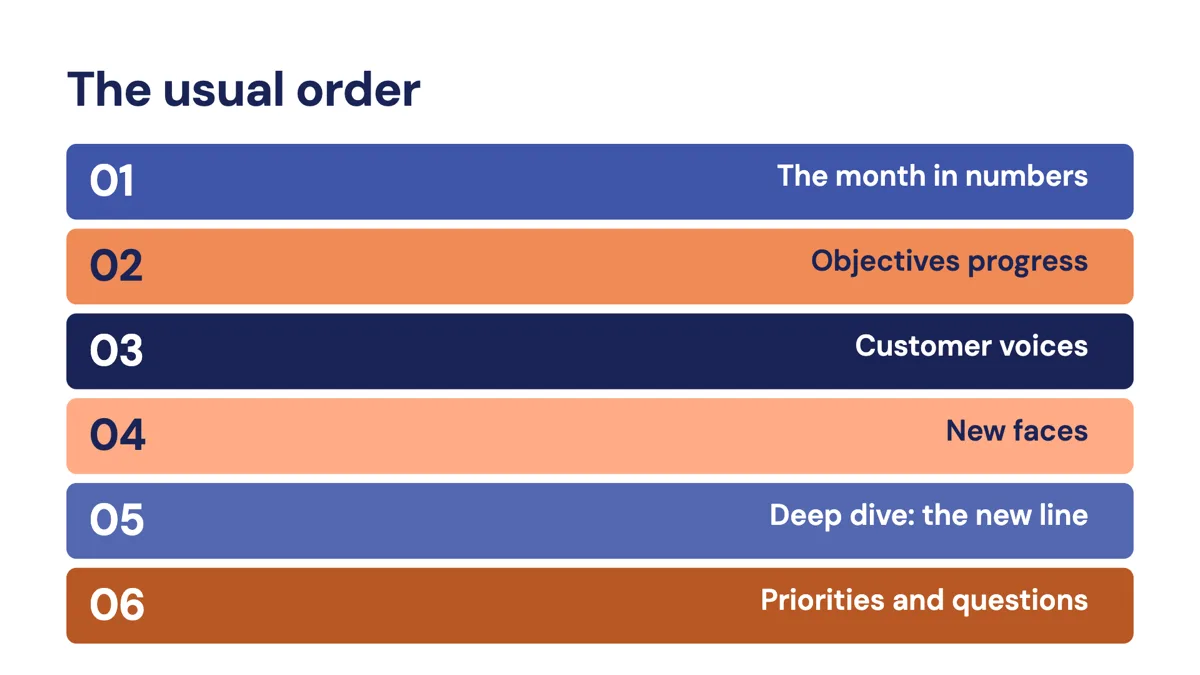
Agenda: Color Bars Six
Agenda. Six sections as full width coloured bars with a zero padded numeral on each.
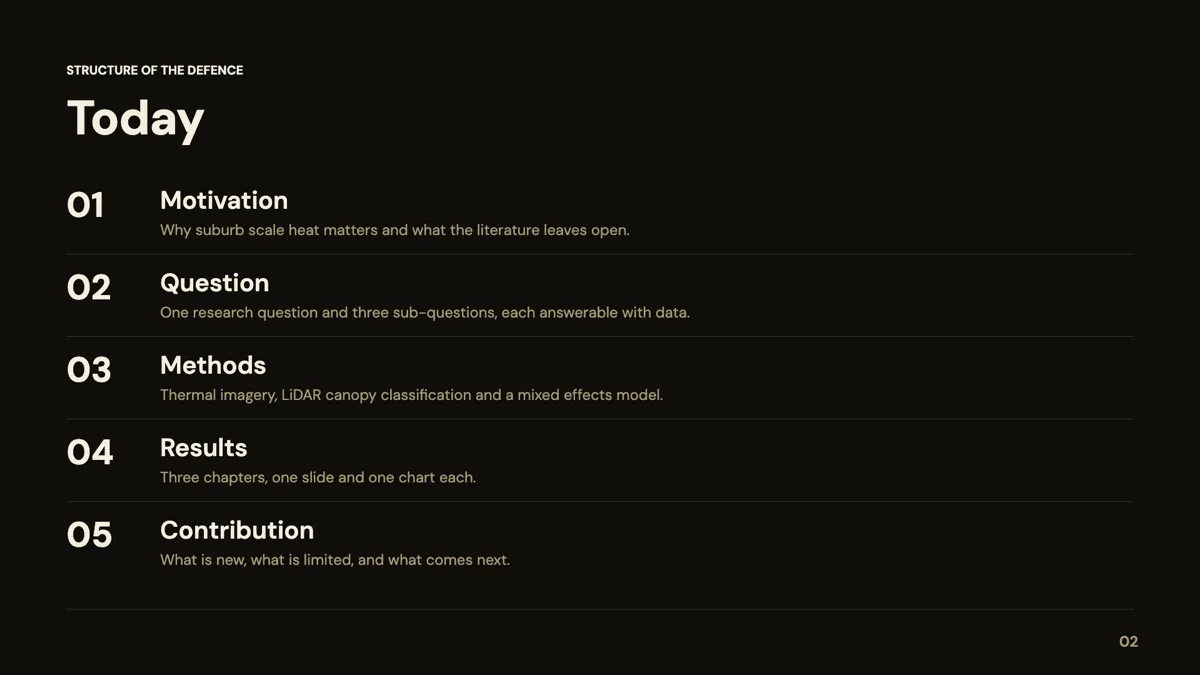
Agenda: Minimal Number Rail Five
Agenda. Five items as a restrained number rail with hairline dividers and no cards.
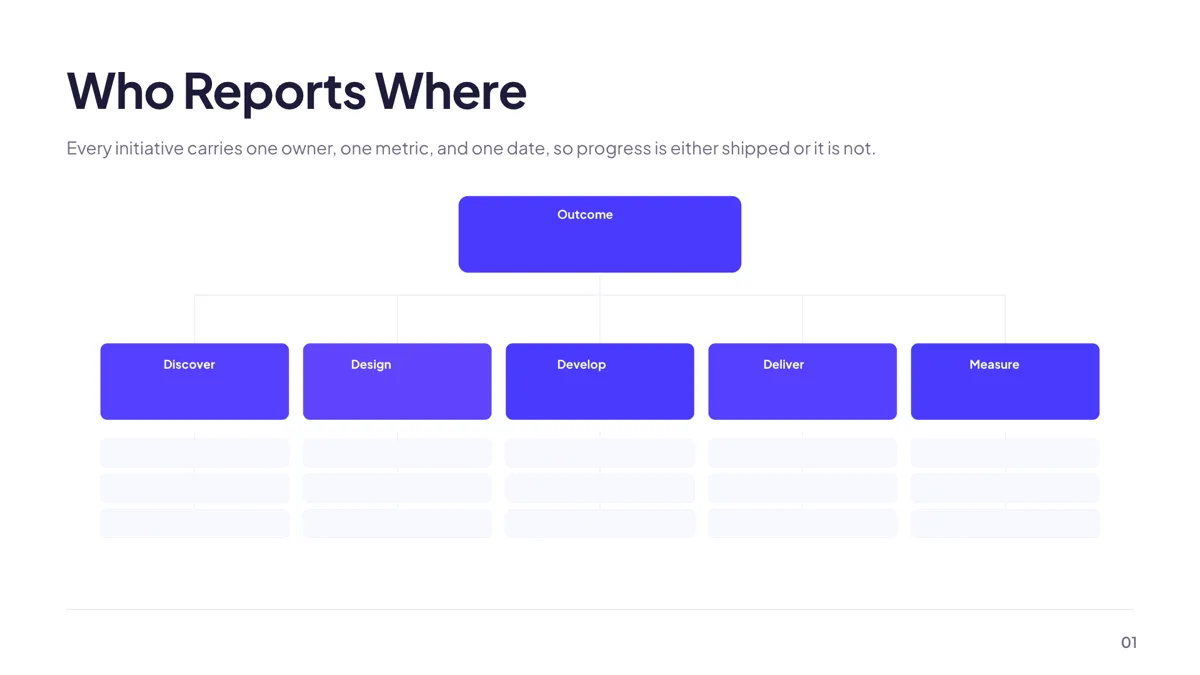
Grouping: Org Chart
Tree. A root role over two to five direct reports, each able to carry its own children.
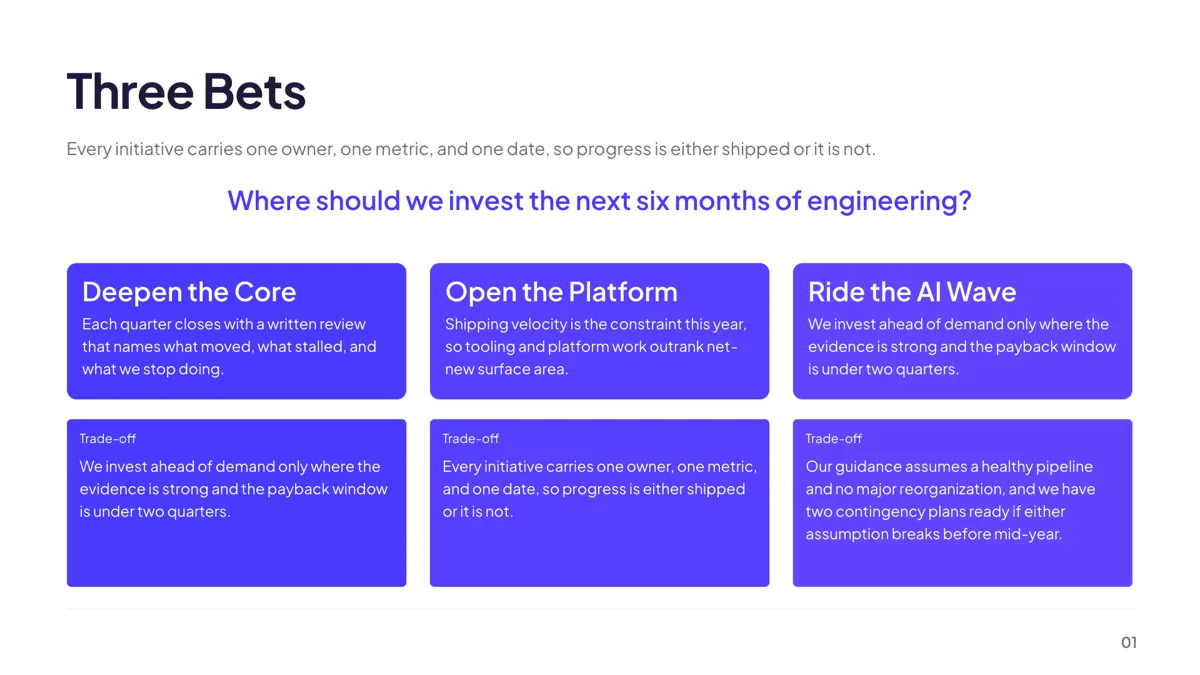
Tree: Three Path Splay
Tree. A root question over three equal branch cards with a trade off chip under each.
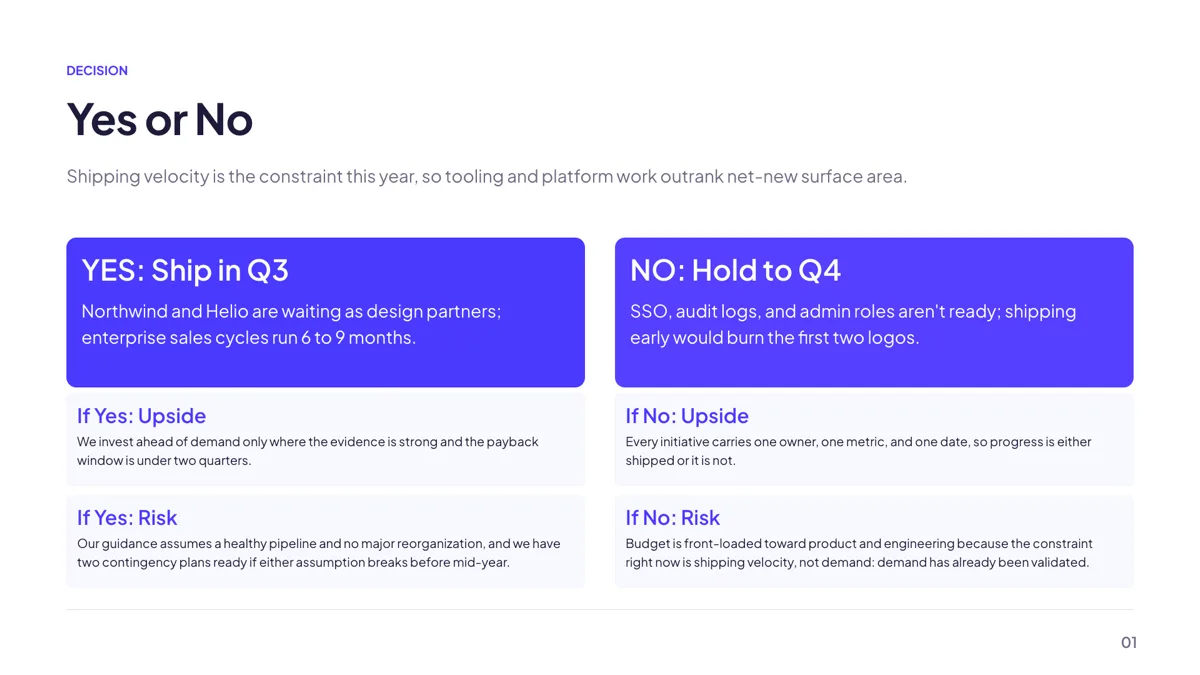
Tree: Yes/No Binary Flow
Tree. A root question, two verdict cards and four consequence chips in a two by two grid.
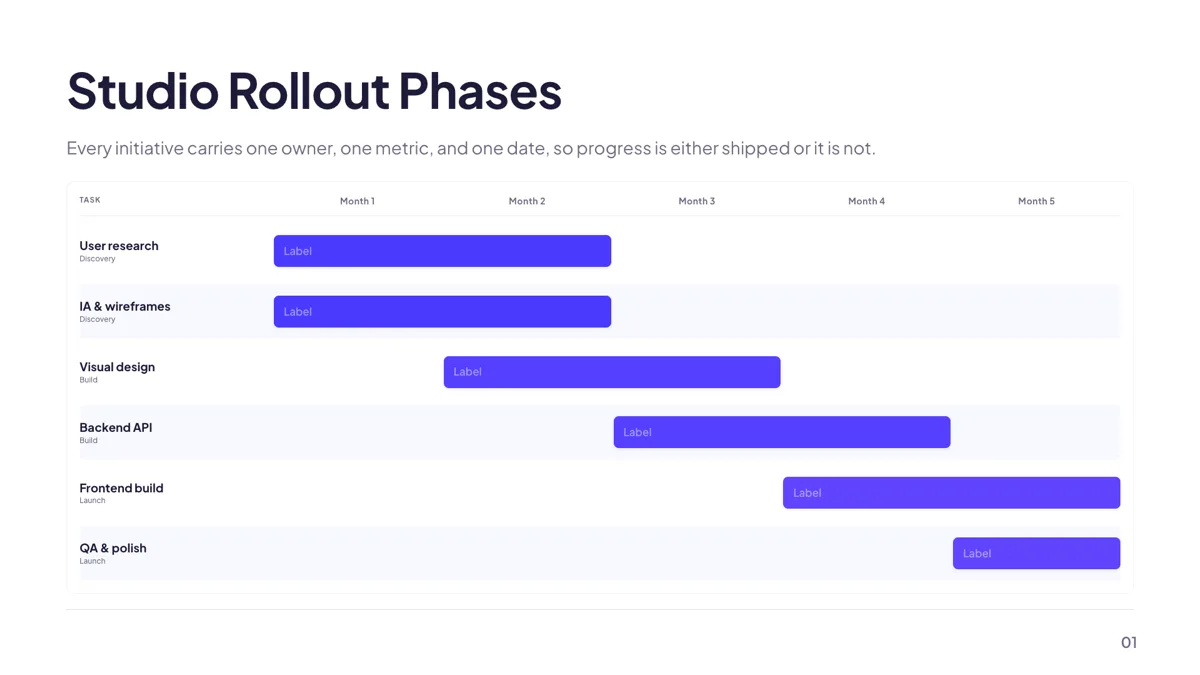
Timeline: Phase Rollup Gantt
Timeline. Four to six phase bars across five months, grouped into preparation, execution and stabilisation.
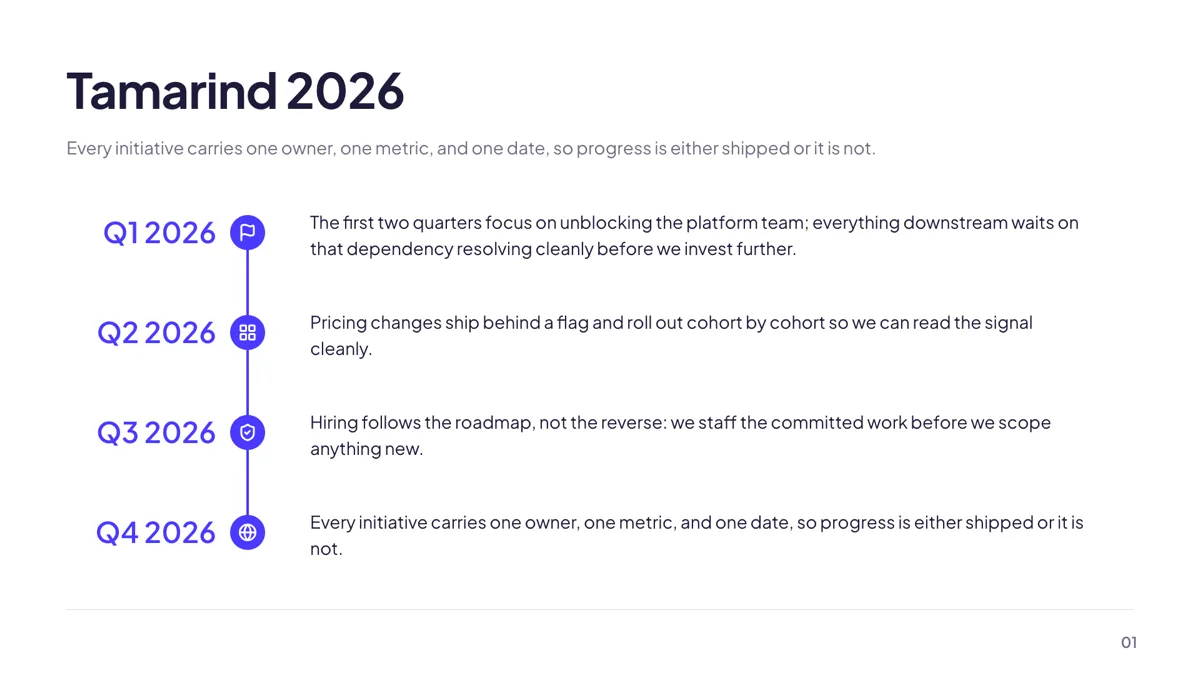
Timeline: Vertical Phase Rows
Timeline. Four phases hung off a vertical spine with a period label and one line each.
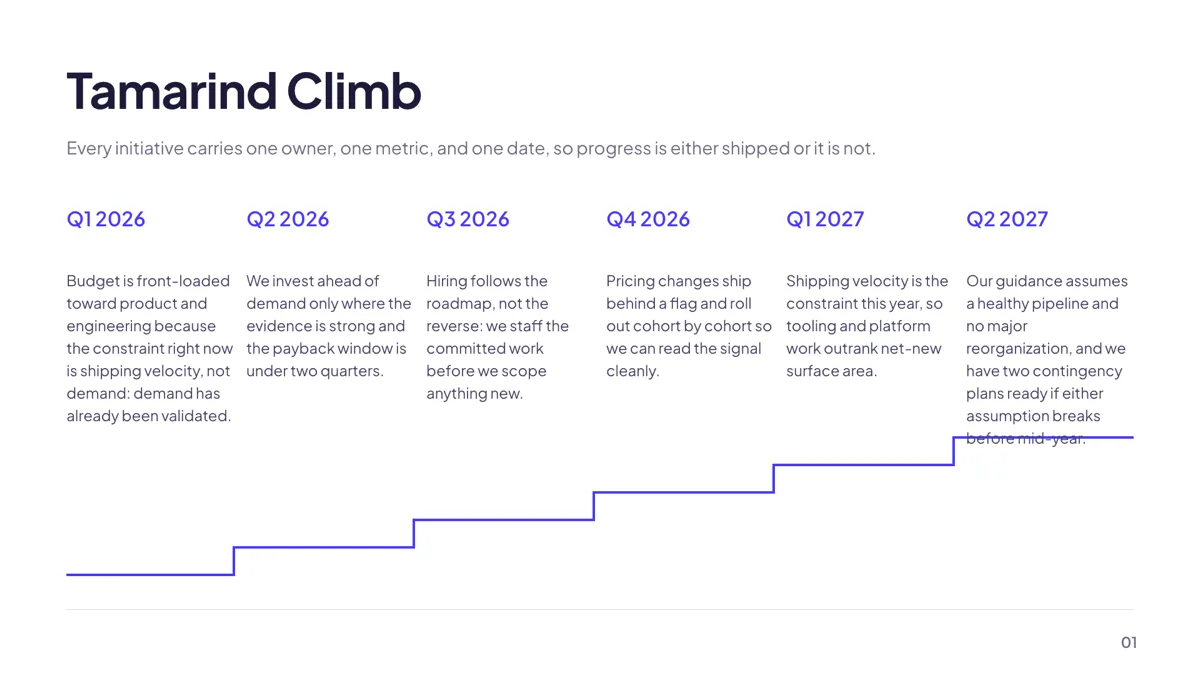
Timeline: 6 Phase Staircase
Timeline. Six phases as ascending treads, for a climb to goal narrative.
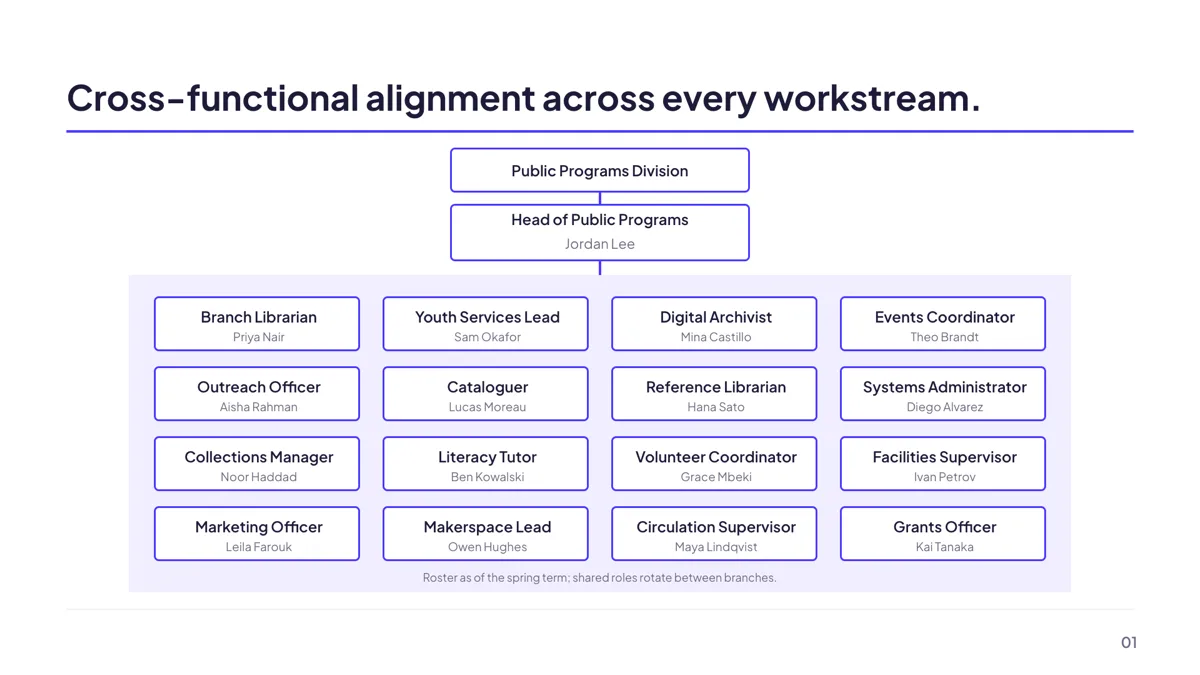
Profile: Team Directory Grid 4x4 with Lead
Profile. A text only team directory with a lead box above a tinted panel of names and roles.
Agenda: set the order before the argument
Twelve agenda layouts are available and a kickoff usually needs four to six sections. The two by two grid suits a 45 minute meeting with four topics; the coloured bar layout holds six without crowding. Because every agenda layout has a fixed item count, the honest move is to cut the agenda to the layout rather than squeeze a seventh item into a six bar design where it will not fit.
Tree: ten layouts for who decides what
The tree role holds ten templates, split between organisational charts and decision structures. The org chart takes a root and two to five direct reports, with grandchildren under each, rendered three levels deep: the root, up to six items and up to four children under each. The binary and three path layouts are the ones to use for a decision rule, because they show the branches and the consequence of each rather than implying a hierarchy that does not exist.
Timeline: phases, and what the Gantt will not do
Eighteen timeline layouts exist and four are Gantt charts with different caps: six tasks over five months on the phase rollup, eight over four quarters on the quarterly roadmap, ten over six sprints on the sprint plan and twelve over five quarters on the swim lane. None of them draws dependencies, because a task is a name, a start, an end and an optional group. If the point of the slide is that B cannot start until A finishes, say so in the label or use the flowchart instead.
Profile: ten layouts for the team slide
The profile role has ten templates: a single person with a bio, a portrait with three section cards, a headshot with a stats strip, a detail grid, an editorial two person split, a founders and advisors set, a polaroid grid, a team row with a client logo strip, a team grid with a stats banner and a text only directory. For a kickoff the directory grid is usually right, because it names everyone without needing ten headshots, and it is the one pictured here: the rest are filled with an invented founder biography in the library's sample text. Portrait photographs go in image slots, and automatic image generation skips any slot marked as a profile or a logo, so faces are uploads rather than inventions.
What the thumbnails are
The two agenda cards are slides from example decks published here; the other cards show a layout drawn by the template library with its own placeholder text, the same rendering the public gallery serves. The roles, questions and dates inside the pictures are invented rather than a real project. Layouts whose sample text invents a person or a customer are named in the prose instead of being shown.
How long a kickoff deck runs
The kickoff deck published here is 9 slides, the onboarding deck that follows the same pattern is 11 and the RFP response deck, which does the same work for a bid, is 12. Nine is a good target for a first meeting: cover, agenda, scope, decisions, phases, team, risks, next steps and a close. The closing role has eleven layouts and this page does not list them, because they are shown in full on the pitch, sales and company profile pages.
Finished examples
Questions people ask
What should a project kickoff deck cover?
Scope, decisions, phases and people, in that order, plus the next actions. The kickoff deck published here does it in 9 slides, and the related onboarding and RFP response decks run to 11 and 12 when contracts or requirements are involved.
Can the Gantt show dependencies between tasks?
No. A Gantt task is a name, a start, an end and an optional group, so there are no dependency arrows anywhere. Only the flowchart has edges, so a hard sequence is better drawn there or written into the phase label.
How deep can the org chart go?
Three levels: the root, up to six first level reports, and up to four children under each of those. A larger organisation needs either several slides or the team directory layout, which is text only and holds more names.
Can I put the project plan dates on the slide?
Yes, as typed labels. Timeline points are evenly spaced no matter what the dates say, so a three month gap looks the same as a three week one. Put the real interval in the label, or use a vertical layout where equal spacing implies less.
Can the deck be edited by the whole project team?
The share link is read only, so editing stays with the owner. There is no autosave: Save writes a version, and applying a chat turn saves once, which is worth knowing before closing a tab after a long edit.
Can I ask the assistant to add a slide?
Yes. The deck assistant has nine operations including add, delete, move and regenerate a slide, swap the layout, swap the theme and generate an image. Nothing is applied automatically: the backend never mutates the deck, so the changes arrive as a preview you accept or discard.
Start a slide from a description
The button opens the generator with a starting description already filled in. Change it to match your own before you run it.
Create a presentation with OneCraftFor everything the generator can do, see the slide maker.
Other slide examples sets
Sources
Written and checked by the OneCraft team. Last checked .